Education Center – Business Banking

Educational Videos for Businesses

Promotional banner reading 'Mobile Wallet. Simple and safe way to pay with your mobile phone at over a million stores and within mobile apps.'  and a button labeled 'Watch Educational Video,' alongside an image of a smart phone making a contactless payment.

Promotional banner reading 'Fast Track! Remote Electronic Deposit' with the subtitle 'The quick way to turn deposits into cash' and a button labeled 'Watch Educational Video,' alongside a person seated at an office desk using a document scanner and writing on paperwork, with a computer workstation in the background.

Promotional banner reading 'CardValet for Business - Your card, on your terms'  and a button labeled 'Watch Educational Video,' alongside an image of a smart phone with the Card Valet logo.

Online Banking, Safety, and Identity Protection

Contact us immediately if you suspect fraud or identity theft.

We encourage you to view the educational video below and to read the information provided to educate yourself on our services and to help protect your identity. Please be careful to avoid phishing schemes, phone scams, text messages and emails that may be fraudulent.

The FDIC provides practical advice on how to become a knowledgeable user of financial services, including helpful hints, quick tips, and common-sense strategies to protect and stretch your hard-earned dollars. Below you'll find recent FDIC publications that are full of guidance on a variety of subjects. We welcome you to bookmark this page and return periodically to further your knowledge of financial services.

In an effort to protect your identity and your accounts:

  • West Coast Community Bank will never email you asking for account information. If you receive an email asking for any non-public information, please contact us immediately.
  • West Coast Community Bank does not send unsolicited non-transactional text messages to our clients to request non-public personal information. If you receive a text asking for non-public information relating to your West Coast Community Bank accounts, please disregard the message and report this to us immediately by calling 831.457.5000.
  • If you receive a phone message from West Coast Community Bank requesting personal information, transaction information or account information, you can verify the validity of the call by contacting us directly at 831.457.5000.

Promotional banner reading 'Identity Theft Protection. Simple steps for protecting your identity and a button that says Watch Educational Video. On the right is a graphic of a badge that says I.D. theft security team.

Resources for Businesses

Close-up graphic showing a credit card and fingerprint imagery.
Download the PDF File

FFIEC Business Account Guidance: Risk Assessment & Layered Security
FDIC

FDIC logo displayed with a video play button overlay.

FDIC - short for the Federal Deposit Insurance Corporation - is an independent agency of the United States government

FDIC Insurance Information:

What amount of insurance coverage do I have for my accounts?
The FDIC Standard Maximum Deposit Insurance Amount (SMDIA) for deposits is $250,000 per depositor per insured financial institution.

West Coast Community Bank has no control over information at any site hyperlinked to or from this site. West Coast Community Bank makes no representation concerning and is not responsible for the quality, content, nature, or reliability of any hyperlinked site and is providing this hyperlink to you only as a convenience. The inclusion of any hyperlink does not imply any endorsement, investigation, verification or monitoring by West Coast Community Bank of any information in any hyperlinked site. In no event shall West Coast Community Bank be responsible for your use of a hyperlinked site.

Continue to FDIC - Fraud Against the Elderly

Cancel

West Coast Community Bank has no control over information at any site hyperlinked to or from this site. West Coast Community Bank makes no representation concerning and is not responsible for the quality, content, nature, or reliability of any hyperlinked site and is providing this hyperlink to you only as a convenience. The inclusion of any hyperlink does not imply any endorsement, investigation, verification or monitoring by West Coast Community Bank of any information in any hyperlinked site. In no event shall West Coast Community Bank be responsible for your use of a hyperlinked site.

Continue to FDIC - Scammers and Fake Banks

Cancel

West Coast Community Bank has no control over information at any site hyperlinked to or from this site. West Coast Community Bank makes no representation concerning and is not responsible for the quality, content, nature, or reliability of any hyperlinked site and is providing this hyperlink to you only as a convenience. The inclusion of any hyperlink does not imply any endorsement, investigation, verification or monitoring by West Coast Community Bank of any information in any hyperlinked site. In no event shall West Coast Community Bank be responsible for your use of a hyperlinked site.

Continue to FDIC - Is My Money Insured by the FDIC

Cancel

West Coast Community Bank has no control over information at any site hyperlinked to or from this site. West Coast Community Bank makes no representation concerning and is not responsible for the quality, content, nature, or reliability of any hyperlinked site and is providing this hyperlink to you only as a convenience. The inclusion of any hyperlink does not imply any endorsement, investigation, verification or monitoring by West Coast Community Bank of any information in any hyperlinked site. In no event shall West Coast Community Bank be responsible for your use of a hyperlinked site.

Continue to FDIC - Shopping for a Certificate of Deposit?

Cancel

West Coast Community Bank has no control over information at any site hyperlinked to or from this site. West Coast Community Bank makes no representation concerning and is not responsible for the quality, content, nature, or reliability of any hyperlinked site and is providing this hyperlink to you only as a convenience. The inclusion of any hyperlink does not imply any endorsement, investigation, verification or monitoring by West Coast Community Bank of any information in any hyperlinked site. In no event shall West Coast Community Bank be responsible for your use of a hyperlinked site.

Continue to FDIC - Older Adults Helping Relatives Through Financial Support

Cancel

West Coast Community Bank has no control over information at any site hyperlinked to or from this site. West Coast Community Bank makes no representation concerning and is not responsible for the quality, content, nature, or reliability of any hyperlinked site and is providing this hyperlink to you only as a convenience. The inclusion of any hyperlink does not imply any endorsement, investigation, verification or monitoring by West Coast Community Bank of any information in any hyperlinked site. In no event shall West Coast Community Bank be responsible for your use of a hyperlinked site.

Continue to FDIC - Starting Small Can Lead to Big Savings

Cancel

West Coast Community Bank has no control over information at any site hyperlinked to or from this site. West Coast Community Bank makes no representation concerning and is not responsible for the quality, content, nature, or reliability of any hyperlinked site and is providing this hyperlink to you only as a convenience. The inclusion of any hyperlink does not imply any endorsement, investigation, verification or monitoring by West Coast Community Bank of any information in any hyperlinked site. In no event shall West Coast Community Bank be responsible for your use of a hyperlinked site.

Continue to fdic.gov

Cancel

West Coast Community Bank has no control over information at any site hyperlinked to or from this site. West Coast Community Bank makes no representation concerning and is not responsible for the quality, content, nature, or reliability of any hyperlinked site and is providing this hyperlink to you only as a convenience. The inclusion of any hyperlink does not imply any endorsement, investigation, verification or monitoring by West Coast Community Bank of any information in any hyperlinked site. In no event shall West Coast Community Bank be responsible for your use of a hyperlinked site.

Continue to Instagram Link

Cancel

West Coast Community Bank has no control over information at any site hyperlinked to or from this site. West Coast Community Bank makes no representation concerning and is not responsible for the quality, content, nature, or reliability of any hyperlinked site and is providing this hyperlink to you only as a convenience. The inclusion of any hyperlink does not imply any endorsement, investigation, verification or monitoring by West Coast Community Bank of any information in any hyperlinked site. In no event shall West Coast Community Bank be responsible for your use of a hyperlinked site.

Continue to Facebook Link

Cancel

West Coast Community Bank has no control over information at any site hyperlinked to or from this site. West Coast Community Bank makes no representation concerning and is not responsible for the quality, content, nature, or reliability of any hyperlinked site and is providing this hyperlink to you only as a convenience. The inclusion of any hyperlink does not imply any endorsement, investigation, verification or monitoring by West Coast Community Bank of any information in any hyperlinked site. In no event shall West Coast Community Bank be responsible for your use of a hyperlinked site.

Continue to LinkedIn Link

Cancel

Login Process & Device Registration Guide

Open printable PDF

1. Enter your 'Login ID' and 'Password'.

2. Select 'Login'.
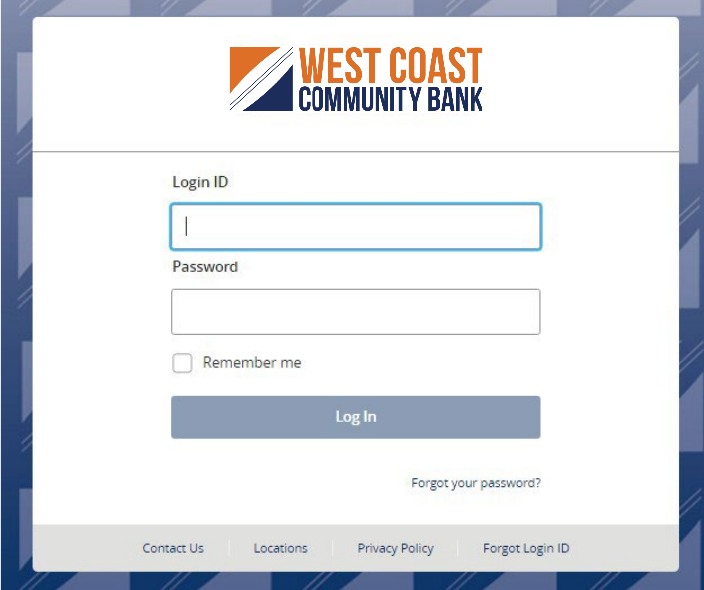
Login screen with fields for Login ID and Password, a Remember me checkbox, Log In button, and Forgot your password link.

3. Select the delivery method to receive your secure access code.
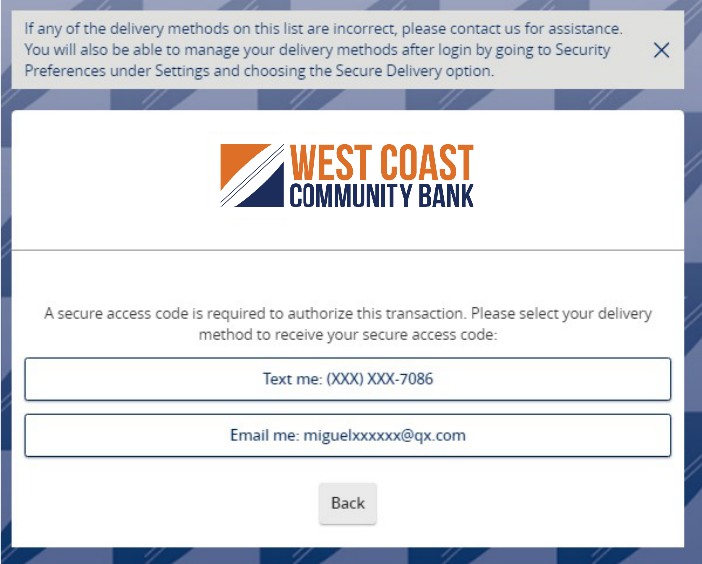
Secure Access Code (SAC) screen showing options (text and email) for how you prefer to have your SAC delivered. Message shown: If any of the delivery methods on this list are incorrect, please contact us for assistance. You will also be able to manage your delivery methods after login by going to Security Preferences under Settings and choosing the Secure Delivery option. A Back button appears at the bottom.

4. Enter the secure access code in the box once it has been received.

5. Select 'Submit'.
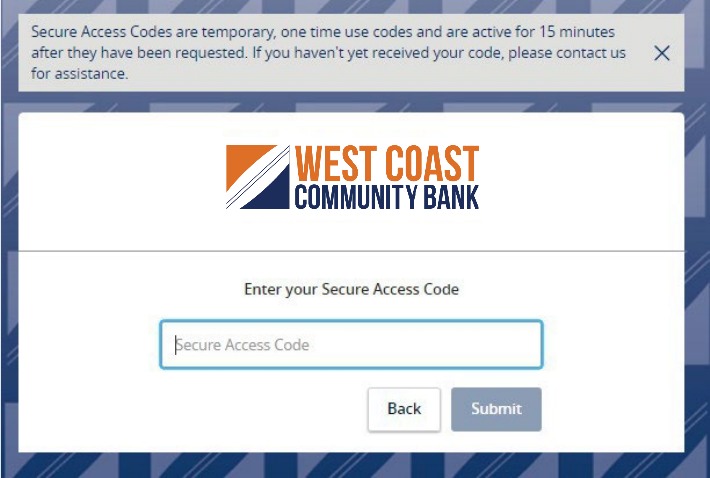
Secure Access Code entry screen with instructions, a Secure Access Code field, Back button, and Submit button.

6. Review the User Profile and make any necessary changes.
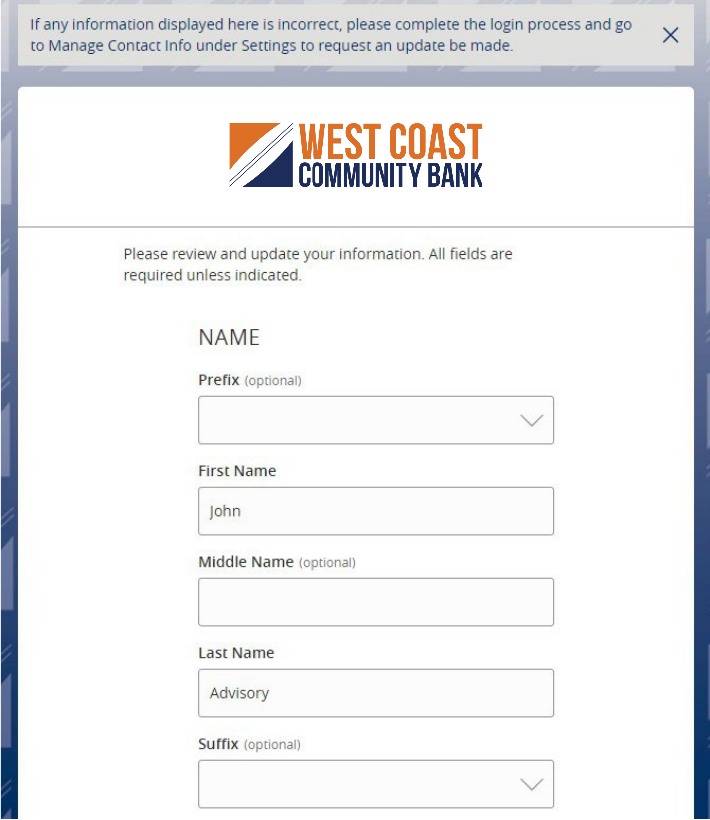
User Profile review screen with name fields for Prefix, First Name, Middle Name, Last Name, and Suffix.

7. Click 'Submit Profile'.

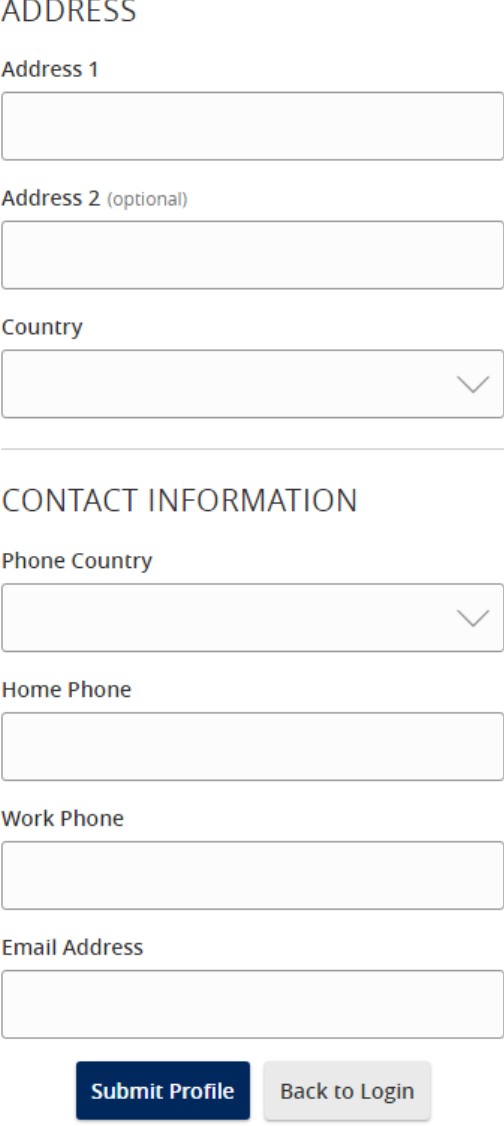
User Profile form with address and contact information fields, plus Submit Profile and Back to Login buttons.

8. Enter your existing password in the top box along with a new password twice for validation.

9. Select 'Submit'.
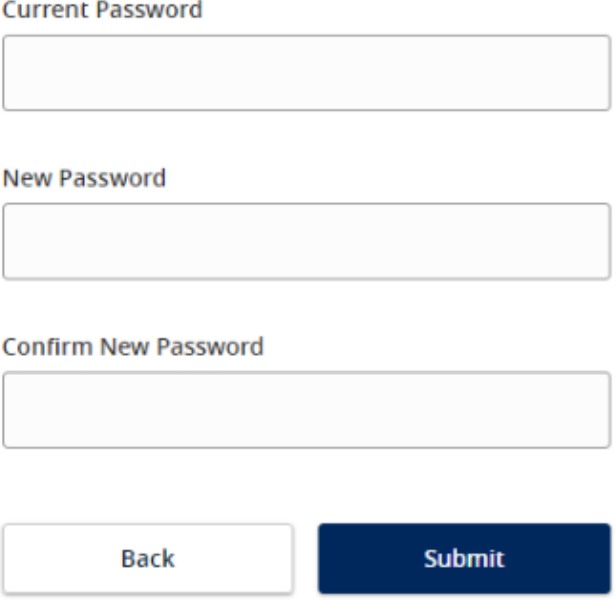
Password form with Current Password, New Password, and Confirm New Password fields, plus Back and Submit buttons.

10. Please review the password requirements.
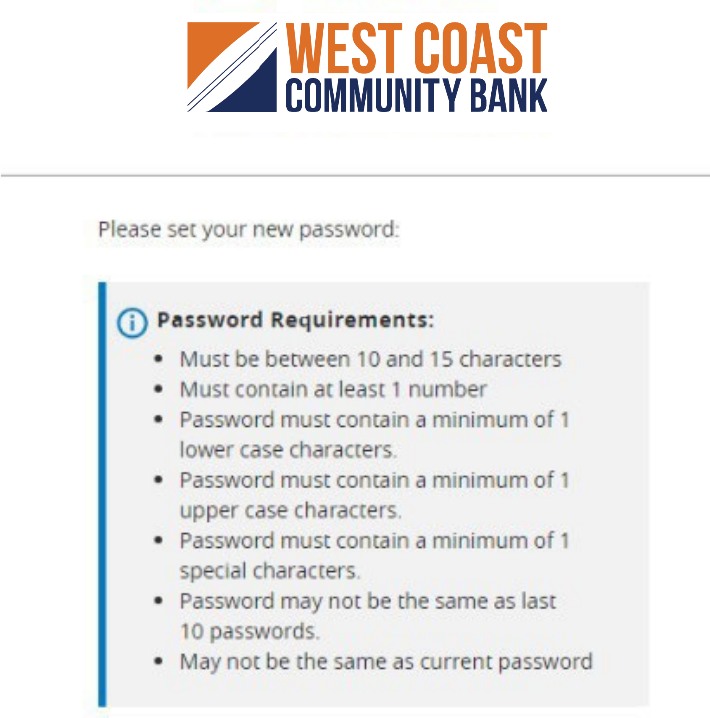
Password Requirements, including Must be between 10 and 15 characters; Must contain at least 1 number; Password must contain a minimum of 1 lower case character; Password must contain a minimum of 1 upper case character; Password must contain a minimum of 1 special character; Passwords may not be the same as last 10 passwords and may not be the same as current password.

11. Read the 'First Time Login Disclaimer'. Scroll to the bottom of the screen to accept.
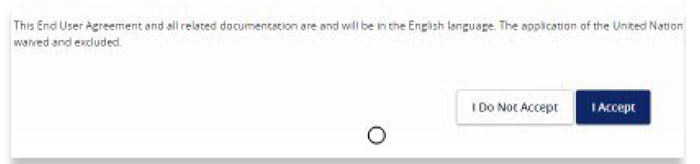
First Time Login Disclaimer with I Do Not Accept and I Accept buttons at the bottom of the screen.

12. Select the appropriate registration option.

Are you at a private computer that you will use regularly to access online banking? If so, we can register your browser for future access. If you are at a public computer, select 'Do Not Register Device' and this computer will not be registered.

Note: To register your computer, we will place a Secure Token in your browser. Your PC must be configured to accept cookies from this site. The next time you log on, you will only need to enter your Login ID and password. The number of allowable registrations may be limited for the security of your account.
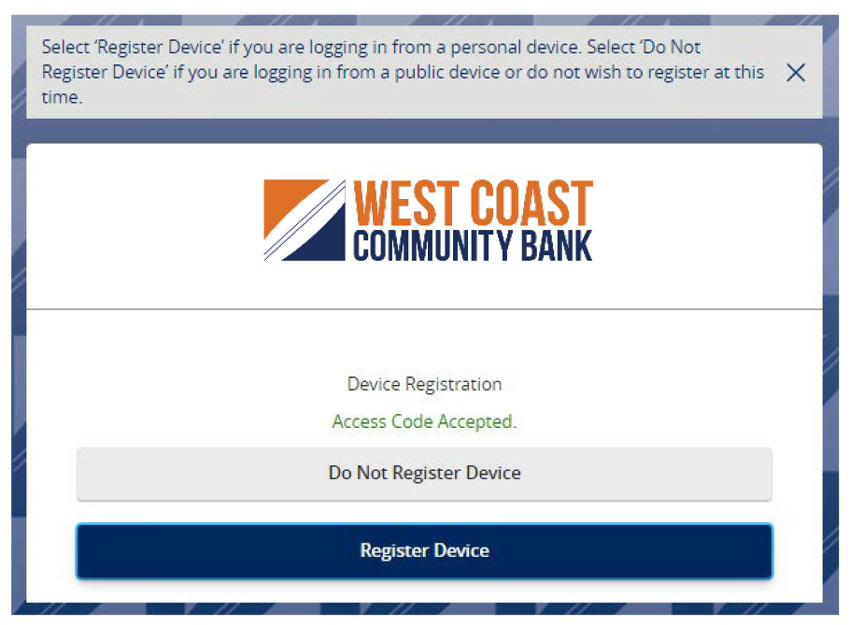
Device Registration screen showing Do Not Register Device and Register Device options after the access code is accepted.

Account Details and History Guide

Open printable PDF

1. On the Home screen, click on an accountto view a listing of the details andtransaction history associated with theaccount.
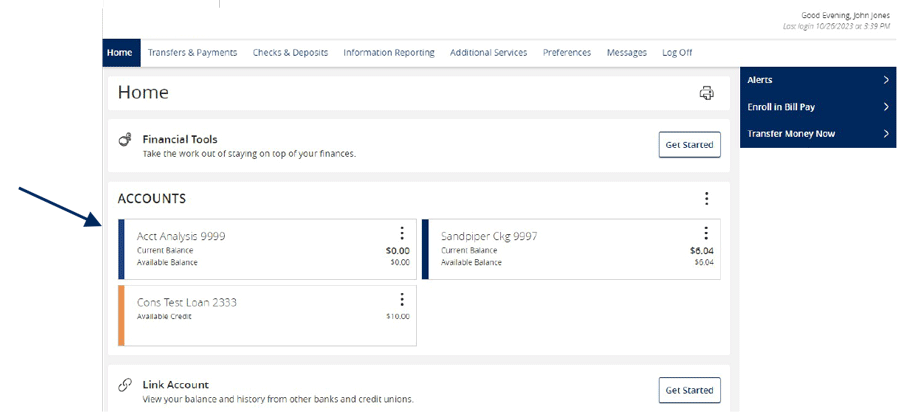
Home page showing accounts that are available to select from.

Click the 'Details & Settings' tab to display the account details.
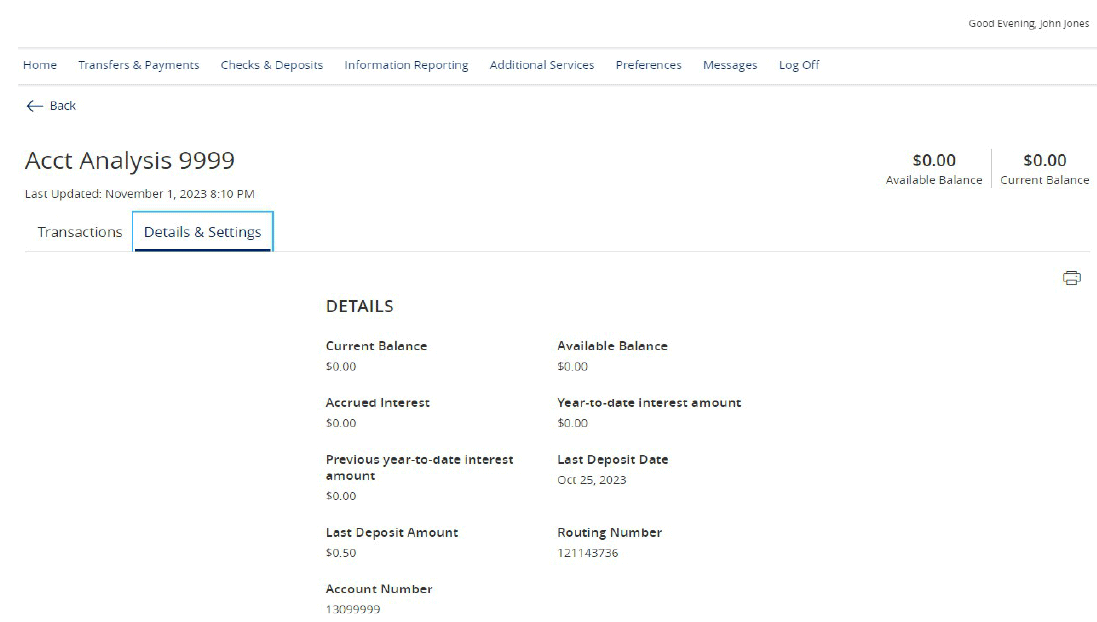
Chosen account and the Details available to view after selecting Details & Settings.

2. Select the 'Filters' icon to view the various search criteria for transaction history.
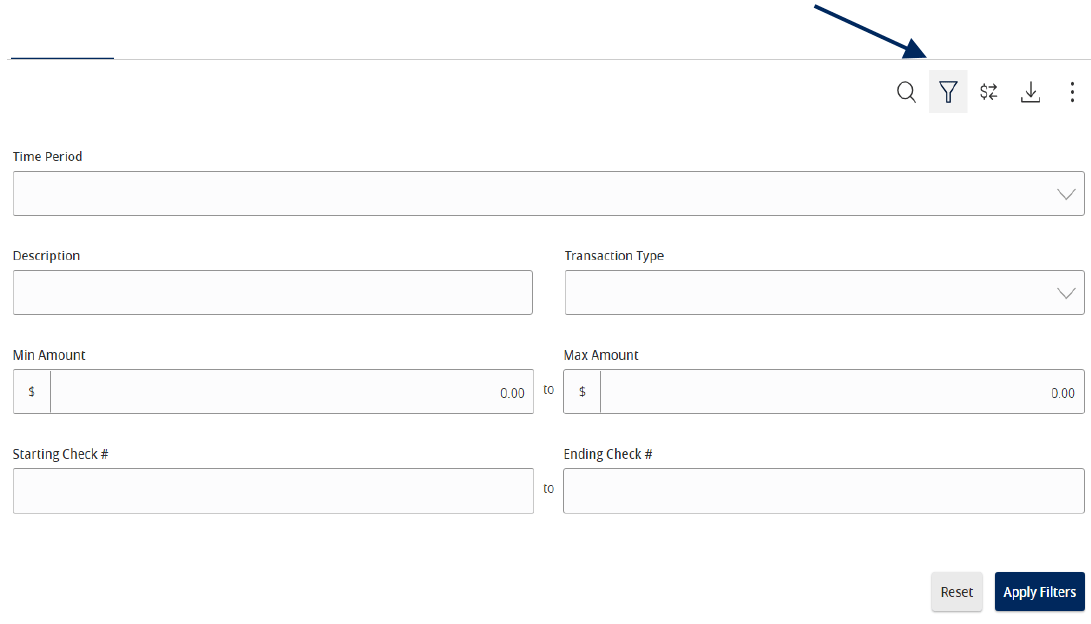
Transaction filters panel with fields for time period, description, transaction type, amount range, check number range, Apply Filters button, and Reset button.

NOTE: A listing of historical transactions associated with the account are listed on the screen.
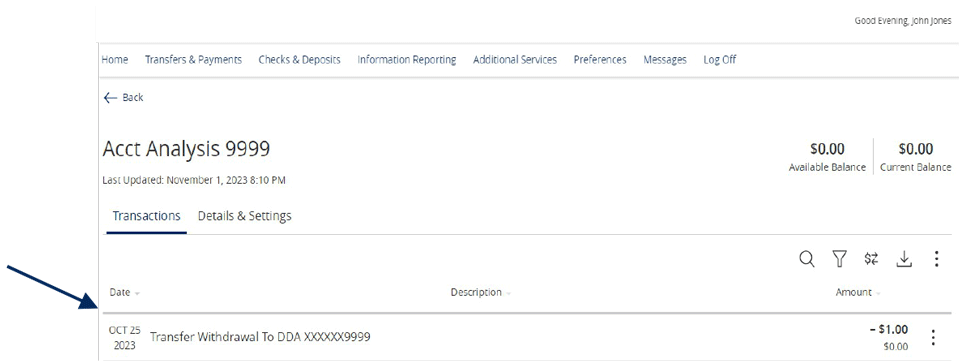
Account Analysis within Transactions.

3. Select the Export icon to display a listing ofavailable formats. The export will includeall transactions specified in the filter bythe user
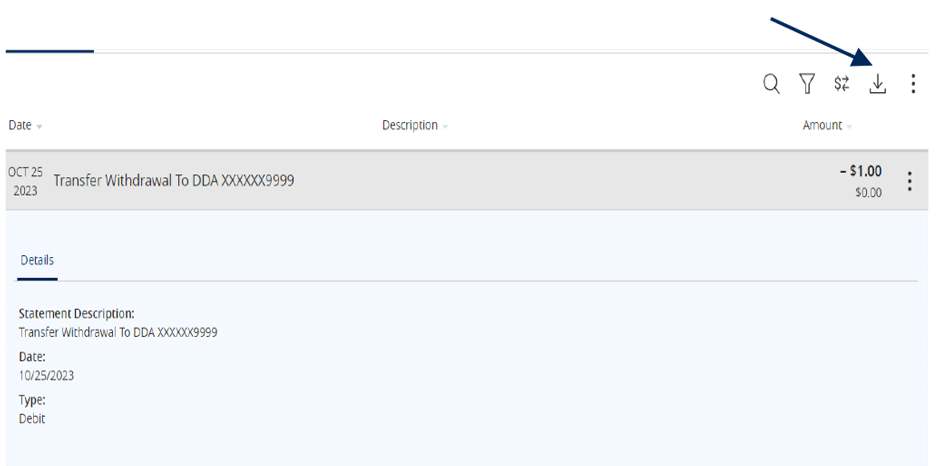
Transfer Withdrawal row with the Export icon.

4. Select the 'Quick Transfer' icon to perform a quick transfer.
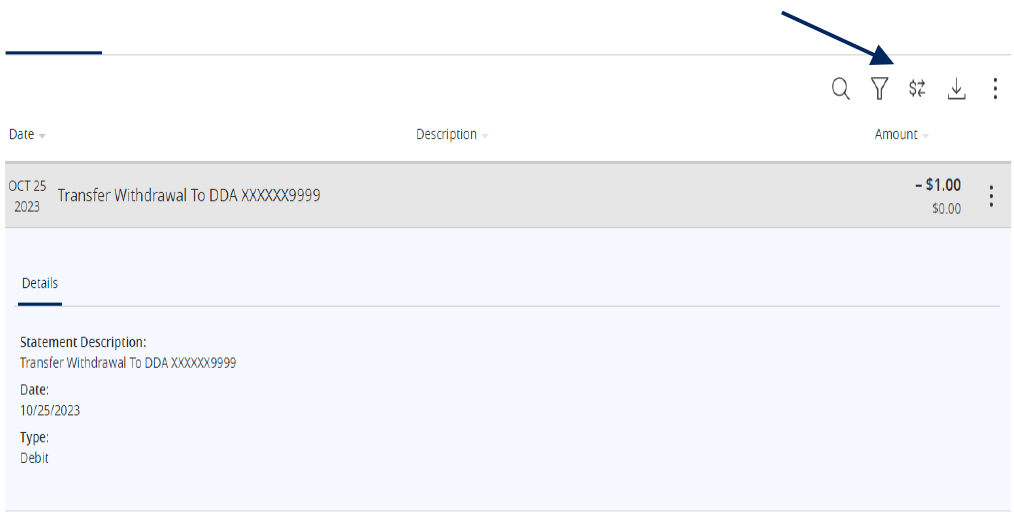
Transfer Withdrawal row with the Options icon.

5. Select 'Options' next to a listed transactionto display available actions.
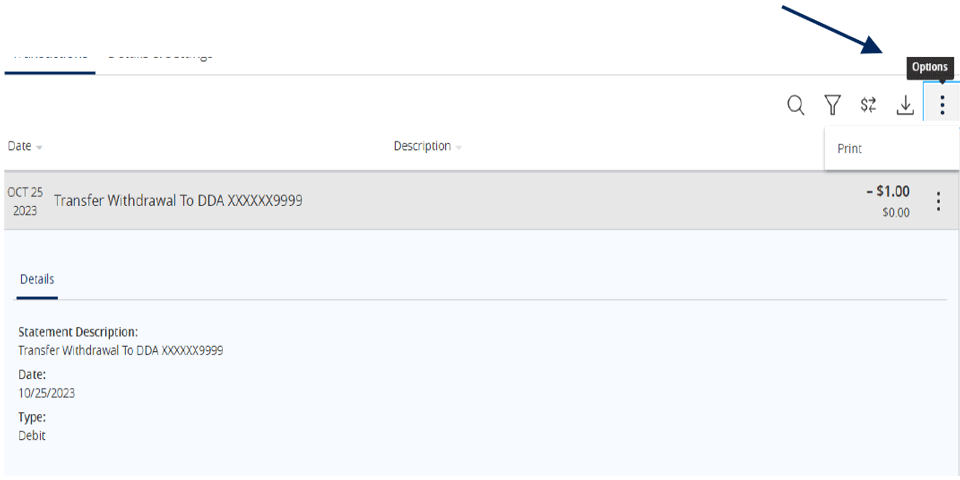
Transfer Withdrawal row with the Options icon.

Activity Center Guide

Open printable PDF

NOTE: 'Activity Center' lists all user activity initiated from within Online Banking.

1. Select 'Transfers & Payments' then 'Online Activity'.
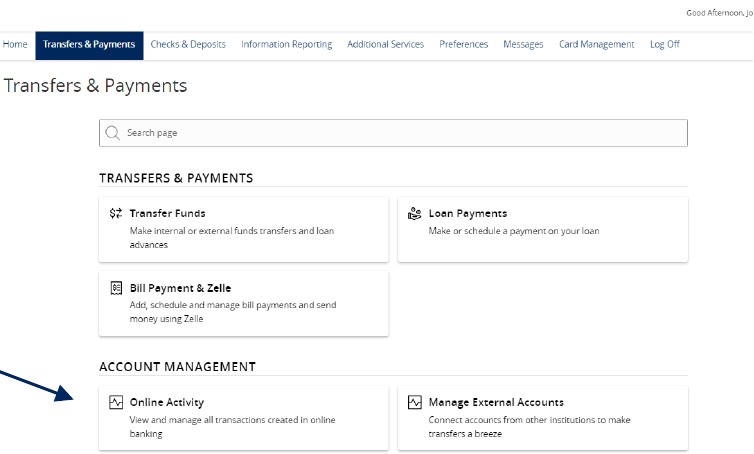
Transfers and Payments menu showing Online Activity, which is under the heading Account Management.

Single Transactions
1. Select the 'Single Transactions' tab on the screen to view one-time online transactions.

Online Activity screen with Single Transactions selected in the menu bar.

2. Select the 'Filters' option to reveal searchable fields.
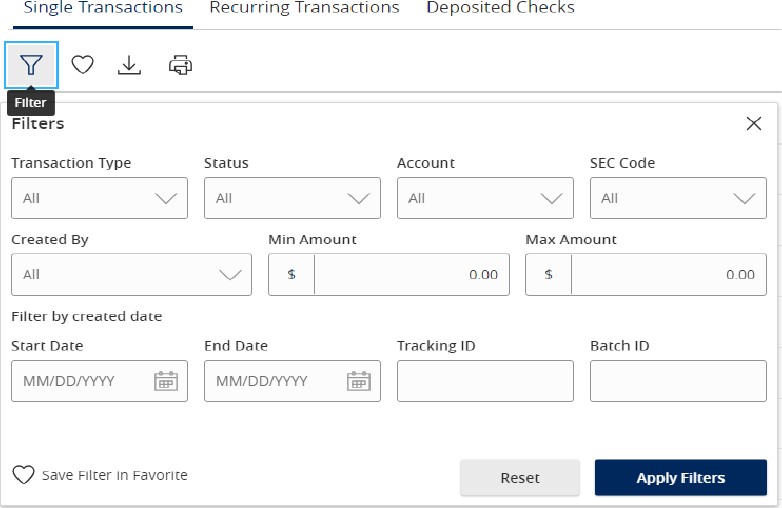
  1. Select the desired fields and then click 'Apply' to display the specified transactions.
  2. Select the down arrow icon above the top left corner of the filters box to download the specified transactions to a csv formatted spreadsheet.
  3. Select the printer icon to print the specified transactions.
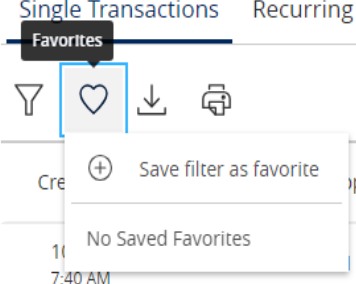
  4. Click the heart icon to assign the filtered criteria as a "favorite" for future use.
Single Transactions filters panel with transaction type, status, account, SEC code, created by, amount range, date range, tracking ID, and batch ID fields.
Single Transactions toolbar with the heart icon that opens the Save filter as favorite dropdown.

3. Click on a listed transaction to view additional details.
4. Select the 'Actions' icon to unhide a listing of available actions corresponding with the transaction.
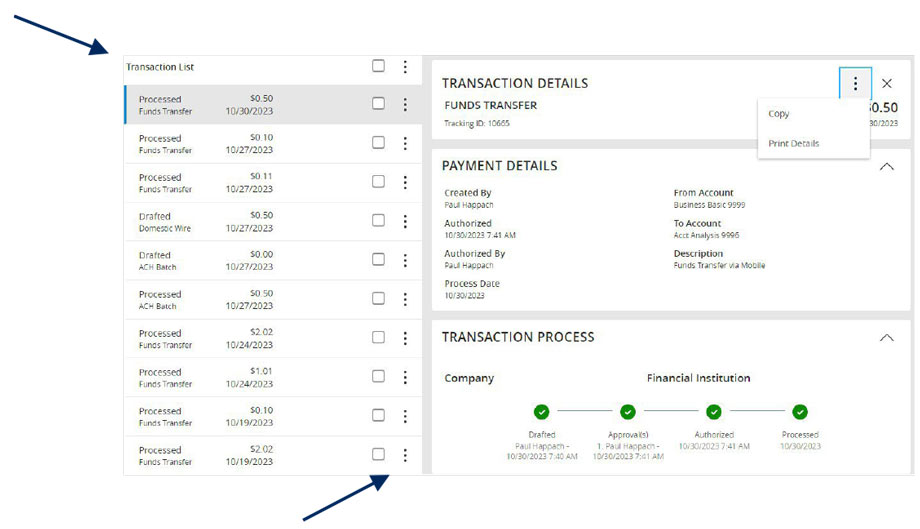
Results of a Transaction List, showing Actions icon at the top right.

Recurring Transactions
Select the 'Recurring Transactions' tab within the 'Activity Center' to view online transactions which are setup to occur in a series.

Online Activity with Recurring Transactions selected, which shows a list of items.

Deposited Checks
Select the 'Deposited Checks' tab within the 'Activity Center' to view historical checks that have been deposited using the Mobile Remote Deposit Capture functionality.
NOTE: You must be enrolled in Mobile Remote Deposit before this tab will appear on the 'Activity Center' screen.

Online Activity with Deposited Checks selected.

Alerts Guide

Open printable PDF

1. Select the 'Access & Security' menu and then select 'Alert Settings'.
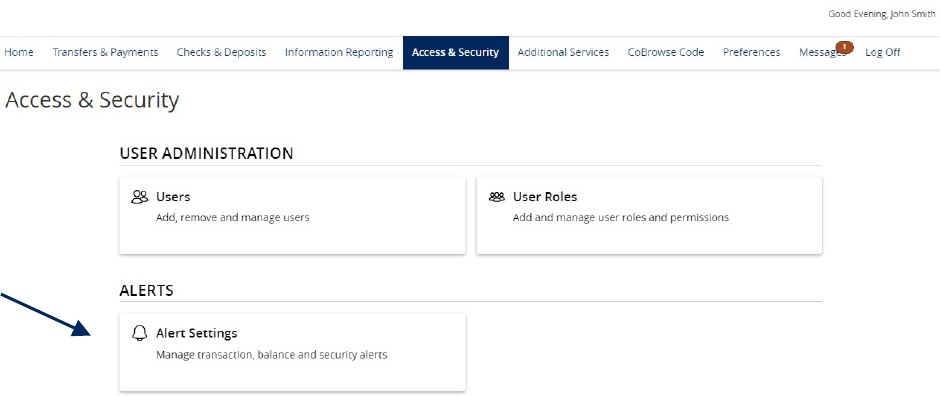
Access and Security button on the top menu bar showing Alerts and Alert Settings.

2. Click the 'New Alert' button and select the desired type of alert from the drop-down menu.
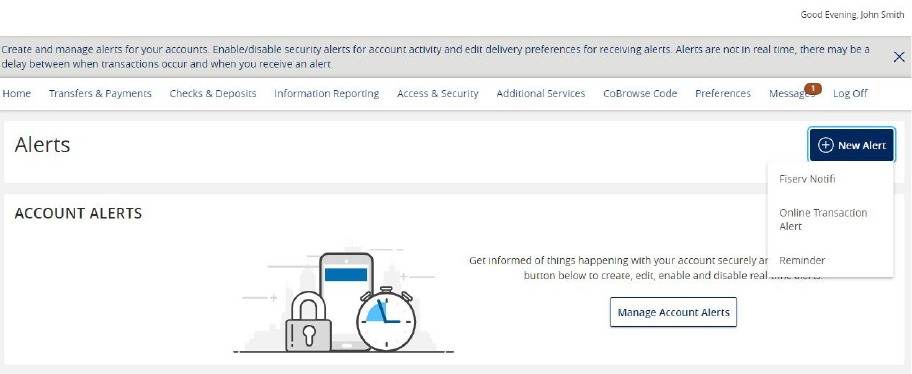
New Alert dropdown with Fiserv Notifi, Online Transaction Alert, and Reminder options.

Online Transaction Alerts
1. Select a 'Transaction' type.
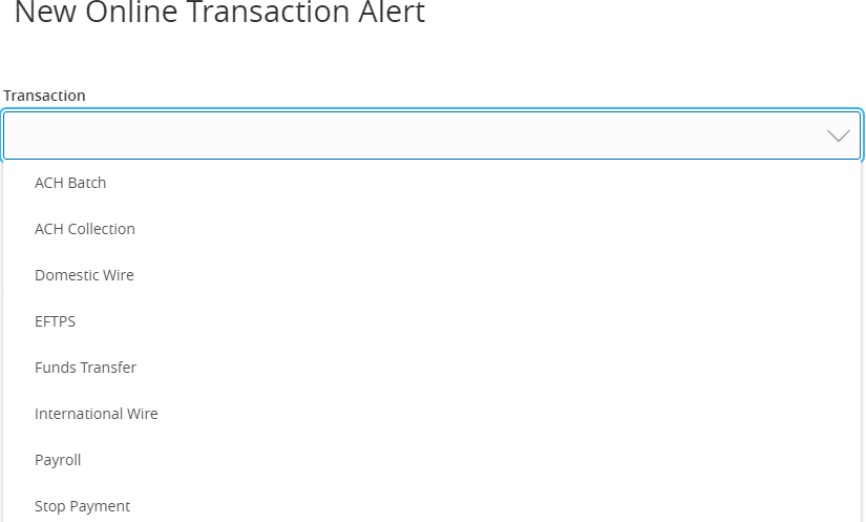
New Online Transaction Alert form with transaction type options for ACH Batch, ACH Collection, Domestic Wire, EFTPS, Funds Transfer, International Wire, Payroll, and Stop Payment.

2. Select the 'Account'.

3. Select the 'Status' of the transaction
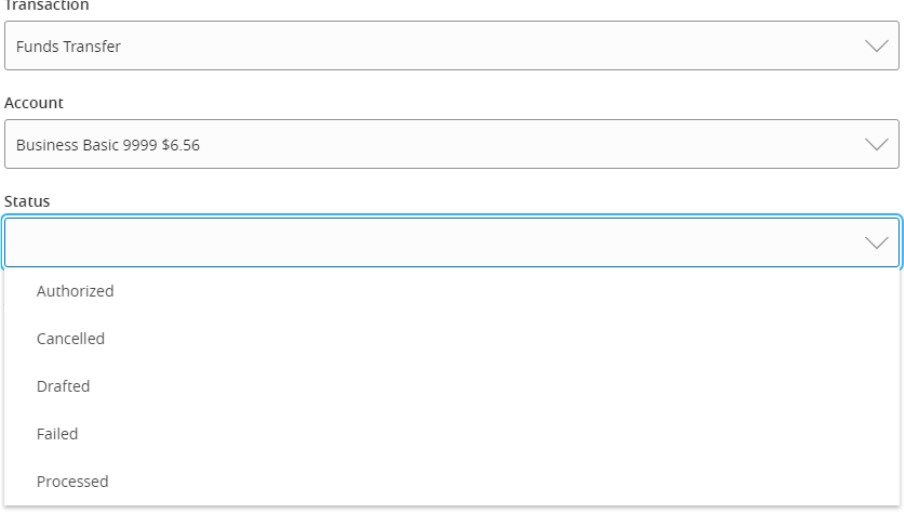
Selected transaction alert form with Account and Status dropdowns, including Authorized, Cancelled, Drafted, Failed, and Processed status options.

4. Select the desired 'Alert Delivery Method'.

5. Enter the necessary information.

6. Click 'Create Alert'.
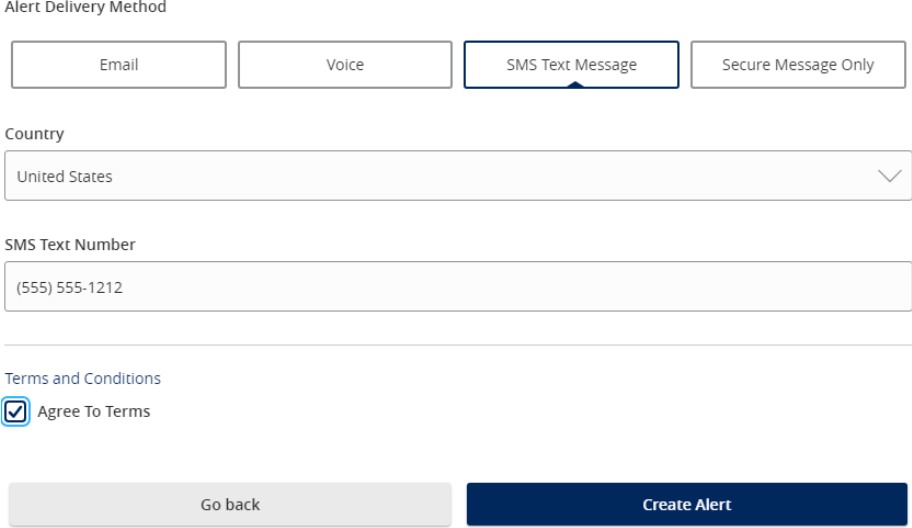
Alert Delivery Method form with Email, Voice, SMS Text Message, and Secure Message Only options, country and SMS text number fields, terms checkbox, Go Back button, and Create Alert button.

Reminder

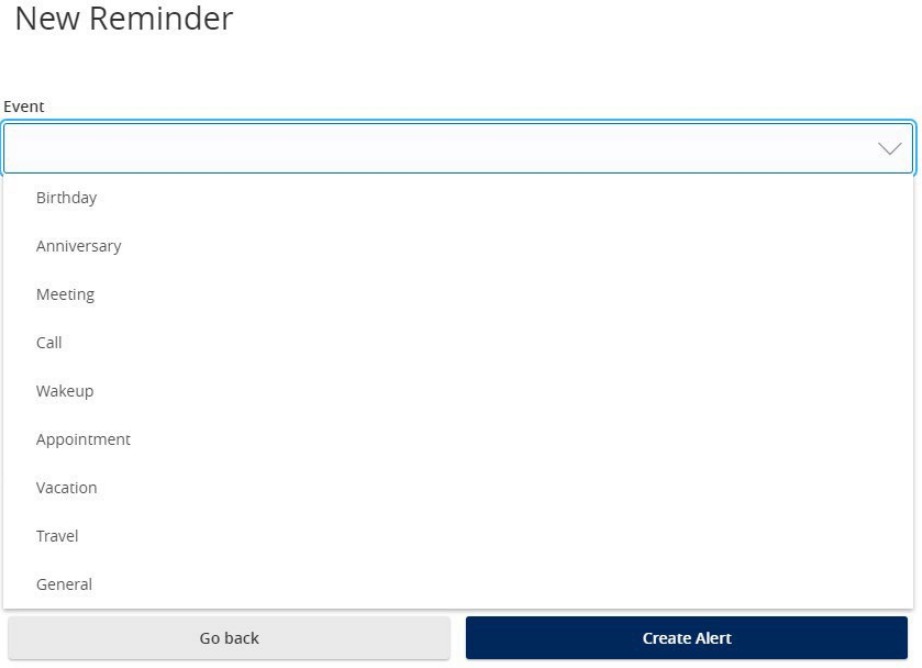
1. Select an 'Event'.

New Reminder form with event options for Birthday, Anniversary, Meeting, Call, Wakeup, Appointment, Vacation, Travel, and General, plus Go Back and Create Alert buttons.

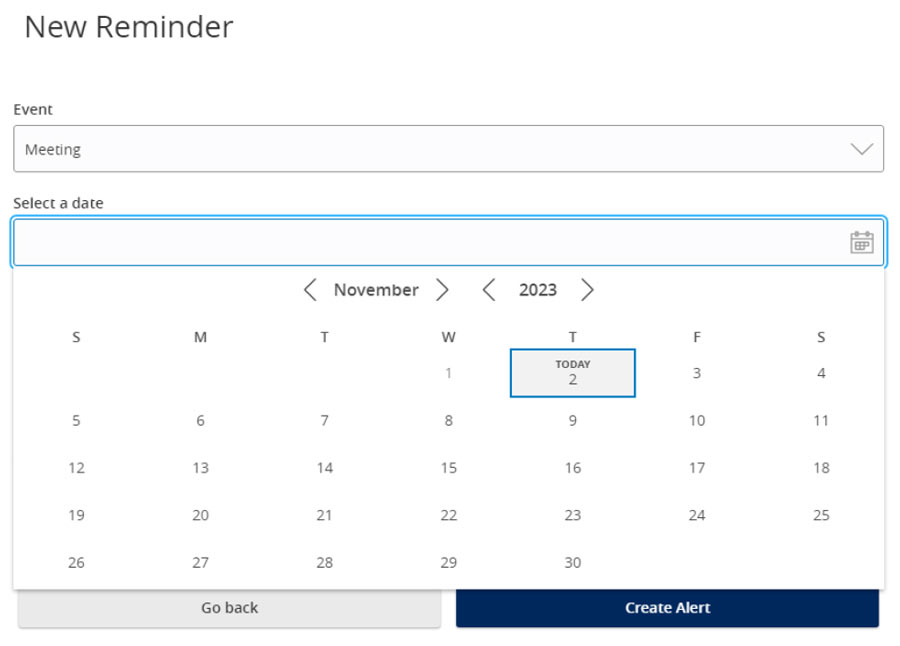
1. Select the desired 'Date'.

New Reminder form with Meeting selected and a date picker open to November 2023.

2. Select the desired 'Alert Delivery Method'.

3. Enter the necessary information.

4. Click 'Create Alert'.
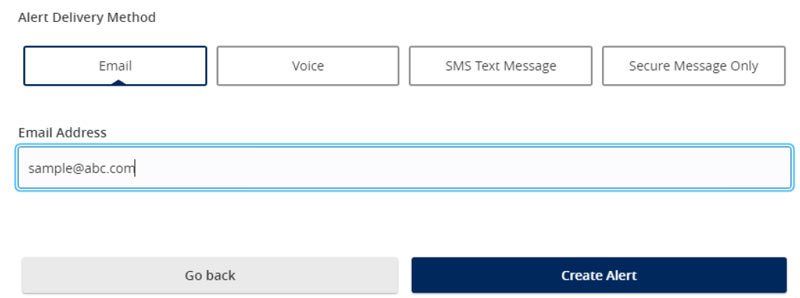
Alert Delivery Method form with Email selected, an email address field, Go Back button, and Create Alert button.

5. Security Alerts can be toggled on or off.
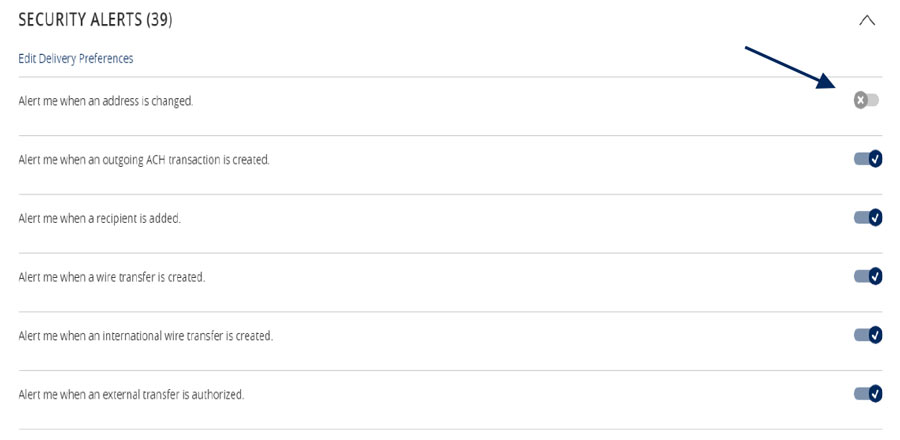
Security Alerts list with toggle controls and an arrow pointing to an alert toggle.

Funds Transfer Guide

Open printable PDF

1. Select 'Transfers & Payments' menu and then 'Internal Transfers'.
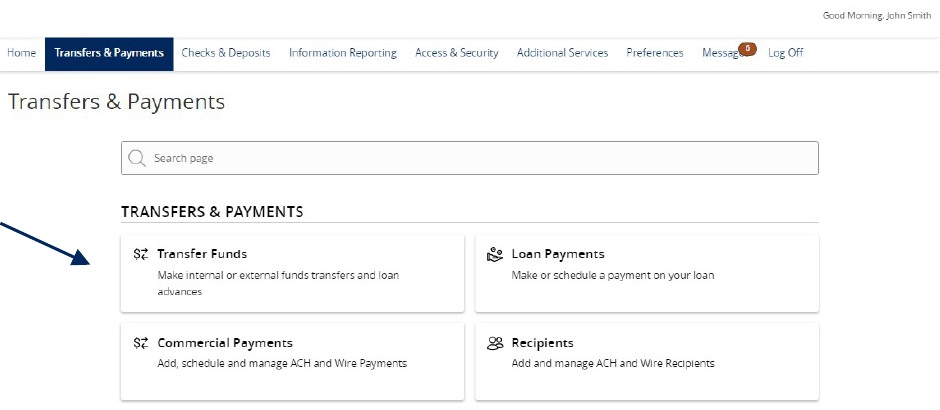
Transactions and Payment showing Internal Transfers.

2. Select a 'From' account

3. Select a 'To' account.

4. Enter a dollar amount.
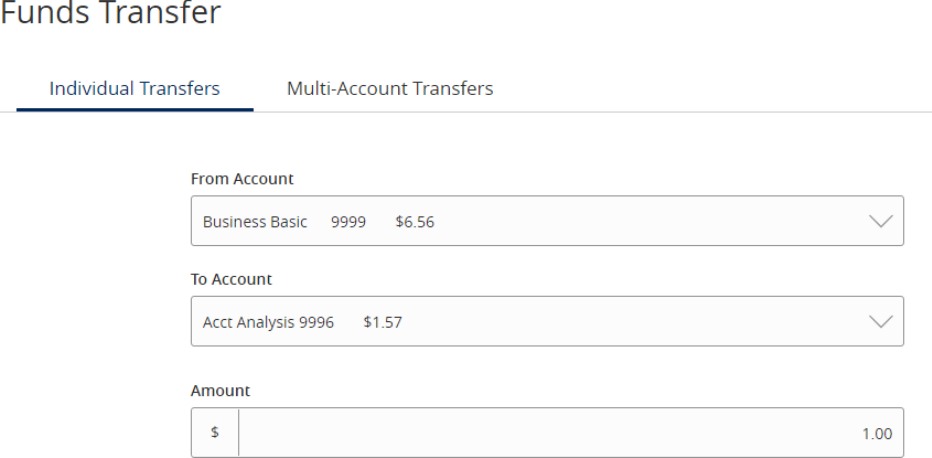
Funds Transfer and Individual Transfers showing From Account information, To Account information, and Amount for transaction.

NOTE: To setup a recurring transfer, follow the steps in the 'Recurring Transfers' section beginning on the next page.

5. Select a 'Transfer Date' for the transaction.

6. Enter a Memo for the transaction. (Optional)

7. Click 'Transfer Funds' to complete the transaction.
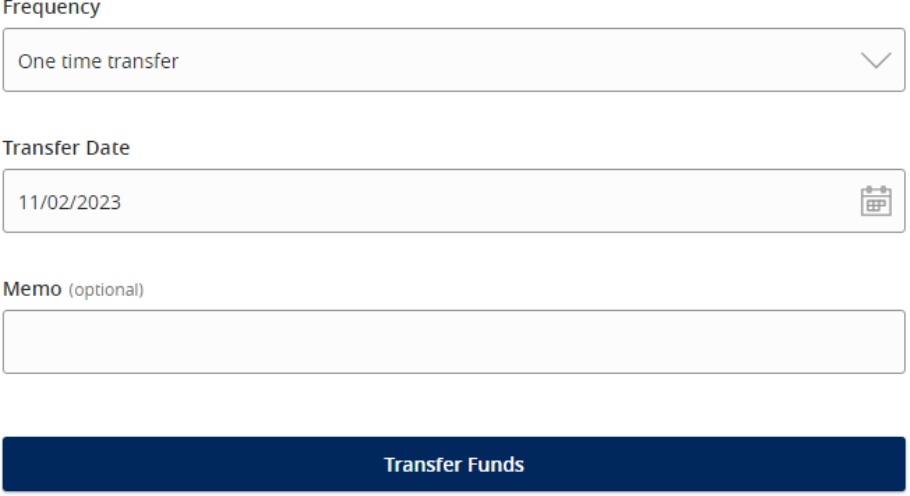
Transfer fields for frequency, transfer date, optional memo, and the Transfer Funds button.

Recurring Transfers

1. Select the desired frequency from the drop-down menu.
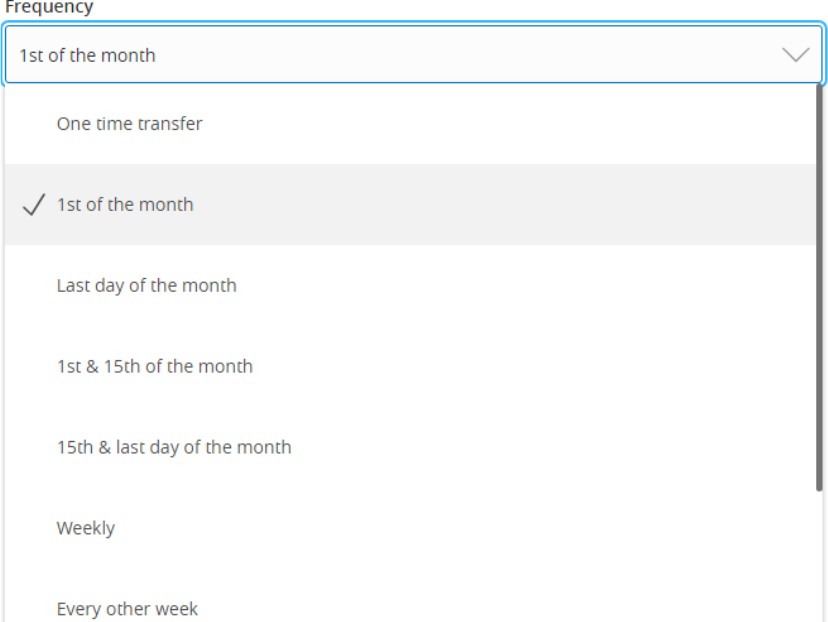
Frequency field showing dropdown menu items One Time Transfer, 1st of the month, Last day of the month, 1st and 15th of the month, Weekly, and Every other week.

2. Select the desired 'Repeat Duration'.
a. Forever (Until I Cancel)
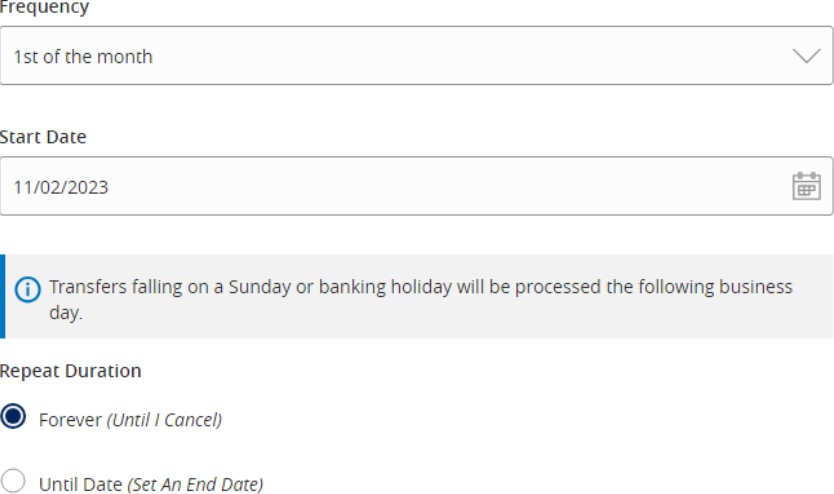
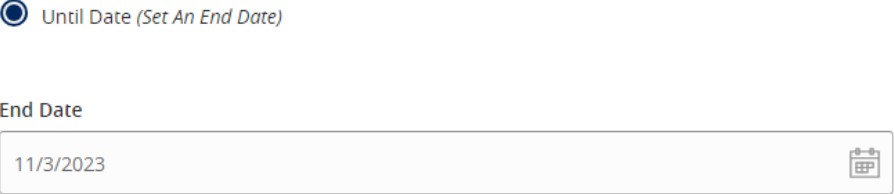
Repeat Duration options showing Forever (Until I Cancel) and Until Date (Set An End Date) with an End Date calendar field.

b. Until Date (Set an End Date)

Until Date repeat duration option with an end date field.

Home Page Guide

Open printable PDF

1. View a listing of accounts accessible within Online Banking.
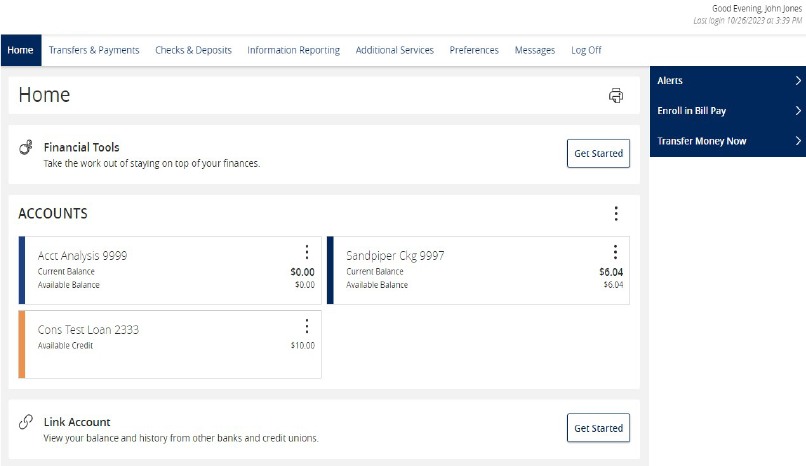
Home screen with Home selected, submenu links for Alerts, Enroll in Bill Pay, and Transfer Money Now, plus Financial Tools, account list, and Link Account Get Started button.

2. Select the 'Options' icon next to each account to reveal multiple available quick actions.
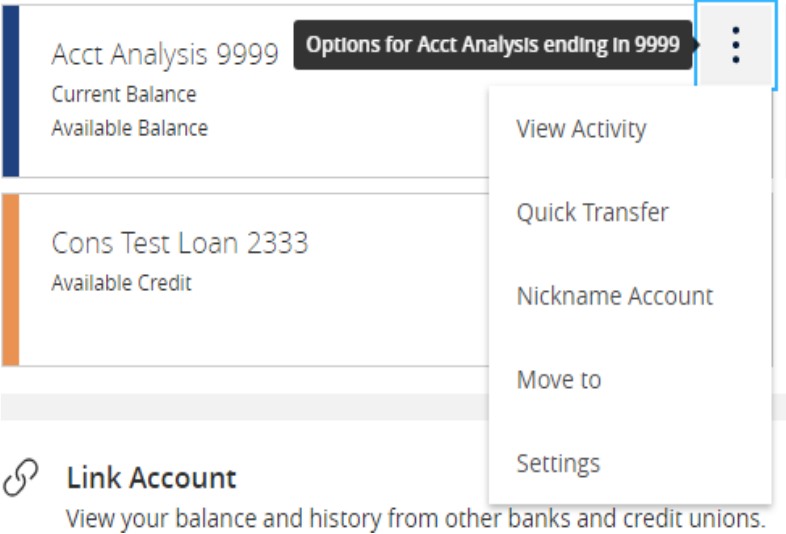
Options icon which looks like a standing elipsys, and the sub menu below it including View Activity, Quick Transfer, Nickname Account, Move to and Settings.

3. Select and drag any account to the envelope icon which appears at the bottom right side of the screen to create a new account group.
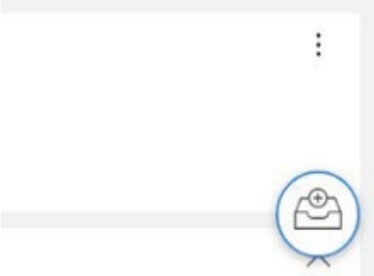
Envelope icon with plus symbol below the options menu. This logo will create a new account group.

4. The new group created can be renamed. Additional accounts may be dragged into the new group or additional groups created.

NOTE: Additional account(s) may be moved into the newly created group or additional group(s) may be created if needed by repeating step 6.
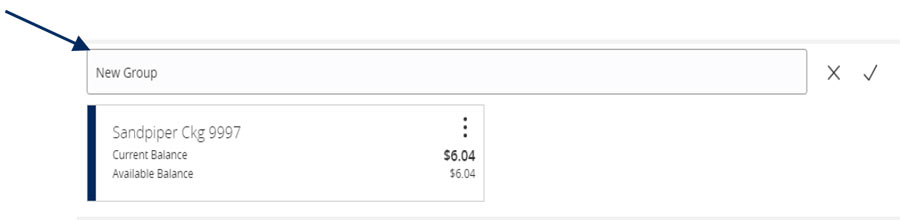
New Group and the New Group field with accounts listed below.

Multi Account Transfers Guide

Open printable PDF

Transfer Funds

1. Select the 'Transfers & Payments' menu, then select 'Internal Transfers'.
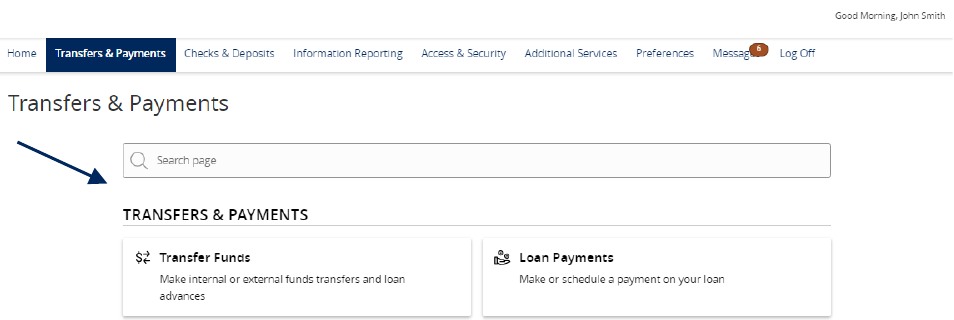
Transfers and Payments menu showing Internal Transfers.

2. Select the 'Multi-Account Transfers' tab.
3. Select 'Transfer Funds

Funds Transfer showing Multi Account Transfer and Transfer Funds.

4. Click the 'Use same Date for all transfers' check box to automatically set the same date for all transfers being initiated.

Or leave the 'Use same Date for all transfers' check box unselected to individually set the date for each transfer.

Optional: Enter a memo and click 'Push Memo to All' to automatically push the same memo to all transfers listed.
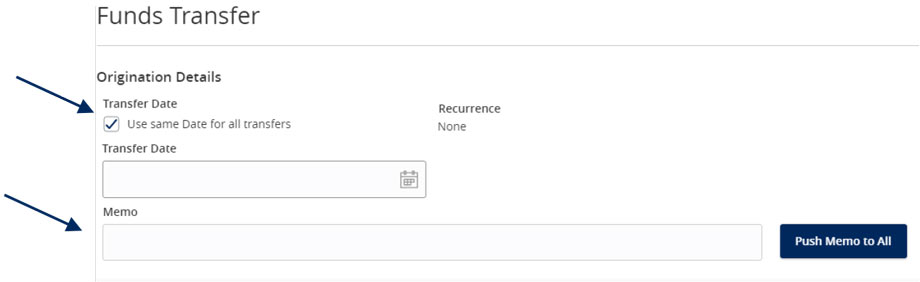
Funds Transfer showing transfer initiation date, and an optional memo.

5. Select the 'From' and 'To' Account for each transfer.

6. Enter the Amount for each transaction
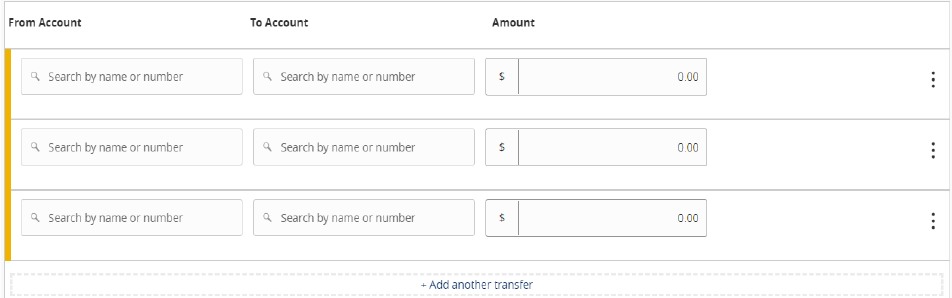
Fields to enter From Account information, To Account information, and Amount for each transaction.

7. Review the information on the screen for accuracy, and select submit. Note: Funds transfers are processed in the order that they appear on the screen.
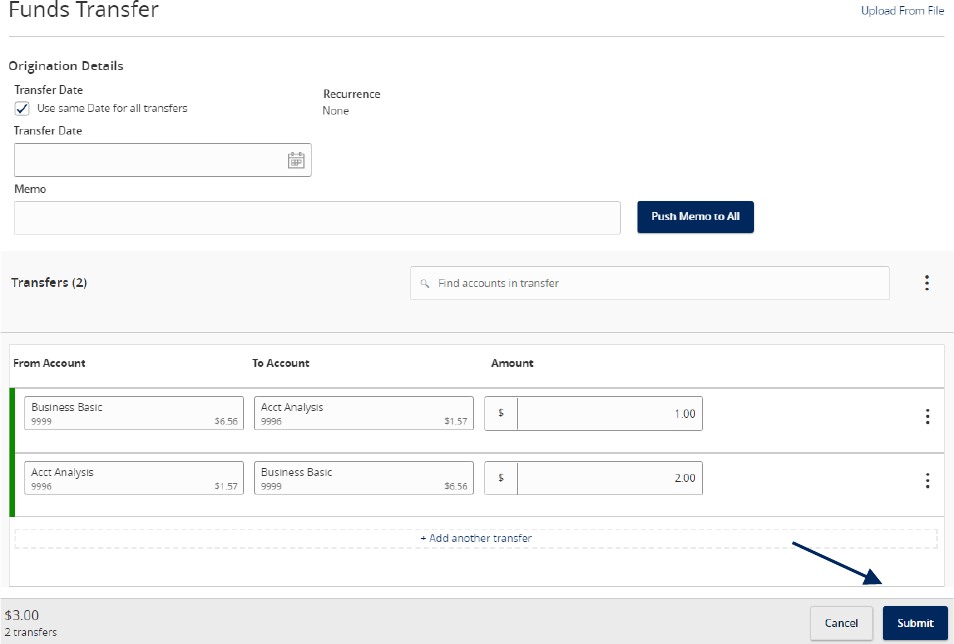
Funds Transfer form and how it allows you to review your selections, with options to Cancel, Draft or Approve.

Creating a Template

8. To create a transfer template, select 'Create Template'.

Funds Transfer showing Create Template.

9. Enter the 'Template Name'.

10. Select the link below 'Template Access Rights' to designate the users who should have access to the template.
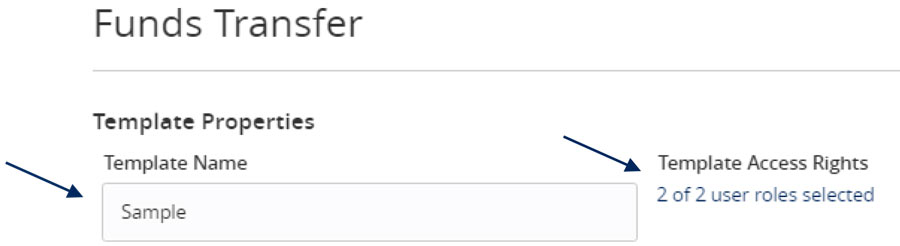
Funds Transfer Template Properties and form field for Template Name and Access rights.

11. Select the 'From' and 'To' Account for each transfer.

12. Enter the Amount for each transaction.

13. Review the information for accuracy. Then select 'Save'.

Note: Funds transfers are processed in the order that they appear on the screen.
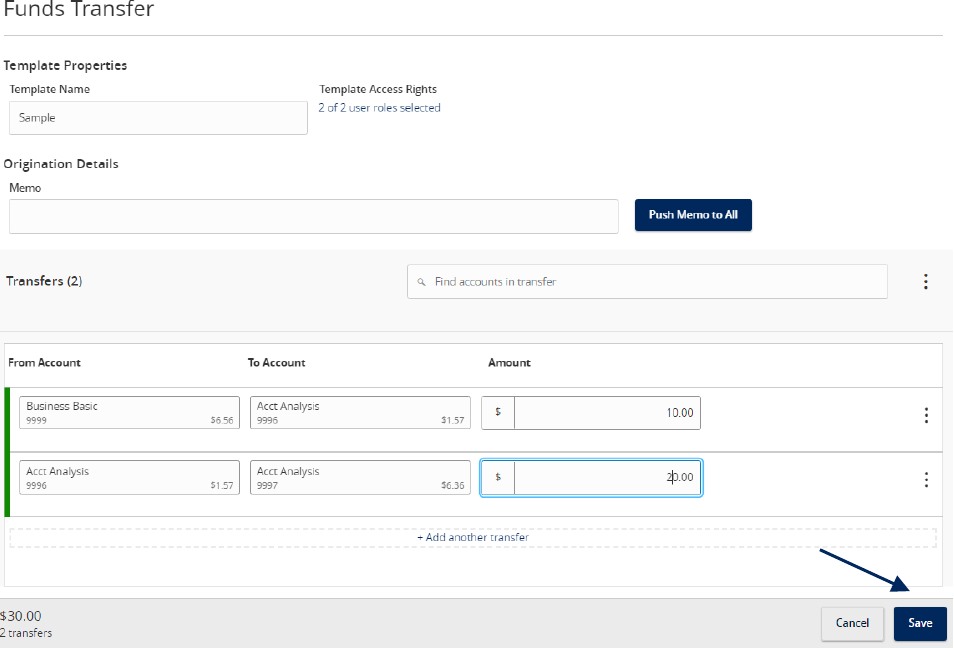
Funds Transfer options with template name and account form options.

Secure Messages Guide

Open printable PDF

NOTE: The 'Messages' feature is a secure messaging function which allows for two-way communication between the online banking user and Santa Cruz County Bank. Since the message is delivered securely within the Online Banking system, sensitive material.

1. Select the 'Messages' menu.

NOTE: Both incoming and outgoing messages will appear in the column directly to the right of the menus in descending date order (newest on top).
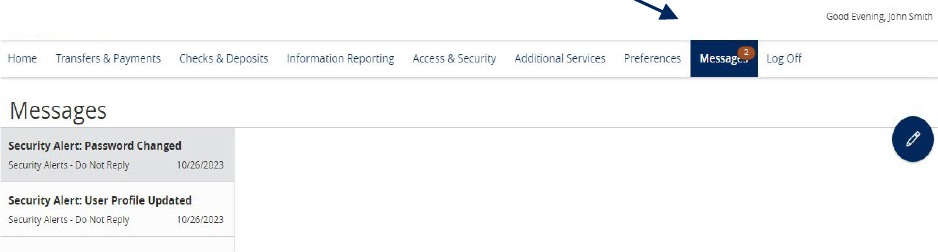
Main menu showing Messages.

2. Click pencil icon on the right side of the screen.
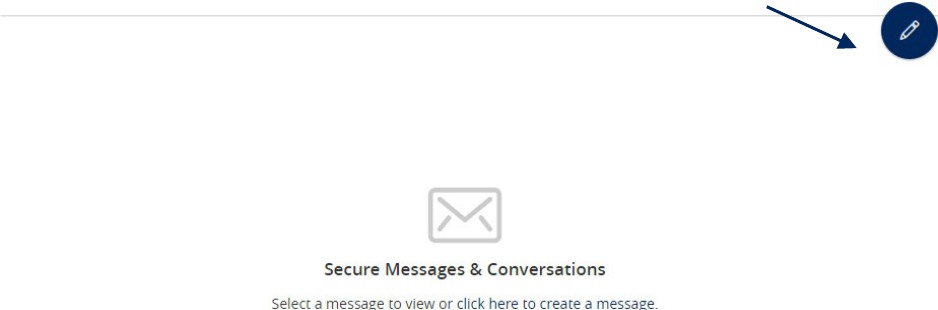
Secure Messages and Conversations page showing pencil icon.

3. Select the appropriate 'Message recipient' from the drop-down menu.
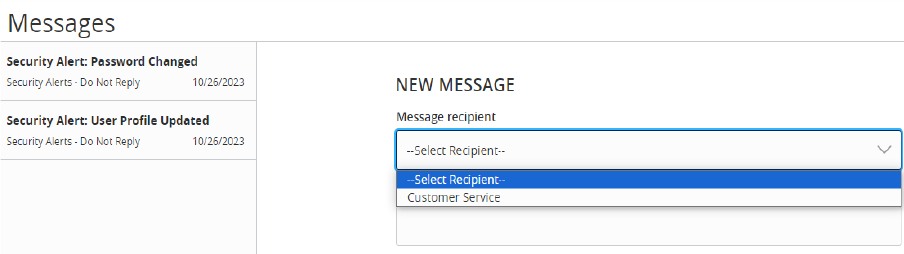
Messages page showing Message recipient from a dropdown menu.

4. Enter the desired 'Message Subject' and 'Message'.

5. Click the 'Attach a file' link to attach a file or document if desired.

6. Click 'Send Message' at the bottom of the screen to submit the message.
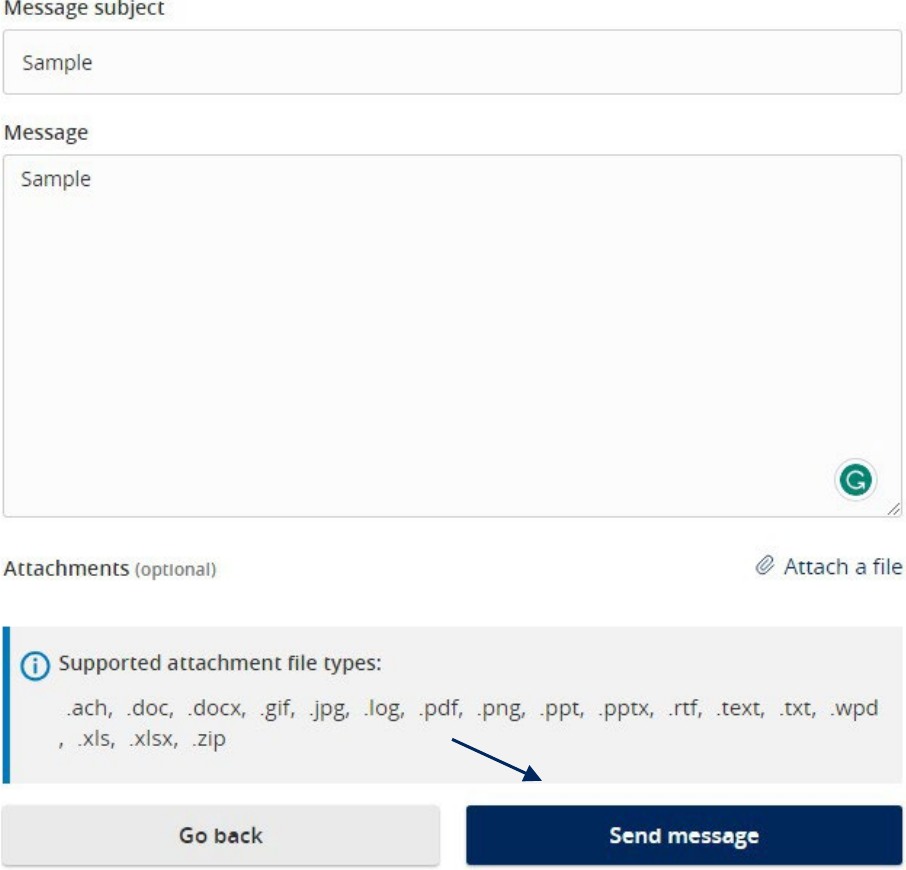
Message form showing Send Message and supported file types that may be attached.

7. Select the arrow icon beneath the pencil to reply to a secure message or the trash bin to delete the message.
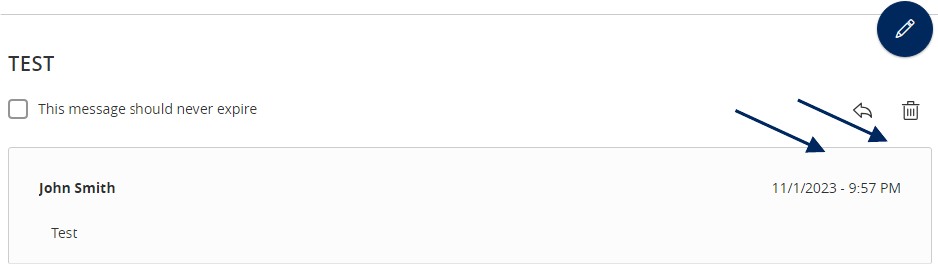
A Message showing arrow icon to reply to a message, or the trash bin to delete a message.

Tax Payments Guide

Open printable PDF

1. Select the 'Transfers & Payments' menu and then select 'Tax Payments'.
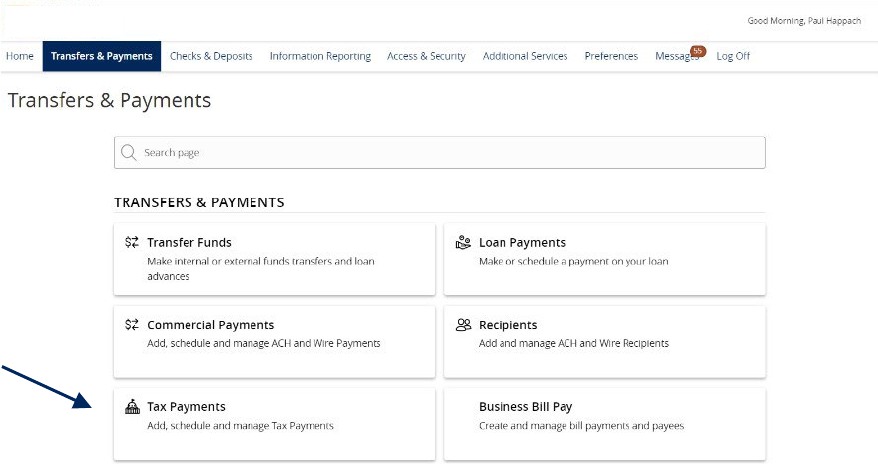
Transfers and Payments showing Tax Payments.

Federal Tax Payments

1. Select 'Federal' in the 'State or Federal Authority' drop down menu.

2. Select the desired tax form.

Tax Payments showing Federal in the State or Federal Authority drop down menu.

3. Complete all required fields in the form.
4. Review the information on the screen for accuracy and then select 'Approve' to authorize the payment or 'Draft' to initiate.
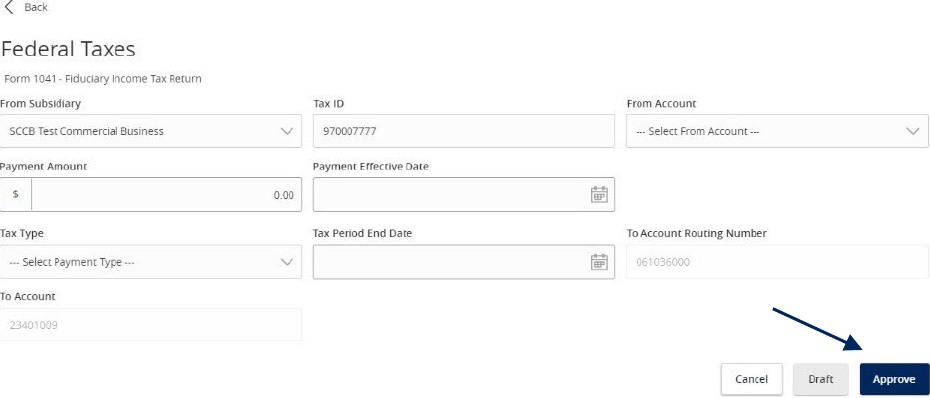
Federal Taxes review screen with Cancel, Draft, and Approve options and fields for subsidiary, tax ID, account, amount, effective date, tax type, tax period end date, and routing number.

State Tax Payments

1. Select the corresponding state from the 'State or Federal Authority' drop down menu.
2. Select the desired tax form.

Tax Payments showing corresponding state in the State or Federal Authority drop down menu.

3. Complete all required fields in the form.
4. Review the information on the screen for accuracy and then select 'Approve' to authorize the payment or 'Draft' to initiate.
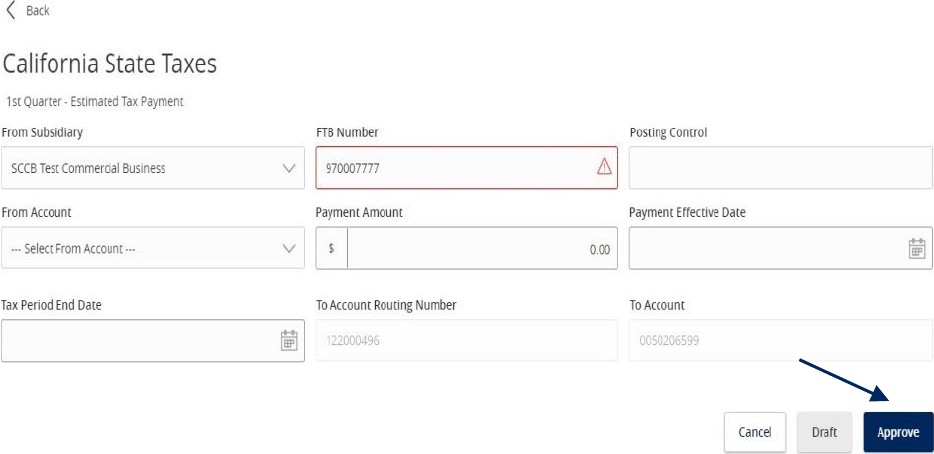
California State Taxes showing how it allows you to review your selections, with options to Cancel, Draft or Approve. The image also includes: From Subsidiary dropdown menu, FTB Number, Posting Control field, From Account dropdown menu, Payment amount field, Payment Effective Date with calendar icon, Tax Period End Date with calendar icon, To Account Routing Number field and To Account field.

Mobile: Remote Deposit Capture Guide

Open printable PDF

1. To deposit a check through Mobile Deposit, log into the Santa Cruz County Bank app on your Apple or Android device. Be sure to write "For Mobile Deposit Only" on the back of the check before taking the picture.
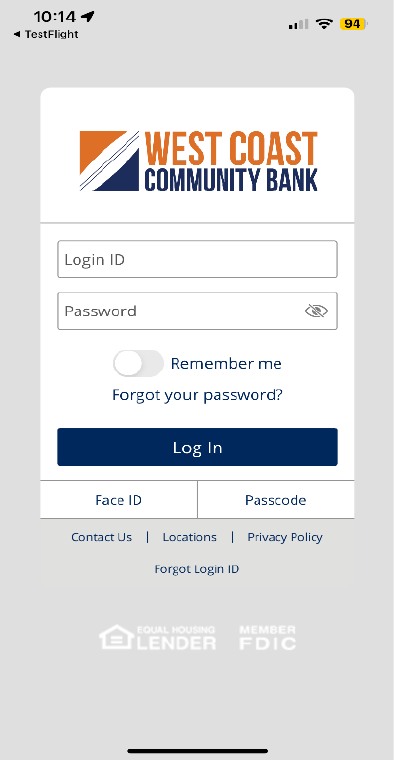
A West Coast Community Bank mobile application login screen. The screen contains: West Coast Community Bank logo, Login ID box, Password box, Remember me toggle on/off, Forgot your password? Reset link, Log In button, Face ID and Passcode. Next are the following links: Contact Us, Locations, Privacy Policy, and Forgot Login ID.

2. On the homepage select 'Deposit Check'. If this is your first time using the feature, scroll down and click 'I Accept' to accept the Mobile Remote Deposit Terms and Conditions.
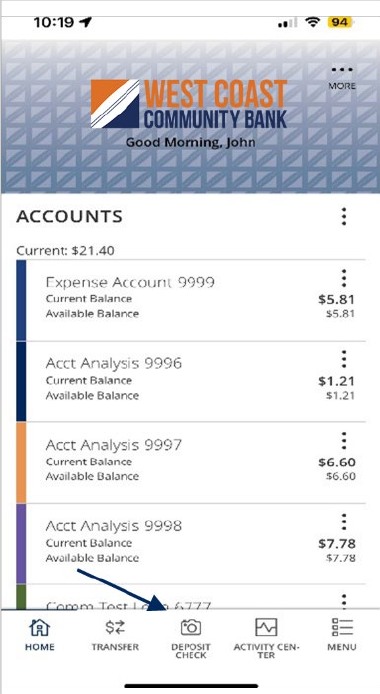
West Coast Community Bank mobile app's home page after login with a list of accounts with current and available balances. A footer consists of: Home, Transfer, Deposit Check, Activity Center and Menu. Deposit Check is noted.

3. Select the Deposit Account from the drop-down menu.

NOTE: Once you have completed the deposit process put the date of deposit on the back of the check. Do not destroy the original check for at least 30 days.
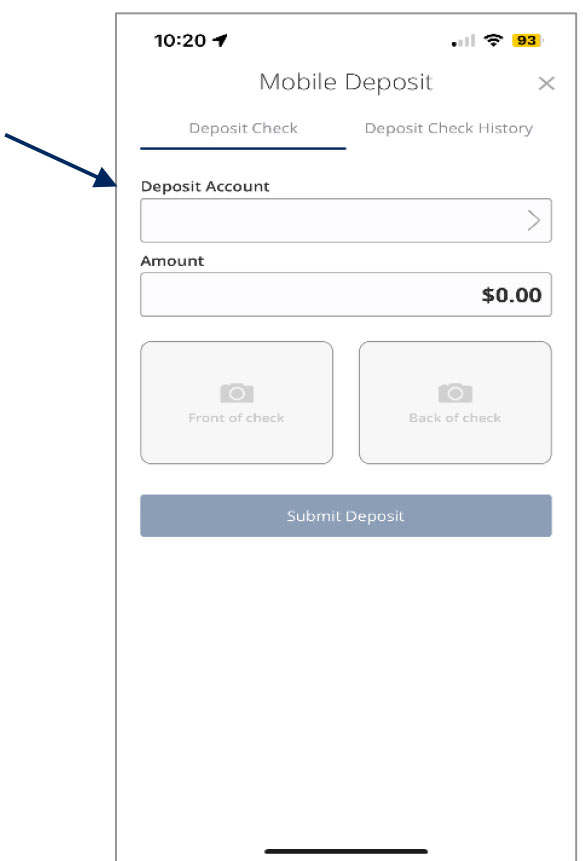
Mobile Deposit screen with field for: Deposit Account, $ Amount, Front of Check, Back of Check and Submit Deposit.

4. Select the 'Deposit Check History' tab to view a listing of previous checks deposited through Mobile Deposit.
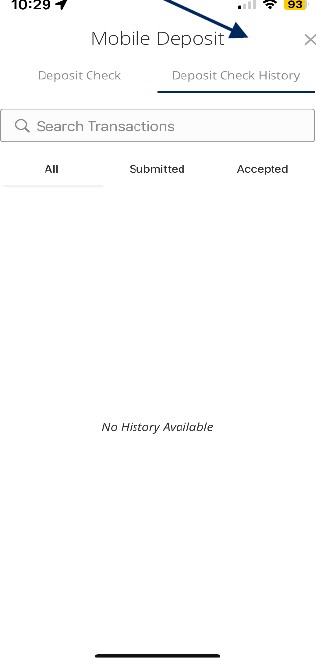
Mobile Deposit with Deposit Check History highlighted. The screen also includes a field to Search Transactions, with All, Submitted and Accepted below.

Card Swap Guide

Open printable PDF
NOTE: Card Swap is the online solution that allows you to apply Santa Cruz County Bank check card or credit card information across your favorite online subscriptions and digital points of sale.

1. Select the 'Additional Services' menu then 'Card Swap'.
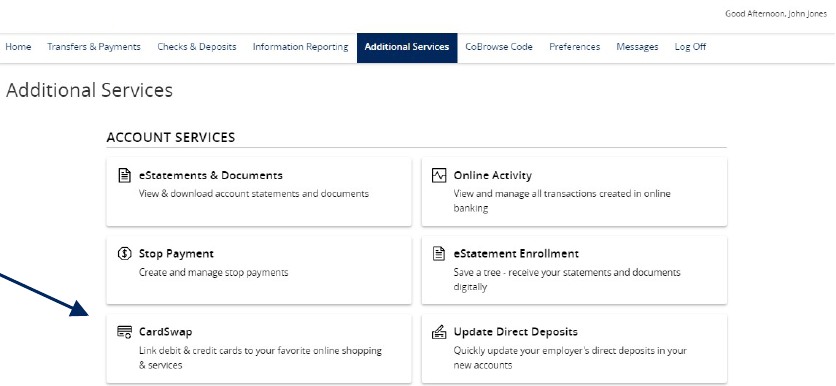
Additional Services button on the top menu bar showing CardSwap within Account Services.

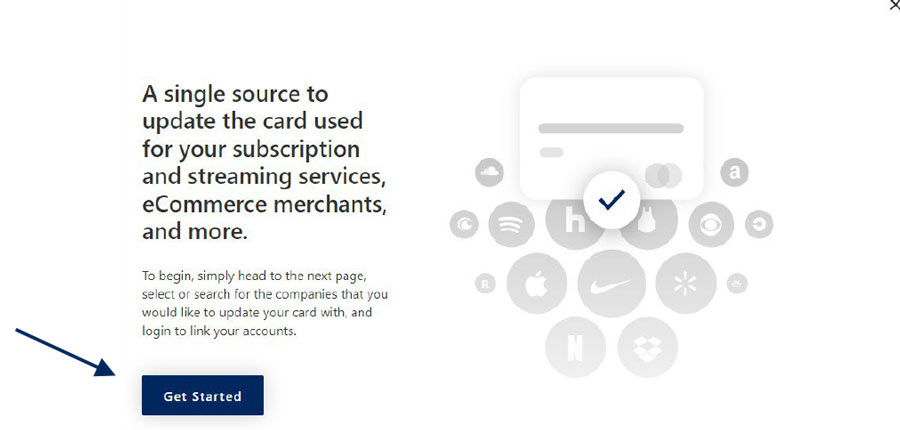
2. Click 'Get Started'.

CardSwap introduction screen with Get Started button and graphic showing a payment card linked to merchant logos.

3. Click each of the brands that you pay from the listing on the screen.

4. Click 'Next Step' when done
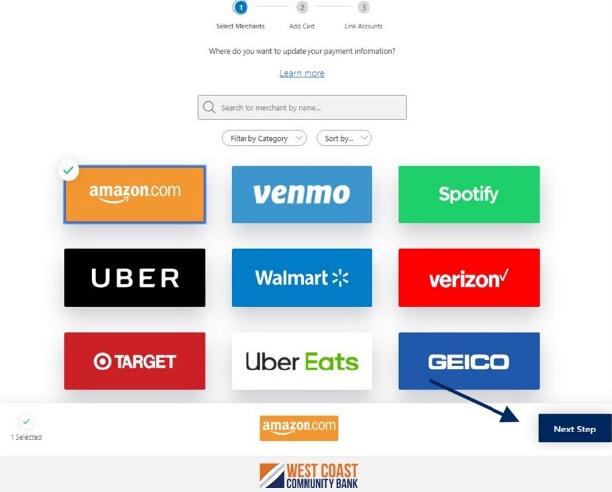
Select Merchants screen with merchant search, filter and sort dropdowns, merchant logos, Amazon selected, and Next Step button.

5. Enter your Santa Cruz County Bank card information and click 'Add Card' when done to begin the linking process.

NOTE: You will notice the card that was entered in the previous steps appears below each biller.
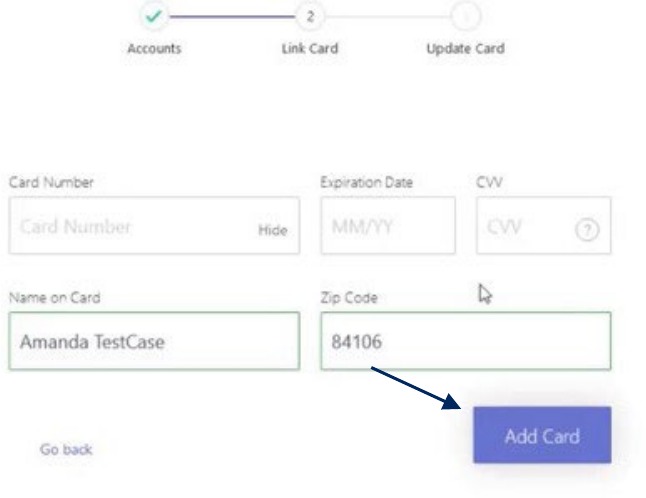
Accounts screen showing the following: Card Number, Expiration Date, CVV, Name on Card, Zip Code and a purple Add Card Button. An option to Go back is located at the bottom.

6. Enter the login credentials, then click 'Link Account' for each provider you would like to verify.
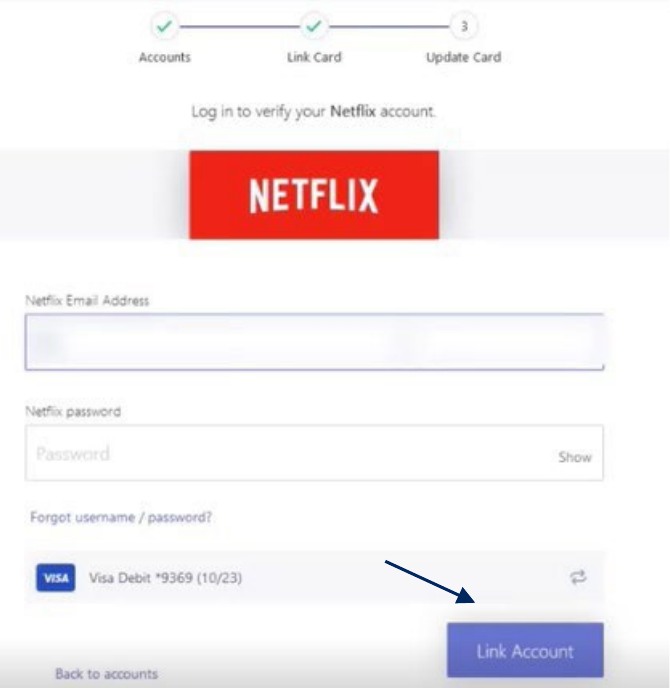
Netflix Link Card form with email, password, selected card, Link Account button, and Back to accounts option.

7. Once your account has been successfully linked, click 'Finish'.
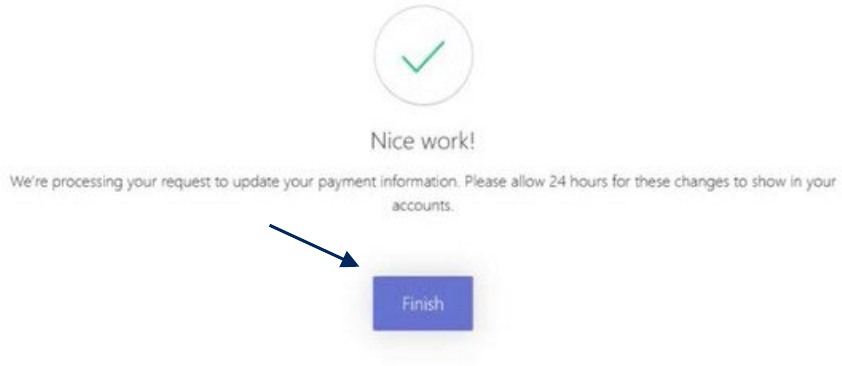
Nice Work confirmation screen explaining the payment update request is being processed, with a Finish button.

8. To add a new provider, click 'Link Account'.

9. To swap a card, click 'Swap Card'.
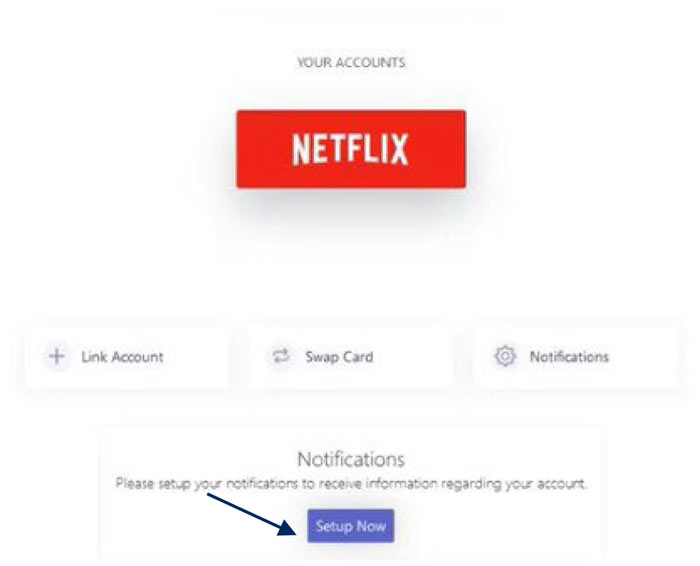
Netflix account screen with Link Account, Swap Card, and Notifications options.

Check Search Guide

Open printable PDF

Use the Check Search page to search for specific transactions.

1. Select the 'Checks & Deposits' menu then 'Positive Pay'.

NOTE: Checks can be searched by specifying various criteria listed on the screen according to need.
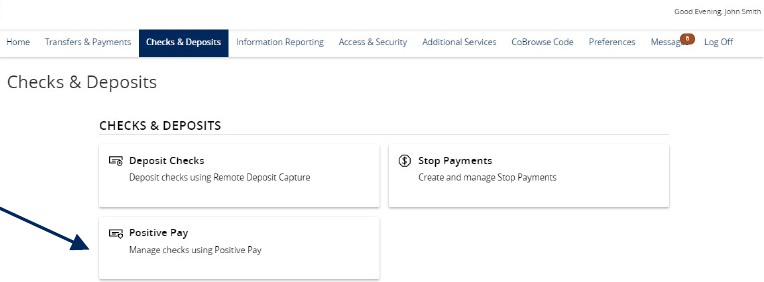
Top menu bar, with Checks and Deposits selected, and Positive Pay.

2. Click 'Launch Advanced Options' button to visit the full Positive Pay site.
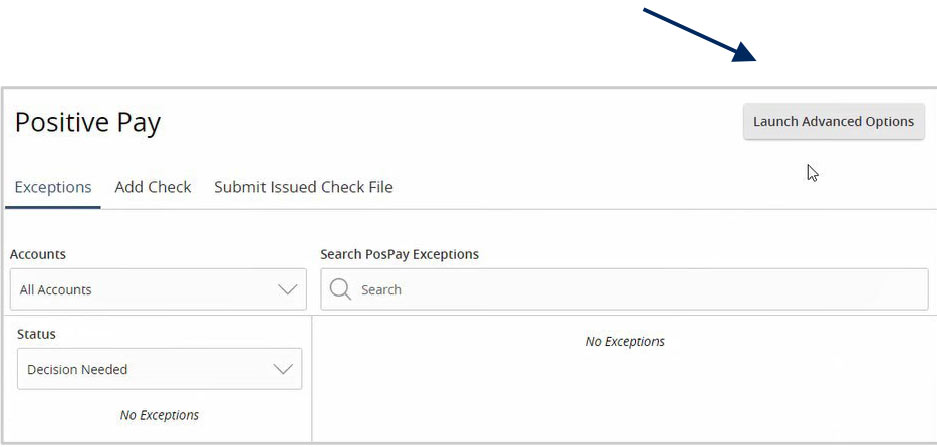
Positive Pay screen with Launch Advanced Options button.

3. Select the 'Transactions Processing' menu, then select 'Check Search'.
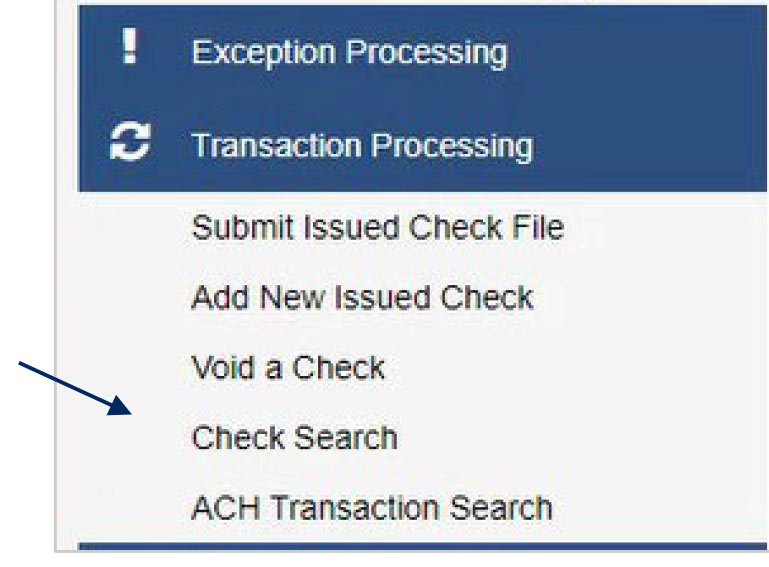
Transaction Processing menu, and the dropdown menu including: Submit Issued Check File, Add New Issued Check, Void a Check, Check Search and ACH Transaction Search. The location of Check Search is noted.

4. Select the desired Account Nickname from the drop-down menu. This specifies which Account or Accounts should be included in the search.

Account Nickname showing a dropdown menu of accounts.

5. The following fields are optional and may be utilized to narrow down the corresponding search.
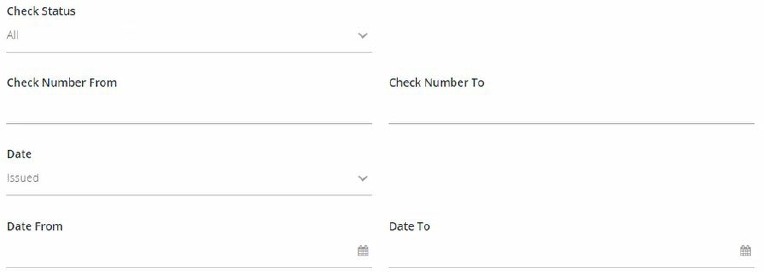
  1. Select Check Status to specify the status of the check or checks being searched. All statuses will be selected by default.
  2. Indicate a check number range if desired.
  3. Select an item in the 'Date' drop-down menu to specify a category. This corresponds to the type of date you would like to run the Check Search report for.
  4. Specify the Date Range of the check if this information is available to further narrow the search.
Check Status showing a Check Status dropdown menu and fields for Check Number From and Check Number To, Date Issued dropdown, Date From and Date To with calendar icons.

7. Select a decision from the list based on whether the check was paid or returned.

8. Select a reason from the list based on the reason that was selected.

9. Indicate whether reversals should be included in the search by clicking the check box.

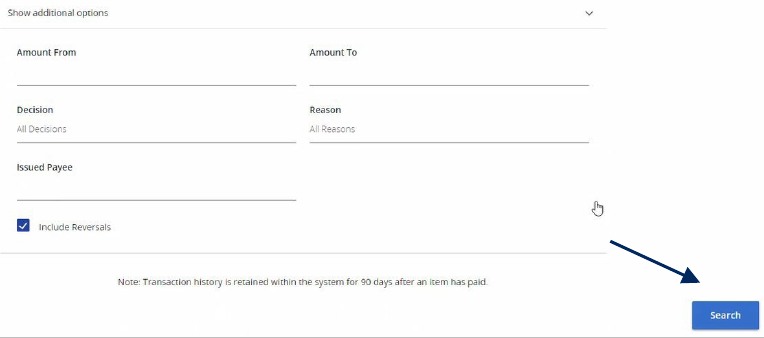
10. Click 'Search' once all desired criteria have been specified.

Show additional options with a carrot for the dropdown menu.
Show additional options, with fields for Amount From, Amount To, Decision, Reason and Issued Payee. There is a checkbox to Include Reversals and an arrow pointing to the blue search button.

11. The resulting checks will appear on the screen.
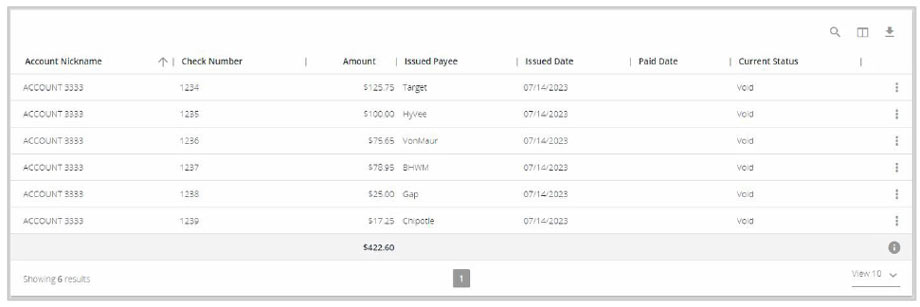
the filtered check results.

12. Drag a column header to reorder.

13. Select the search filter (or spyglass icon) to filter and search all results or select a specific column to search within.
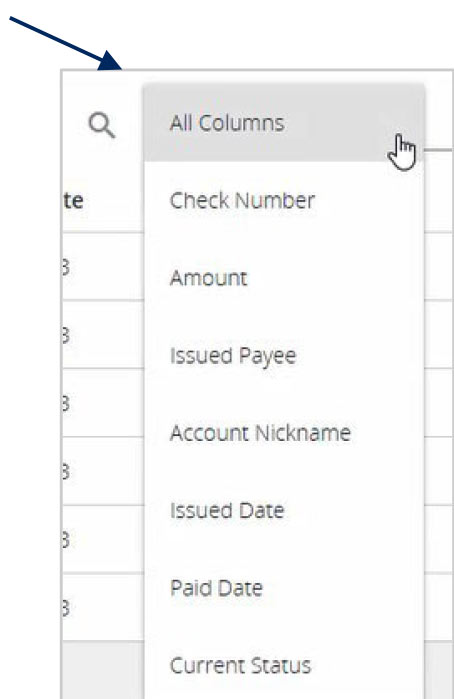
A Search window showing items that were selected using the search criteria in the image above.

14. Select the columns icon to select or remove columns from the report.
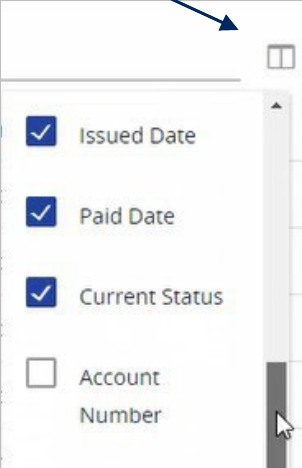
Dropdown menu showing selectable invoice table columns including Issued Date, Paid Date, Current Status, and Account Number with checkboxes.

15. Select the export icon to export the search results to a Microsoft Excel or PDF file.

Toolbar with an 'All Columns' dropdown, search icon, and grid layout button for customizing table column display.

16. Select the Kabob icon on an individual search result to perform various actions.
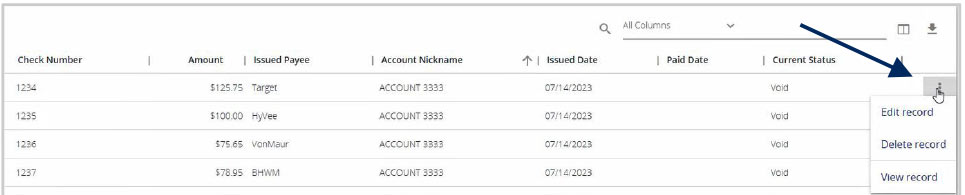
  1. View check images
  2. Edit record
  3. View record
Data table showing payment records with columns for check number, amount, payee, account nickname, issued date, paid date, and current status, with an actions menu open displaying options to edit, delete, or view a record.

External Transfer Guide

Open printable PDF

1. To add an External Account, select the 'Transfers and Payments' menu then 'Manage External Accounts'.
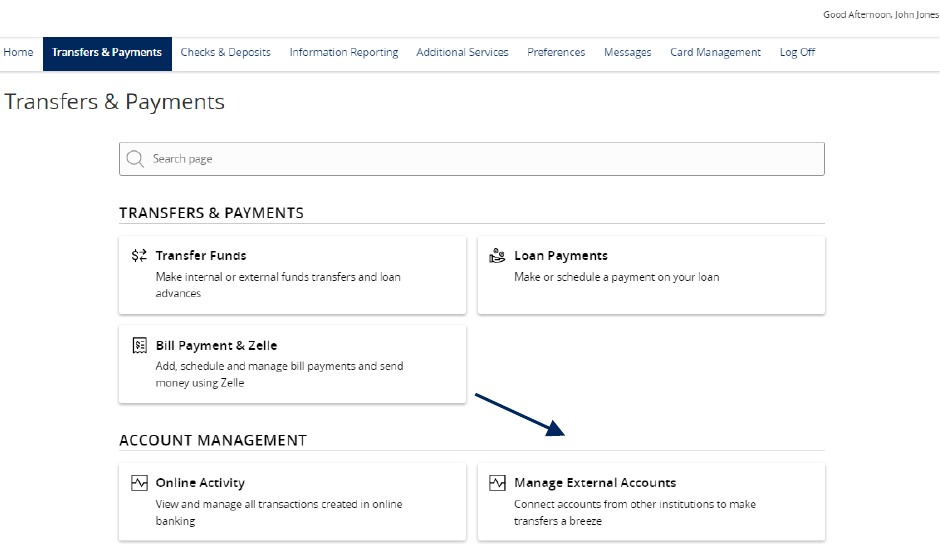
Transfers and Payments menu with Manage External Accounts selected.

2. Enter the Account Number for the external account you wish to add.

3. Select the corresponding Account Type.

4. Enter the Routing Number for the external account.

5. Click 'Submit'.
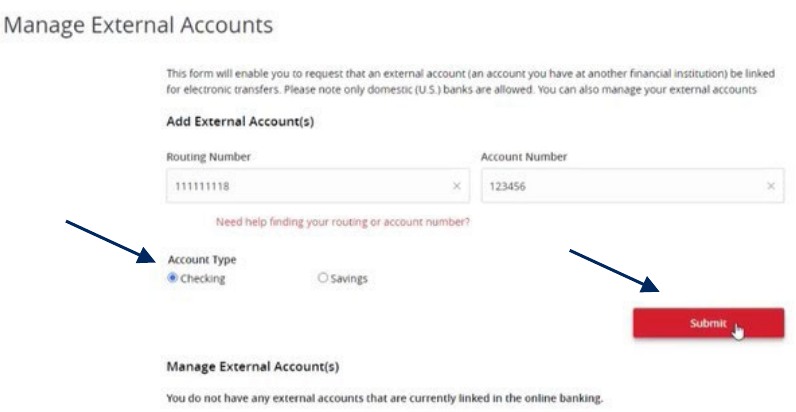
Add External Account form with account number, account type, routing number, and Submit button.

NOTE: Once the external account request has been processed by Santa Cruz County Bank, you will receive two micro deposit amounts in the external account being added.

6. To verify the external account, select the 'Transfer' menu then 'Manage External Account'.

7. Scroll to the bottom of the page and select the 'Verify' link for the account to be verified.
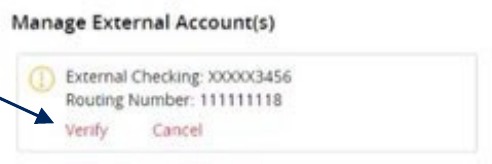
Manage External Accounts list showing Verify link for an external account.

8. Enter the two deposit amounts received in the external account.

9. Click 'Submit'.
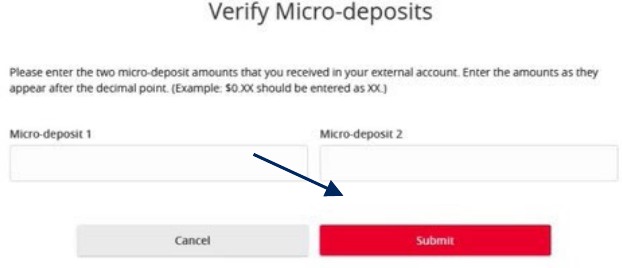
Verify External Account form with fields for the two micro-deposit amounts and Submit button.

Initial Access to the System

ACH and Check Positive Pay Guide
Open printable PDF
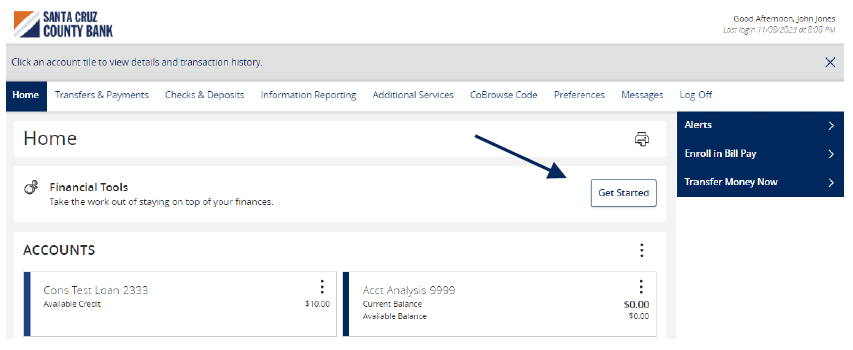
  1. 1. On the 'Home' screen, click 'Get Started'.
A financial dashboard from 'West Coast Community Bank' showing a section titled 'Financial Tools' with an arrow pointing to the 'Get Started' button.
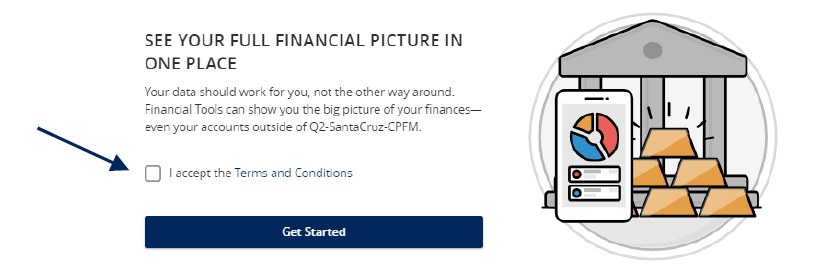
  1. Read the 'Financial Tools' disclaimer. Check the box beside 'I accept the Terms and Conditions' when done.
A webpage offering financial tools, featuring an illustration of a phone displaying charts and stacks of coins, with text prompting to see the full financial picture in one place. An arrow points to a checkbox to accept the Terms and Conditions next to a 'Get Started' button.
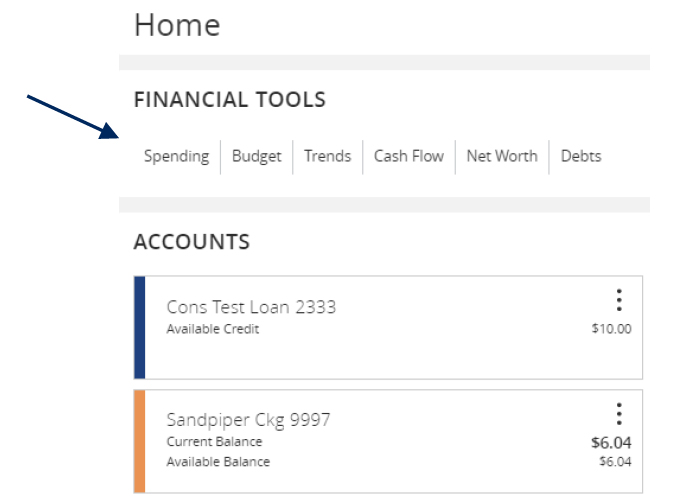
  1. From the Home page, in the Financial Tool section, click on Spending.
Financial Tools dashboard navigation tabs for Spending, Budget, Trends, Cash Flow, Net Worth, and Debts, with account balances listed below.
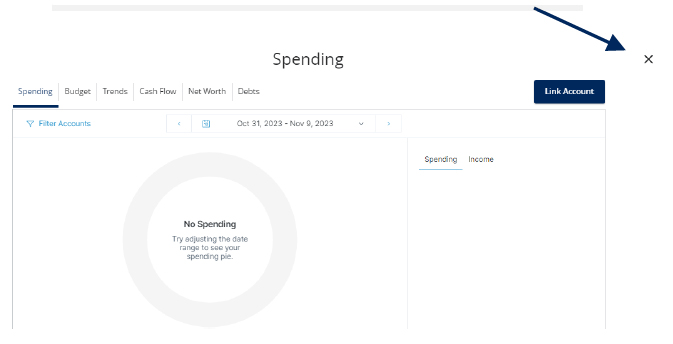
  1. The Spending page will appear. Click on the X at the top right corner.
A 'Spending' tab with an arrow pointing to the 'X' in the corner.
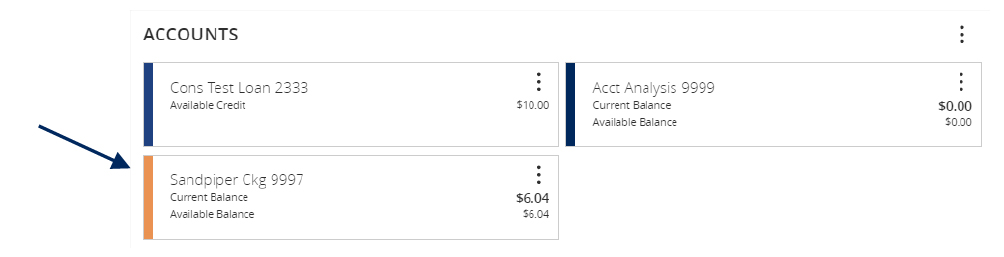
  1. On the Home page, select an account to view transactions.
Accounts section with an arrow pointing to the Sandpiper Ckg 9997 account balance details.
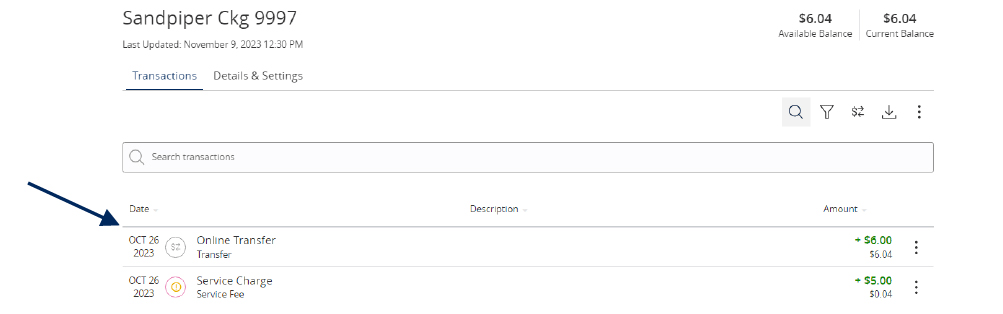
  1. To assign or change a category, click on the category icon to view a list of categories to choose from.
An account transaction history with an arrow pointing to recent transactions listed by date.
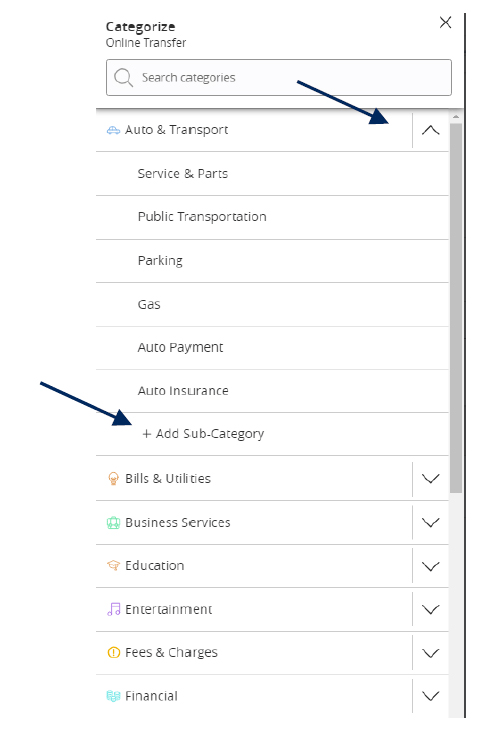
  1. Click the down arrow to show the list of sub-categories to customize your transactions. Create a personalized category description by clicking the "add sub category" option, then click the check mark to save it.
A 'Categorize' dialog box from a banking application with a category search bar and an arrow pointing to the option to add a sub-category.
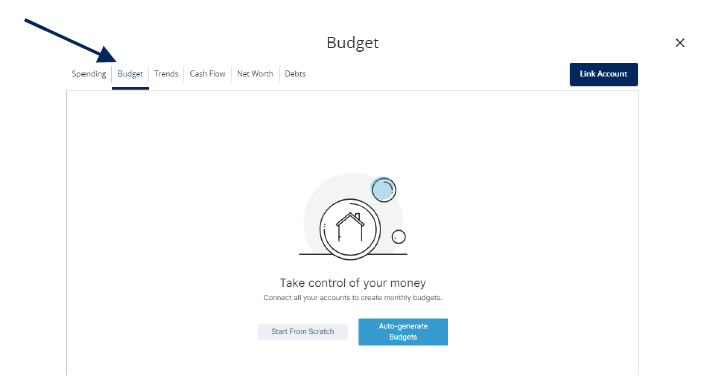
  1. Click on 'Budget' to create categories of expected spending and track progress towards those categories each month. As each month progresses, you will be provided with visual clues to show how close you are to hitting the assigned thresholds.
A 'Budget' feature in a financial application with tabs for various financial tools at the top, an arrow pointing to the 'Budget' tab, and a visual prompt to take control of money with options to 'Start From Scratch' or 'Auto-generate Budgets'.
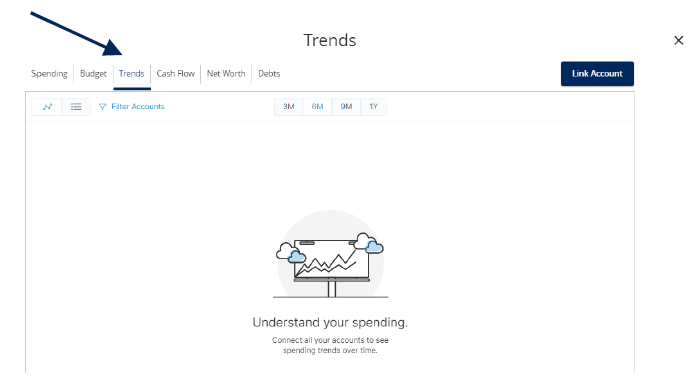
  1. Click on 'Trends' to build even further on your budgeting categories to help track spending over time as compared to income.
'Trends' tab in a financial application with an arrow pointing to it, and a visual illustration suggesting users can understand their spending by connecting their accounts to see spending trends over time.
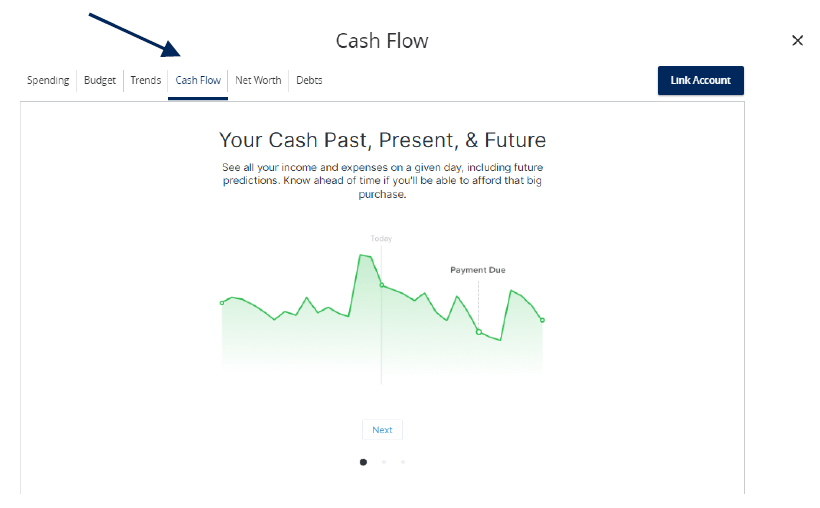
  1. Click on 'Cash Flow'. Cash Flow provides information regarding cash availability over a specified period of time.
'Cash Flow' tab with an arrow pointing to it, showcasing a feature that allows users to view their income and expenses, including future predictions, to understand their cash flow over time.
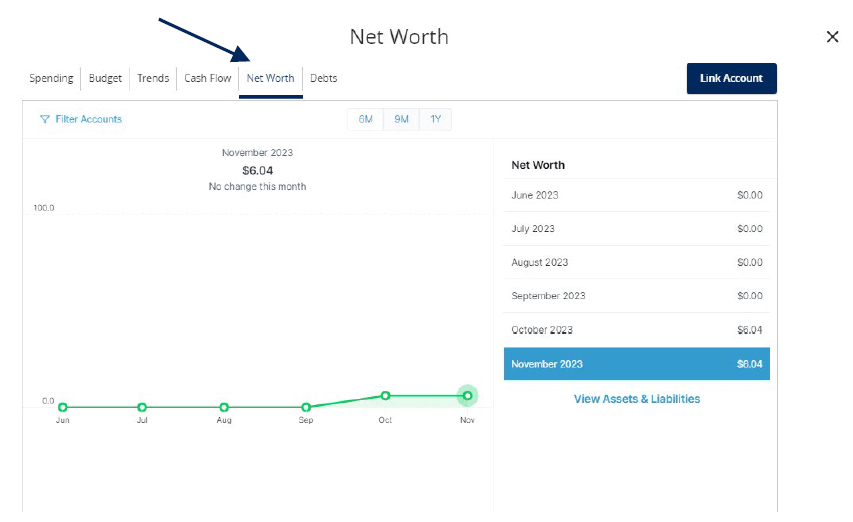
  1. Click on 'Net Worth' to display the total value of all internally-held and aggregated accounts to view their net worth over time
'Net Worth' tab with an arrow pointing to it, displaying a user's financial overview with a graph showing net worth over time, highlighting the net worth.
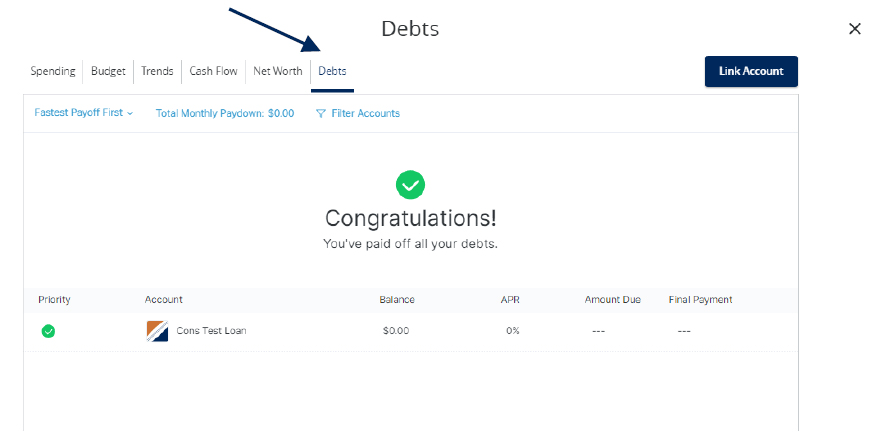
  1. Click on 'Debts' to see all of your debt accounts in one place and to calculate how making additional payments can impact debt over time. Modifying the payoff approach will reorder the accounts in the order of priority for that specific approach.
'Debts' tab showing a congratulatory message for having paid off all debts. The arrow points to the 'Debts' tab. There is a table with columns for 'Priority,' 'Account,' 'Balance,' 'APR,' 'Amount Due,' and 'Final Payment,' displaying a 'Cons Test Loan' with a balance of $0.00, suggesting no outstanding debt for this account.

ACH File Import Guide

Open printable PDF

NOTE: Supported file types include the following:

  • Single-batch NACHA formatted file containing an SEC Class Code of either PPD (Prearranged Payment and Deposit to or from a consumer account) or CCD (Cash Concentration and Disbursement to or from a business account).
  • 5-Column CSV File

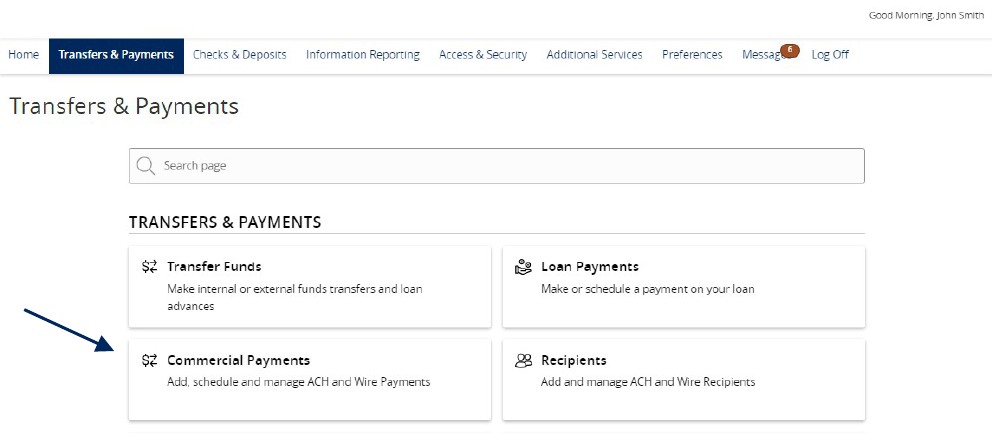
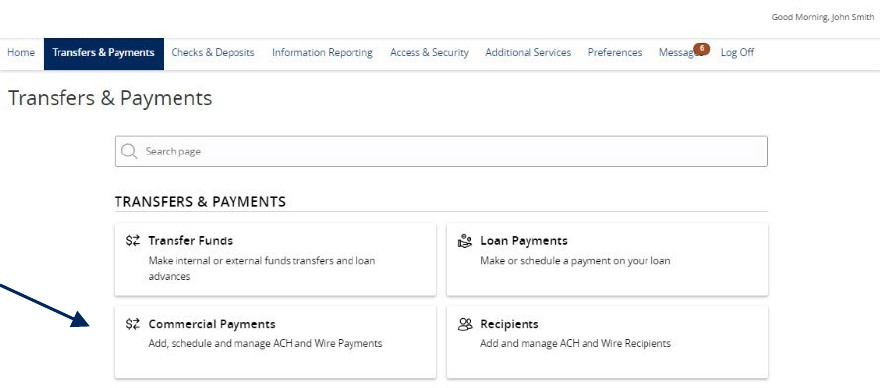
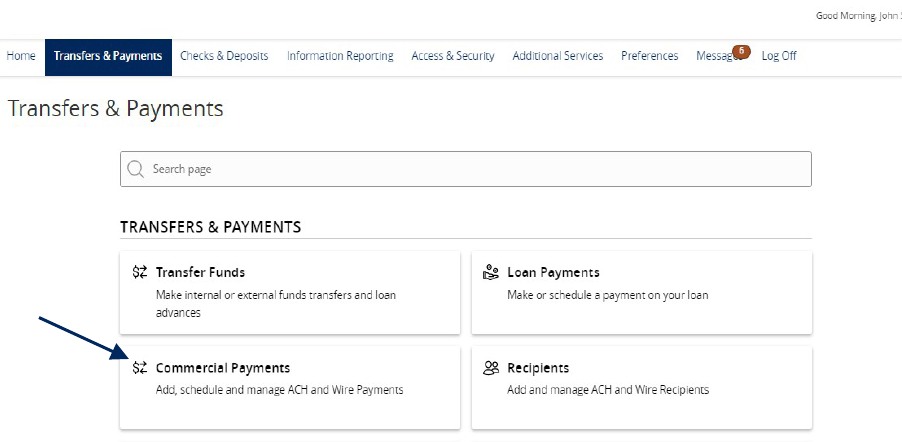
1. Select the 'Transfers & Payments' menu and then select 'Commercial Payments'.

Transfers and Payments menu showing Commercial Payments.

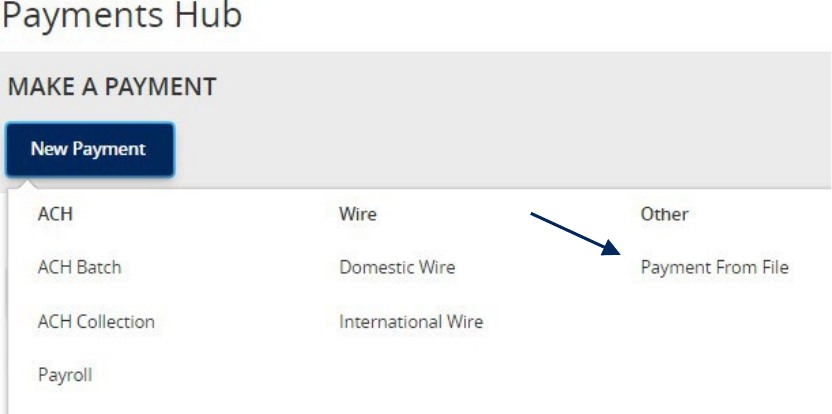
2. Select 'New Payment' and then 'Payment from File'.

Payments Hub menu showing Payment from File.

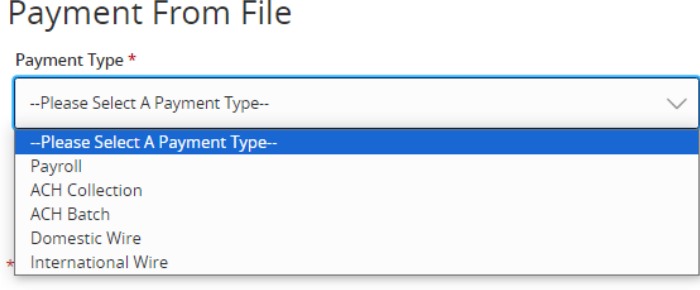
3. Select the desired 'Payment Type' from the drop-down menu.

Payment From File drop-down menu options, including Payroll, ACH Collection, ACH Batch, Domestic Wire and International Wire

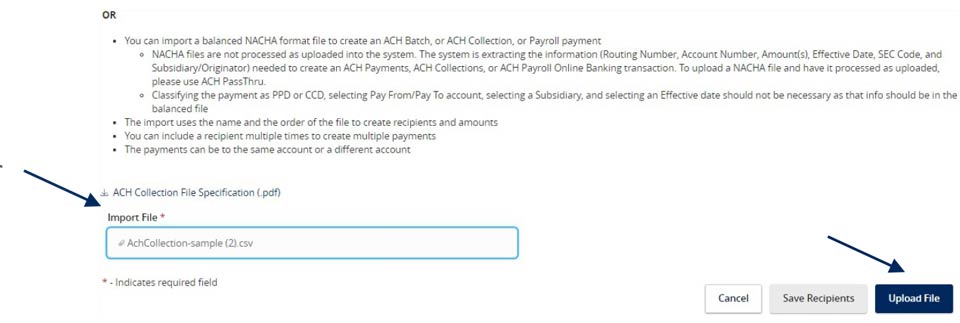
4. Click in the 'Import File' box to select a file to upload. Browse your computer for the file you would like to upload.

5. Select 'Upload File' to upload the selected file into Online Banking for processing.

Import File showing Upload File.

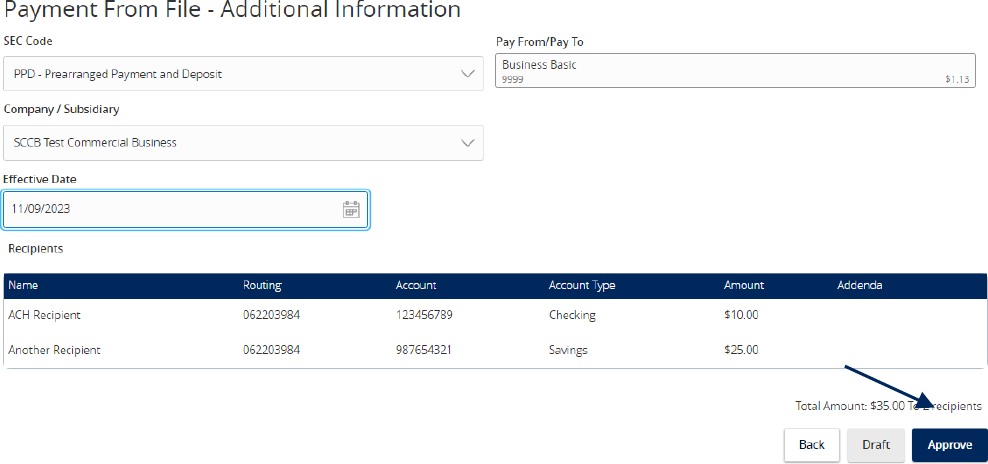
NOTE: If the imported file is a 5-Column CSV, a second screen will be presented as part of the process. This screen requests additional information so a complete ACH file can be generated for processing based on the information designated.

6. Select the required fields from the corresponding drop-down menu.

  1. SEC Code
  2. 'Pay From/Pay To' account
  3. Company/Subsidiary
  4. Effective Date

7. Review the information on the screen for accuracy and then select 'Approve' to authorize the wires or 'Draft' to only draft.

Payment From File - Additional Information showing SEC Code, Pay From/Pay To, Company/Subsidiary, Effective date, a list of recipients, and Approve.

ACH or Wire Recipient Guide

Open printable PDF

NOTE: A 'Recipient' is an individual or company which is either debited or credited via ACH or wire.

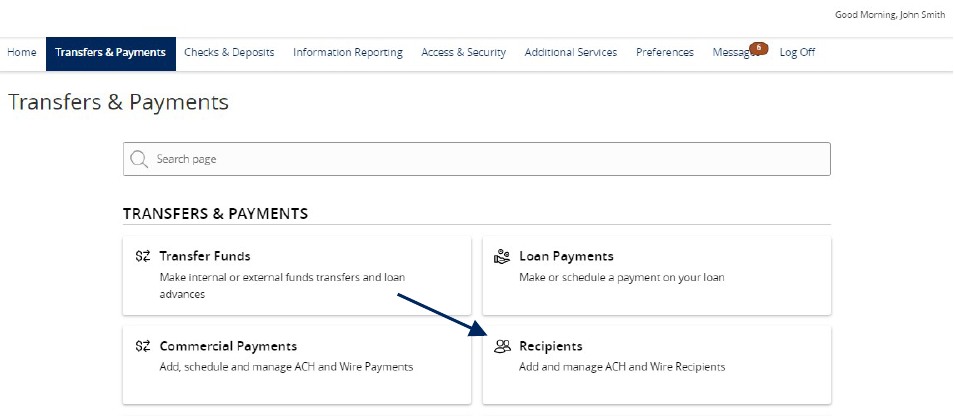
1. Select the 'Transfers & Payments' menu and then select 'Recipients'.

Transfers and Payments menu showing Recipients.

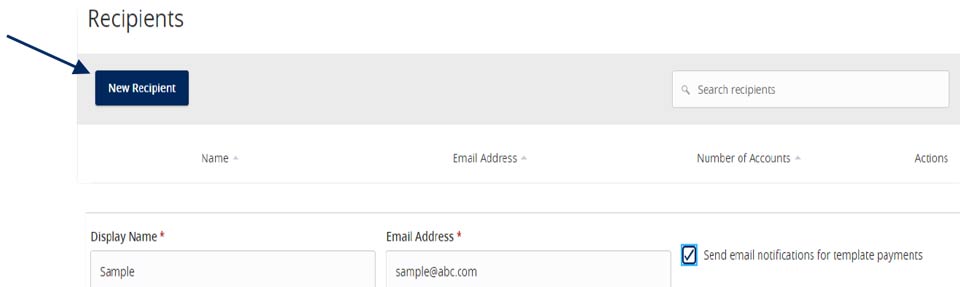
New Recipient

2. Click the 'New Recipient' button.

3. Enter 'Display Name and 'Email Address'.

NOTE: 'Send e-mail notifications' generates an e-mail to the recipient at the time the ACH or wire transaction is processed by Santa Cruz County Bank. The email message does not contain confidential information.

Recipients and New Recipient. Payment Type showing ACH and Wire and the Account Type, as well as the Account fields marked with an asterisk showing that they are required.

4. Select the 'Payment Type' which designates the transaction type(s) for which the account is eligible.

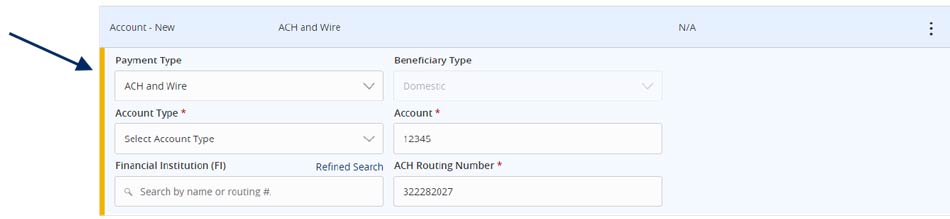
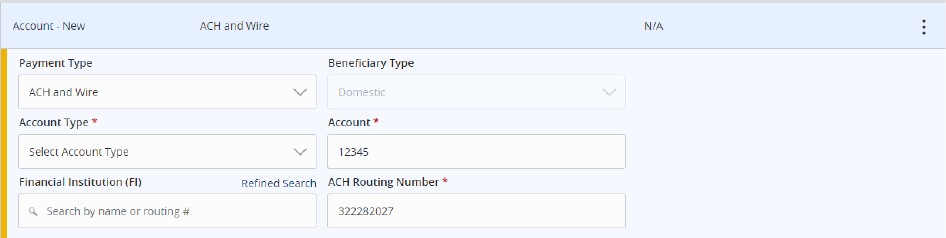
a. Payment Type 'ACH and Wire' displays fields corresponding with both ACH and wires. Complete all required fields designated with an asterisk.

Payment Type showing ACH and Wire in dropdown menu, as well as Account Type and Account fields marked with an asterisk showing that they are required, along with a field for the Financial Institution and the routing number.

NOTE: The Financial Institution (FI) search function allows for the dynamic search of domestic banks and credit unions. Enter the FI name or ABA number in the field. When the desired FI has been selected, the corresponding ACH Routing Number and Wire Beneficiary FI information will automatically populate.

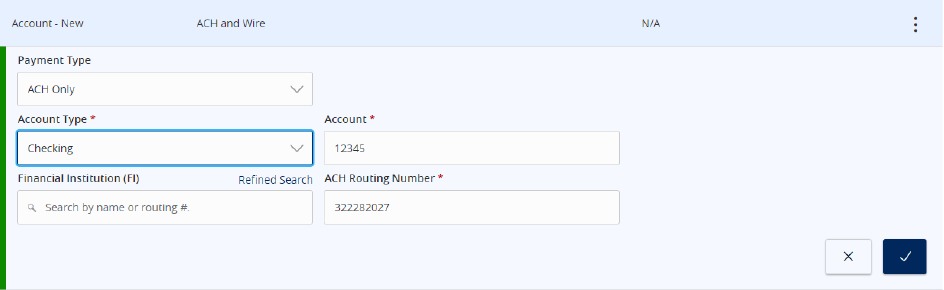
b. 'Payment Type 'ACH Only' displays fields corresponding with only ACH. Complete all required fields designated with an asterisk.

Payment Type showing ACH Only dropdown menu, as well as Account Type and Account fields marked with an asterisk showing that they are required, along with a field for the Financial Institution and the routing number.

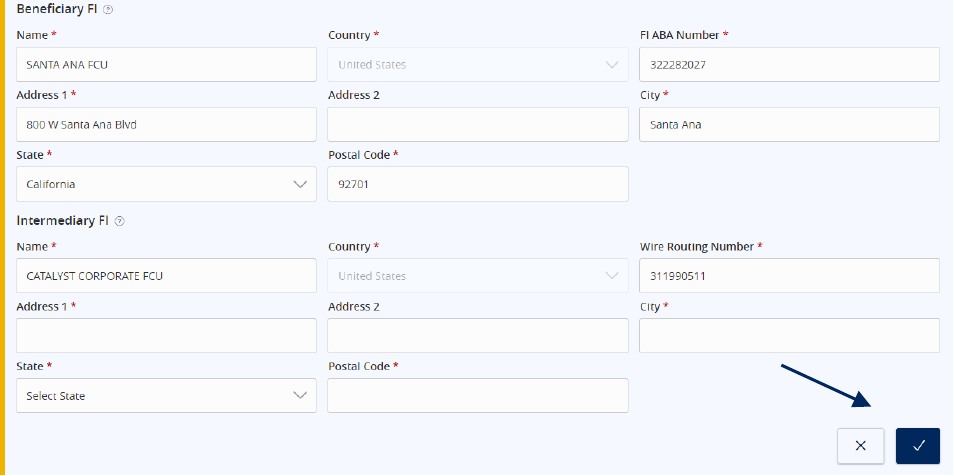
c. Payment Type 'Wire Only' displays fields corresponding with only wires. Complete all required fields

d. designated with an asterisk.

Beneficiary showing Name, Country, FI ABA Number, Address, City, State, Postal Code, and the same fields for the Intermediary FI. All fields are marked with a required asterisk and the check mark.

5. Click the check mark when the account setup is complete.

Beneficiary showing Name, Country, FI ABA Number, Address, City, State, Postal Code, and the same fields for the Intermediary FI. All fields are marked with a required asterisk and the check mark.

6. Select 'Add another account' to add an additional account or select 'Save Recipient' to complete the setup.

Add Account option next to required Display Name and Email Address fields.

7. Complete all required fields in the 'Recipient Details' section.

NOTE: Address fields within 'Recipient Details' are for the recipient's address. This is required for Wire Transfers.

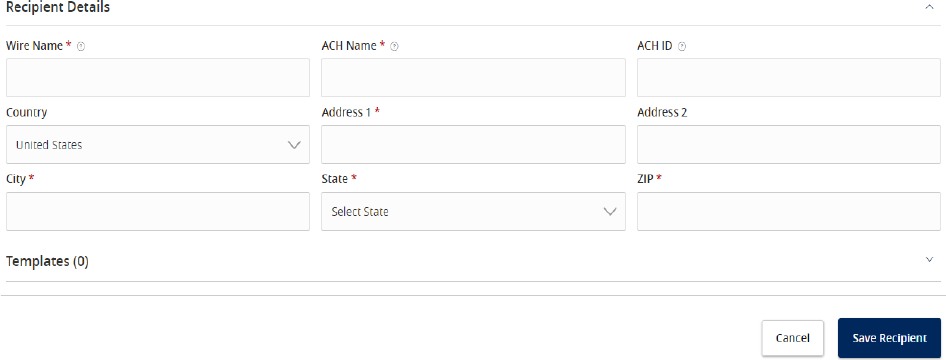
Recipient Details form with required fields for Wire Name, ACH Name, ACH ID, country, address, city, state, zip, and the Save Recipient button.

ACH Payroll Transactions Guide

Open printable PDF

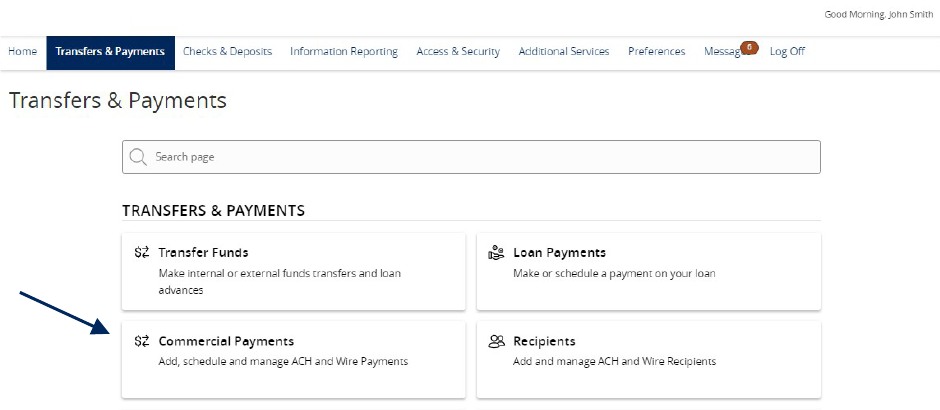
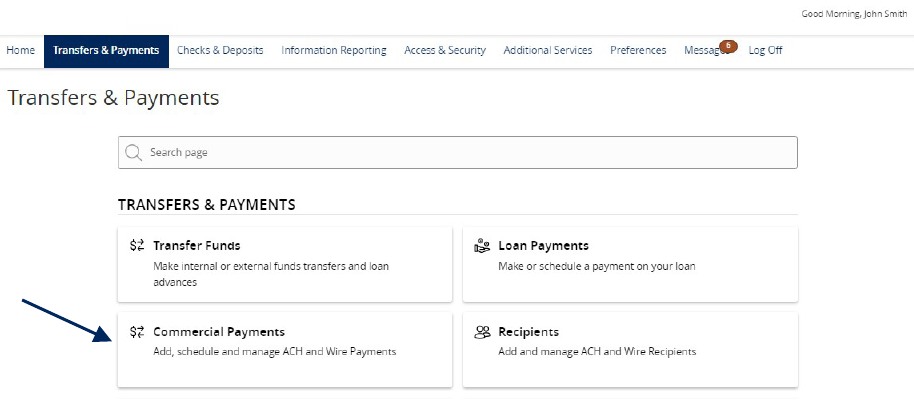
1. Select the 'Transfers & Payments' menu and then select 'Commercial Payments'.

NOTE: The 'Split Payments' option is only available for Payroll transactions.

Transfers and Payments menu showing Commercial Payments.

2. Three options are available.

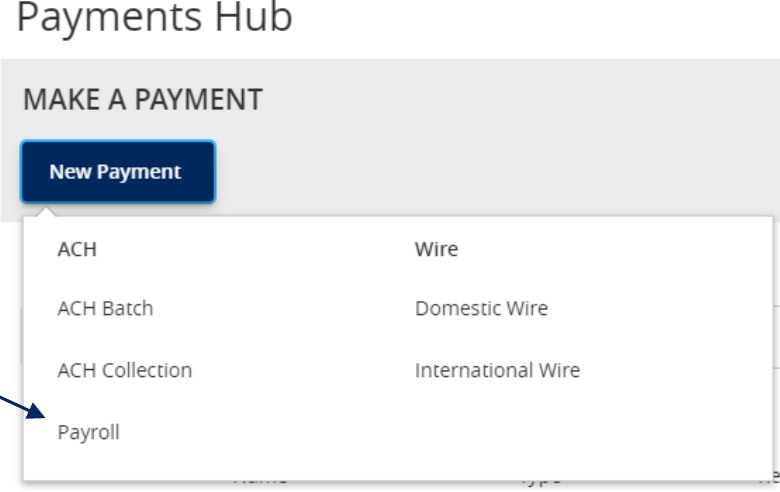
a. Click 'New Payment' and select 'the 'Payroll' option to create a new payroll transaction.

Payments Hub menu showing Payroll within the dropdown menu that includes: ACH: ACH Batch, ACH Collection, Payroll, and Wire: Domestic Wire and International Wire.

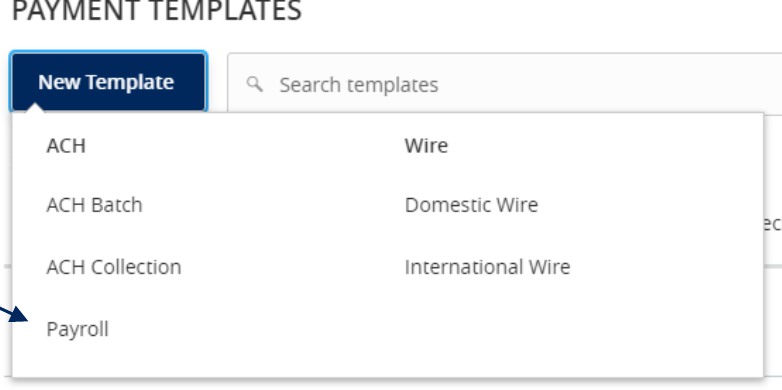
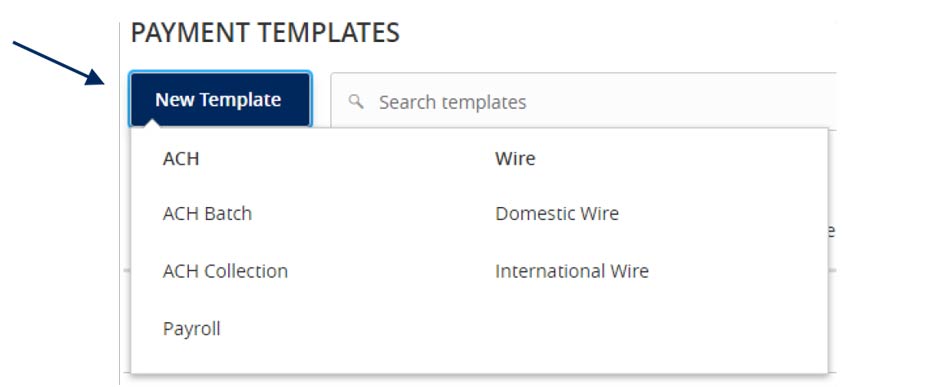
b. Click 'New Template' and select the 'Payroll' option to create a new payroll template.

Payment Templates dropdown showing Payroll under ACH options, alongside ACH Batch, ACH Collection, Domestic Wire, and International Wire.

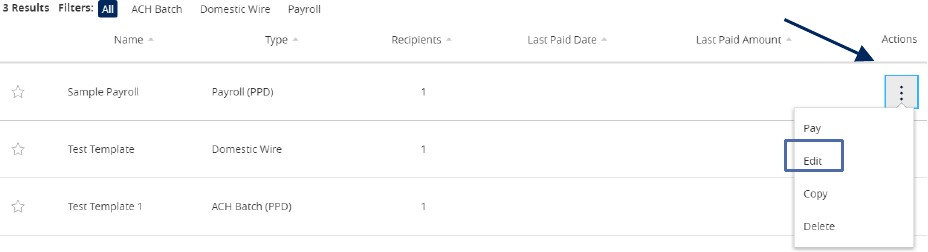
c. Click the 'template actions' icon and select 'Edit' to work with an existing Payroll template

Results list with the Template Actions icon and Edit option.

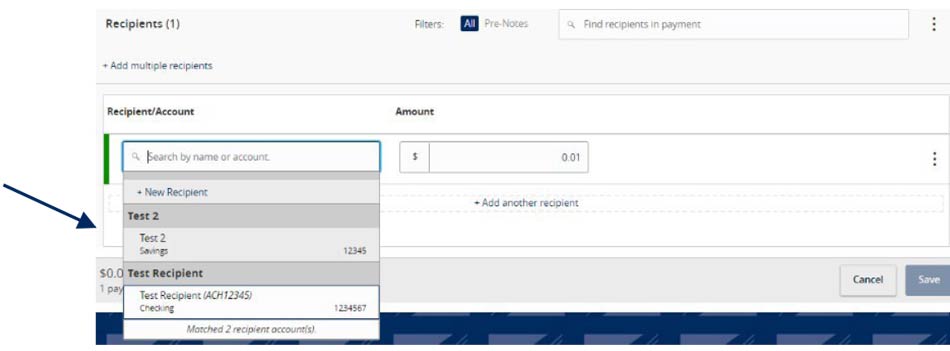
3. Select the desired recipient's primary account from the drop down list of existing recipients.

Recipients and the desired recipient's account within the dropdown menu.

4. Enter total dollar amount of the payroll transaction.

Recipient/Account and the dollar amount of the payroll transaction.

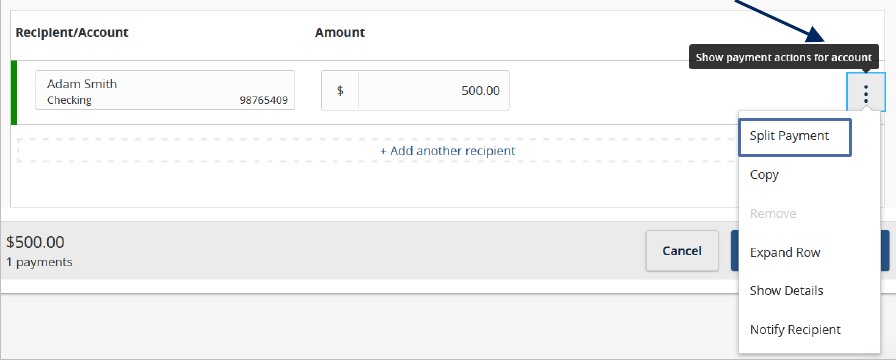
5. Click the 'Show payment actions' icon and select the 'Split Payment' option.

Recipient account row with Show Payment Actions menu open to Split Payment, Copy, Expand Row, Show Details, and Notify Recipient options.

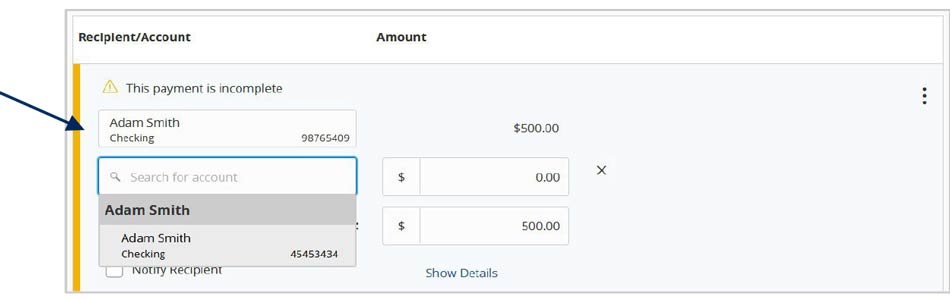
6. Select the recipient's secondary account from the drop-down list.

Recipient/Account and the recipient's secondary account from a drop-down list of accounts, with a field to insert a desired $ amount.

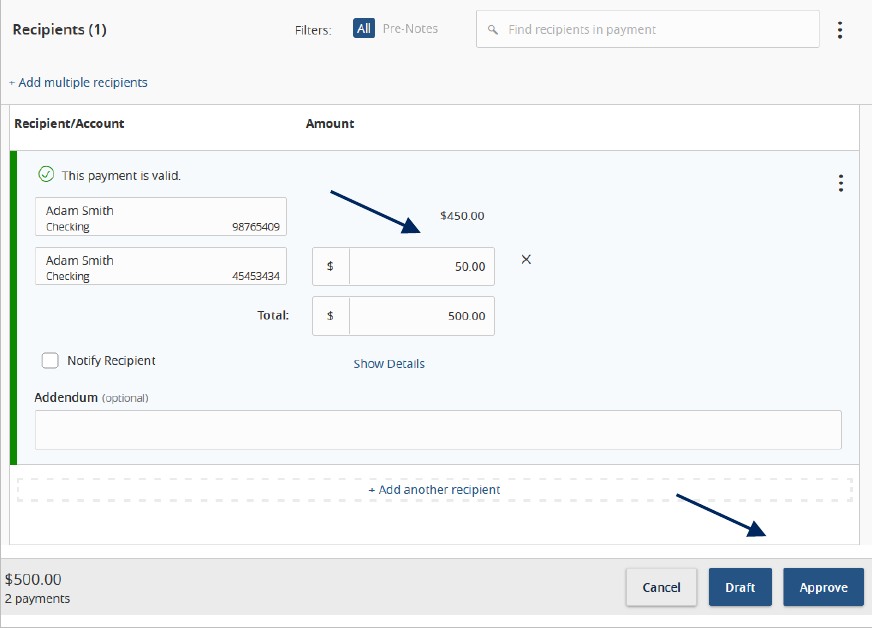
7. Enter the desired dollar amount to be allocated to the secondary account. Then select 'Draft or Approve', depending on user entitlement.

NOTE: The dollar amount allocated to the primary account will be automatically reduced in accordance with the total dollar amount of the payroll transaction.

Recipients section with secondary account allocation amount and Draft or Approve options.

ACH Template Creation Guide

Open printable PDF

NOTE: A Commercial Template allows you to save payment information that can be accessed in the future.

1. Select the 'Transfers & Payments' menu and then select 'Commercial Payments'.

Transfers and Payments menu showing Commercial Payments.

2. Select 'New Template' and the desired payment type.

Payment Templates content and New Template, with a dropdown menu that includes: ACH: ACH Batch, ACH Collection, Payroll, and Wire: Domestic Wire and International Wire.

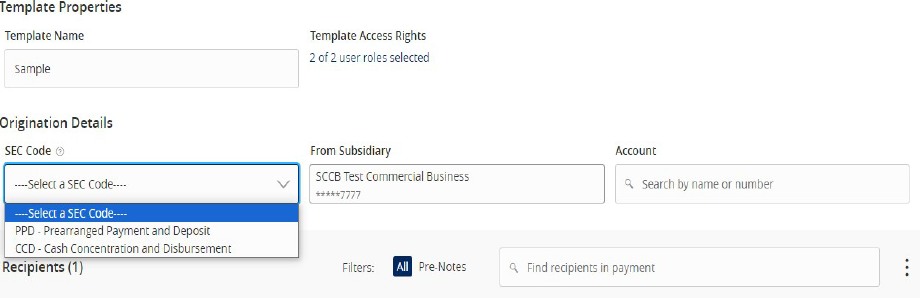
3. Designate a 'Template Name'.

4. Select an 'SEC Code'.

5. Select a 'Subsidiary'.

6. Select an offset 'Account'.

Template Properties and an SEC code, under the heading Origination Details.

7. Click the link below 'Template Access Rights'.

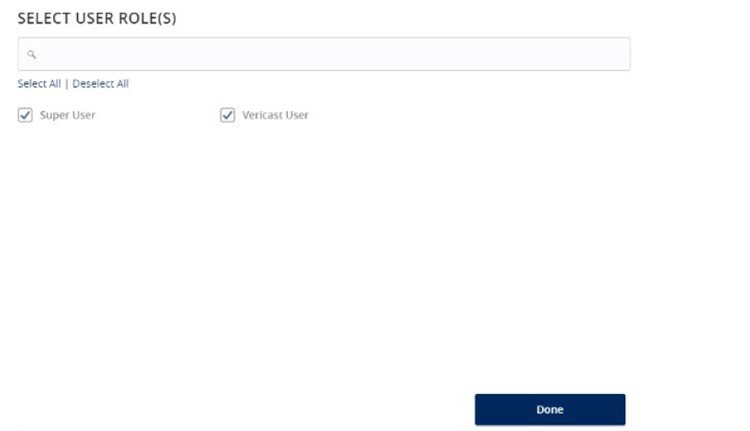
8. Select the 'User Role(s)' who should have access to the template.

NOTE: A User Role will appear as greyed out if the feature allowing access to all templates is enabled. This overrides the ability to remove template access from the corresponding User Role.

Select User Roles window with Super User and Vericast User checkboxes and Done button.

9. Click the '+Add multiple recipients' link to add multiple recipients to the template.

Recipients and Add Multiple Recipients.

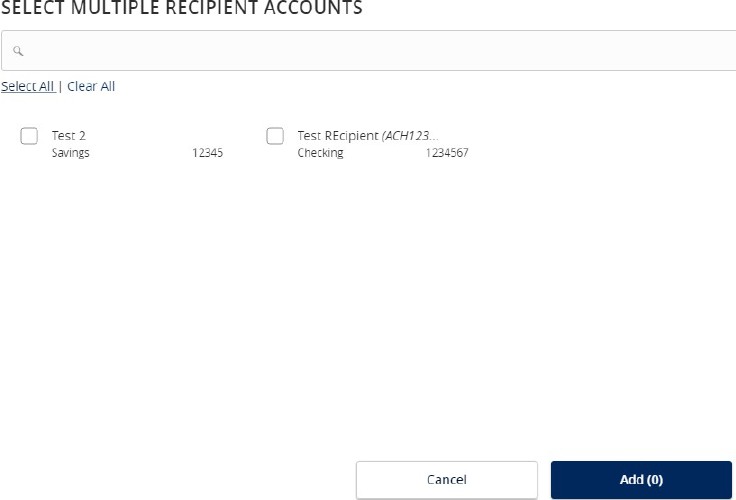
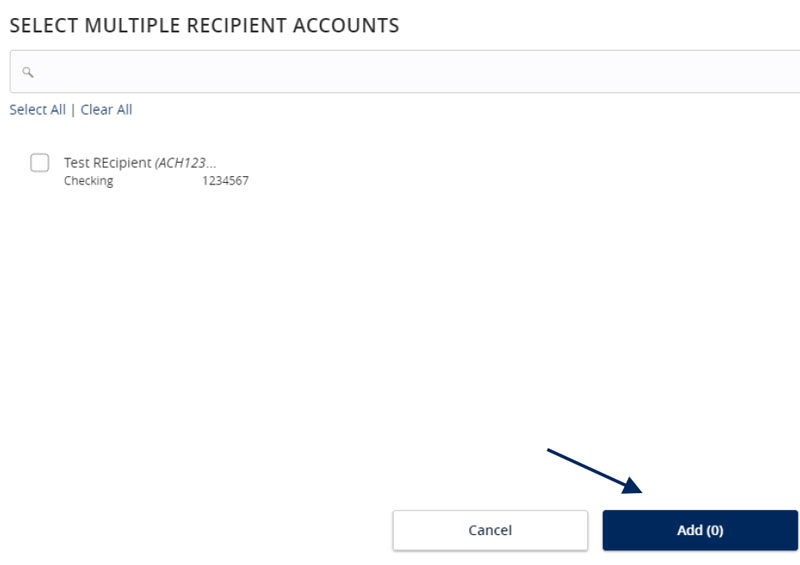
10. Select the desired recipients and click the 'Add' button when done.

Select Multiple Recipient Accounts and the Add button.

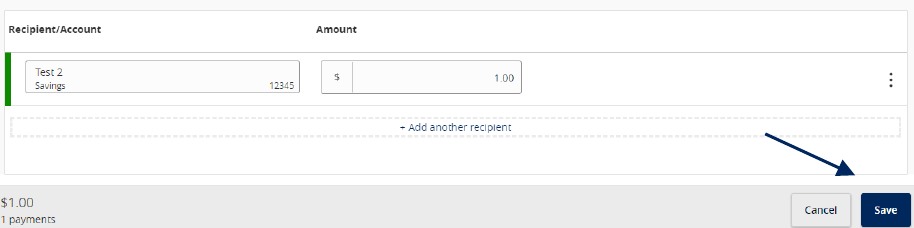
11. Enter a dollar amount for each linked recipient.

NOTE: The amount may be left as $0.00 if the amount will differ from file to file.

12. Review the information on the screen for accuracy and then select 'Save'.

Recipient Accounts section with amount field and Save button.

Information Reporting Guide

Open printable PDF

Reports Setup Process

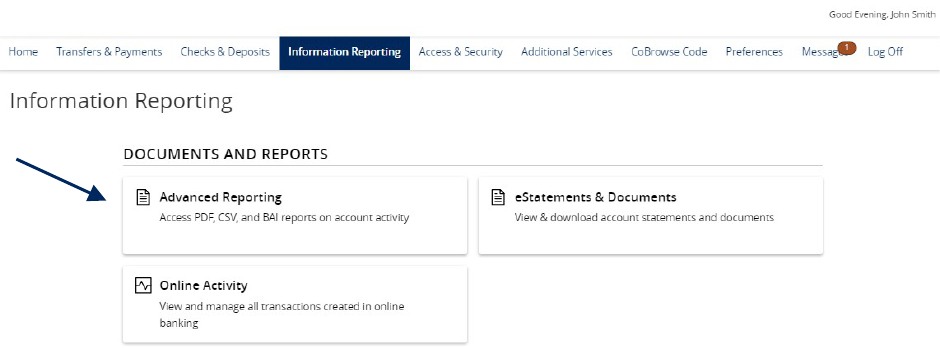
1. Select the 'Information Reporting' menu, then select 'Advanced Reporting'.

Information Reporting on the menu bar and an arrow showing Advanced Reporting.

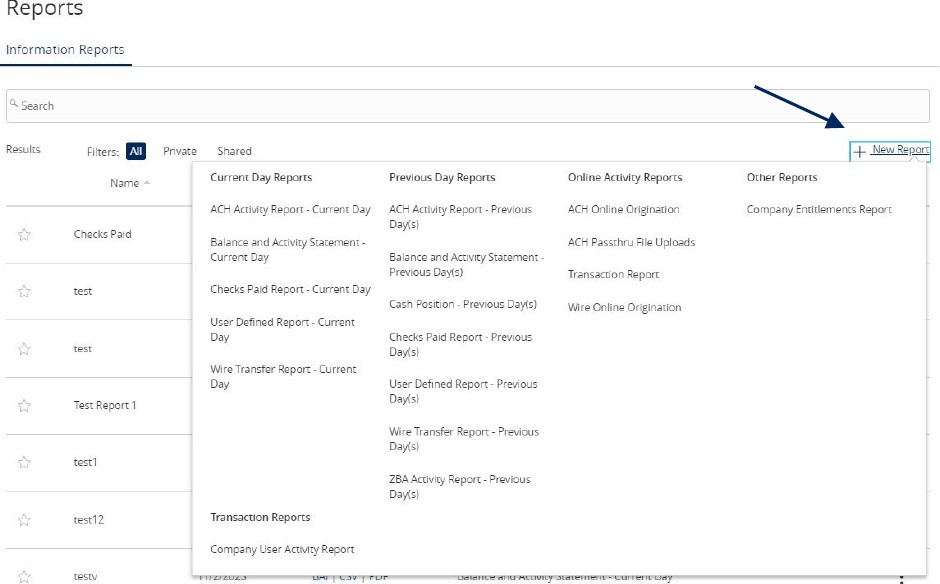
2. Click the 'New Report' link and select the desired report from the list.

Reports content showing New Report

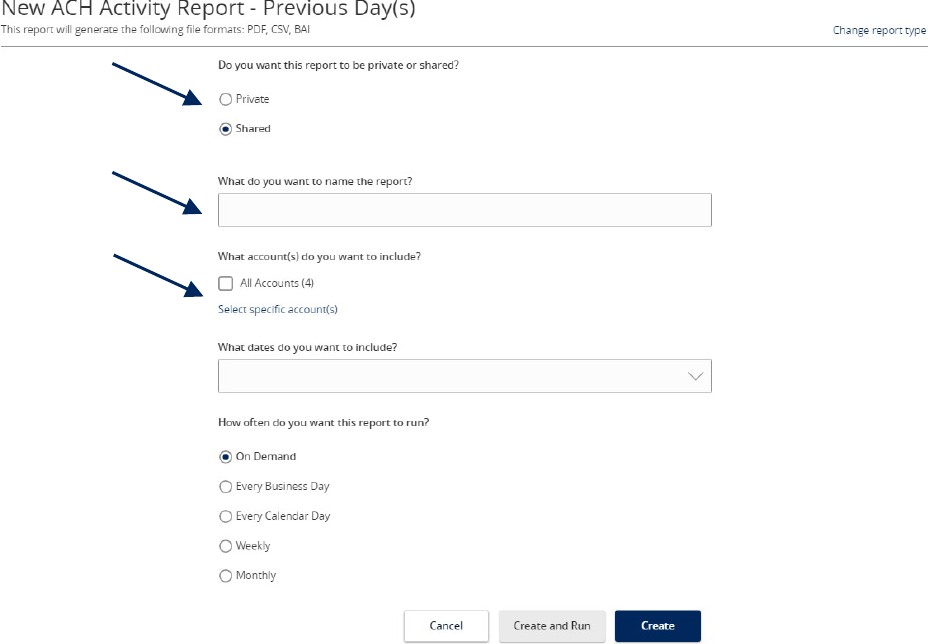
3. Indicate whether the report is Private or Shared.

4. Enter the desired name for the report.

5. Indicate which accounts need to be included in the report.

NOTE: This step only corresponds with reports associated with account information.

a. Click the 'All Accounts' box to include all available accounts in the report.

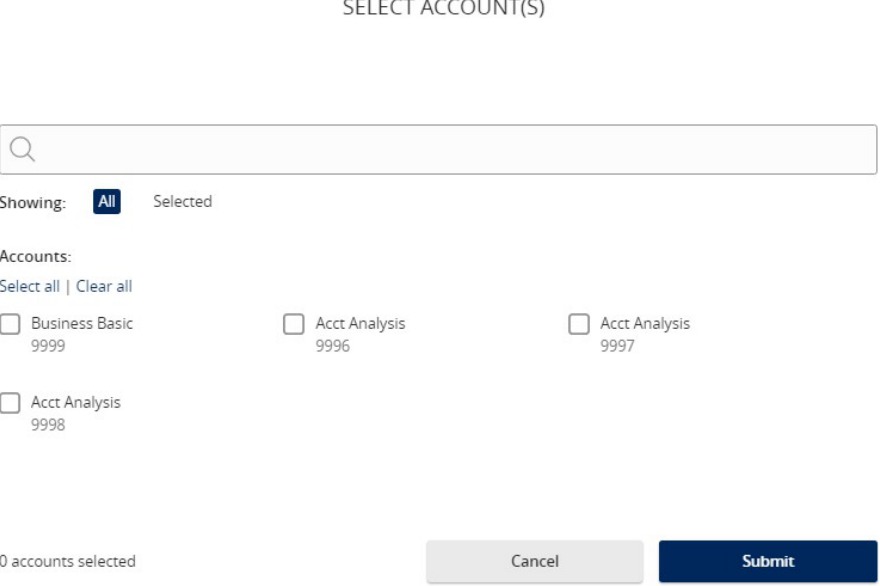
b. Click the 'Select specific account(s)' link to choose individual accounts to be included in the report.

ACH Activity Report setup showing Previous Days, Shared, report name, and account selection fields.

Select the accounts to be included in the report. Either select by label or by individual account.

Select Accounts content shows all your accounts and you can select by label or individual accounts.

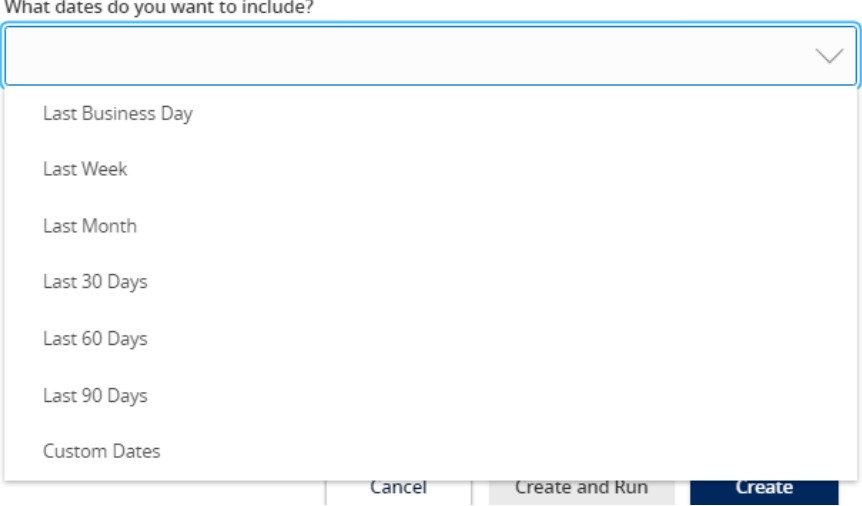
6. Select the date(s) to be included in the report.

a. Select one of the dynamic date range options. (A rolling date range that shifts in accordance with the current day)

NOTE: Information can be pulled as far back as the oldest transaction that exists within Online Banking for the respective account(s).

Date content with options to select the following; Last Business Day, Last Week, Last Month, Last 30 Days, Last 60 Days, Last 90 Days and Custom Dates.

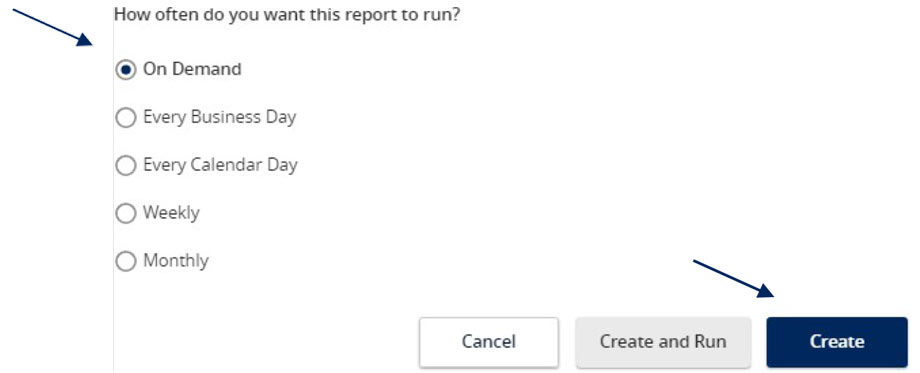
7. Select how often the report should run.

8. Select 'Create and Run' to run the report immediately and to save the recurrence. Or select 'Create' to schedule the report without immediately running it.

Select how often you want the report to run: On Demand, Every Business Day, Every Calendar Day, Weekly and Monthly.

9. The report will display as either 'Queued' or 'In Progress' while it is being generated, depending on how many reports are currently being generated.

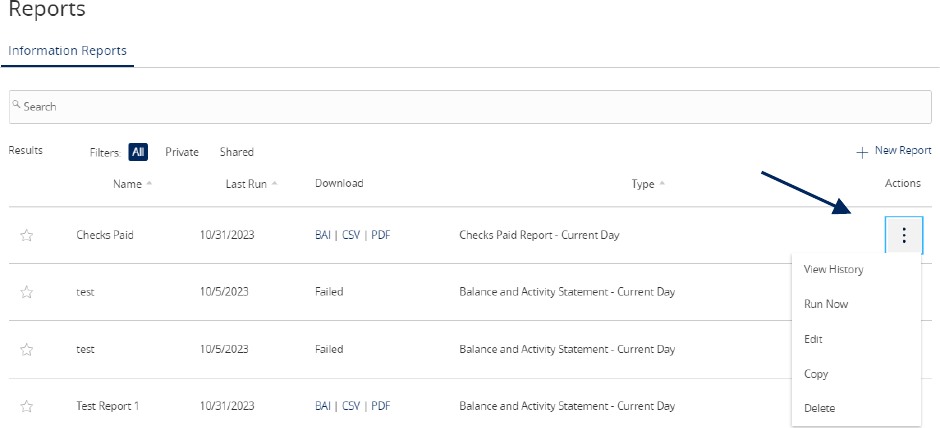
10. Click the 'Actions' option to View History, Run On-Demand, Edit, Copy, or Delete the specific report.

Reports content showing options to View History, Run On-Demand, Edit, Copy, or Delete the specific report.

One Time Commercial Payments Guide

Open printable PDF

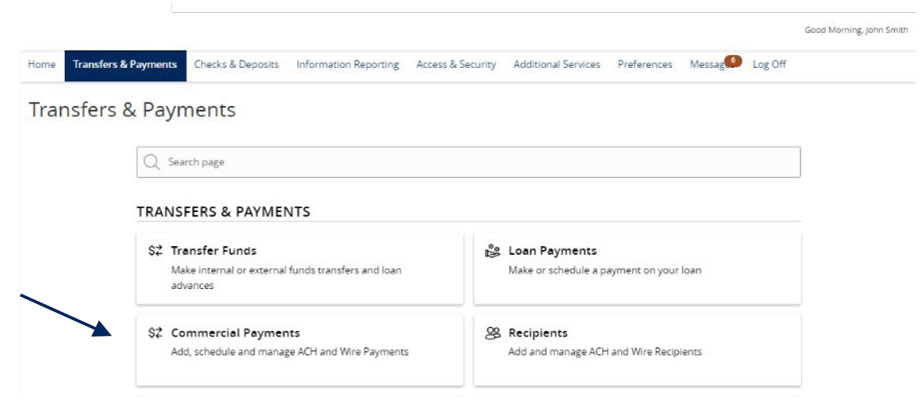
1. Select the 'Transfers & Payments' menu and then 'Commercial Payments'.

Transfers and Payments menu with Commercial Payments selected.

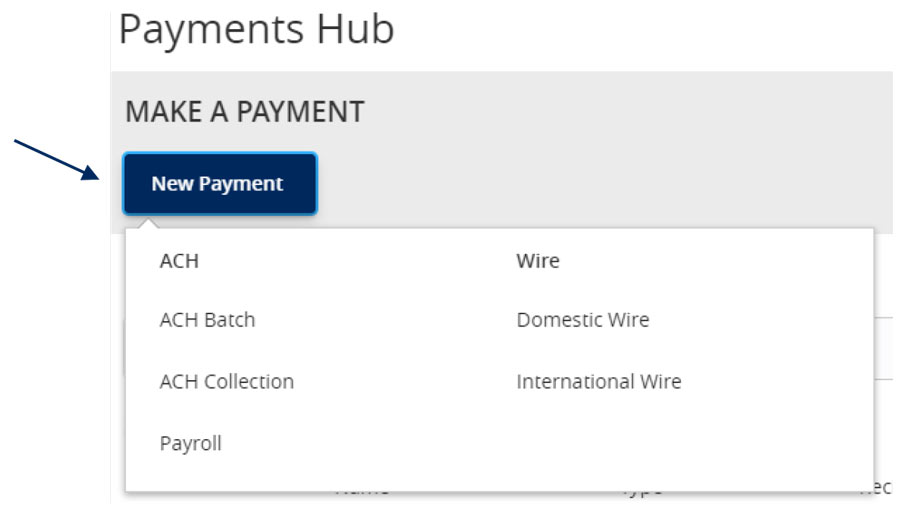
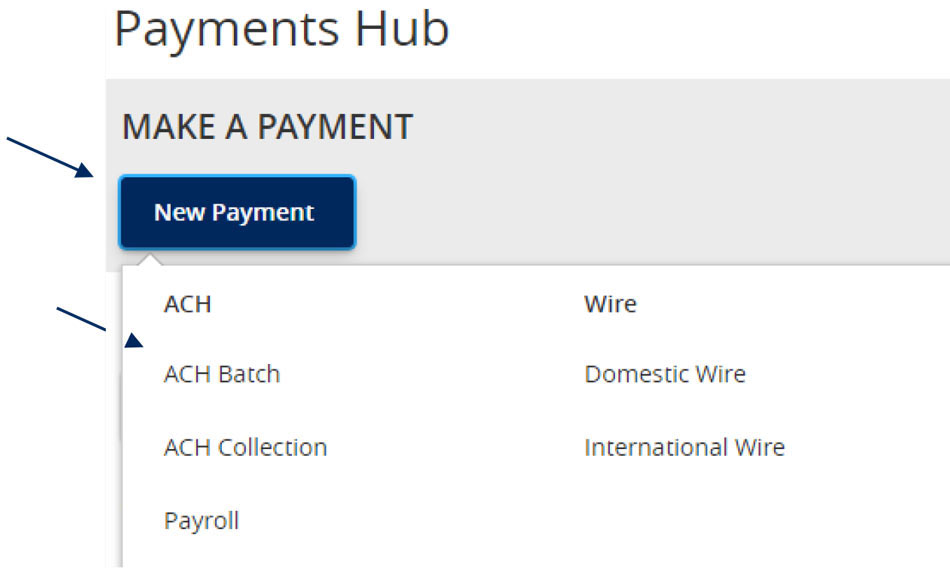
2. Select the desired transaction type within the 'New Payment' drop-down menu.

Payments Hub New Payment drop-down with ACH, ACH Batch, ACH Collection, Payroll, Domestic Wire and International Wire options.

3. Select the desired ACH Class Code.

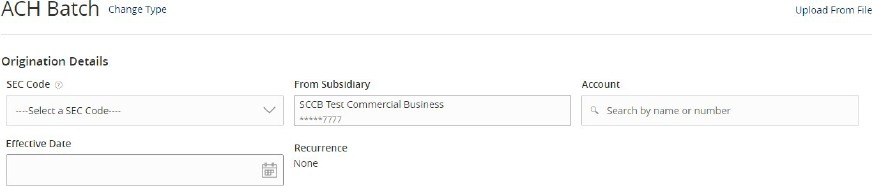
ACH Batch origination details including SEC Code, From Subsidiary, Account and Effective Date fields.

NOTE: Payroll transactions will automatically default to an ACH Class Code of PPD.

4. Select the 'From Subsidiary'.

5. Select the offset 'Account'.

6. Select the 'Effective Date'.

7. Optional: Click 'Set schedule' to set up the wires as recurring transactions.

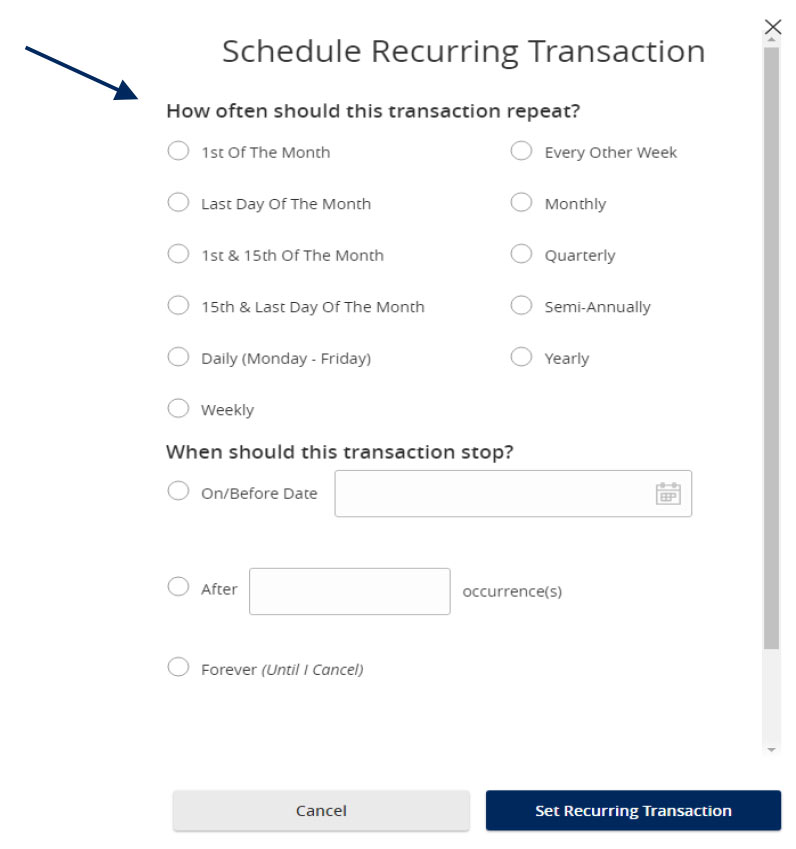
Recurring transaction schedule setup panel.

8. Select how often the transaction should repeat.

9. Designate when the transaction should stop.

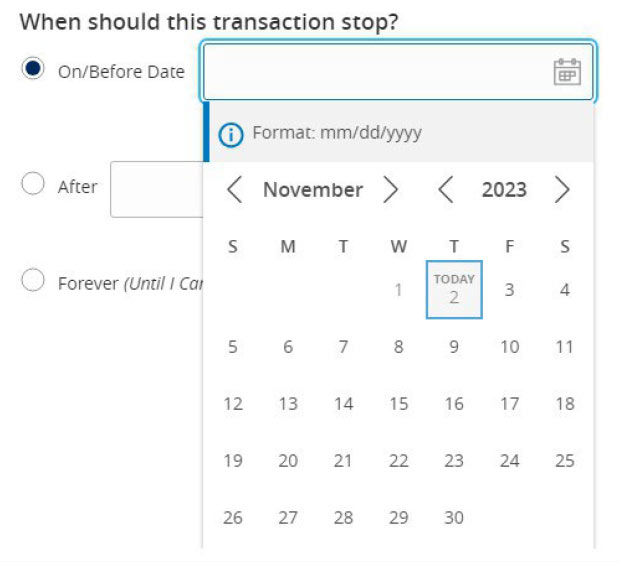
  1. Click the 'Forever (Until I cancel)' option to set up an indefinite recurrence.
  2. Click the calendar and select a date to designate a specific date to stop the recurrence.

10. Click 'Save' to save the recurrence setup.

Recurring transaction frequency and stop date options.

11. Click the '+Add multiple recipients' link to select multiple recipients at one time.

Add multiple recipients option in the recipients section.

12. Select the desired recipients and click 'Add' when done.

Select Multiple Recipient Accounts window with recipient selection options and Add button.

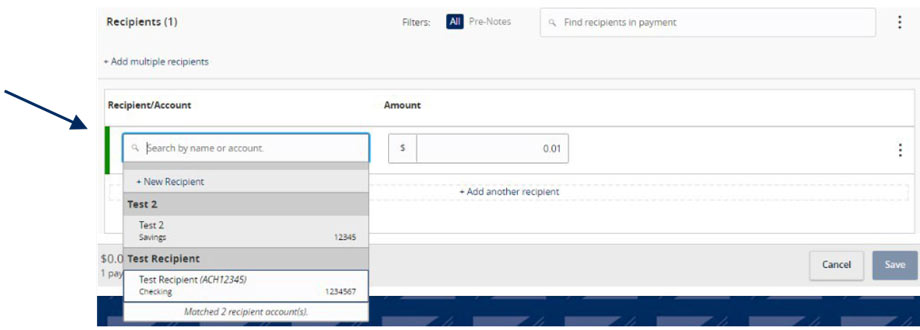
13. Click the '+Add another recipient' link to add an individual wire transfer.

14. Select an existing recipient from the drop-down menu or select '+New Recipient' to create a new recipient.

NOTE: Reference the Recipient Management setup document for information regarding the setup of a new recipient.

Recipient selection options including existing recipients and new recipient creation.

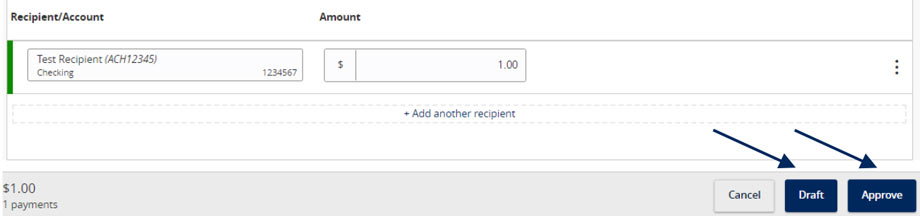
15. Review the information on the screen for accuracy and then select 'Approve' to authorize the wires or 'Draft' to only draft the transactions.

Final review screen with Draft and Approve transaction options.

Recipient Upload from Batch Guide

Open printable PDF

1. Select the 'Transfers & Payments' menu and then select 'Commercial Payments'.

Transfers and Payments menu showing Commercial Payments.

2. Select 'New Payment' and then select the desired Payment Type.

Payments Hub menu with New Payment and ACH Batch selected from the list.

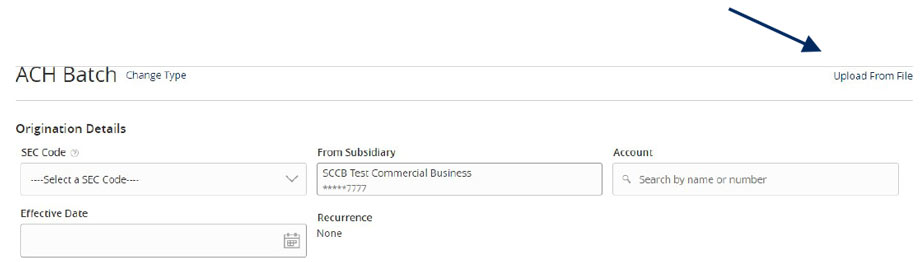
3. Select 'Upload from File'.

ACH Batch and the Upload From File option.

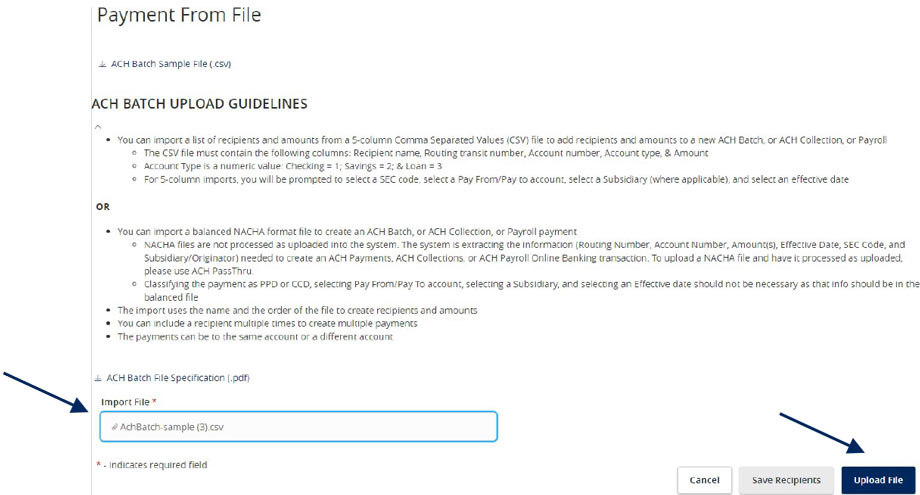
4. Select the 'Import File' box to browse and select the file to be uploaded on the computer.

5. Select 'Save Recipients' to automatically add the recipients into the master recipient list. A confirmation will pop up on the screen once the file has been uploaded successfully.

NOTE: Select 'Upload File' if the ACH or wire file will need to be processed.

NOTE: If there is a problem with the file being imported, an overlay message will appear on the screen with a notification.
Potential examples may include:

  • ABA number contains more or less than 9 digits.
  • File being imported is not in NACHA or CSV format.
Payment from File with the Import File field, and then Upload File

User Management Corporate Guide

Open printable PDF

Managing Existing Online Users

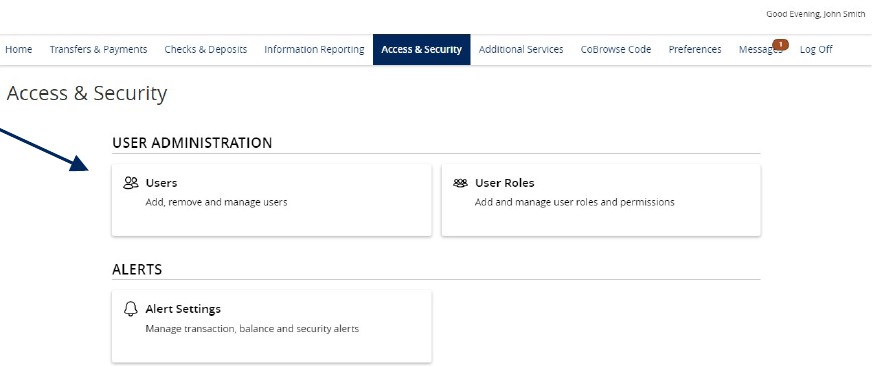
1. Select 'Access & Security' menu and then select 'Users'

'Access & Security' menu showing Users.

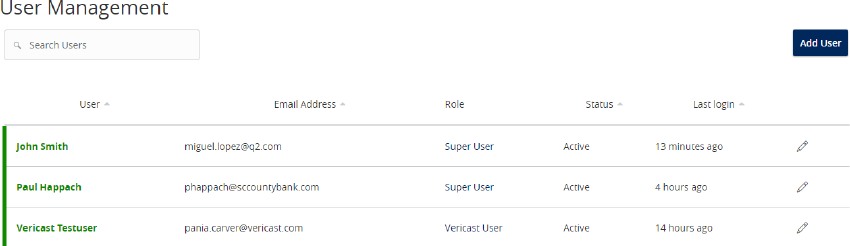
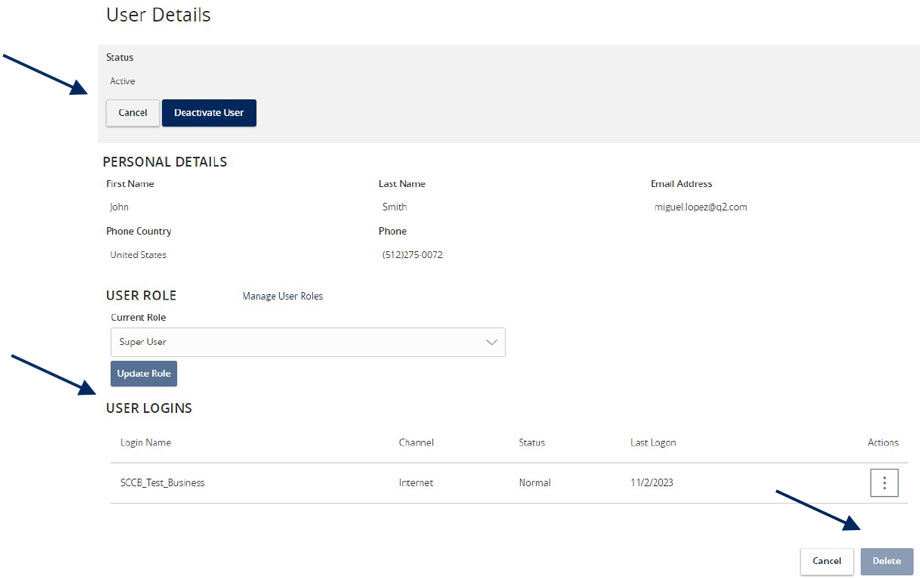
2. Click on the pencil icon next to the user you wish to edit.

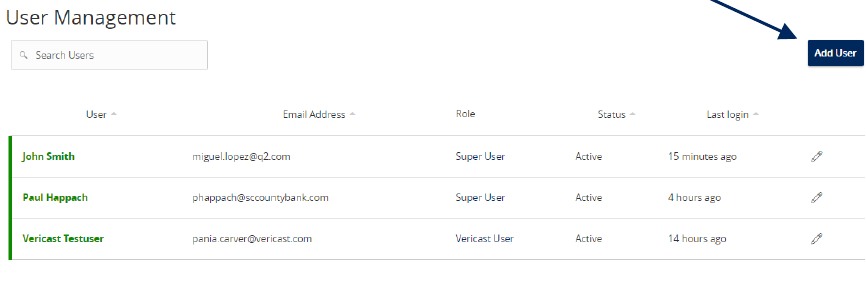
User Management, showing Add User button and the pencil icons below the Add User button.

3. One of three update actions may be made to an existing user:

  1. Select 'Deactivate User' to disallow a user from logging in without completely deleting the user.
  2. Select the 'User Role' drop down menu to update the 'User Role' for a user. Click 'Update Role' upon completion.
  3. Select the 'Delete' button to permanently delete the online user. This action cannot be undone.

NOTE: The User Role update will go into effect upon the user's subsequent log on after the change has been made.

User Details showing Deactivate User, as well as User Role, User Logins and the Delete button.

Creating New Online Users

1. Click the 'Add User' button.

User Management and the Add User button.

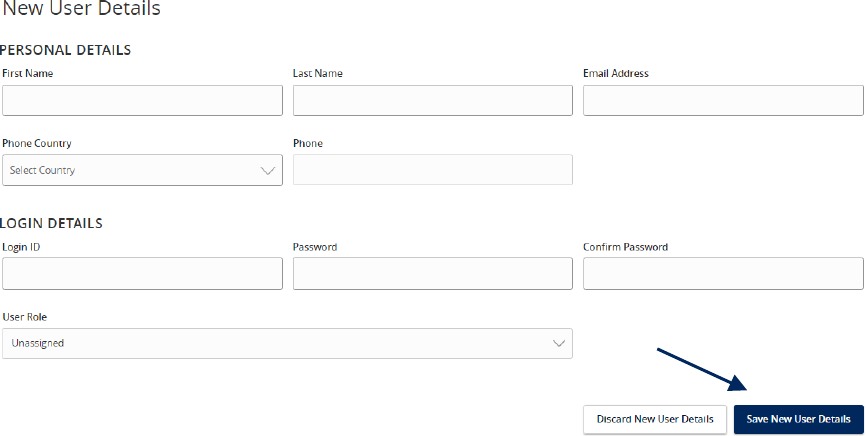
2. Complete all fields.

3. Click the 'Save New User Detail' button when done.

NOTE: Reference the User Roles setup guide for assistance with setting up a 'User Role'.

New User Details showing Personal Details and Login Details, and the Save New User Details button.

User Roles Guide

Open printable PDF

NOTE: User Roles are created to control feature entitlements and dollar limits for one or more company users.

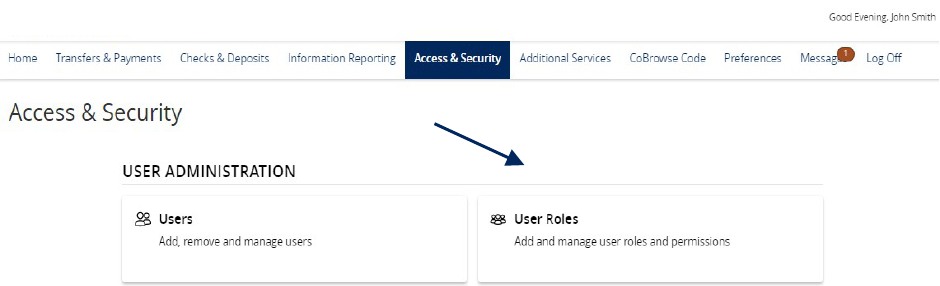
1. Select the 'Access & Security' menu, then select 'Users Roles'.

'Access & Security' menu showing Users Roles.

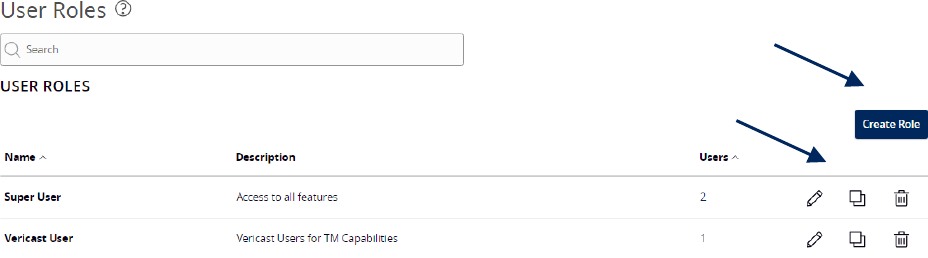
2. Click on 'Create Role' to create a new user role.

NOTE: Three actions can be performed on an existing User Role.

  1. Select the pencil icon to edit the user role.
  2. Select the double paper icon to copy the user role.
  3. Select the trash bin to delete the user role.
User Roles, showing Create Role button and the pencil, double paper icon, and trash icons below the Create Role button.

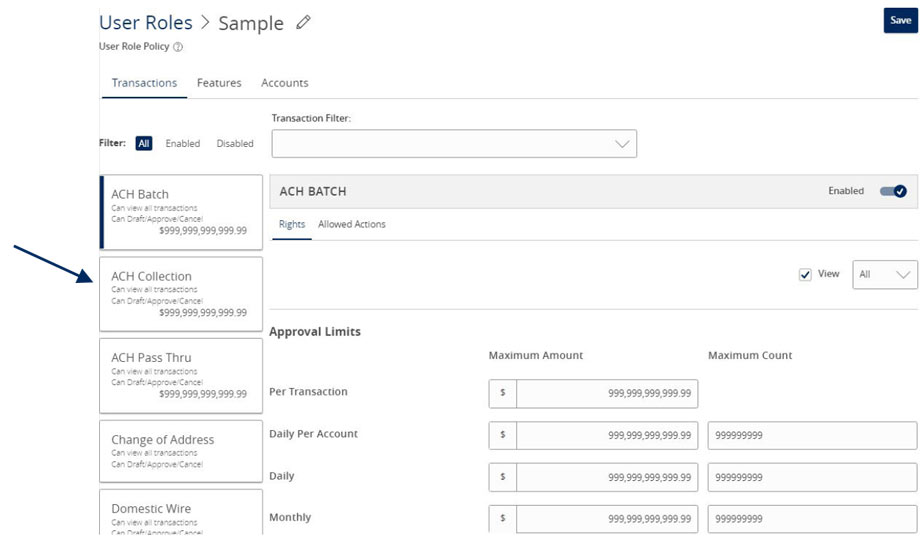
3. Select a transaction type that you would like to set parameters around by clicking on the transaction name.

4. Now select 'Allowed Actions'.

User Roles showing ACH Collection.

Allowed Actions

NOTE: One or multiple levels may be set up to establish general or specific user limitations.

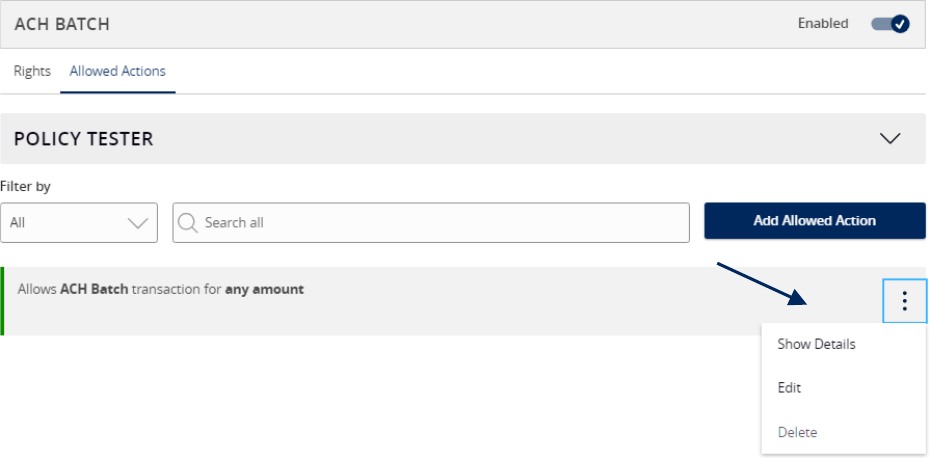
5. To specify the allowed operation(s) for the selected transaction type, click the vertical dot icon and select 'Edit'.

ACH Batch and Policy Tester and the Add Allowed Actions button with a dropdown menu: Show Details, Edit and Delete.

Operations

  1. 'Draft' allows a user to initiate a transaction.

    'Draft Restricted' allows a user to only access an assigned ACH or wire template. It does not allow a user to edit exiting templates or add new templates. One-time payments and recipient maintenance within existing templates are also not allowed.

    'Approve' allows a user to authorize a transaction.

    'Cancel' allows a user to cancel a drafted or authorized transaction.
Operations options: Draft, Approve, Cancel.

Amount

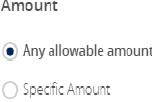
7. Select the 'Any allowable amount' option or 'Specific Amount' to enter the amount for the allowed action.

Amount options: Any allowable amount, Specific Amount.

Subsidiaries

8. Select the 'Any allowed subsidiaries' option or choose 'Select specific subsidiaries' to view the subsidiary or subsidiaries allowed for this transaction type. This step applies only to organizations with more than one Tax ID number.

Subsidiaries options: Any allowed subsidiaries. Select specific subsidiaries

Accounts

9. Select the 'Any allowed accounts' option or choose 'Select specific accounts' to specify the account(s) allowed for this transaction type.

Accounts options: Any allowed account. Select specific accounts(s).

Draft Hours

10. The 'Draft Hours' option allows you to restrict hours and days of the week when transactions can be drafted.

11. Select 'Submit'.

Draft Hours options showing Day, Start Hours, and End Hours and the submit button.

Rights

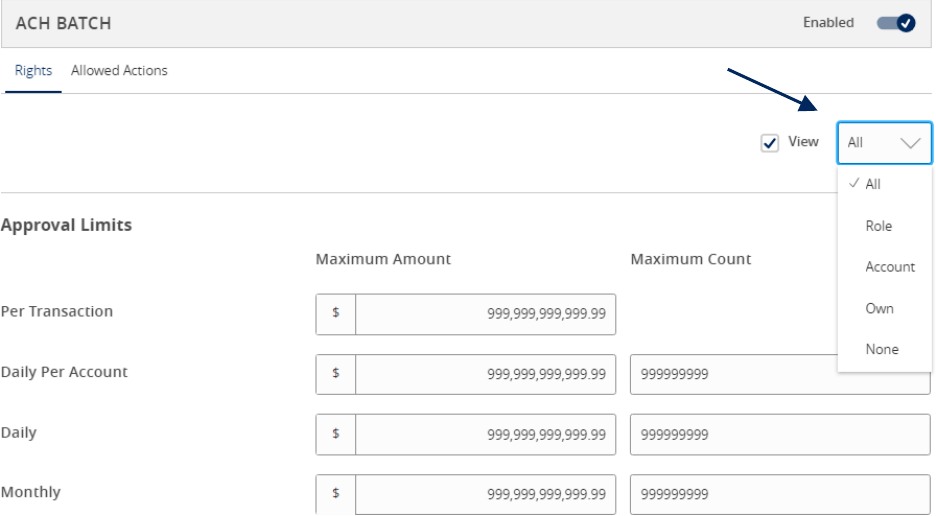
12. On the Rights tab, select the appropriate right for the user role's ability to view transactions in the 'Activity Center'.

All: View transactions initiated by any user within the company

Role: View transactions initiated by users with the same role

Account: View online activity of accounts the user has access to

Own: View only your own transactions

None: Cannot view transactions

ACH Batch, Rights and Allowed Actions options, and the following options: All, Role, Account, Own, and None.

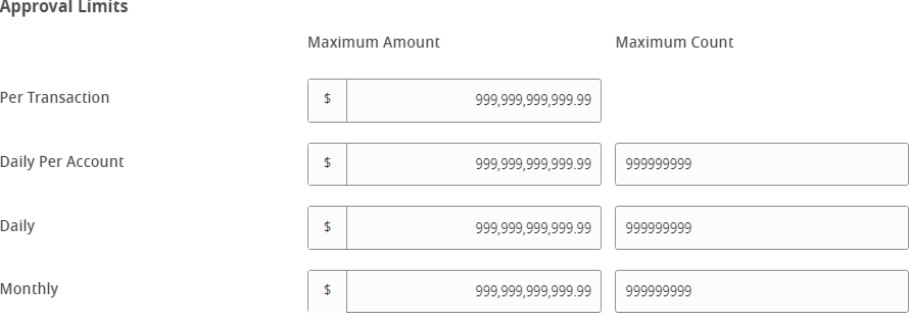
Approval Limits

13. Select the 'Approval Limits' tab to view and modify the dollar and count limits assigned by Boston Private.

14. Repeat the previous steps for each transaction type.

Approval Limits showing were to set Maximum Amounts and Maximum Counts for the following: Per Transaction, Daily Per Account, Daily and Monthly.

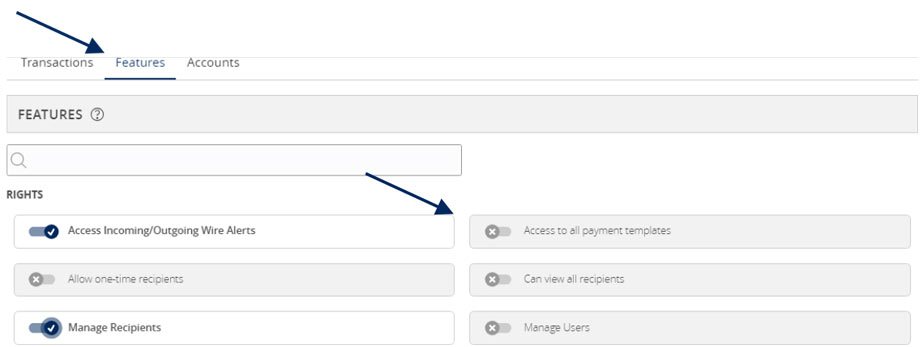
Features

15. Select the 'Features' tab to view and modify the non-transactional features. Select features you wish to enable or disable.

Features options, showing features tab and the following features: Access Incoming/Outgoing Wire Alerts, Allow one time recipient, Manage Recipients, Access to all payment templates, Can view all recipients, and Manage Users.

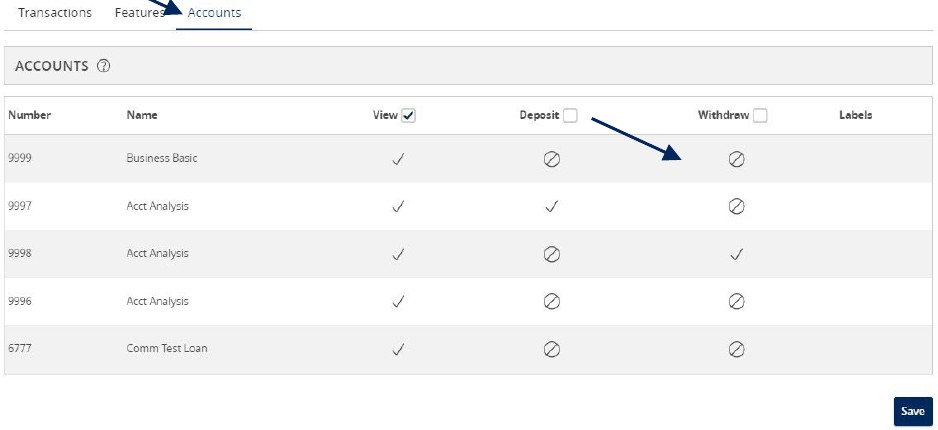
Accounts

16. Select the 'Accounts' tab to view and modify the account entitlements by selecting the checkmark or circle with a slash under 'View', 'Deposit' or 'Withdraw'.

17. Save the User Role by selecting the 'Save' button.

Accounts options and the Accounts tab and selections available for View, Deposit, and Withdraw.

Wire Origination Guide

Open printable PDF

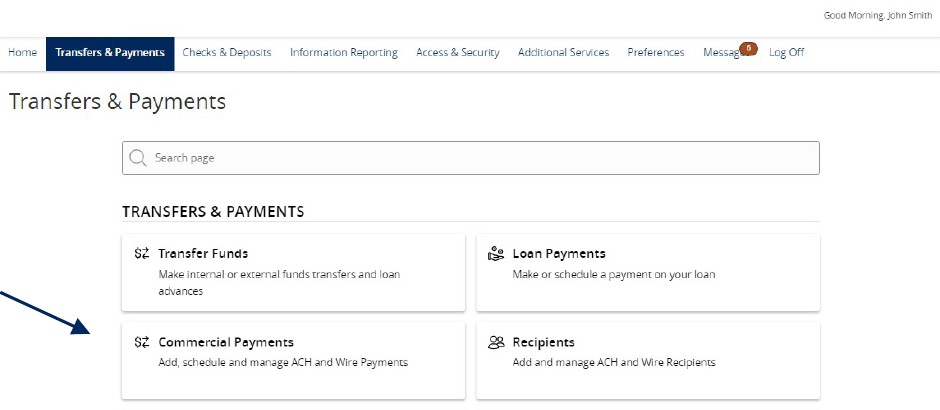
1. Select the 'Business Banking' menu, then select 'Commercial Payments'.

Transfers and Payments menu showing Commercial Payments.

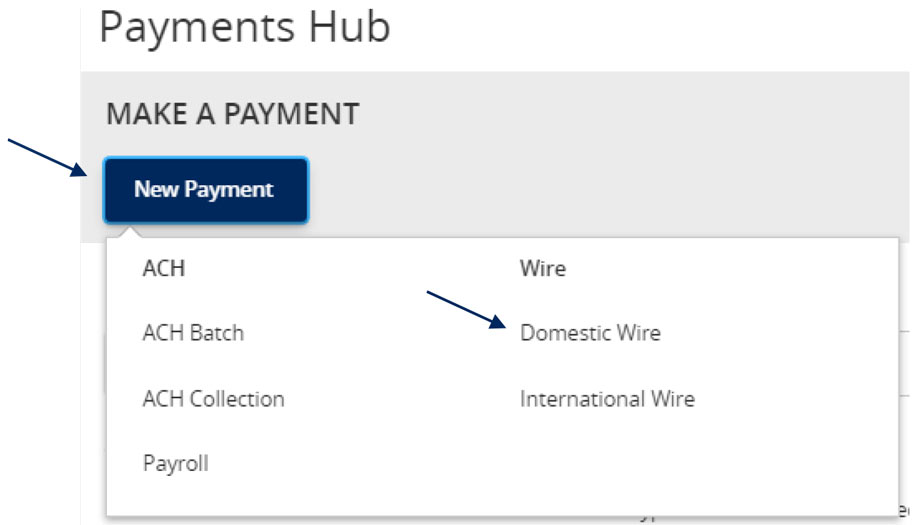
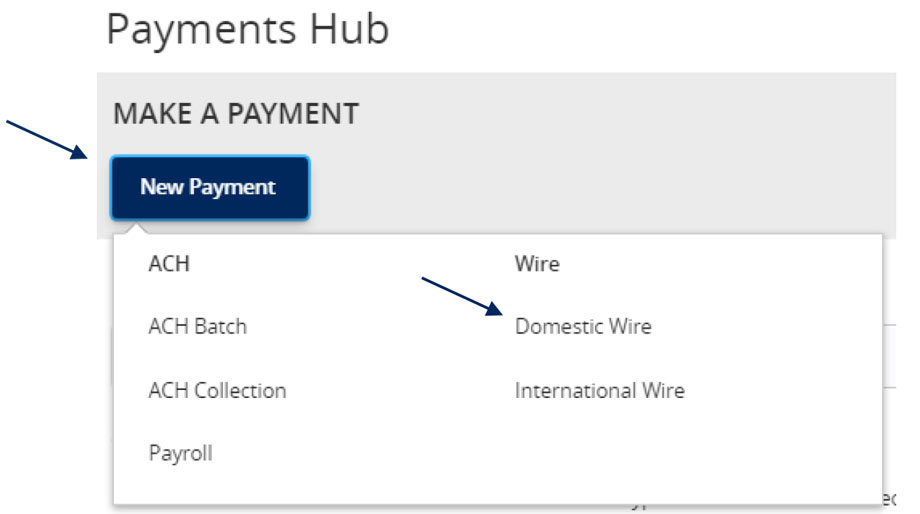
2. Select 'New Payment' and then 'Domestic Wire' from the dropdown menu.

Payments Hub menu with Domestic Wire selected for a new payment.

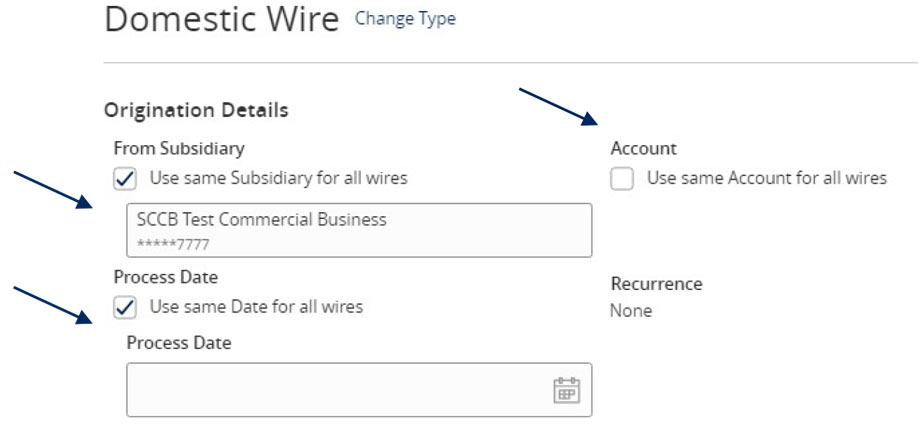
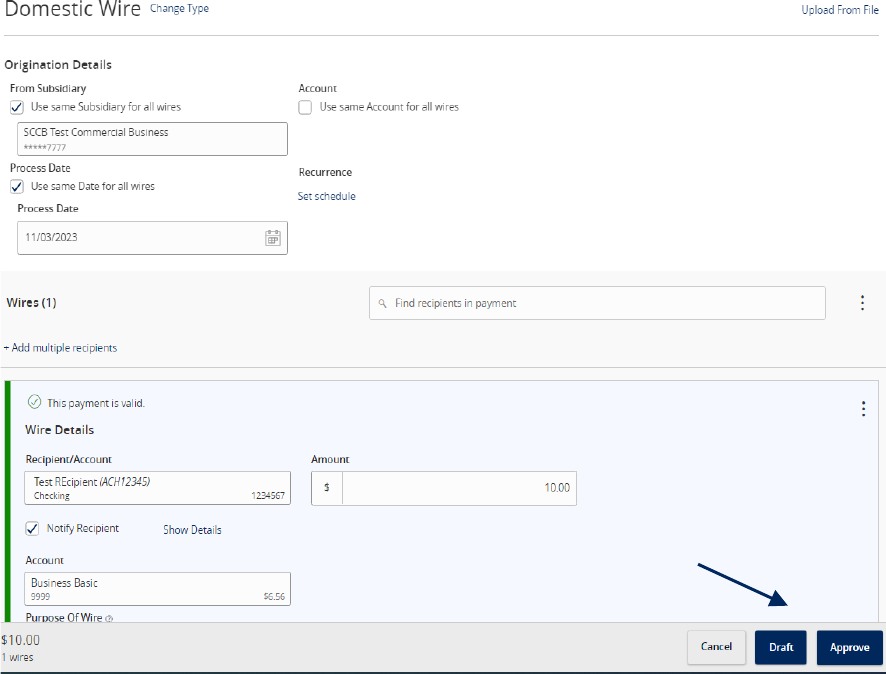
3. Select the checkbox next to 'Use same Subsidiary for all wires' if all wires should contain the same subsidiary. Or leave the checkbox empty to specify the subsidiary individually.

4. Select the checkbox next to 'Use same Account for all wires' if all wires should contain the same Account. Or leave the checkbox empty to specify the subsidiary individually.

5. Select the checkbox next to 'Use same Date for all wires' and enter a date if all wires will be processed on the same date. Or leave the checkbox empty to specify each date individually.

Domestic Wire form showing the subsidiary to use, the account to use, and the process date to use.

6. Select the 'Add multiple recipients' link to setup multiple wires to existing recipients.

Wire form showing Add multiple recipients option.

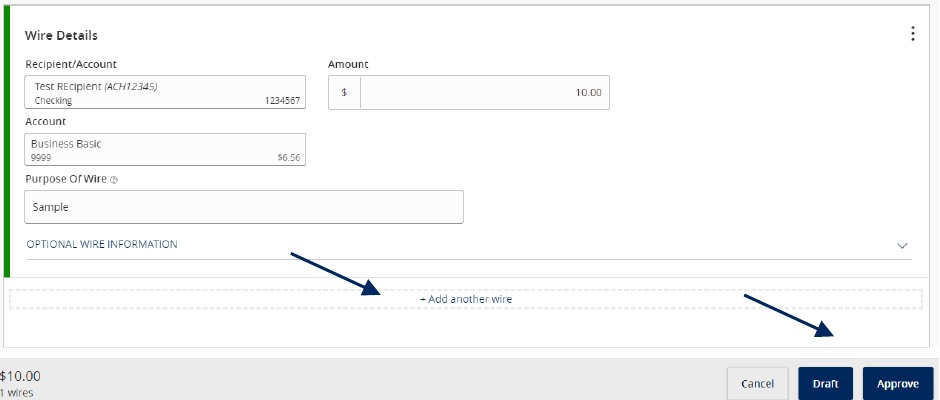
7. Select the 'Add another wire' link to add just a single wire to the page.

8. Enter the 'Recipient/Account', 'Amount', 'From Subsidiary' and 'Account' fields.

9. Review all information for accuracy. Then select 'Draft' or 'Approve' to complete the process.

Wire Details section with Add another wire, Cancel, Draft, and Approve options.

Wire Upload Guide

Open printable PDF

NOTE: Wire Upload allows you to upload a formatted CSV file with multiple wire transfers instead of inputting the wire information manually.

1. Select the 'Transfers & Payments' menu and then select 'Commercial Payments'.

Transfers and Payments menu showing Commercial Payments.

2. Select 'New Payment' and then 'Domestic Wire'.

Payments Hub menu with Domestic Wire selected for a new payment.

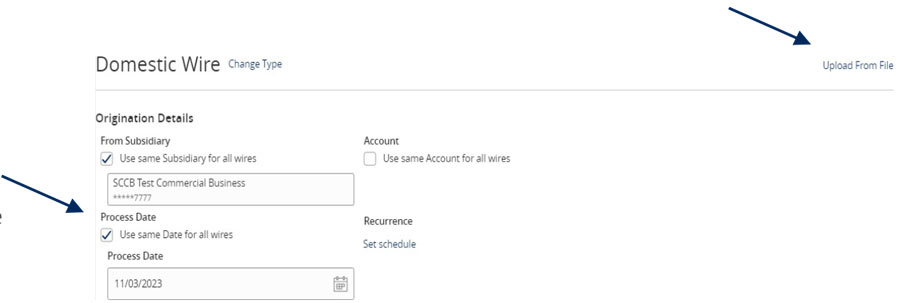
3. Select the 'Upload from File' link in the top right corner.

Domestic Wire showing Upload From File option.

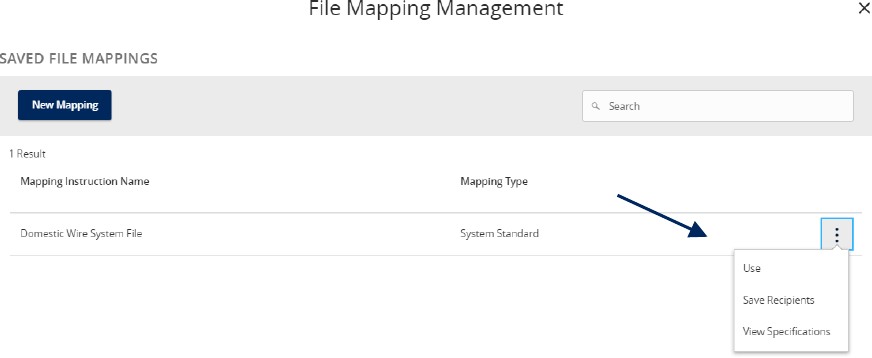
4. Select the 'Use' option to upload a CSV formatted file.

5. Click the 'Please select a file to import' box to browse for the file to be uploaded on the computer.

6. Select 'Upload File'.

File Mapping Management showing Use option from a dropdown menu.

7. Indicate the Process Date for the wires.

  1. If all wires need to be processed on the same day, check the 'Use same Date for all wires' box and click on the calendar below to specify the desired Process Date.
  2. If the wires need to be processed on varied days, leave the 'Use same Date for all wires' box unchecked and indicate the Process Date for each wire individually.
Domestic Wire form showing how to indicate the process date to use.

NOTE: The fields for each wire will be populated in accordance with the data included in the CSV file being imported.

Review all information on the screen for accuracy and select 'Approve' or 'Draft' in accordance with user entitlements.

Domestic Wire form and how it allows you to review your selections, with options to Cancel, Draft or Approve.

Account Labeling Guide

Open printable PDF

NOTE: Account Labeling allows you to group accounts for easy identification. Only User Administrators will have access to this function.

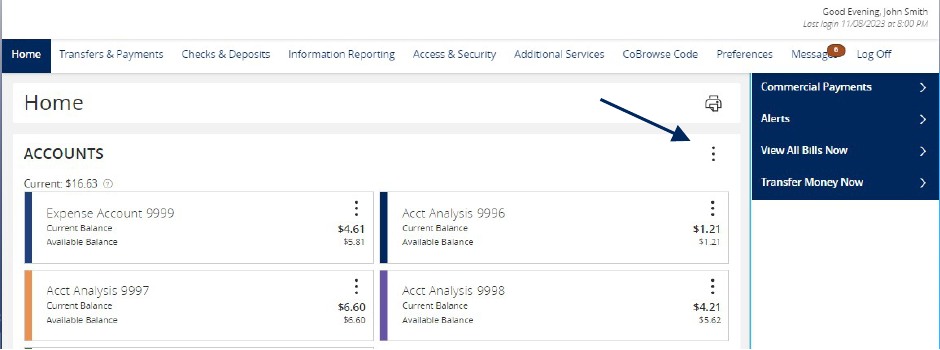
1. On the homepage, select the 'Options' icon, next to each group name you would like to edit.

Home page showing accounts that are available, and the Options Icon.

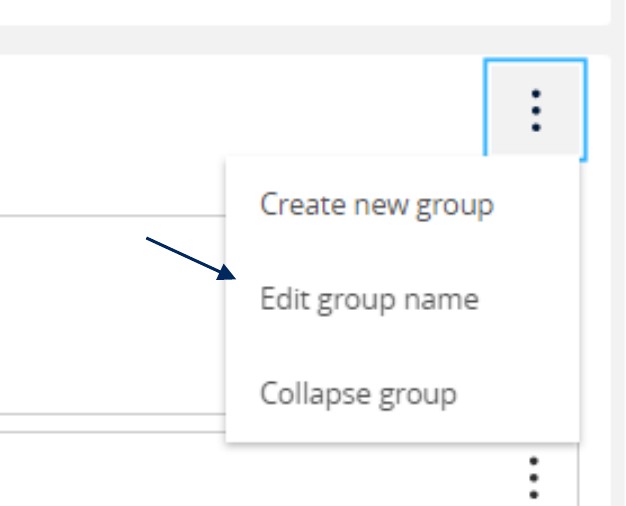
2. Select 'Edit Group Name' to start labeling your account groups.

Close-up of the Options icon menu with Edit Group Name selected.

3. Then select the 'Checkmark' to save your changes.

Close-up of the checkmark under the Print icon.

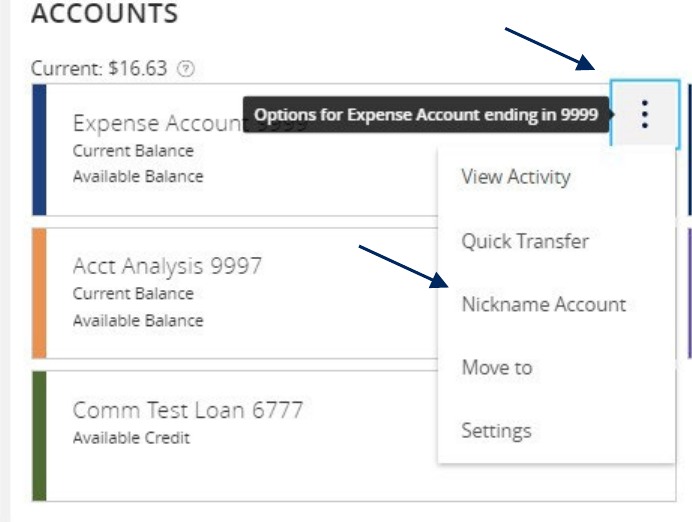
4. Select the 'Options' icon next to each account then select 'Nickname Account' to change its name.

Accounts list with Options menu open to Nickname Account.

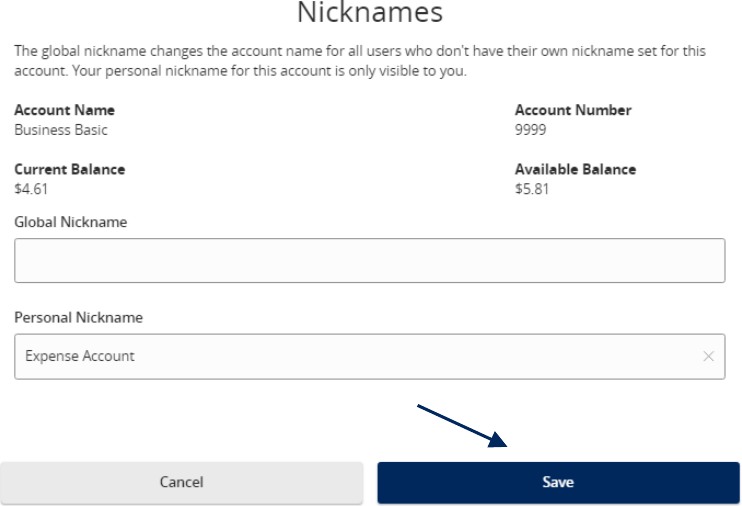
5. You can provide a 'Global Nickname' or change the current "Personal Nickname".

6. Click 'Save' when done.

NOTE: The global nickname changes the account name for all users who do not have their own nickname set for this account. Your personal nickname for this account is only visible to you.

Nicknames, Account Name, Current Balance, Account Number and Available Balance as well as a field for Global Nickname, Personal Nickname and then the blue Save button.

Initial Access to the System

ACH and Check Positive Pay Guide
Open printable PDF

Initial Access to the System

  1. Users will receive a 'Welcome Email' from eBanking when implementation is complete.
  2. Log into the system with your User ID and Password.
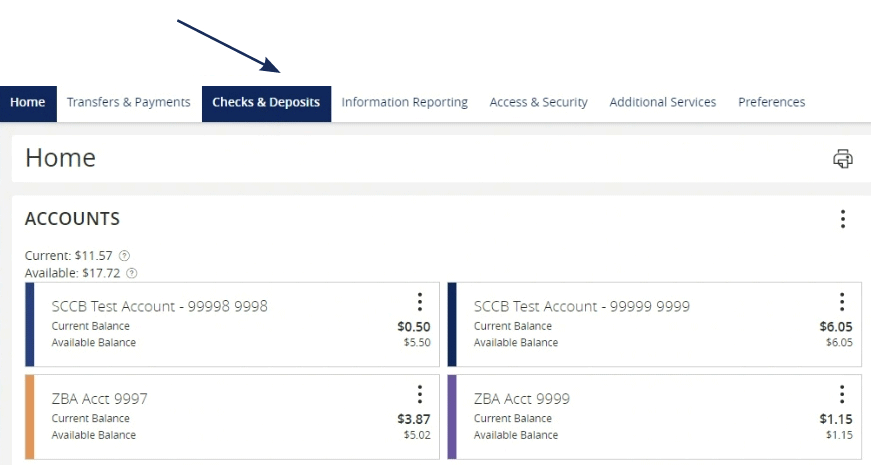
  1. Access Positive Pay by selecting the 'Checks and
    Deposit Tab'.
Online banking app highlighting the link for Checks &  Deposits
  1. Within Checks & Deposit, select 'Positive Pay'.
  2. The Positive Pay system will open in a new tab.

NOTE:
The daily cutoff time for processing exceptions is 11 am.
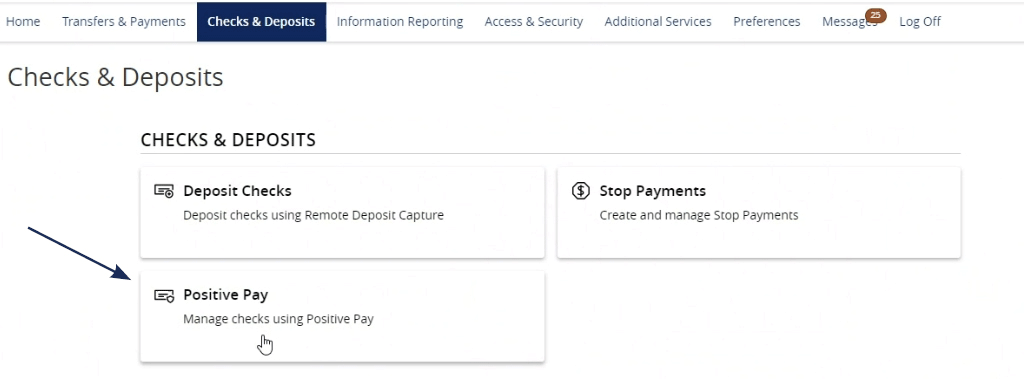
Online banking app's 'Checks & Deposits' page with options for 'Deposit Checks', 'Stop Payments', and 'Positive Pay'. The 'Positive Pay' option is highlighted with an arrow pointing to it.

Processing Exceptions and Viewing Activity
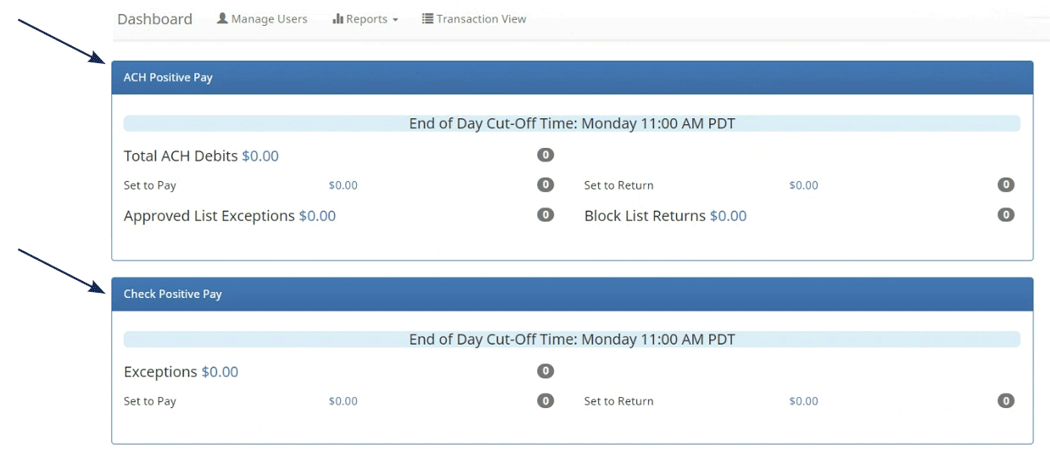
  1. The dashboard page displayed by default after login, is the primary page used to navigate through Positive Pay tasks.
  2. Users can select either 'ACH' or 'Check' from the dashboard to process exceptions.
ACH Positive Pay and Check Positive Pay sections within a banking application dashboard.
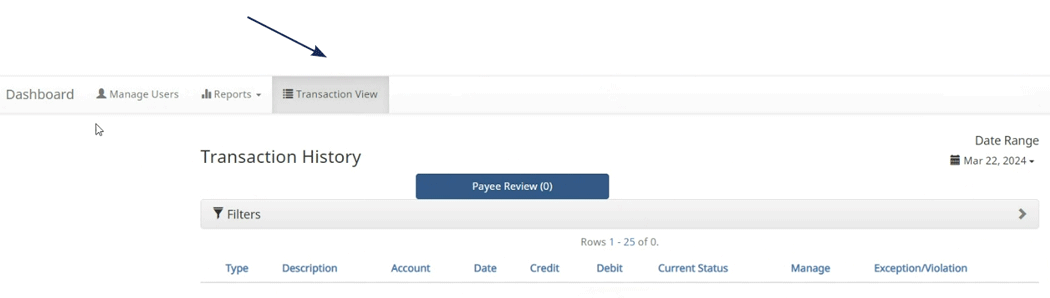
  1. The easiest way is to click 'Transaction View'. From here the user will be able to process all transactions from one place.
An online banking application displaying the 'Transaction History' section with an arrow pointing to the 'Transaction View' tab.
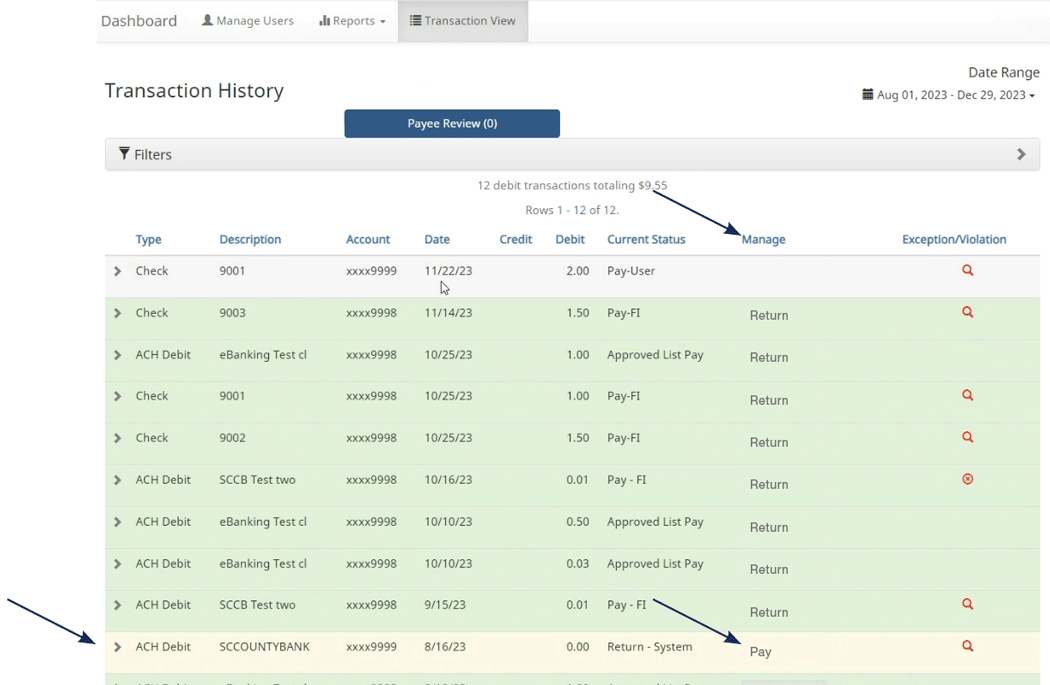
  • 'Yellow Items' will need to have a decision made on them, shown under the 'Manage' header.
  • Click the 'Pay' or 'Return' button based on the decision on the item.
  • 'Green' items do not require any action.
A banking application showing a detailed 'Transaction History' list with an arrow indicating the 'Manage' column.
  • Expand individual items to view the reasons or hover over the 'Exception/Validation Icon' to see more details.
A single transaction in a banking application, with an arrow pointing to the 'Exception/Violation' column. Banking application showing details of an ACH debit transaction with a violation indicator for being on the blocked list.

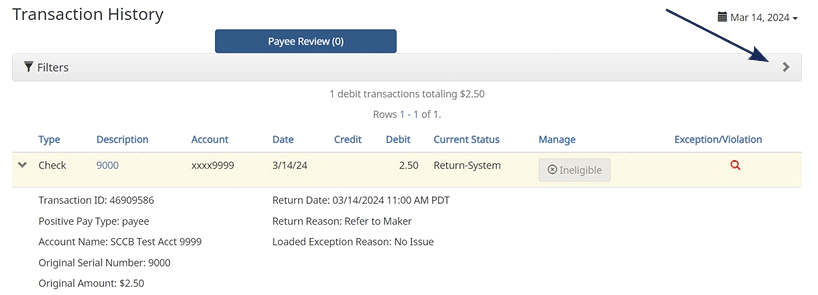
To change the return reason for a check, select the drop-down arrow on the left hand side, and then select the hyperlink under 'Return Reason'. Next, select the appropriate 'Return Reason'.

Common 'Check Exception' return reasons are:
  • Amount Incorrect
  • Duplicate
  • Fraudulent
  • Payee Name Mismatch
  • Prior Stopped
  • Prior Void
  • Refer to Maker (Default)
  • Serial Number Incorrect
  • Signature Irregular
  • Signature Missing
  • Stale Dated
  • Use the filters on the dashboard and transaction view screens to filter items by amount, status, etc.
A banking application showing an expanded view of a single returned check transaction with an arrow pointing to link for Return Reason
'Transaction History' section in a banking application, with an arrow pointing to the date range selection tool.

ACH Exceptions

ACH Exceptions occur when an item does not meet the rules requirements.

Steps for adding an approved list vendor are:

  1. Add to 'Approved List'.
    • This will add the sender to the approved list for future transactions.
    • 'Max Amount' can set the maximum amount of the ACH transaction.
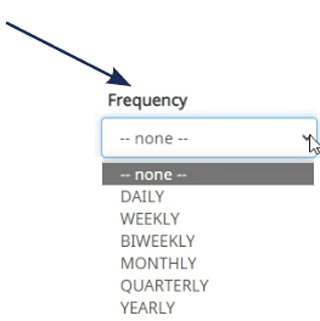
    • Frequency will set how often the sender can send a transaction.

NOTE:
For instance, payroll would make one payment weekly, if set to weekly. Use this with caution.
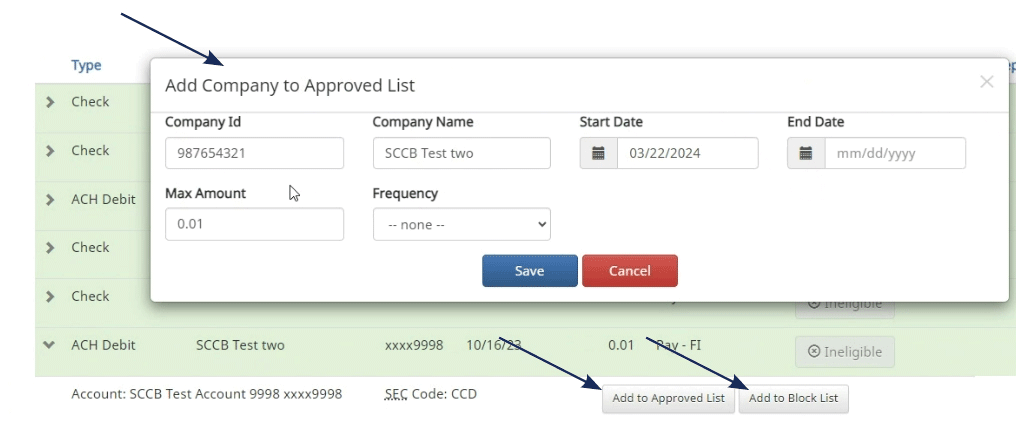
A banking application's transaction list with a pop-up window for adding a company to an approved list, indicated by an arrow.
Drop down window to indicate Frequency
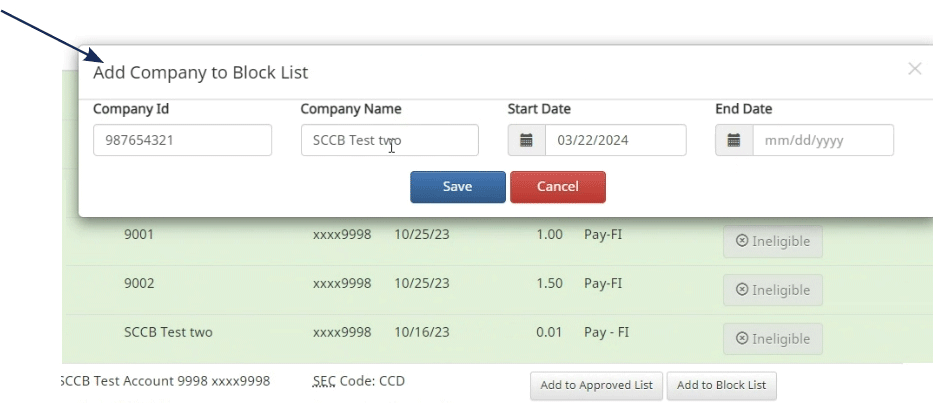
  1. Add to Block List
    • Adds the sender to the blocked listing and no transactions will be accepted from this sender.
A banking application's transaction list with a pop-up window for adding a company to a Block List, indicated by an arrow.

Reports

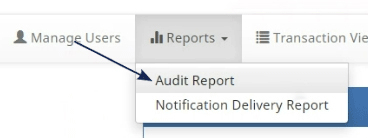
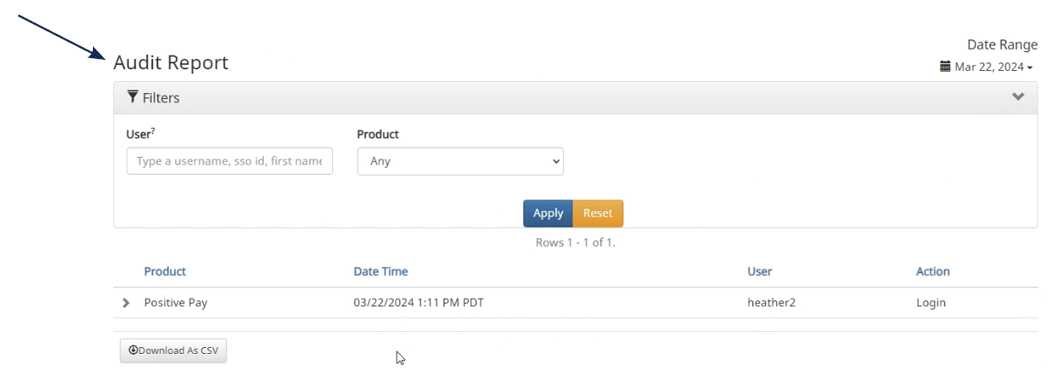
  1. Audit Report
    • A report listing activity for each user of the system. May be filtered by date range.
'Audit Report' section in a banking application, with an arrow pointing to the report filter options.
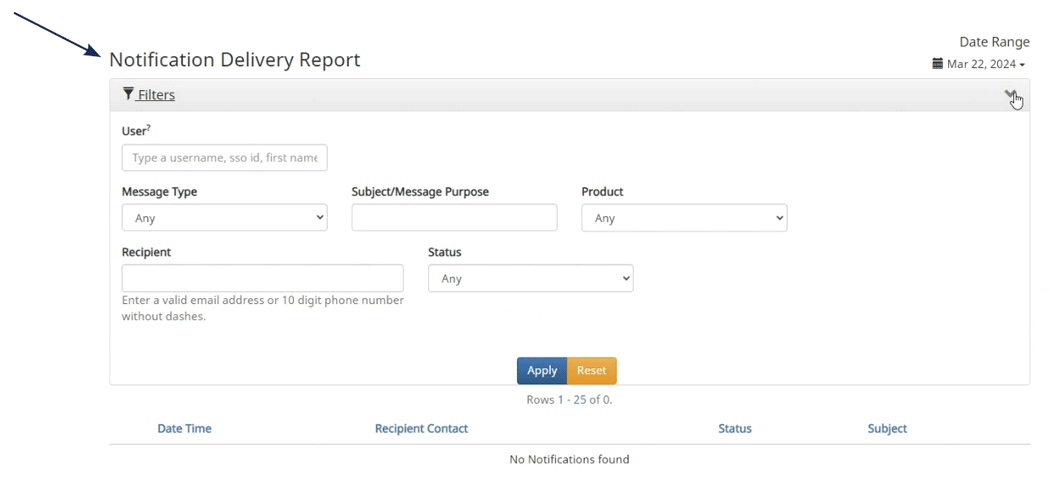
  1. Notification Delivery Report
    • A report listing users who are setup to receive notifications and the method that they are set to receive those transactions.
'Audit Report' section in a banking application, with an arrow pointing to the Notification and Delivery Report

Manage Users

To use the 'Manage Users' feature please contact eBanking for assistance, [email protected], 831.600.4060.

User Preferences

This section is used to customize a user's preferences in the system.

Hint:
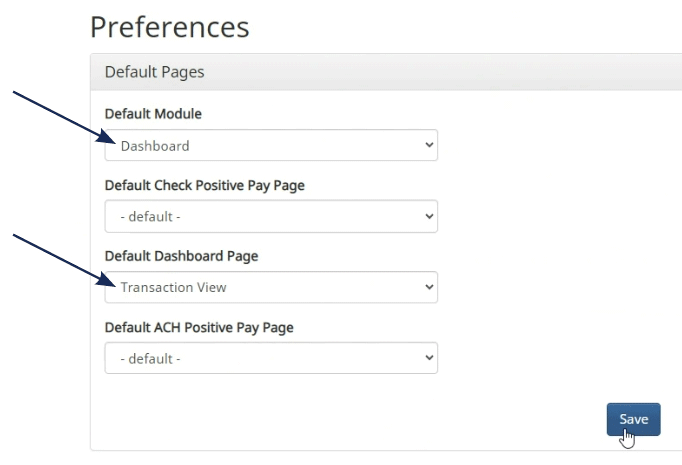
To seamlessly navigate to the exception processing screen when accessing the system do the following:
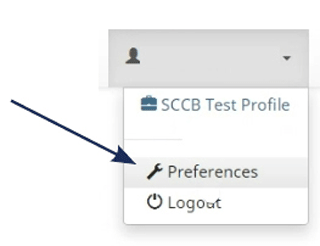
  • Set the default module to 'Dashboard'.
  • Set default dashboard page to 'Transaction View'.
A user profile dropdown menu in a banking application with the 'Preferences' option highlighted by an arrow. Preferences settings with arrows pointing to Default Module and Default Dashboard Page selection menus.

Modules

There is a specific module for 'ACH' and for 'Check Positive Pay'.
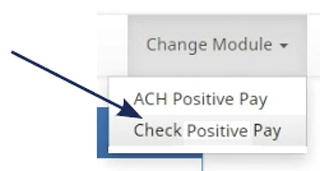
  • To focus on ACH, click Change Module > ACH Positive Pay.
  • To focus on Checks, click Change Module > Check Positive Pay.
Change Module dropdown with ACH Positive Pay and Check Positive Pay options.

Change Module > ACH Positive Pay Manage > Notification Rules
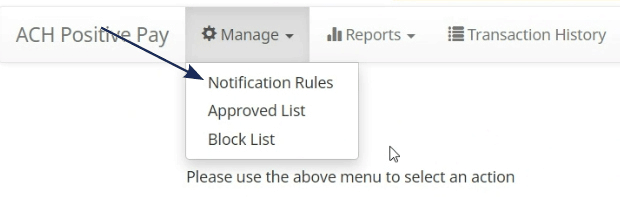
A banking application with an arrow pointing to the 'Manage' dropdown menu, revealing options for 'Notification Rules', 'Approved List', and 'Block List' under the 'ACH Positive Pay' feature.

NOTE:
The tabs – Selection, Contacts, Conditions, Confirm – are not clickable. Use the 'Next' button to navigate through the screens.
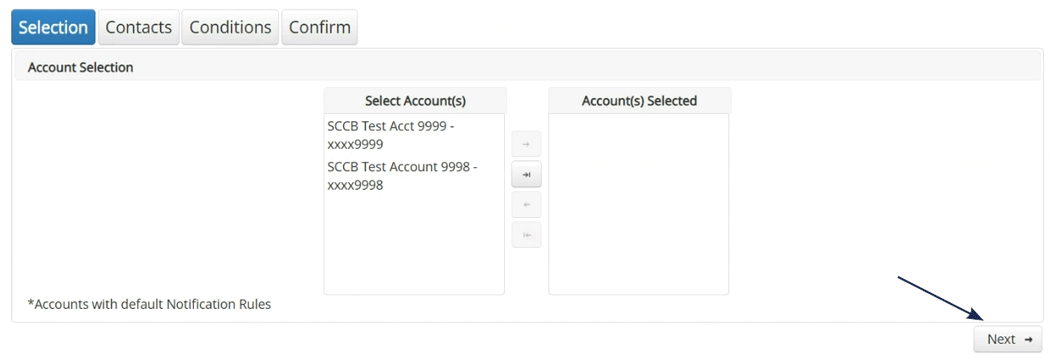
An account selection interface in a banking application with a step indicator at the top and an arrow pointing to the 'Next' button.

Notification Rules
This is used to setup users to be notified of exceptions.
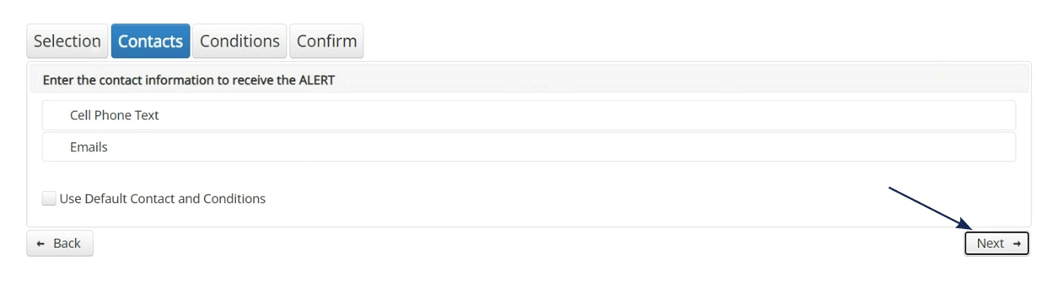
  1. Select the accounts to be notified on. Click Next.
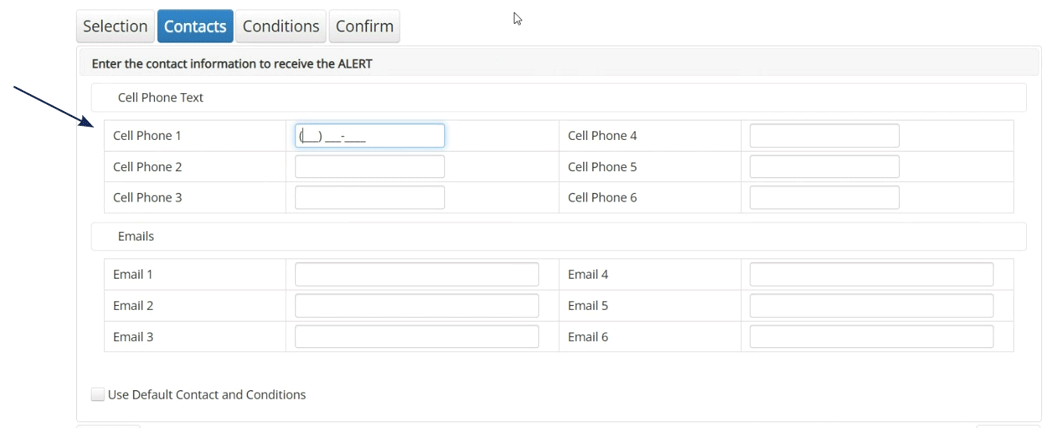
  2. Enter the cell phone numbers and email addresses that will be notified of exception items.
  3. Do not click the 'Default' check box.
  4. Click Next.
A banking application's alert setup page with 'Contacts' highlighted, and an arrow pointing to the 'Next' button.
'Contacts' section in a banking application alert setup, with an arrow pointing to the 'Cell Phone Text' input field.
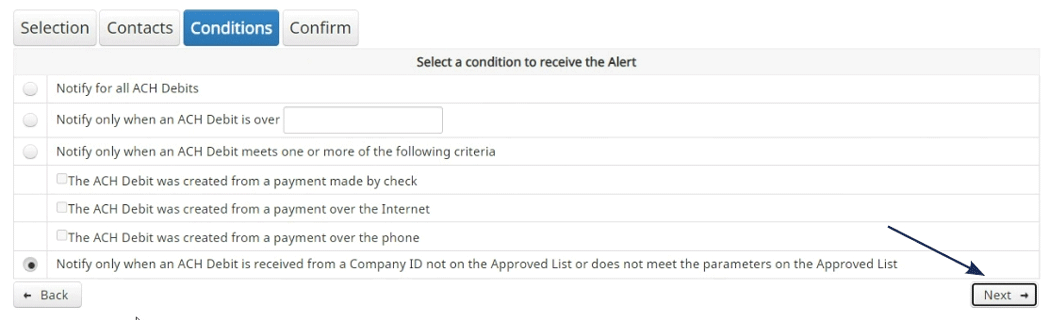
  1. Choose the conditions for which the users will be notified. Check all appropriate boxes. Click next.
A banking application's alert setup page under 'Conditions', with an arrow pointing to the 'Next' button.
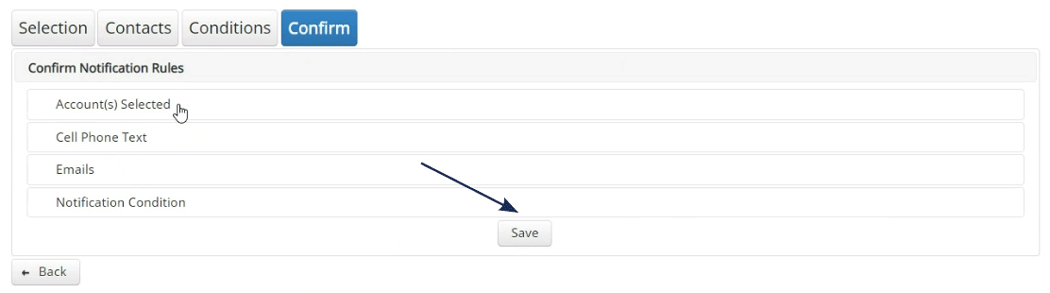
  1. Confirm all of the changes and click 'Save'.
'Confirm' step in a banking application's notification rule setup, with an arrow pointing to the 'Save' button.

Manage > Approved List

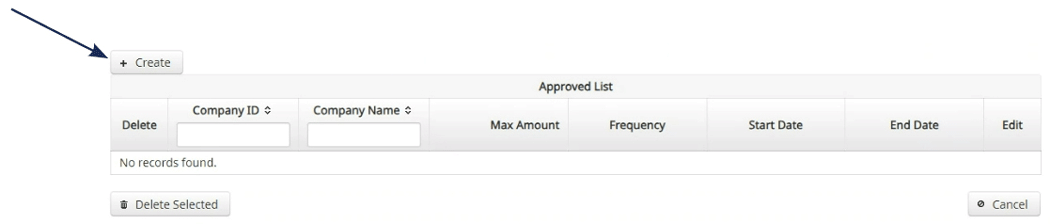
  1. Click the 'Create' button.
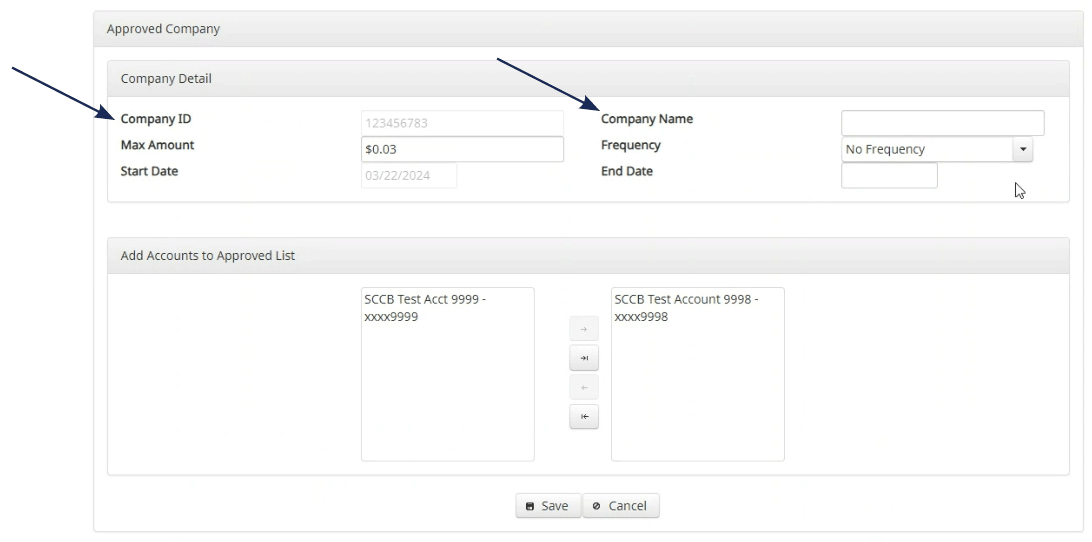
  2. Enter the 'Company ID' and 'Company Name'.
    • The best practice is to add approved vendors from the 'Transaction View Screen' as the Company ID and name are not always available.
  3. Click the 'Edit' link to make any necessary changes for existing vendors on the approved list.
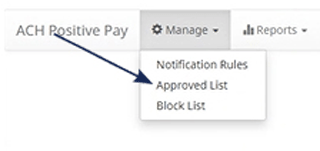
A banking application dropdown menu with 'Approved List' highlighted by an arrow.
'Approved List' interface in a banking application with an arrow pointing to the 'Create' button for new entries.
'Approved Company' details interface in a banking application with arrows indicating fields for 'Company ID' and 'Company Name'.
  1. Check the box next to a company name and select 'Delete Selected' to remove the sender from the approved list.
Banking application showing Delete Selected button

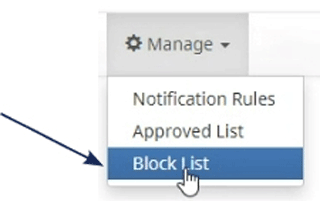
Manage > Block List

  1. Click the 'Create' button.
  2. Enter the 'Company ID' and 'Company Name'.
  3. The best practice is to add blocked senders from the Transaction View screen as the Company ID and Company Name are not always available.
  4. Click the 'Edit' link to make any necessary changes for existing senders on the blocked list.
  5. Check the box next to a company name and select 'Delete Selected' to remove the sender from the blocked list.
A banking application dropdown menu with an arrow pointing to the 'Block List' option.
A banking application's 'Block List' management interface with arrows pointing to the 'Create' button and a checkbox next to a listed company for selection.

Reports
Reports available for the 'Approved List', 'Blocked List', and notifications can be accessed through menu option noted on the right.
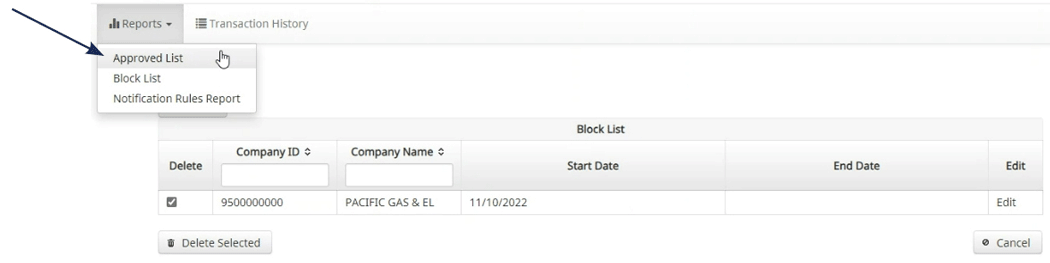
A banking application's interface showing an arrow pointing to the 'Reports' dropdown menu, with the 'Approved List' option visible within the menu.

Transaction History
Use the available filters to view 'Debit Transaction' history.
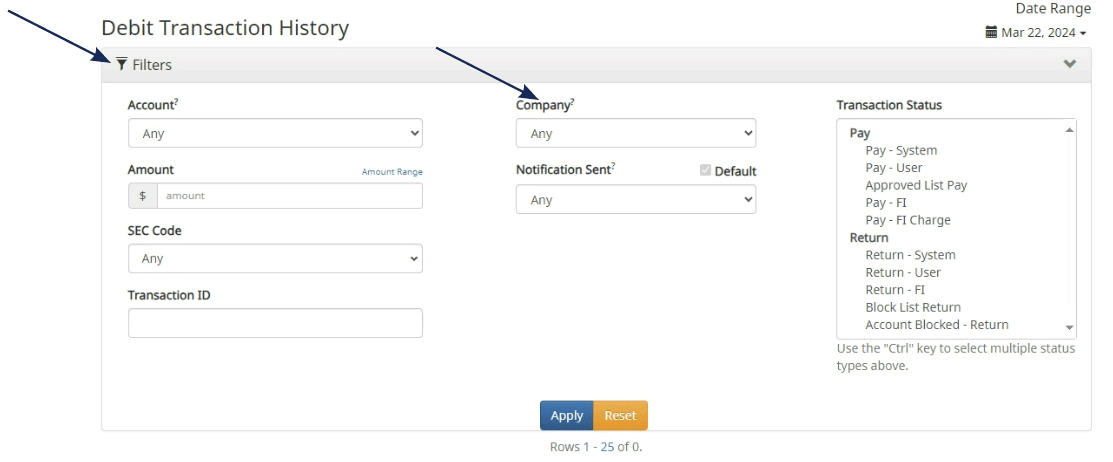
'Debit Transaction History' filter options in a banking application with arrows pointing to the filter toggle and the 'Company' dropdown menu.

Change Module > Check Positive Pay Manage > Issue Templates
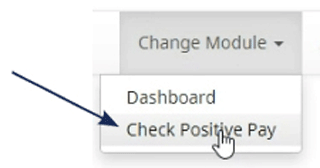
A banking application dropdown menu with an arrow pointing to the 'Check Positive Pay' option.

Issue Templates
Use this page to create templates corresponding to the format of your issue file.

NOTE:
Hover over question marks for additional information.
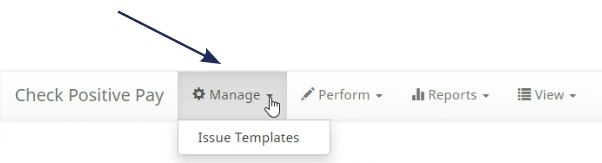
A banking application showing 'Check Positive Pay' section with an arrow pointing to the 'Manage' dropdown menu, revealing the 'Issue Templates' option.
  1. Click the 'Create New Template' button.
A template management section in a banking application, with an arrow pointing to the 'Create New Template' button.
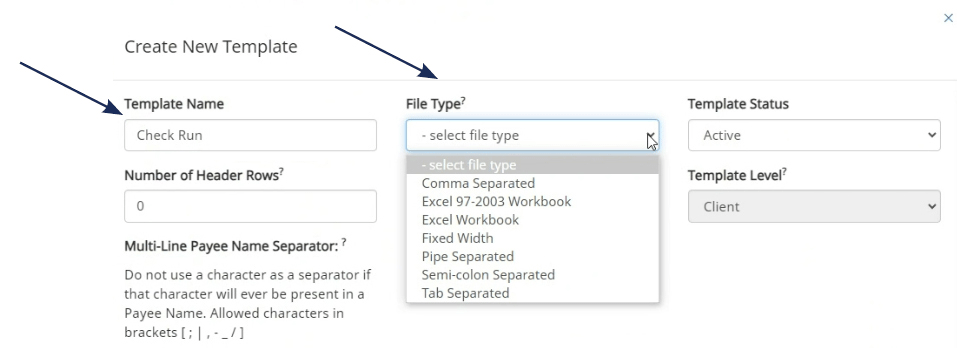
  1. Enter the template name.
  2. Select a file type from the drop-down list.
    • Most common: CSV, Excel workbook, tab-separated.
Create New Template form with Template Name field and File Type dropdown.
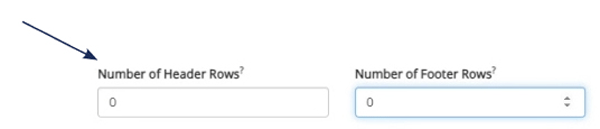
  1. Enter the number of rows that contain header and footer information. If there are no headers and footers in the file, leave this as zero.
Input fields for specifying the 'Number of Header Rows' in a template, with an arrow pointing to the field.
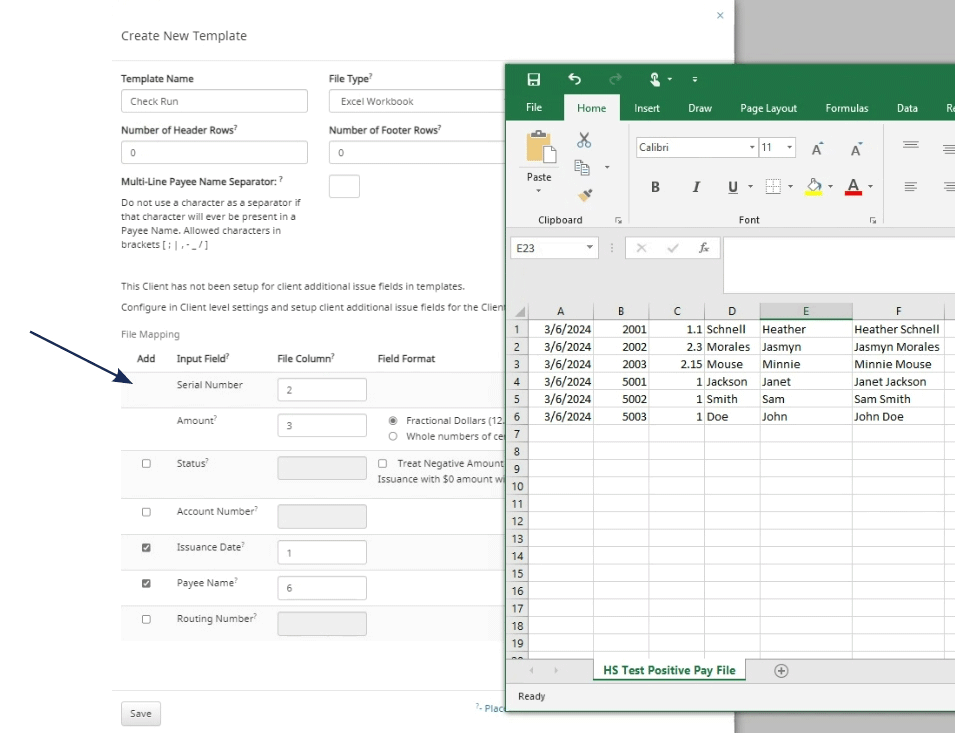
  1. Enter 'File Mapping'.
    • Indicate which columns in the issue file contain the Serial Number, Amount, Issuance Date, and Payee Name.
    • If other fields are in the issue file, click the box next to that input field.
A banking application's template creation interface with an Excel spreadsheet preview alongside, and an arrow pointing to the 'Add' button under the 'File Mapping' section.

Perform
Issue File Load

Use this feature to upload an issue file.
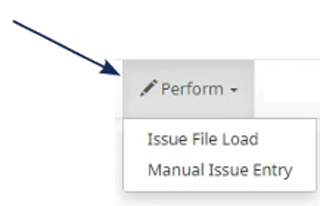
A banking application dropdown menu titled 'Perform', with an arrow pointing to the 'Issue File Load' option.

NOTE:
There is an option to click "Create new Template" to create a new template here.
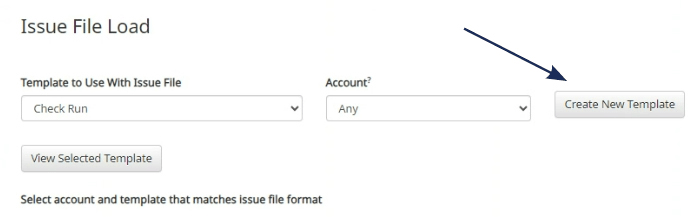
'Issue File Load' section in a banking application with an arrow pointing to the 'Create New Template' button.
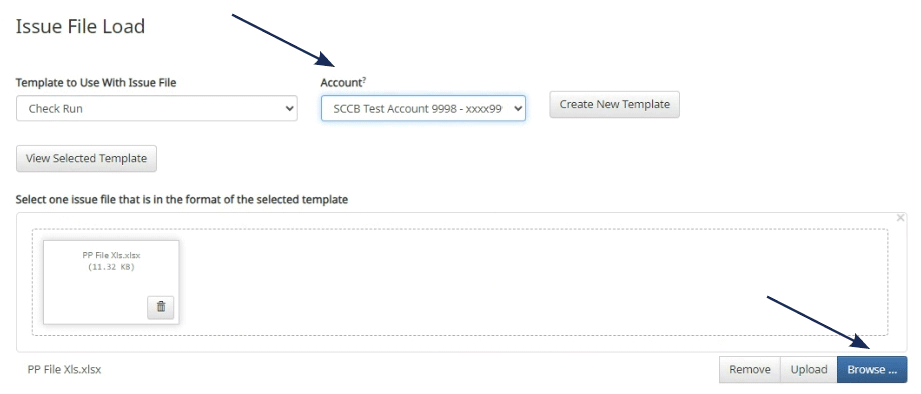
  1. Select the account that will be used.
  2. Click 'Browse' or drag and drop the issue file into the upload area on the screen.
    • If a file is pulled in accidentally, it can be removed by clicking the trash icon or selecting the Remove button.
  3. Click 'Upload'.
'Issue File Load' page in a banking application, showing a selected file for upload with arrows pointing to the account dropdown menu and the 'Browse' button.
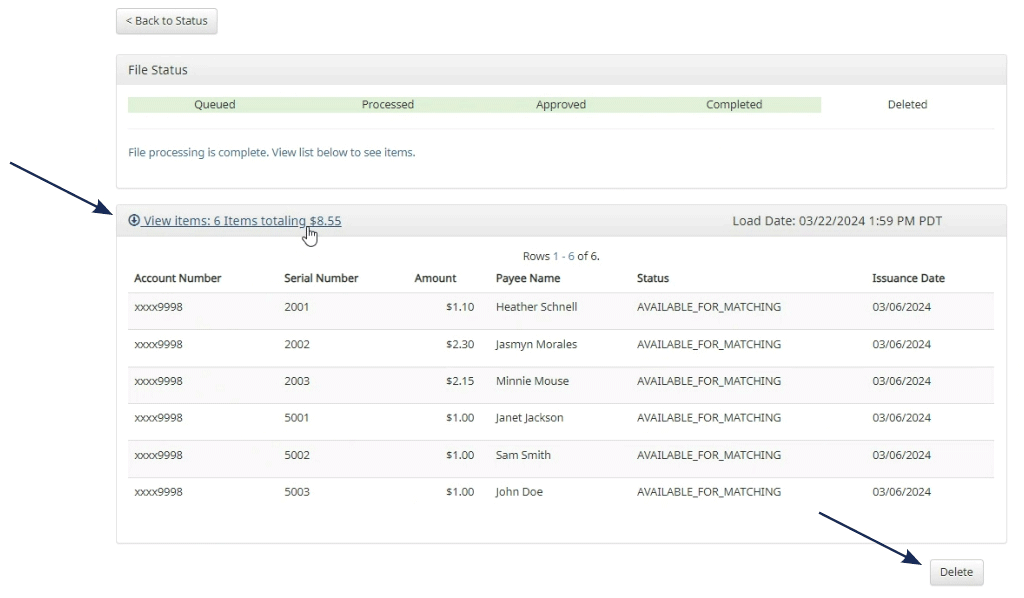
  1. Verify the checks listed in the file.
  2. Ensure that check statuses are 'Available for Matching'.
  3. If an item has already been loaded into the system, the status will read 'Duplicate Issuance'.
A banking application's file status page showing completed file processing, with arrows pointing to the summary of items processed and the 'Delete' button.
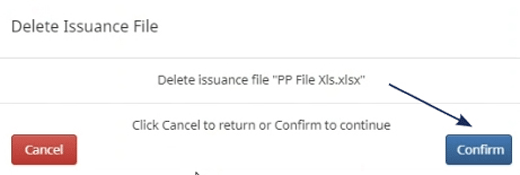
  1. Issue files can be deleted up until the first item in the file clears.
  2. To delete an issue file, click the delete button.
A confirmation dialog for deleting an issuance file in a banking application, with an arrow pointing to the 'Confirm' button.

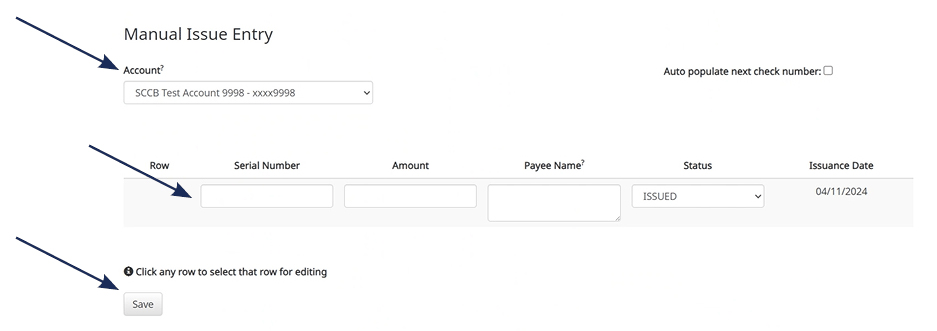
Manual Issue Entry

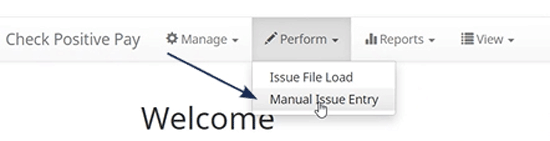
  • Use manual entry to enter checks one at a time.
  • Select Perform, Manual Issue Entry.
  • Select Account, Enter Serial Number, Amount, Payee Name and Issuance Date.
  • If entering a range of checks select check box "Auto populate next check number" to populate the check numbers for you as they are entered.
  • When finished select Save.
A banking application's navigation menu with an arrow pointing to the 'Manual Issue Entry' option under the 'Perform' dropdown.
'Manual Issue Entry' form in a banking application, with arrows pointing to the account selection dropdown, an input row for data entry, and the instruction to click any row for editing.

Reports
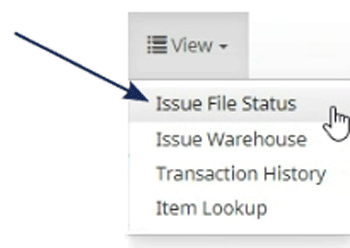
Issue Item Status

  • Use this to filter and sort specific items by 'Issue Status' and 'Account'.
A banking application dropdown menu with an arrow pointing to the 'Issue File Status' option.

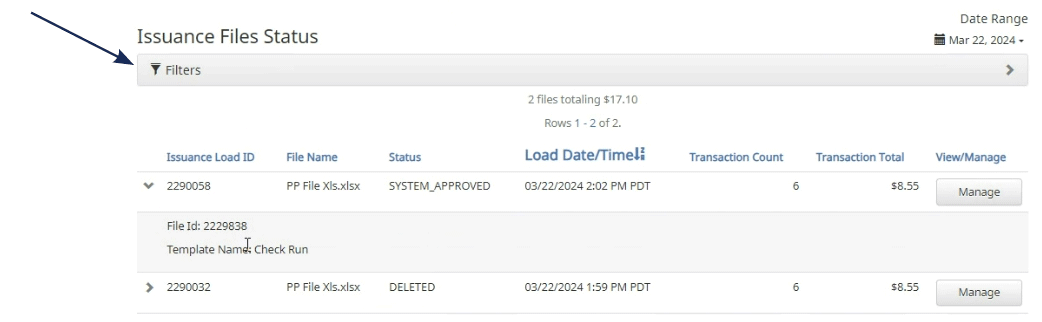
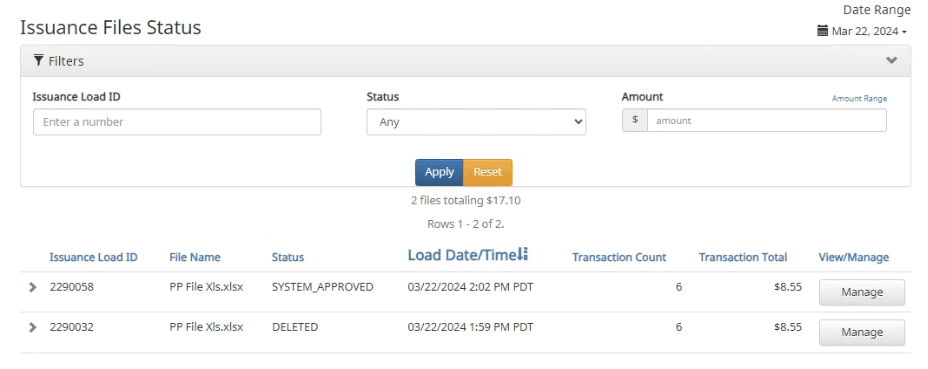
View
Issue Item Status

  • Can view all of the issuance files and their status (System Approved, Deleted, etc.).
'Issuance Files Status' page in a banking application, with an arrow pointing to the filter options.
'Issuance Files Status' page in a banking application, showing filters section for 'Issuance Load ID' and 'Status', with the option to apply or reset the filters.

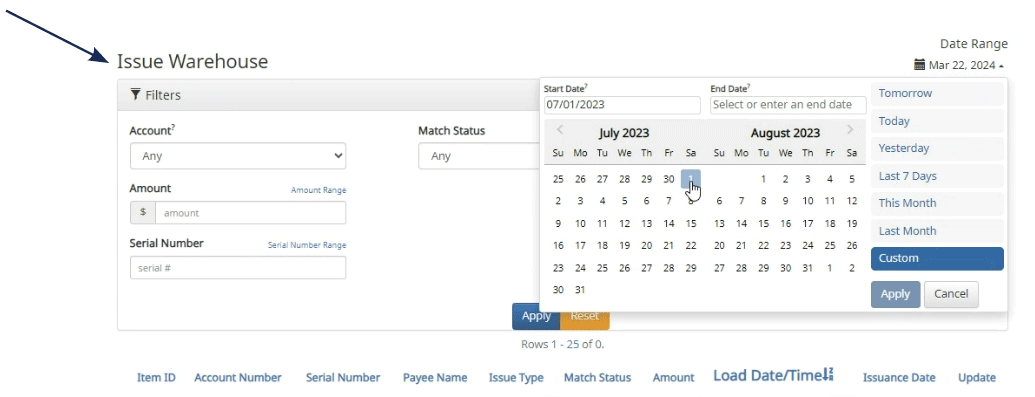
Issue Warehouse

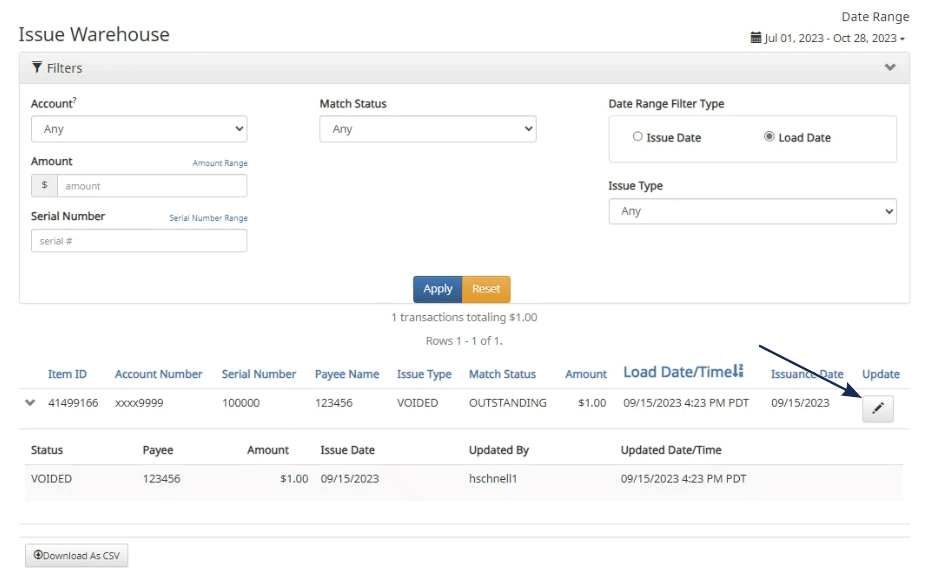
  • Use this screen to view and edit issuances.
'Issue Warehouse' page in a banking application, showing filter options and a date range picker, with an arrow pointing to the filter toggle.
  • To edit click the pen icon.
'Issue Warehouse' section in a banking application showing a list of transactions with an arrow pointing to the 'Update' icon next to an issuance date.
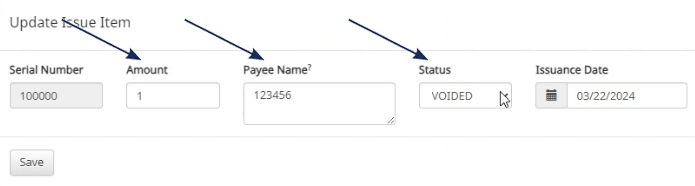
  • Users can edit the 'Amount', 'Payee Name', or 'Status' up until the item has cleared.
'Update Issue Item' form in a banking application, with arrows pointing to the fields for 'Serial Number', 'Amount', 'Payee Name', and the dropdown menu for 'Status'.

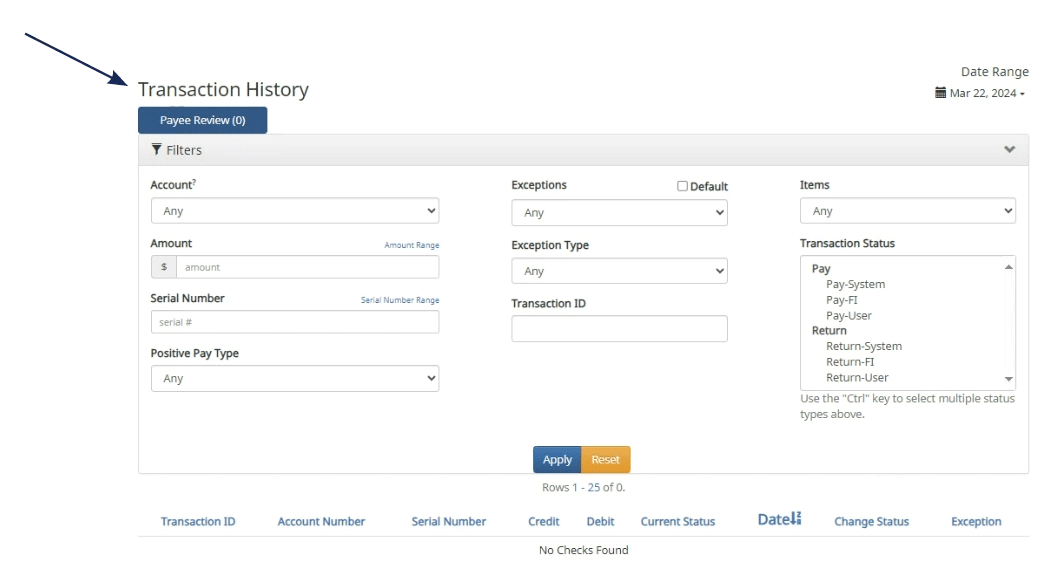
Transaction History

  • Users can manage check exceptions from this screen.
  • Use the filters to filter specific transactions or ranges of transactions.
'Transaction History' section in a banking application, with an arrow pointing to the 'Payee Review' tab.

Item Lookup

  • Use this to find a specific check number.
'Item Lookup' search feature in a banking application, with an arrow pointing to the 'Account' dropdown menu that is not selected.

User Setup and Template Guide

Open printable PDF

The User Setup page is used by the company administrator to manage users.

1. Select the 'Check & Deposits' menu and then 'Positive Pay'.
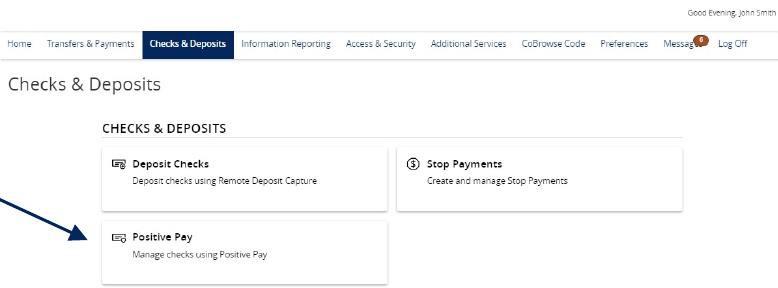
Checks and Deposits menu showing Positive Pay.

2. Under the New Client Setup menu, select 'User Setup (Client)'.
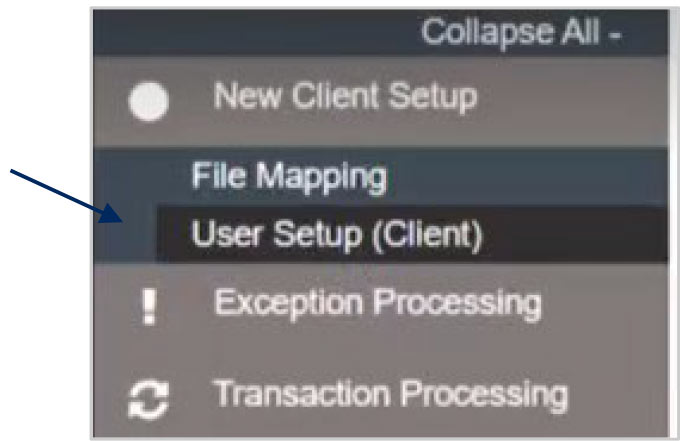
Menu with New Client Setup selected and User Setup (Client).

3. Click the 'Add New' button to set up a new user.
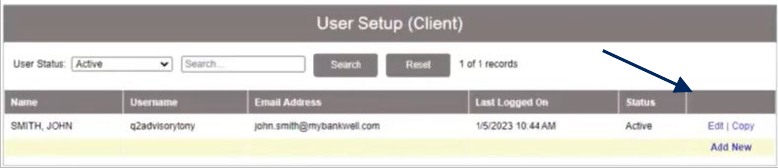
User Setup (Client) showing Add New option.

4. On the 'Contact Information' tab, complete all required fields on the screen which are designated with an asterisk.
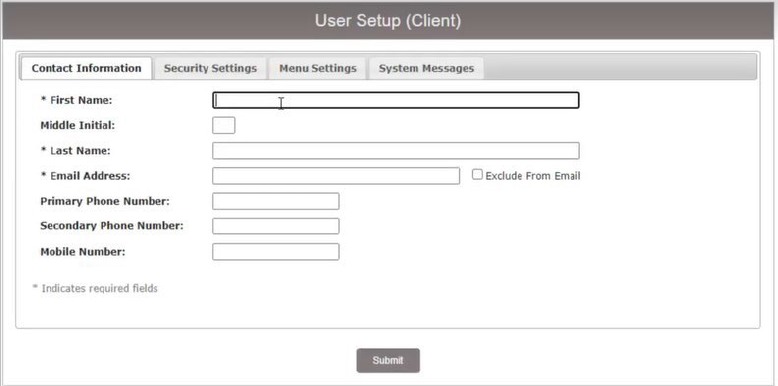
User Setup (Client) Contact Information tab showing required and optional fields to be completed.

5. Click on the 'Security Settings' tab.

6. Enter the user's desired Username and default password.

7. Enter the password a second time for verification. The user will be requested to change their password upon initial login.

8. Select the accounts in the box on the left side of the screen the user should have access to. If the user should have access to all accounts, click the 'Add All' button.
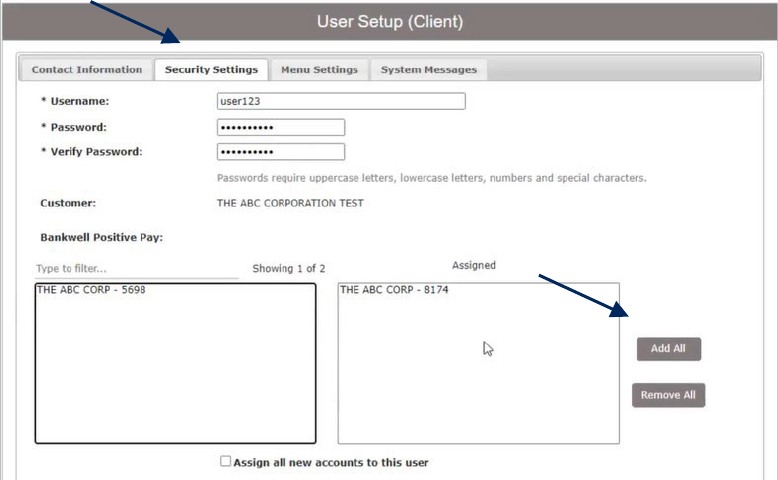
User Setup (Client) screen showing Security Settings tab and Add All option.

9. Click the 'Assign all new accounts to this user' option if the user should be automatically granted access to all new accounts opened by the company.
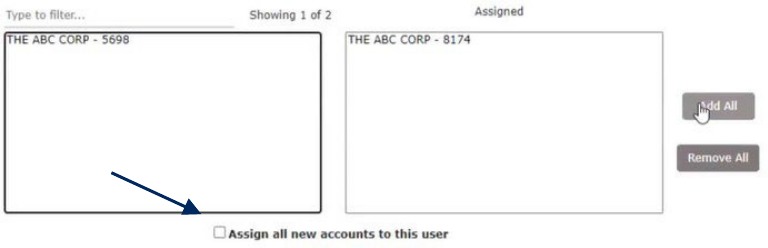
User Setup (Client) Security Settings tab showing option to Assign all new accounts to this user.

10. The ACH Reports section lists all available ACH Reporting Files.

11. Select the reports the user should have access to. Click the 'Add All' button, to add all reports.

12. Click the 'Assign all new ACH reports to this user' option if the user should be automatically granted access to all new ACH Reports created by the company.
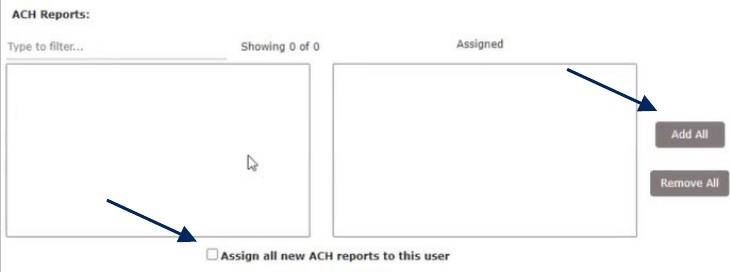
User Setup (Client) Security Settings tab showing ACH Reports, Assign all new ACH reports to this user, and Add All options.

13. Click on 'Transaction Data User Rights' to expand the listing of rights available to assign to the user. Select all that apply.

14. 'Check Exception Type' specifies the user's permissions for check exceptions. Select the desired view option in the drop-down menu.

15. Repeat this action for the ACH Exception Type drop down.
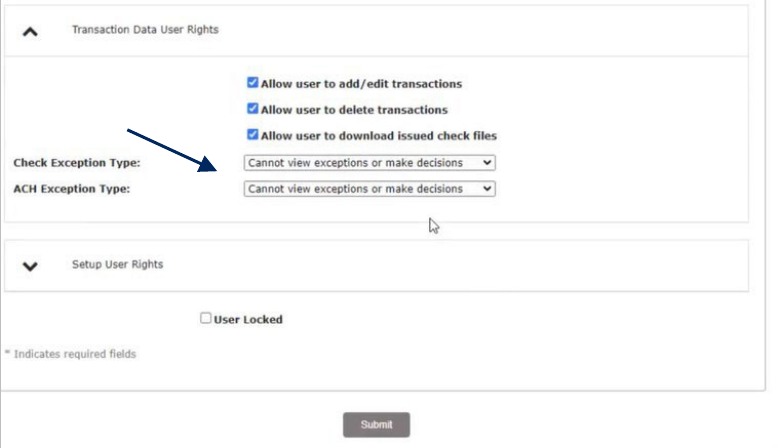
User Setup (Client) Security Settings tab and Transaction Data User Rights section, showing dropdown menus for Check Exception Type and ACH Exception Type options.

16. Click on 'Setup User Rights' to specify what rights should be available to the user.

17. Click 'User Locked' to lock the user record if the user should not be allowed to log into the system.
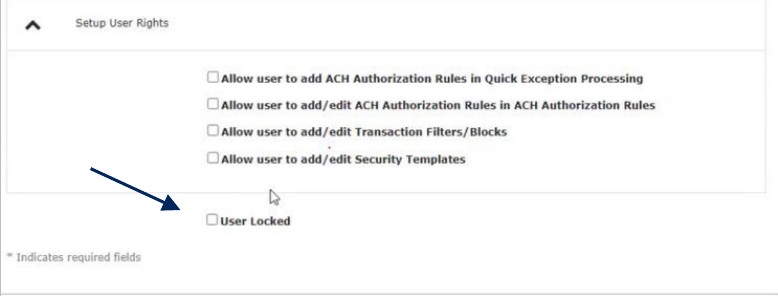
User Setup (Client) Security Settings tab and Setup User Rights section, showing User Locked option.

18. Click on the 'Menu Settings' menu.

19. Select the user security template the user should have access to.
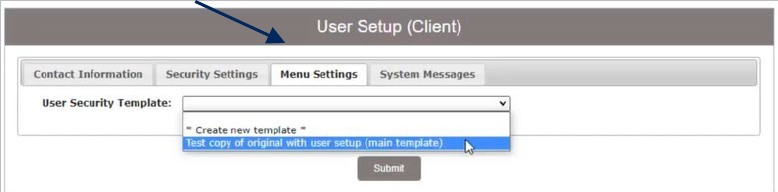
User Setup (Client) screen showing Menu Settings tab and User Security Template dropdown.

20. Click on the 'System Messages' menu to designate which notifications the user should receive.

21. Select an option from the drop-down menu beside 'User Notification Template' to quickly select all text or email notification options.

22. Click 'Submit' to complete the user setup process.
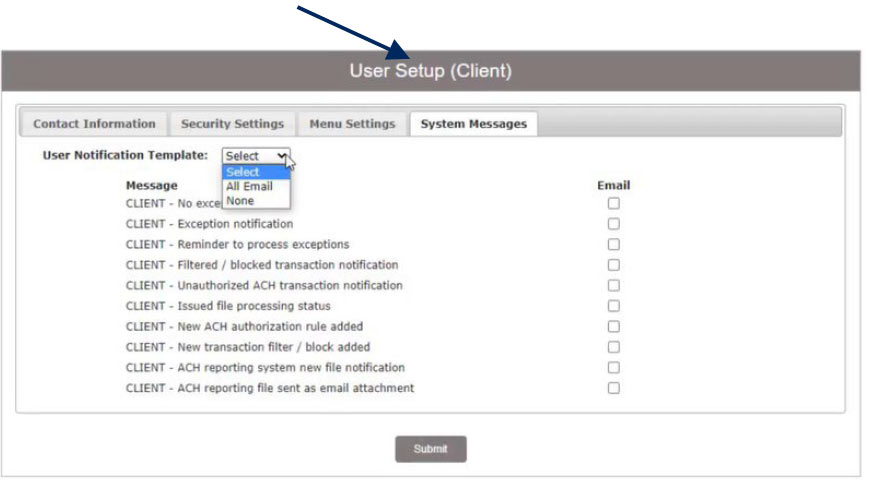
User Setup (Client) screen showing System Messages tab and User Notification Template dropdown.

23. To search for an existing user, select the desired user status from the drop-down menu then click the Search button.

24. Click the 'Edit' button to edit an existing user, or 'Copy' to copy an existing user.
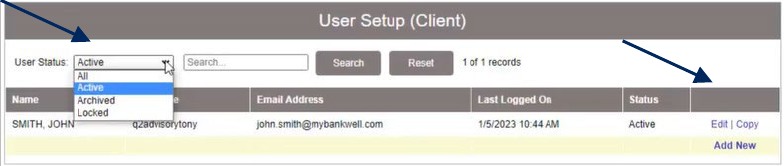
User Setup (Client) screen with User Status search dropdown, Edit button, and Copy button for existing users.