
You asked for upgrades and we listened. Thanks to your feedback, we brought you a new and improved digital banking experience.
If you haven't logged into the new system, we recommend you review the following:
Online Banking phone support is available Monday – Friday, 9am to 5pm, 831.457.5000, option 1.
Online Banking Resource Guides
Home Page Guide
Login Process & Device Registration Guide
User Roles Guide
User Setup and Template Guide
User Management Corporate Guide
Account and Alerts
Account Details and History Guide
Account Labeling Guide
Activity Center Guide
Alerts Guide
Transfers and Payments
Check Search Guide
Funds Transfer Guide
Multi Account Transfers Guide
One Time Commercial Payments Guide
Recipient Upload From Batch Guide
Tax Payments Guide
Messaging
Reporting
ACH and Wire
ACH File Import Guide
ACH or Wire Recipient Guide
ACH Payroll Transactions Guide
ACH Template Creation Guide
One Time Commercial Payments Guide
Wire Origination Guide
Wire Upload Guide
Positive Pay
Positive Pay Add New Issued Check Guide
Positive Pay File Mapping Guide
Positive Pay Quick Exception Processing Guide
Positive Pay Submit Issued Check File Guide
Mobile Banking
Online Banking Resource Guides
Home Page Guide
Login Process & Device Registration Guide
Transfers and Payments
Check Search Guide
External Transfer Guide
Funds Transfer Guide
Multi Account Transfers Guide
Tax Payments Guide
Account and Alerts
Account Details and History Guide
Account Labeling Guide
Activity Center Guide
Alerts Guide
Messaging
Card Swap
Mobile Banking
August 24, 2023
September 25, 2023
October 12, 2023
November 1, 2023
November 9, 2023
November 13, 2023
Q. How do I change my password?
Log in to online banking. Select Settings > Security > Update Password. Enter your old password, create a new password, and confirm your new password following the onscreen password criteria.
Q. How do I change my Login ID?
Log in to online banking. Select Settings > Security > Update Login ID. Enter your new Login ID and select save.
Q. How do I update my contact information?
Log in to online banking. Select Settings > Contact Info to view and edit your contact information including address, mobile phone number, and email address. You can also contact our eBanking team for assistance at 831.457.5000 option 1, or [email protected].
Q. How do I export my account information?
Log in to online banking and click on the account while on the Home page. This opens the Transaction Details page. The Export option is located on the right side of this page.
The following export formats are available: Spreadsheet (xls, csv), Microsoft OFX (ofx), Quicken (qfx) and QuickBooks (qbo)
Q. How do I receive alerts?
Alerts for Account, Date, History, Insufficient Funds, and Transactions can be established and delivered via email or text. Alerts for dual authorization is available to ensure transactions receive the proper approvals.
Q. How can I prepare my Quicken/QuickBooks accounts for the system upgrade?
Follow the steps below and see the detailed instructions in the Quick Reference Guides area of this resource page.
Q. How will the system upgrade affect my Mint account?
Mint aggregation services may be interrupted for up to 5 business days. Mint.com data is stored on Intuit cloud servers. Data is updated with every change and cannot be restored to a previous point in time. For a successful account update, do not log into your Mint.com account until 5 business days after November 14.
Q. Why is the system being upgraded?
You've asked for upgrades and we're listening. Thanks to your feedback, we are bringing you a new and improved digital banking experience.
Q. Who do I contact if I have questions?
Please contact eBanking: 831.457.5000 option 1, [email protected], Monday – Friday, 9am to 5pm.
Q. Will my Login ID and password be the same, and can I use my current password?
Yes to both. You can use your current password if it meets our password policy requirements. To avoid delays in accessing the new system, please review and update your contact information to ensure the information we have on record is accurate. Keep your Login ID and password ready, to enter manually, to access the new system at initial login.
What is the one-time Secure Access Code (SAC) multi-factor authentication (MFA)?
When the new system is online and you login for the first time, the system will ask you to register your device. We will send a Secure Access Code to your choice of preferred phone number or email address in our records. You will not be able to access the system without it. A MFA is a unique, single-use, 6-digit code that protects against fraud by safeguarding your online transactions and sensitive information. The MFA is another level of authentication in addition to your Login ID and password, providing you stronger online security.
Q. What are the minimum browser requirements?
You will need to use the most recent version of Google Chrome, Mozilla Firefox, Apple Safari, or Microsoft Edge.
Q. Will my transaction history transfer over to the new system?
Yes. At initial login, you will have access to 6 months of transaction history. Over time, the system will store 24 months of transaction history.
Q. Will I have access to my eStatement history?
Yes. You will continue to have access to up to 7 years of eStatements.
Q. How do I access bill payment services?
Log in and select Transfers & Payment > Pay with Bill Payment. All your existing activity, payees, and payment templates will be available.
Q. Will my account nicknames transfer over to the new system?
No, however, the new system will allow you to establish nicknames for your accounts.
Q. Will I need to download a new mobile app?
 Apple users with automatic updates selected will be updated to the new West Coast Community Bank mobile banking app. Other users will receive an error message when opening the old app and will need to proceed to the App Store to download the new West Coast Community Bank mobile banking app. Login ID and password are the same for online and mobile banking.
Q. Can I make bill payments through mobile banking?
Yes. You will have the ability to send payments from your mobile device as well, since the mobile app functions exactly the same as online banking.
Q. Can I still use mobile deposits?
Yes. The new mobile app still allows for mobile deposits, by taking photos of the front and back of the check. Once you have the image lined up in the viewer, take a photo by clicking the camera icon in the upper right corner.
Q. I'm enrolled in online banking. Can I use my online banking login credentials for mobile banking?
Yes. Online and mobile banking is one seamless user experience utilizing a single Login ID and password.
Q. How do I access mobile banking on my mobile phone?
Current personal banking clients will receive an app update if their mobile device is setup to automatically update apps. If your phone isn't set up to automatically update apps, you will have to download the new West Coast Community Bank mobile app and follow the on-screen prompts.
Q. Does my mobile phone support the new mobile banking app?
The West Coast Community Bank mobile app is supported on most iPhone, iPad, and Android devices. You can also use mobile phones with a mobile web browser that supports cookies.
Q. What are the minimum system requirements for mobile banking?
The mobile banking app works best with current operating systems. To ensure your device is ready, please review the chart below for operating systems that are supported.
Mobile App Operating Systems |
|
|---|---|
| Android 9.x and later | Supported |
| Android 8.x | Limited Support |
| iOS 15.x and later | Supported |
| iOS 14.x | Limited Support |
| WatchOS 8.x and later | Supported |
| WatchOS 7.x | Limited Support |
Q. Is mobile banking secure?
Yes. West Coast Community Bank mobile banking utilizes best practice security services such as HTTPS, TLS encryption, password access, biometrics, and application time-out when not in use. Only the phones that you enroll can access your bank accounts, and account data is never stored on your phone.
Q. Is there a fee to use mobile banking?
No. However, your wireless carrier may charge fees related to this service.
Q. How do I change my password?
Log in to online banking. Select Settings > Security > Update Password. Enter your old password, create a new password, and confirm your new password following the onscreen password criteria.
Q. How do I change my Login ID?
Log in to online banking. Select Settings > Security > Update Login ID. Enter your new Login ID and select save.
Q. How do I update my contact information?
Log in to online banking. Select Settings > Contact Info to view and edit your contact information including address, mobile phone number, and email address. You can also contact our eBanking team for assistance at 831.457.5000 option 1, or [email protected].
Q. How do I export my account information?
Log in to online banking and click on the account while on the Home page. This opens the Transaction Details page. The Export option is located on the right side of this page. The following export formats are available: Spreadsheet (xls, csv), Microsoft OFX (ofx), Quicken (qfx) and QuickBooks (qbo)
Q. How do I receive alerts?
Alerts for Account, Date, History, Insufficient Funds, and Transactions can be established and delivered via email or text. Alerts for dual authorization is available to ensure transactions receive the proper approvals.
Q. How do I add and delete users?
Your online banking profile needs to be set up to add users. Contact eBanking at 831.457.5000 option 1, [email protected]
Q. How many users can I add?
You may add as many users as needed to fill your organization's banking roles.
Q. Can dual control be enabled for Wires or ACH origination?
Yes. Contact eBanking to set up dual control, 831.457.5000 option 1, [email protected].
Q. Can I create an ACH origination or Wire template?
Yes.
Q. Can I increase my ACH origination limit?
Yes. Contact eBanking to request a temporary or permanent increase in your limit, 831.457.5000 option 1, [email protected]. Temporary limit increase requests are verbally verified with an authorized signer. Once established, we will contact the client via email. Temporary limits are reset by 4pm the same day.
Q. When is the ACH cutoff?
Q. When is the wire transfer cutoff?
Q. Can I create a tax payment?
Yes.
Q. When will a tax payment via cash management be received?
Will I get a confirmation number? Select the payment effective date when you set up the payment, and it will alert you that your payment has been set up successfully or if information is missing. Same Day ACH is not supported for Federal Tax payments.
Q. How can I prepare my Quicken / QuickBooks accounts for the system upgrade?
Follow the steps below and see the detailed instructions in the Quick Reference Guides area of this resource page.
Q. How will the system upgrade affect my Mint account?
Mint aggregation services may be interrupted for up to 5 business days. Mint.com data is stored on Intuit cloud servers. Data is updated with every change and cannot be restored to a previous point in time. For a successful account update, do not log into your Mint.com account until 5 business days after November 14.
Q. Why is the system being upgraded?
You've asked for upgrades and we're listening. Thanks to your feedback, we are bringing you a new and improved digital banking experience.
Q. Who do I contact if I have questions?
Please contact eBanking: 831.457.5000 option 1, [email protected], Monday – Friday, 9am to 5pm.
Q. Will my Login ID and password be the same, and can I use my current password?
Yes to both. You can use your current password if it meets our password policy requirements. To avoid delays in accessing the new system, please review and update your contact information to ensure the information we have on record is accurate. Keep your Login ID and password ready, to enter manually, to access the new system at initial login.
Q. What is the one-time Secure Access Code (SAC) multi-factor authentication (MFA)?
When the new system is online and you login for the first time, the system will ask you to register your device. We will send a Secure Access Code to your choice of preferred phone number or email address in our records. You will not be able to access the system without it. A MFA is a unique, single-use, 6-digit code that protects against fraud by safeguarding your online transactions and sensitive information. The MFA is another level of authentication in addition to your Login ID and password, providing you stronger online security.
Q. What are the minimum browser requirements?
You will need to use the most recent version of Google Chrome, Mozilla Firefox, Apple Safari, or Microsoft Edge.
Q. Will my transaction history transfer over to the new system?
Yes. At initial login, you will have access to 6 months of transaction history. Over time, the system will store 24 months of transaction history.
Q. Will I have access to my eStatement history?
Yes. You will continue to have access to up to 7 years of eStatements.
Q. How do I access bill payment services?
Log in and select Transfers & Payment > Pay with Bill Payment. All your existing activity, payees, and payment templates will be available.
Q. Will I have access to Positive Pay?
Our Positive Pay Users will have access for pay/no-pay decisions on 11/14. After 4pm Friday November 10 through Monday, November 13, there will be no access. On Monday, November 13, our eBanking team will reach out to our Positive Pay clients for presentation and decisions on any exception items.
Q. Will I need to download a new mobile app?
Yes. Business users will need to download the new West Coast Community Bank mobile banking app from the App Store on November 14. Please search for West Coast Community Bank. Once downloaded, please delete our old app. Your login ID and password are the same for online and mobile banking.
NOTE: Business users will receive an error message when opening the old app.
Q. Can I make bill payments through mobile banking?
Yes. You will have the ability to send payments from your mobile device as well, since the mobile app functions exactly the same as online banking.
Q. Can I still use mobile deposits?
Yes. The new mobile app still allows for mobile deposits, by taking photos of the front and back of the check. Once you have the image lined up in the viewer, take a photo by clicking the camera icon in the upper right corner.
Q. I'm enrolled in online banking. Can I use my online banking login credentials for mobile banking?
Yes. Online and mobile banking is one seamless user experience utilizing a single Login ID and password.
Q. How do I access mobile banking on my mobile phone?
On November 14, 2023, business users will receive an error message when opening the old app and will be directed to download the new app.
Q. Will I need to download a new mobile app?
Yes, you will need to go to the app store and download our new app. Please search for West Coast Community Bank. It will look like this image. Once downloaded, please delete our old app.
Q. Does my mobile phone support the new mobile banking app?
The West Coast Community Bank mobile app is supported on most iPhone, iPad, and Android devices. You can also use mobile phones with a mobile web browser that supports cookies.
Q. What are the minimum system requirements for mobile banking?
The mobile banking app works best with current operating systems. To ensure your device is ready, please review the chart below for operating systems that are supported.
Mobile App Operating Systems |
|
|---|---|
| Android 9.x and later | Supported |
| Android 8.x | Limited Support |
| iOS 15.x and later | Supported |
| iOS 14.x | Limited Support |
| WatchOS 8.x and later | Supported |
| WatchOS 7.x | Limited Support |
Q. Is mobile banking secure?
Yes. West Coast Community Bank mobile banking utilizes best practice security services such as HTTPS, TLS encryption, password access, biometrics, and application time-out when not in use. Only the phones that you enroll can access your bank accounts, and account data is never stored on your phone.
Q. Is there a fee to use mobile banking?
No. However, your wireless carrier may charge fees related to this service.
Q. Will ACH and Wire templates migrate over to the new system?
All ACH and Wire templates will be converted to the new system. We recommend you save a copy of your current templates before the systems upgrade.
Q. How will the system change impact ACH origination transactions?
Q. How will the system change impact wire transfers?
© 2026 West Coast Community Bank.
All rights reserved.


Privacy & Security | Privacy Notice
Member FDIC |  Equal Housing Lender
West Coast Community Bank has no control over information at any site hyperlinked to or from this site. West Coast Community Bank makes no representation concerning and is not responsible for the quality, content, nature, or reliability of any hyperlinked site and is providing this hyperlink to you only as a convenience. The inclusion of any hyperlink does not imply any endorsement, investigation, verification or monitoring by West Coast Community Bank of any information in any hyperlinked site. In no event shall West Coast Community Bank be responsible for your use of a hyperlinked site.
West Coast Community Bank has no control over information at any site hyperlinked to or from this site. West Coast Community Bank makes no representation concerning and is not responsible for the quality, content, nature, or reliability of any hyperlinked site and is providing this hyperlink to you only as a convenience. The inclusion of any hyperlink does not imply any endorsement, investigation, verification or monitoring by West Coast Community Bank of any information in any hyperlinked site. In no event shall West Coast Community Bank be responsible for your use of a hyperlinked site.
West Coast Community Bank has no control over information at any site hyperlinked to or from this site. West Coast Community Bank makes no representation concerning and is not responsible for the quality, content, nature, or reliability of any hyperlinked site and is providing this hyperlink to you only as a convenience. The inclusion of any hyperlink does not imply any endorsement, investigation, verification or monitoring by West Coast Community Bank of any information in any hyperlinked site. In no event shall West Coast Community Bank be responsible for your use of a hyperlinked site.
Login Process & Device Registration Guide

1. Enter your 'Login ID' and 'Password'.
2. Select 'Login'.
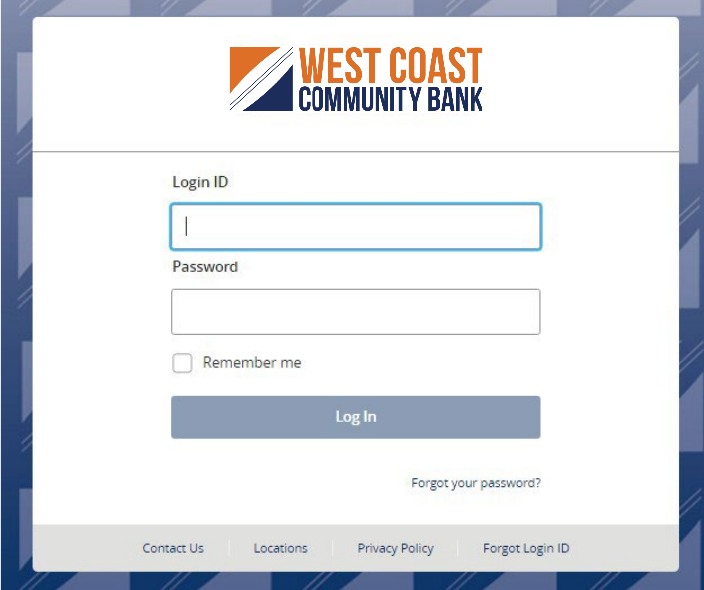
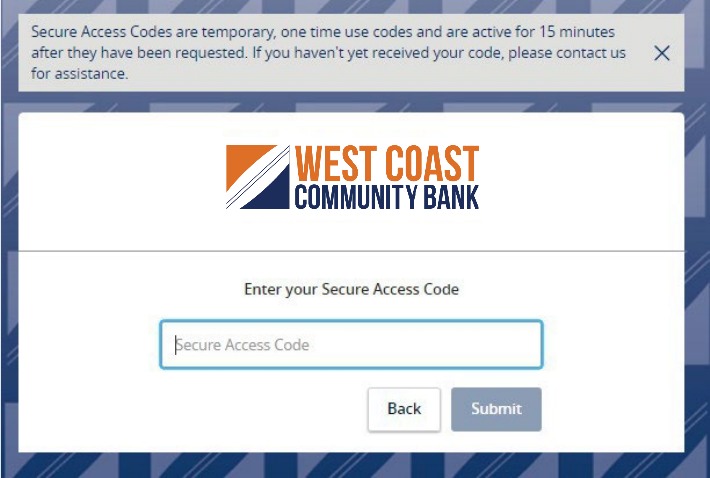
3. Select the delivery method to receive your secure access code.
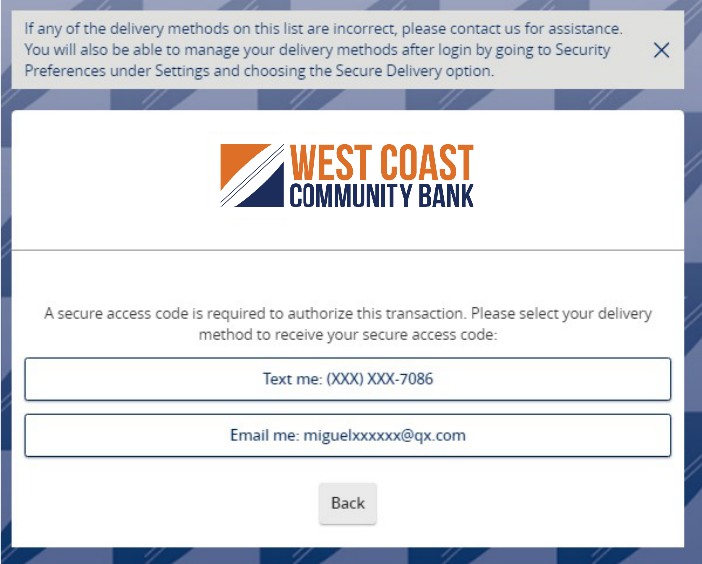
4. Enter the secure access code in the box once it has been received.
5. Select 'Submit'.
6. Review the User Profile and make any necessary changes.
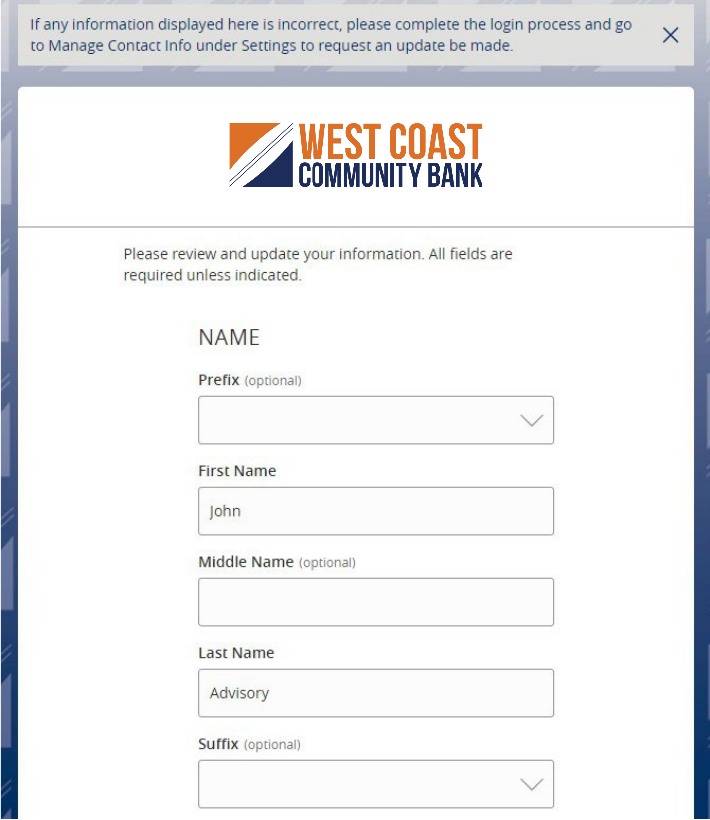
7. Click 'Submit Profile'.
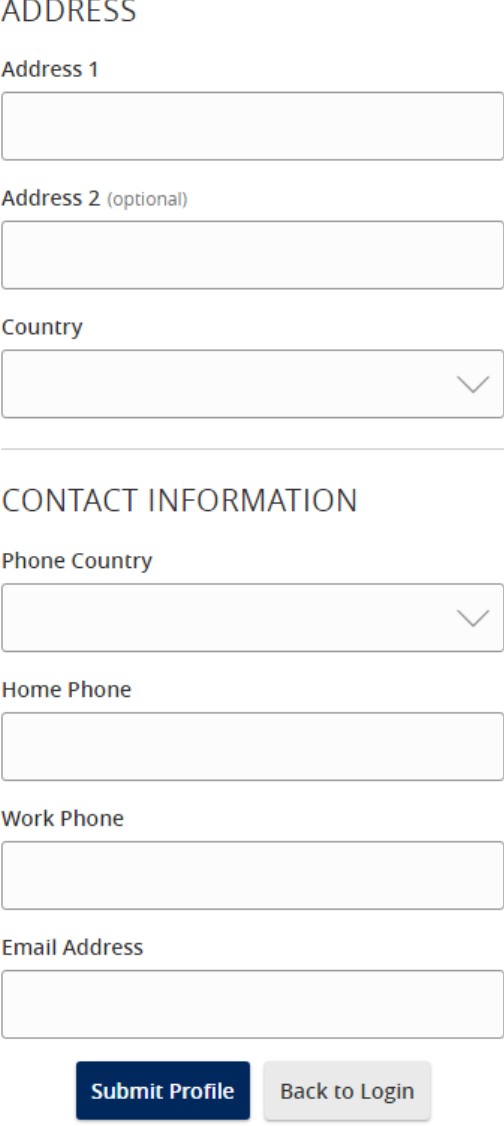
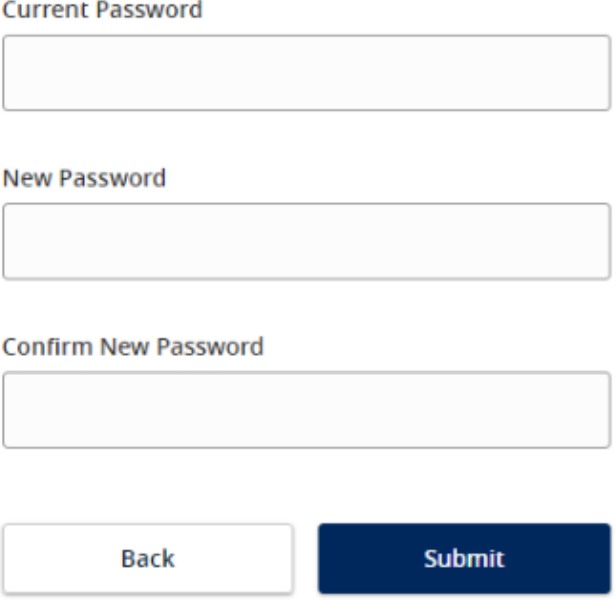
8. Enter your existing password in the top box along with a new password twice for validation.
9. Select 'Submit'.
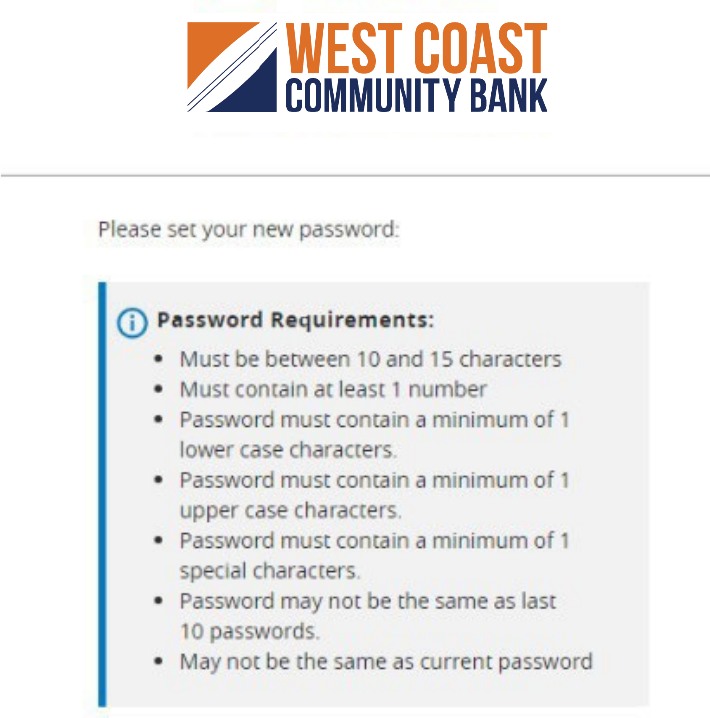
10. Please review the password requirements.
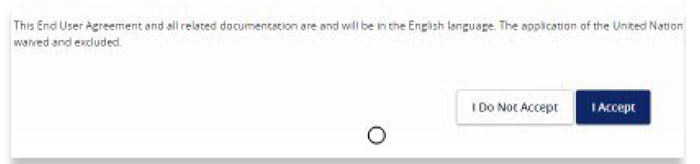
11. Read the 'First Time Login Disclaimer'. Scroll to the bottom of the screen to accept.
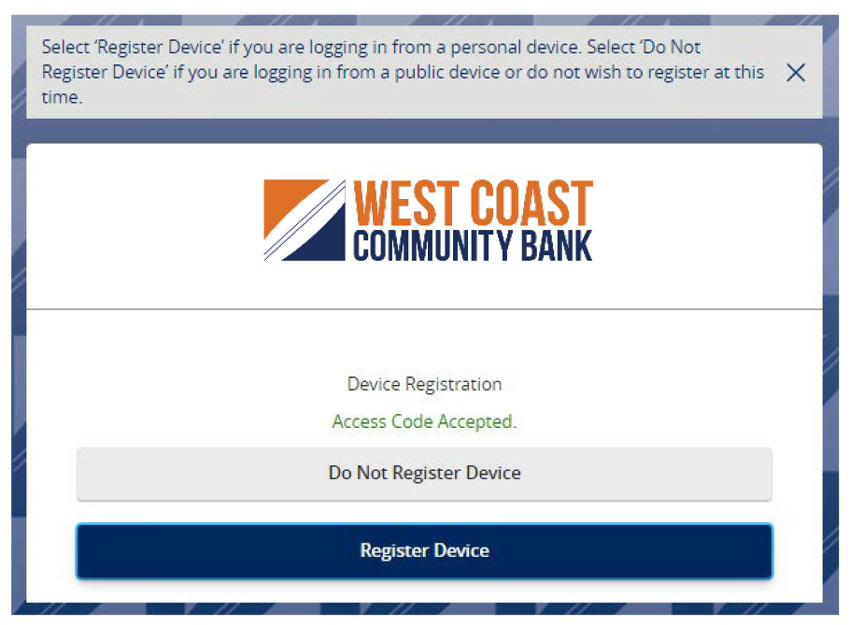
12. Select the appropriate registration option.
Are you at a private computer that you will use regularly to access online banking? If so, we can register your browser for future access. If you are at a public computer, select 'Do Not Register Device' and this computer will not be registered.
Note: To register your computer, we will place a Secure Token in your browser. Your PC must be configured to accept cookies from this site. The next time you log on, you will only need to enter your Login ID and password. The number of allowable registrations may be limited for the security of your account.
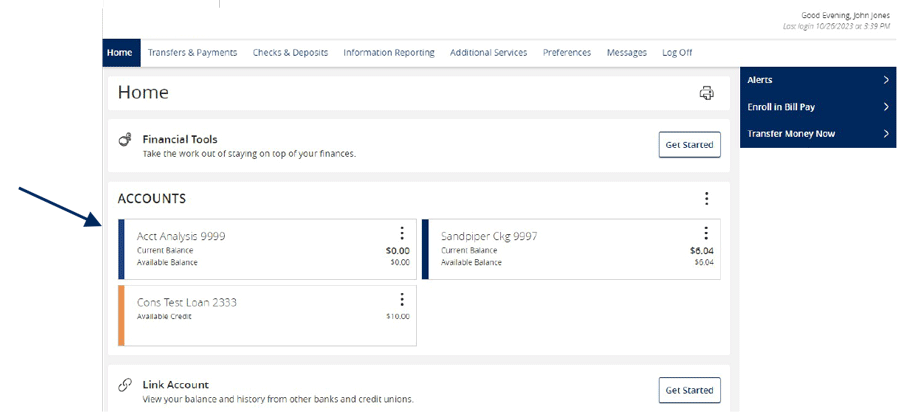
Account Details and History Guide
1. On the Home screen, click on an accountto view a listing of the details andtransaction history associated with theaccount.
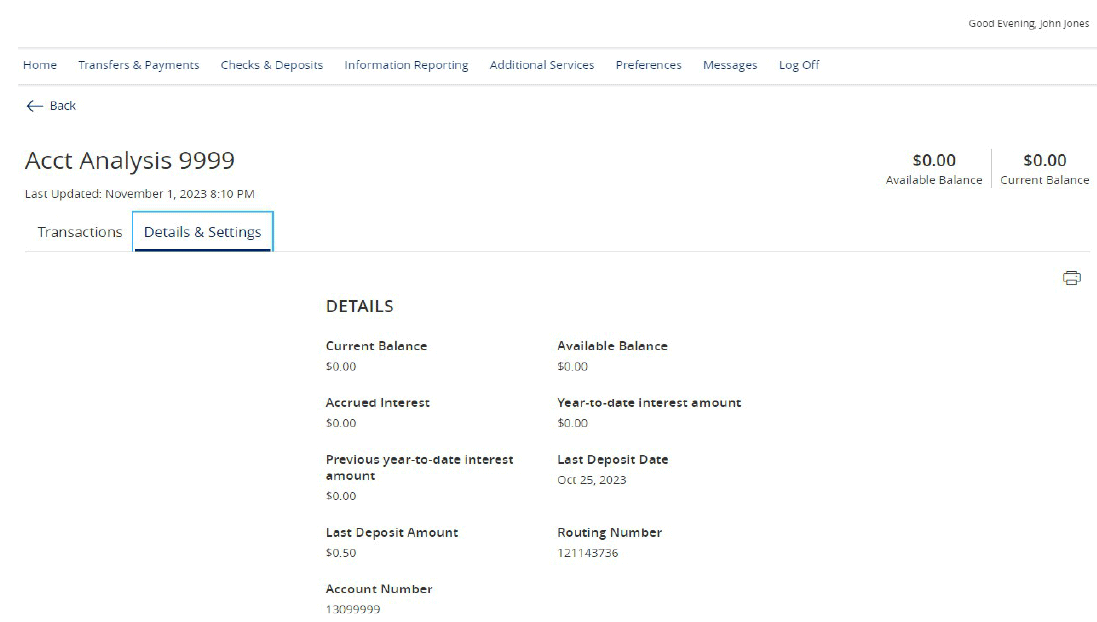
Click the 'Details & Settings' tab to display the account details.
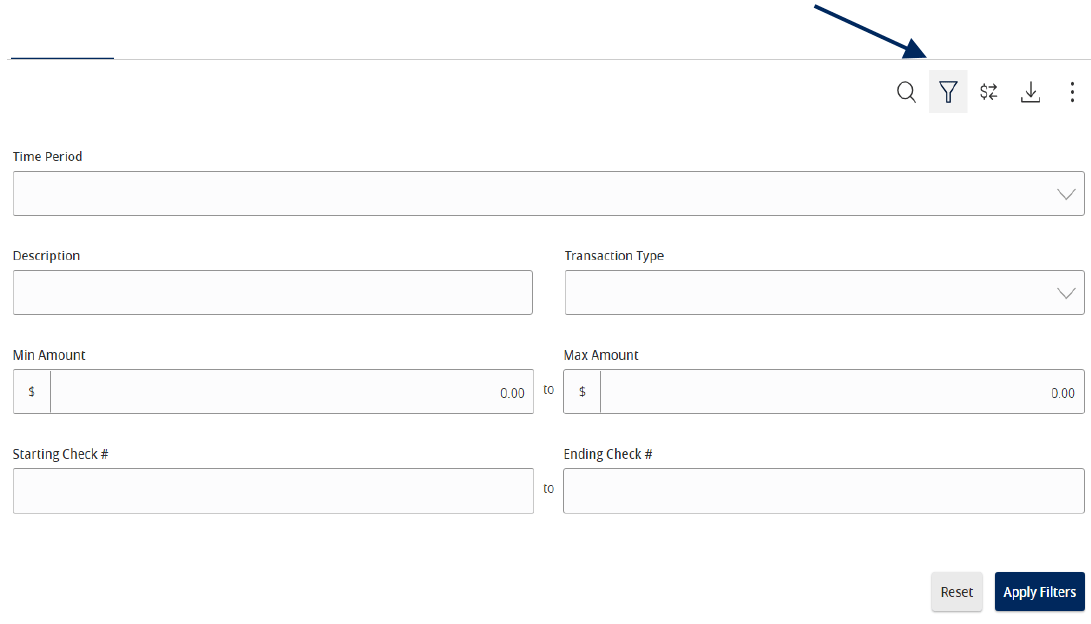
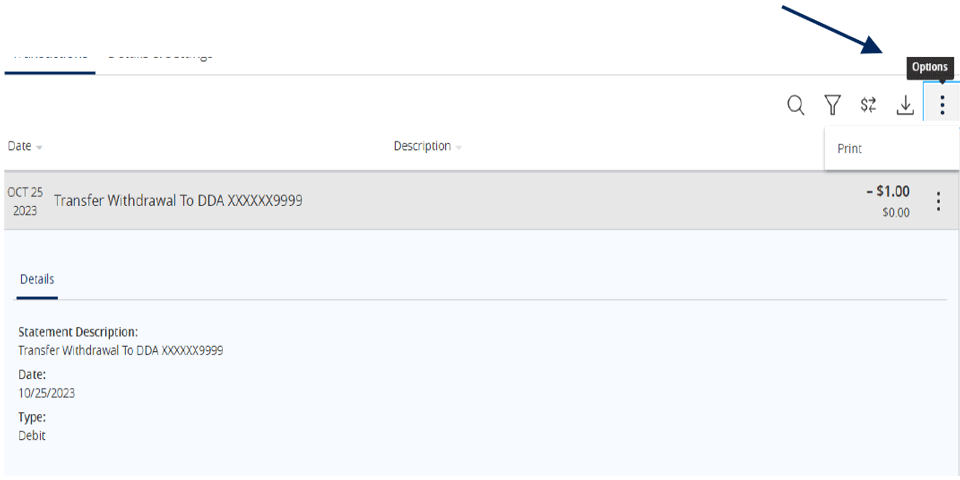
2. Select the 'Filters' icon to view the various search criteria for transaction history.
NOTE: A listing of historical transactions associated with the account are listed on the screen.
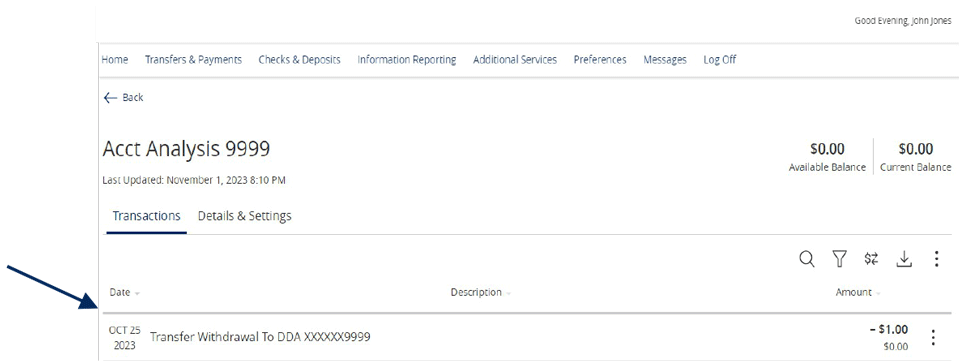
3. Select the Export icon to display a listing ofavailable formats. The export will includeall transactions specified in the filter bythe user
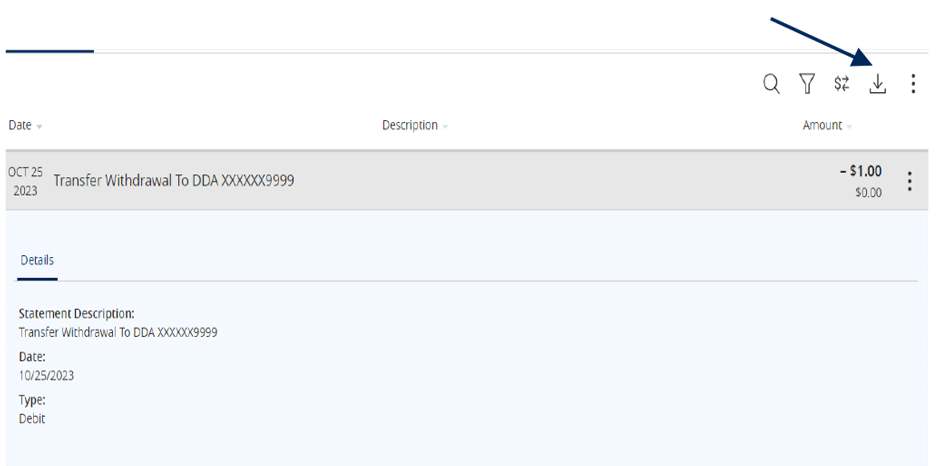
4. Select the 'Quick Transfer' icon to perform a quick transfer.
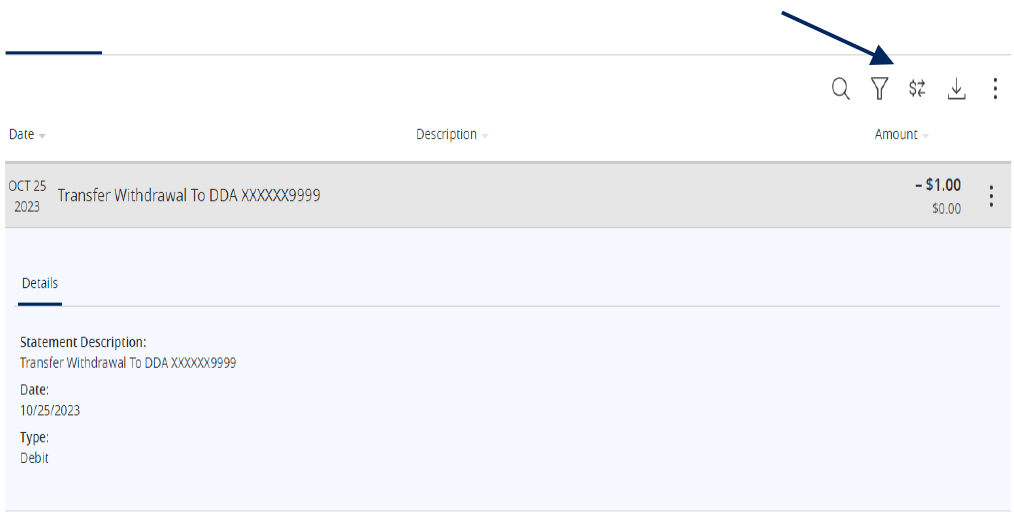
5. Select 'Options' next to a listed transactionto display available actions.
Activity Center Guide
NOTE: 'Activity Center' lists all user activity initiated from within Online Banking.
1. Select 'Transfers & Payments' then 'Online Activity'.
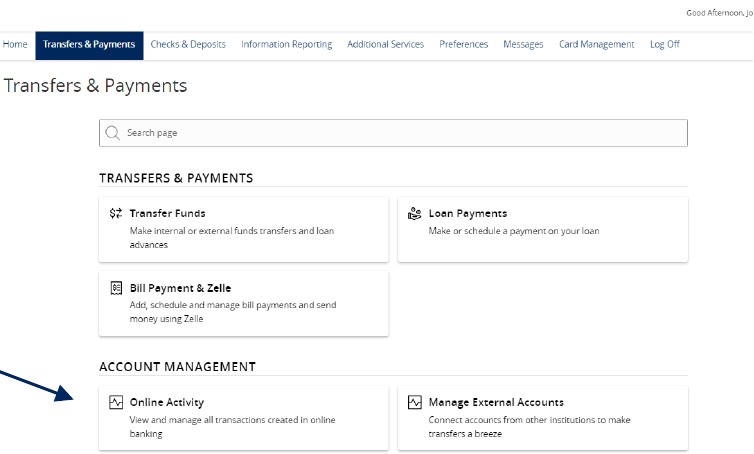
Single Transactions
1. Select the 'Single Transactions' tab on the screen to view one-time online transactions.

2. Select the 'Filters' option to reveal searchable fields.
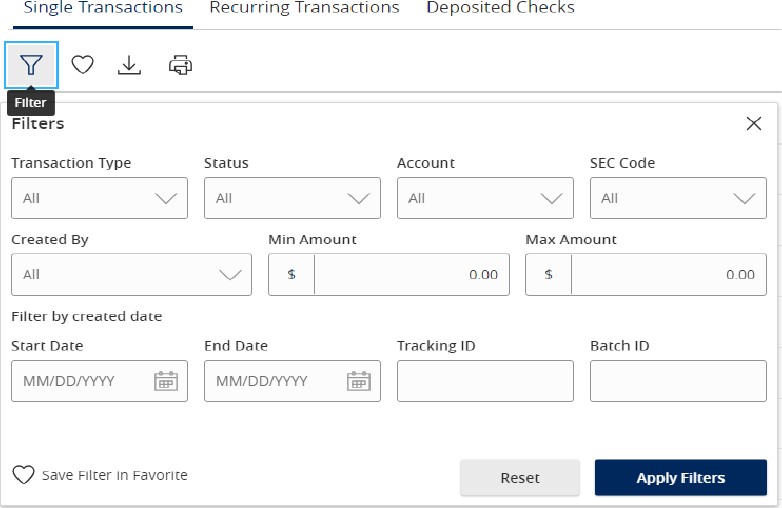
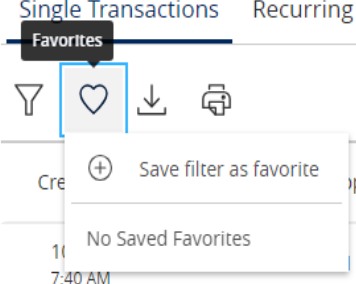
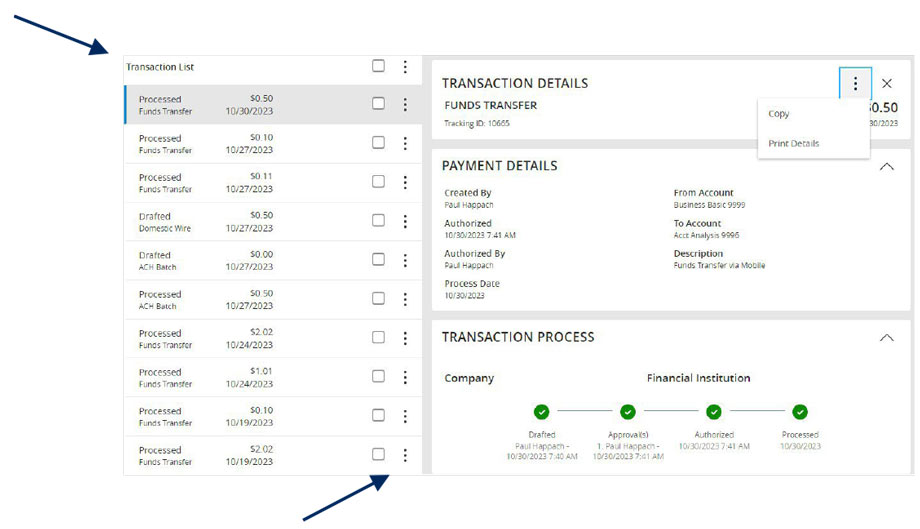
3. Click on a listed transaction to view additional details.
4. Select the 'Actions' icon to unhide a listing of available actions corresponding with the transaction.
Recurring Transactions
Select the 'Recurring Transactions' tab within the 'Activity Center' to view online transactions which are setup to occur in a series.

Deposited Checks
Select the 'Deposited Checks' tab within the 'Activity Center' to view historical checks that have been deposited using the Mobile Remote Deposit Capture functionality.
NOTE: You must be enrolled in Mobile Remote Deposit before this tab will appear on the 'Activity Center' screen.

Alerts Guide
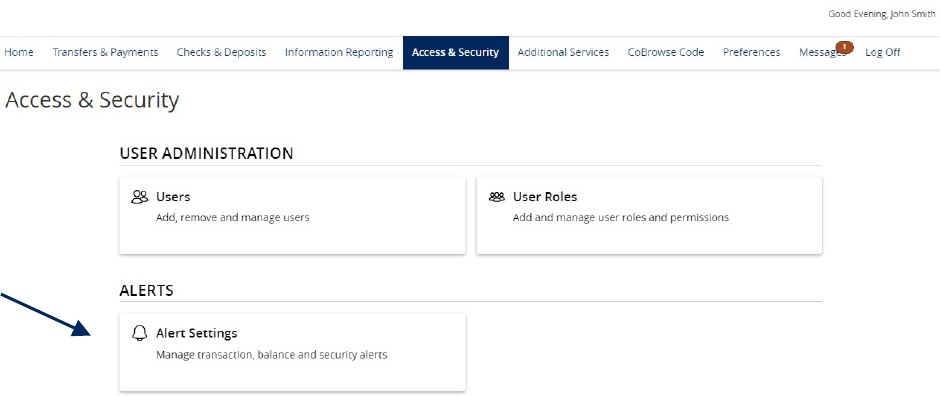
1. Select the 'Access & Security' menu and then select 'Alert Settings'.
2. Click the 'New Alert' button and select the desired type of alert from the drop-down menu.
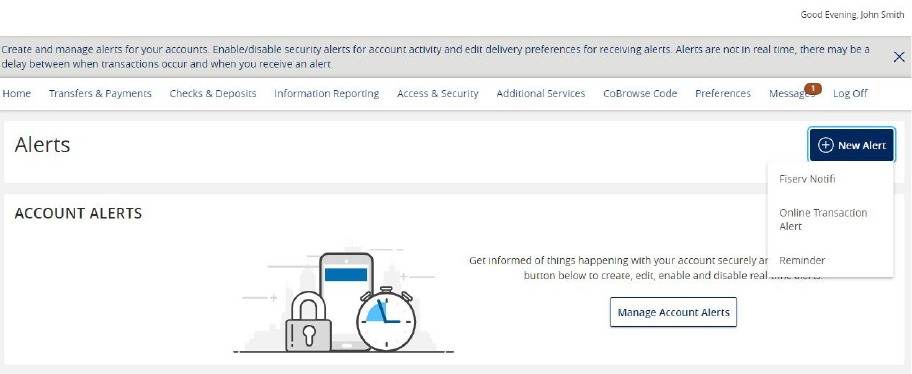
Online Transaction Alerts
1. Select a 'Transaction' type.
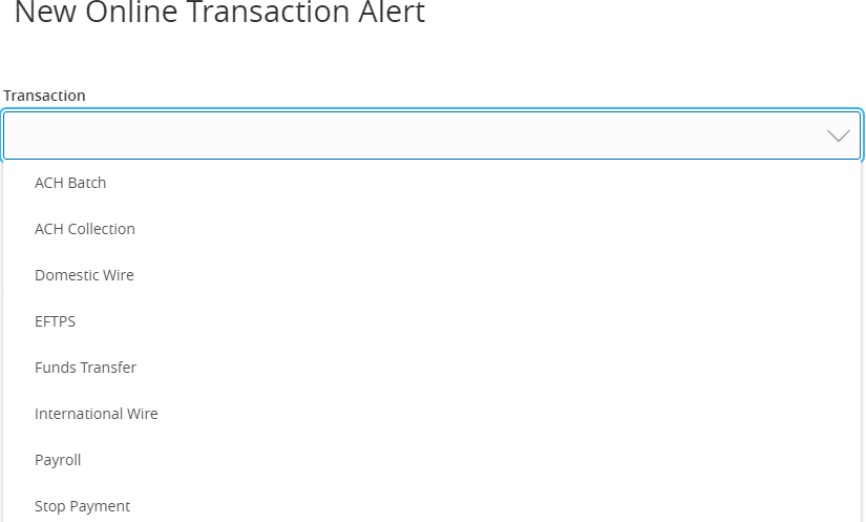
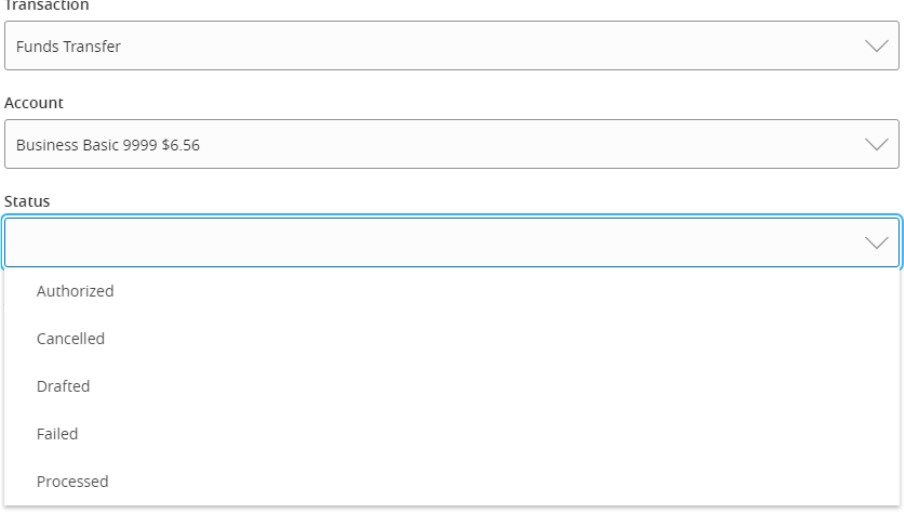
2. Select the 'Account'.
3. Select the 'Status' of the transaction
4. Select the desired 'Alert Delivery Method'.
5. Enter the necessary information.
6. Click 'Create Alert'.
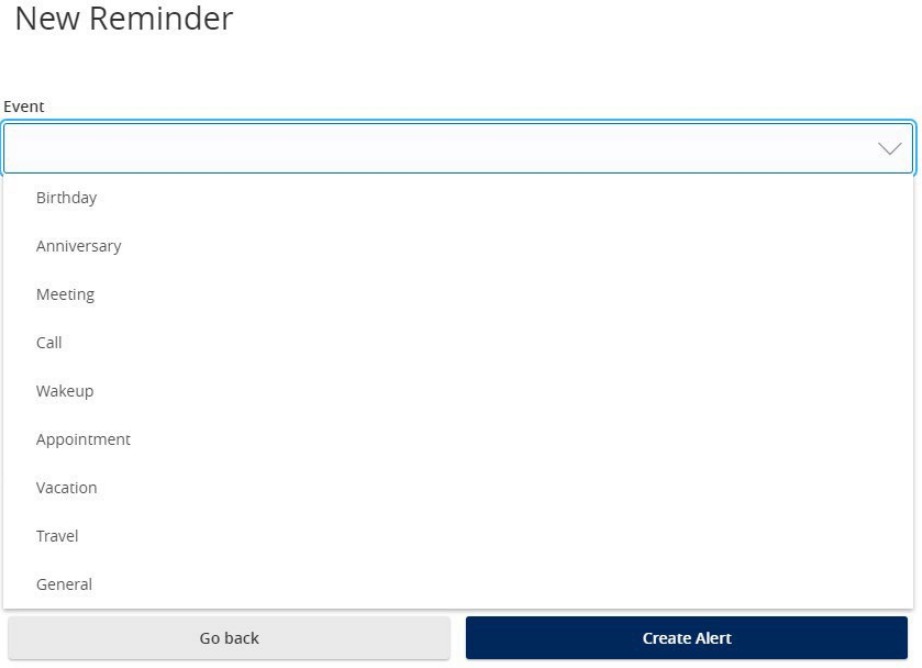
Reminder
1. Select an 'Event'.
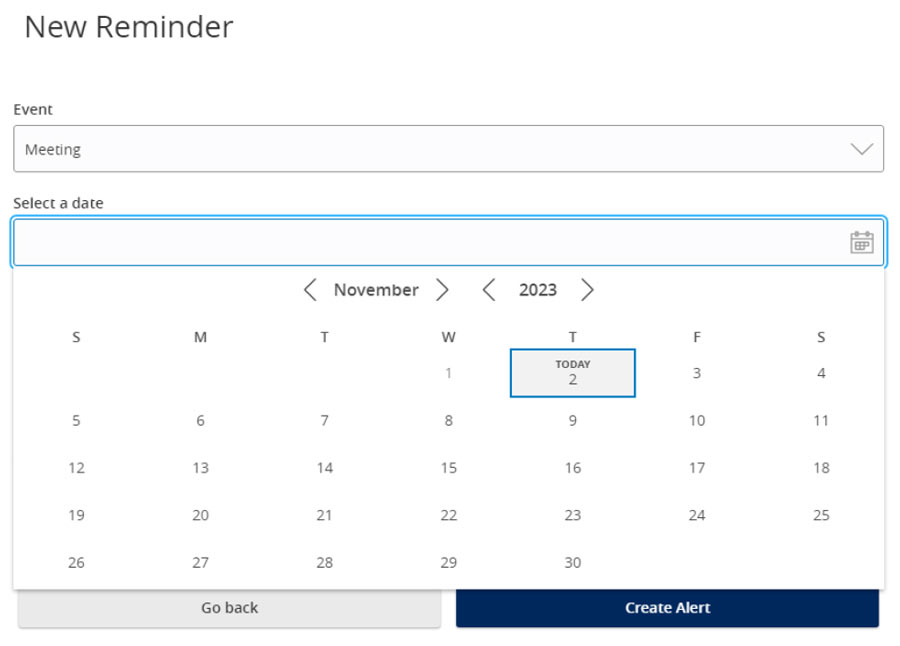
1. Select the desired 'Date'.
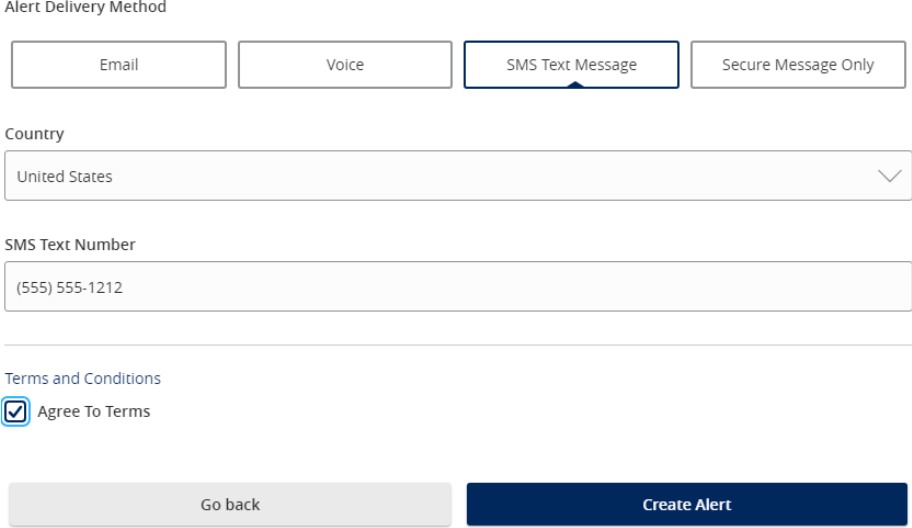
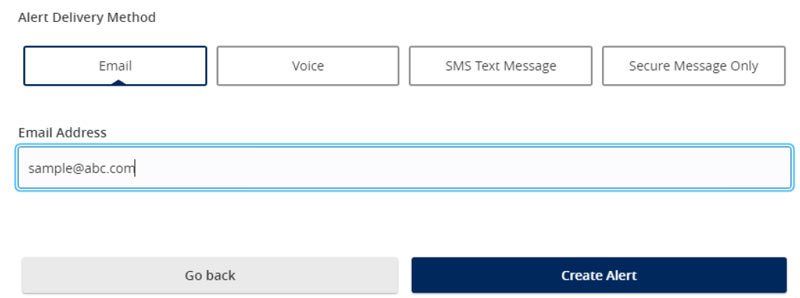
2. Select the desired 'Alert Delivery Method'.
3. Enter the necessary information.
4. Click 'Create Alert'.
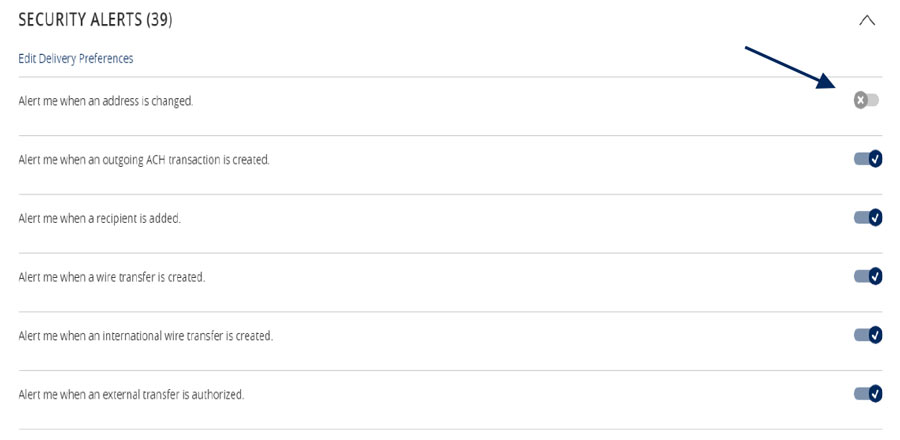
5. Security Alerts can be toggled on or off.
Funds Transfer Guide
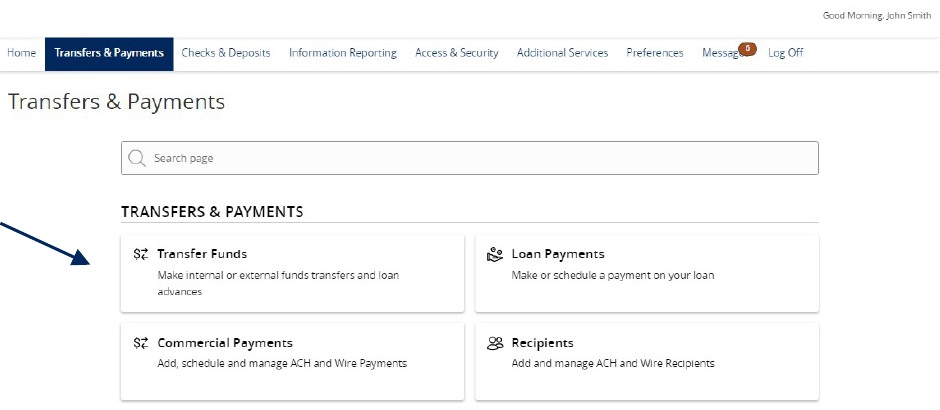
1. Select 'Transfers & Payments' menu and then 'Internal Transfers'.
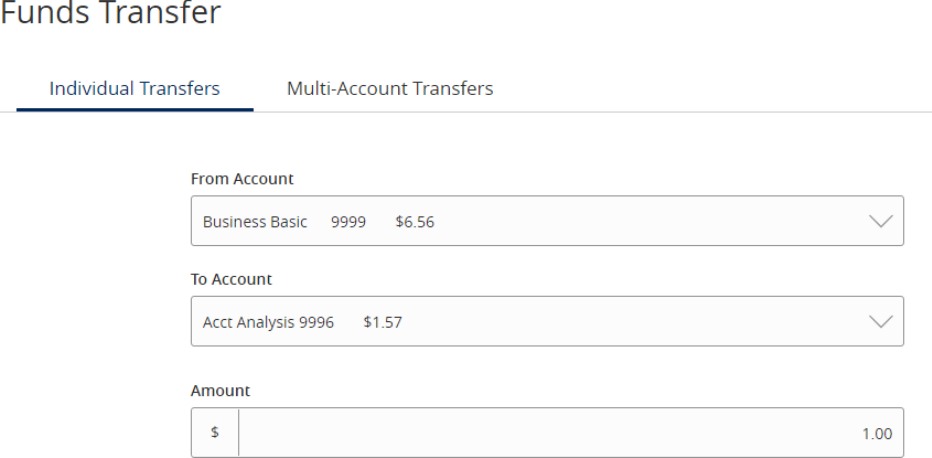
2. Select a 'From' account
3. Select a 'To' account.
4. Enter a dollar amount.
NOTE: To setup a recurring transfer, follow the steps in the 'Recurring Transfers' section beginning on the next page.
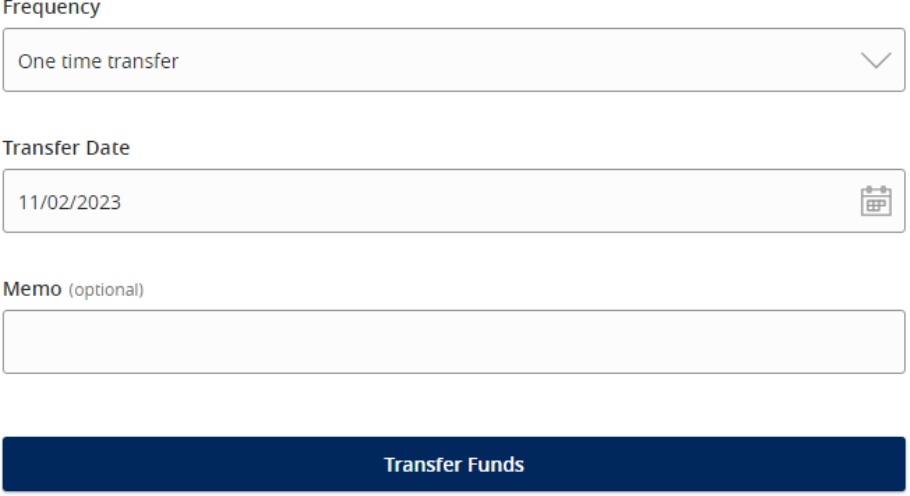
5. Select a 'Transfer Date' for the transaction.
6. Enter a Memo for the transaction. (Optional)
7. Click 'Transfer Funds' to complete the transaction.
Recurring Transfers
1. Select the desired frequency from the drop-down menu.
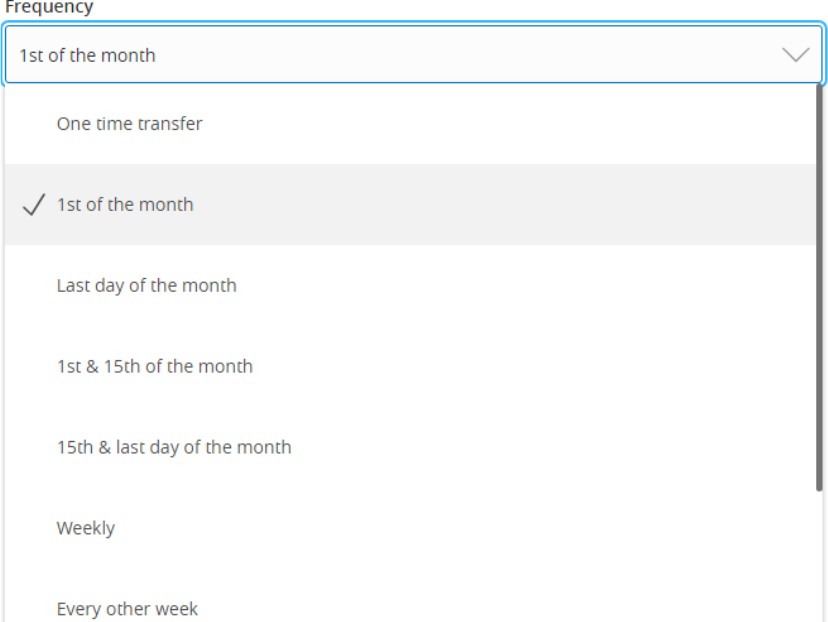
2. Select the desired 'Repeat Duration'.
a. Forever (Until I Cancel)
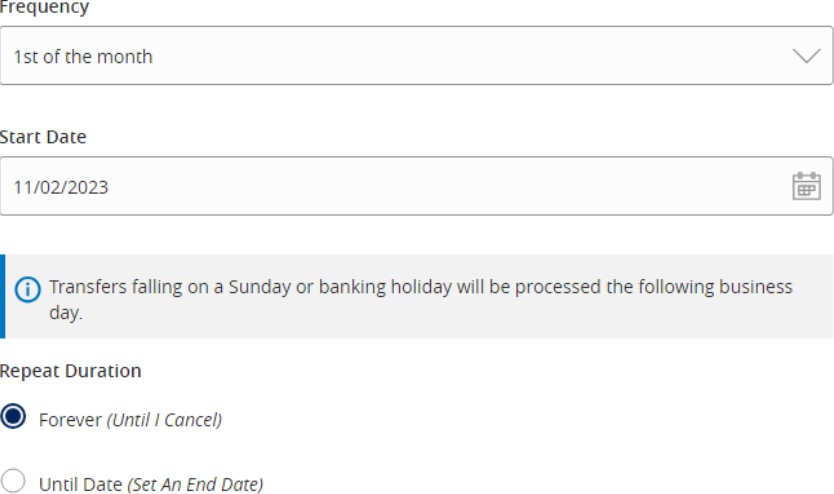
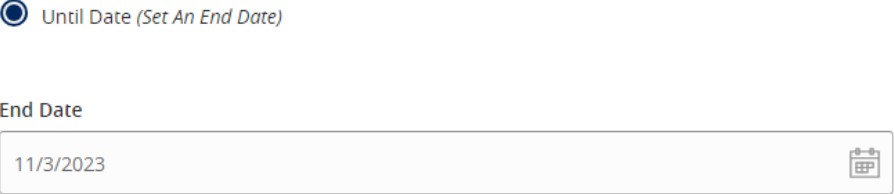
b. Until Date (Set an End Date)
Home Page Guide
1. View a listing of accounts accessible within Online Banking.
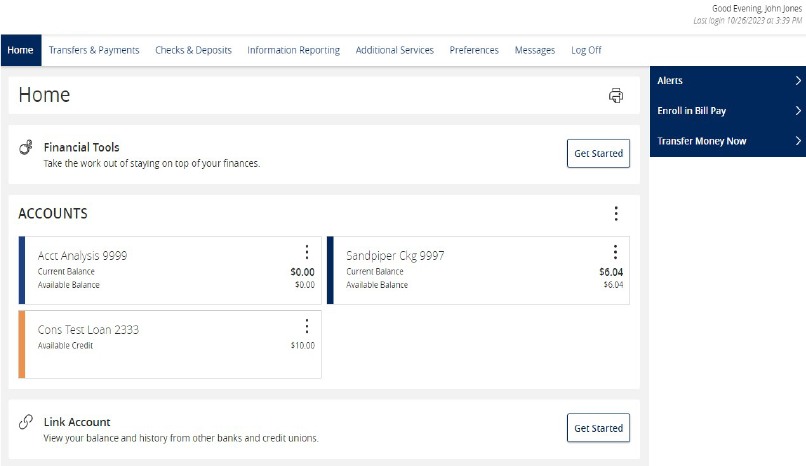
2. Select the 'Options' icon next to each account to reveal multiple available quick actions.
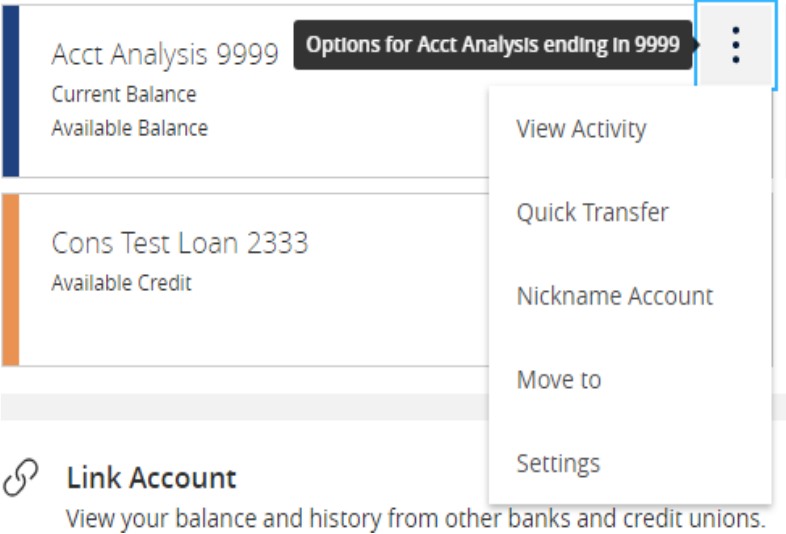
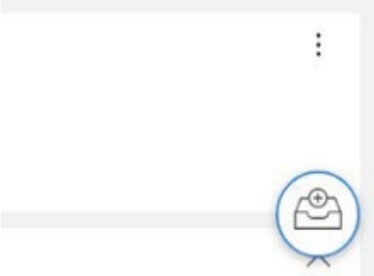
3. Select and drag any account to the envelope icon which appears at the bottom right side of the screen to create a new account group.
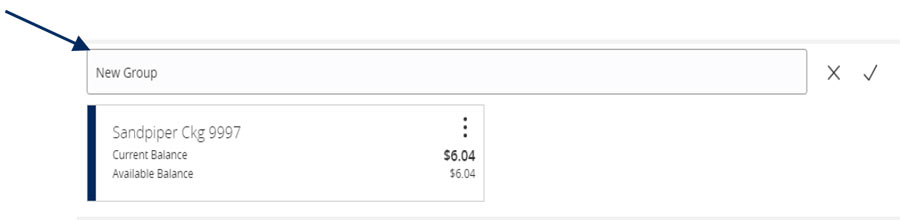
4. The new group created can be renamed. Additional accounts may be dragged into the new group or additional groups created.
NOTE: Additional account(s) may be moved into the newly created group or additional group(s) may be created if needed by repeating step 6.
Multi Account Transfers Guide
Transfer Funds
1. Select the 'Transfers & Payments' menu, then select 'Internal Transfers'.
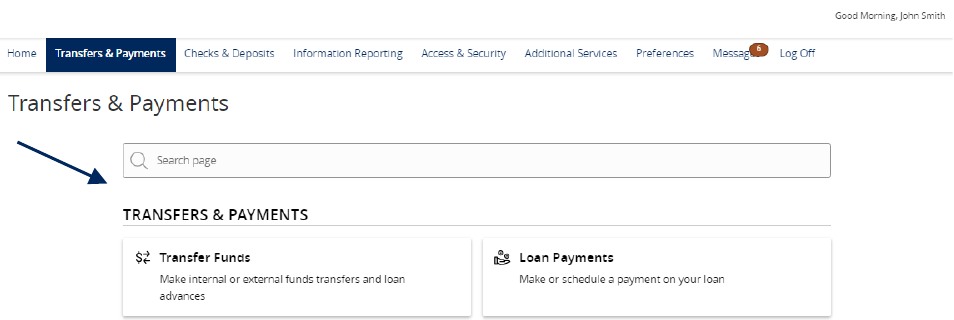
2. Select the 'Multi-Account Transfers' tab.
3. Select 'Transfer Funds

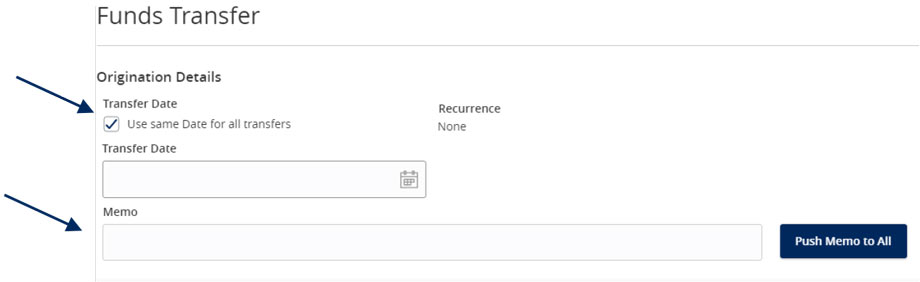
4. Click the 'Use same Date for all transfers' check box to automatically set the same date for all transfers being initiated.
Or leave the 'Use same Date for all transfers' check box unselected to individually set the date for each transfer.
Optional: Enter a memo and click 'Push Memo to All' to automatically push the same memo to all transfers listed.
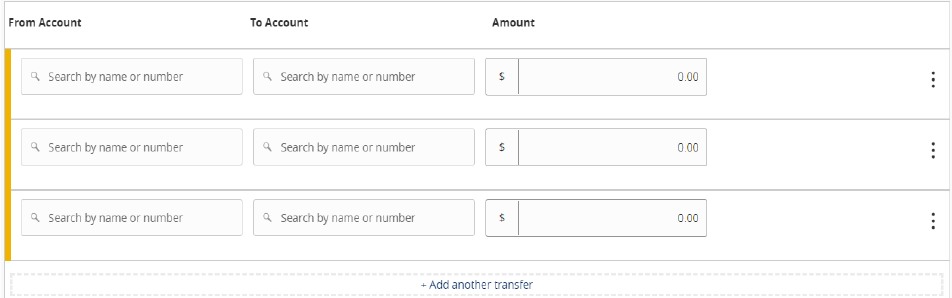
5. Select the 'From' and 'To' Account for each transfer.
6. Enter the Amount for each transaction
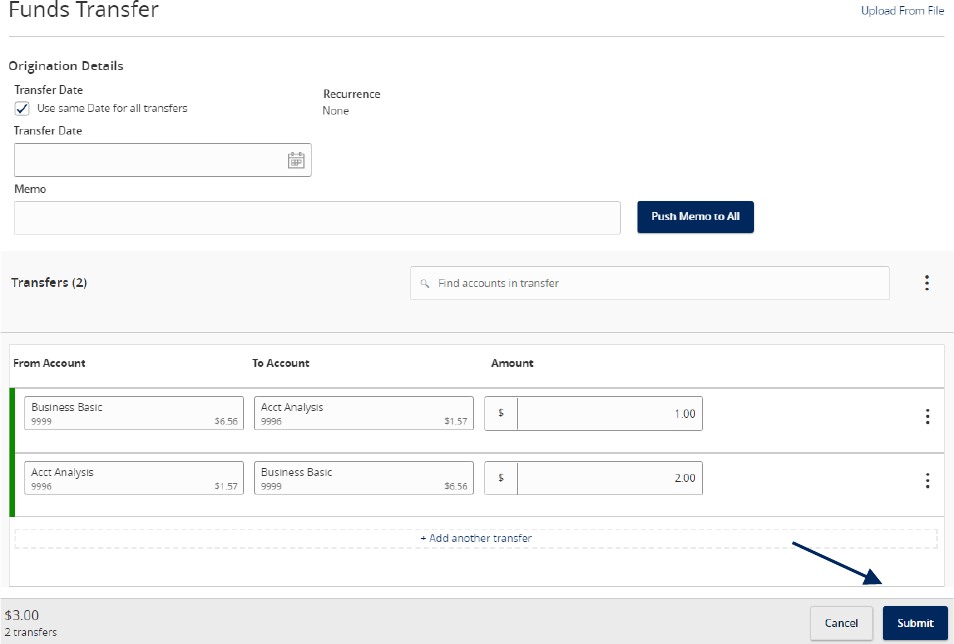
7. Review the information on the screen for accuracy, and select submit. Note: Funds transfers are processed in the order that they appear on the screen.
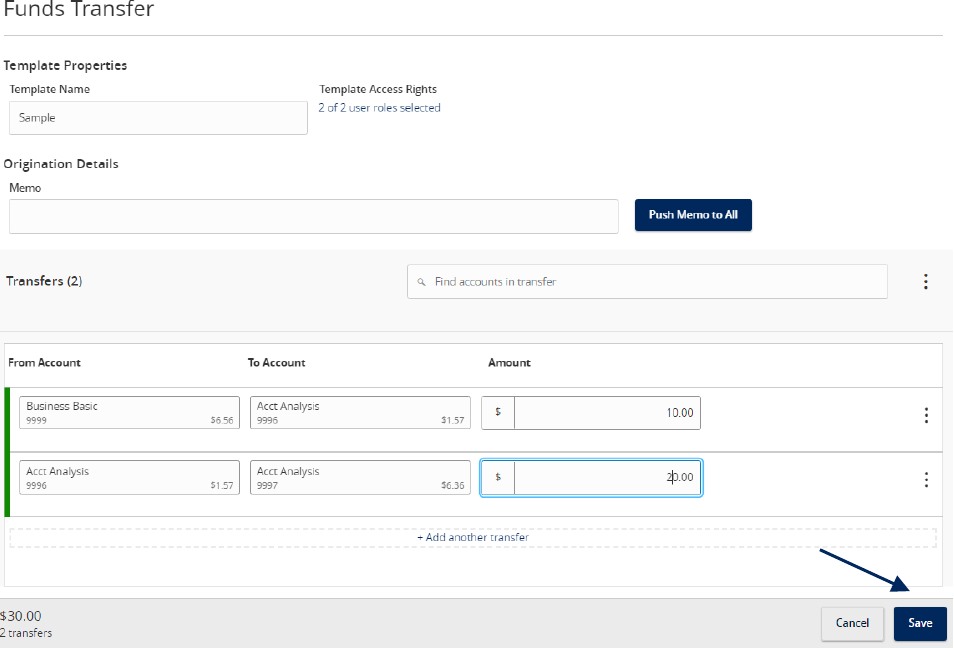
Creating a Template
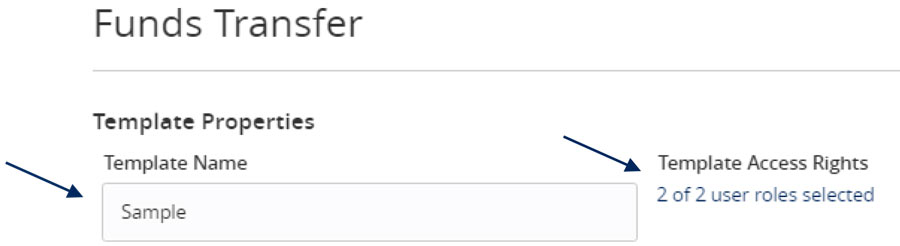
8. To create a transfer template, select 'Create Template'.

9. Enter the 'Template Name'.
10. Select the link below 'Template Access Rights' to designate the users who should have access to the template.
11. Select the 'From' and 'To' Account for each transfer.
12. Enter the Amount for each transaction.
13. Review the information for accuracy. Then select 'Save'.
Note: Funds transfers are processed in the order that they appear on the screen.
Secure Messages Guide
NOTE: The 'Messages' feature is a secure messaging function which allows for two-way communication between the online banking user and Santa Cruz County Bank. Since the message is delivered securely within the Online Banking system, sensitive material.
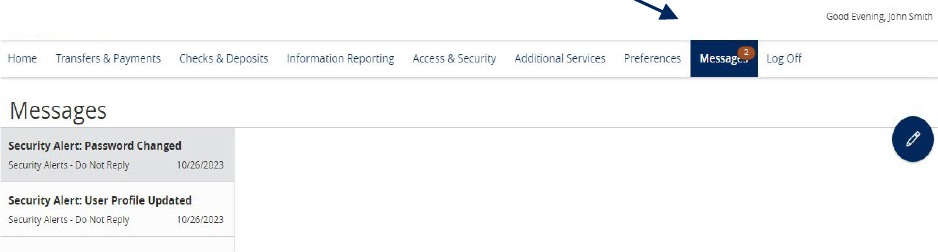
1. Select the 'Messages' menu.
NOTE: Both incoming and outgoing messages will appear in the column directly to the right of the menus in descending date order (newest on top).
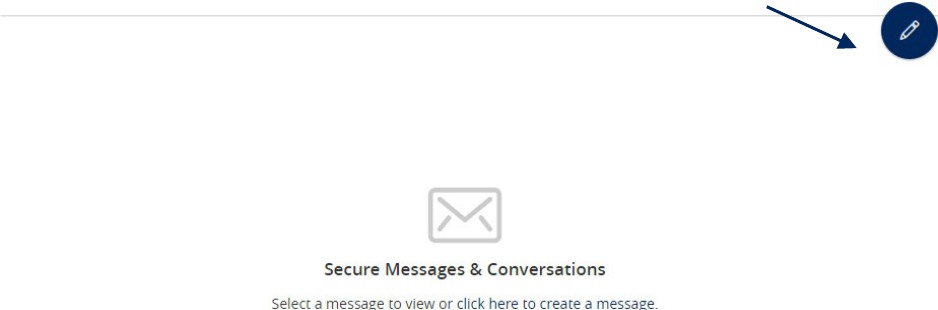
2. Click pencil icon on the right side of the screen.
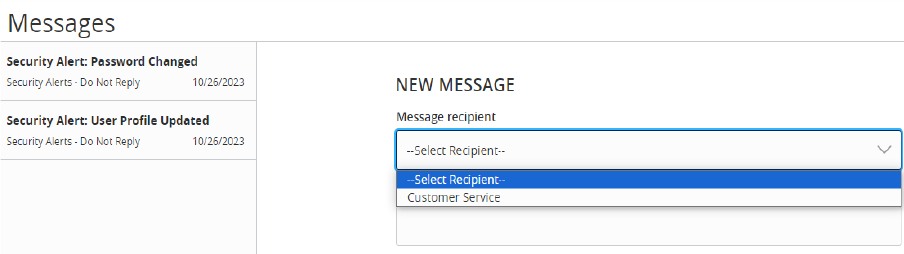
3. Select the appropriate 'Message recipient' from the drop-down menu.
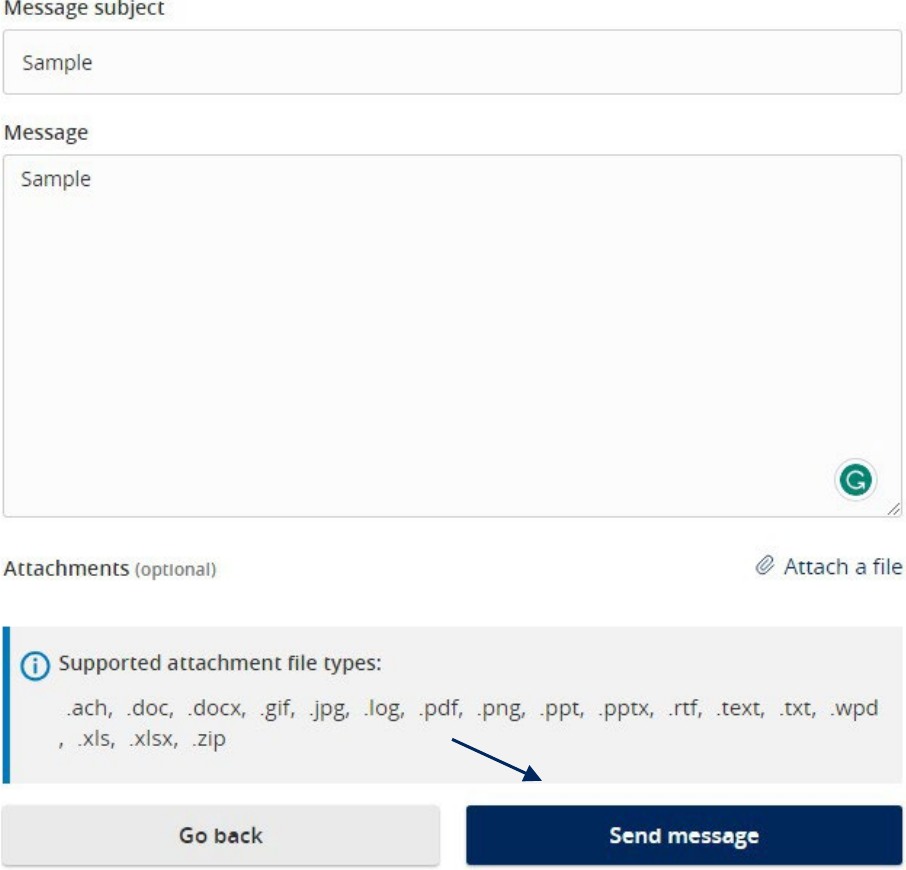
4. Enter the desired 'Message Subject' and 'Message'.
5. Click the 'Attach a file' link to attach a file or document if desired.
6. Click 'Send Message' at the bottom of the screen to submit the message.
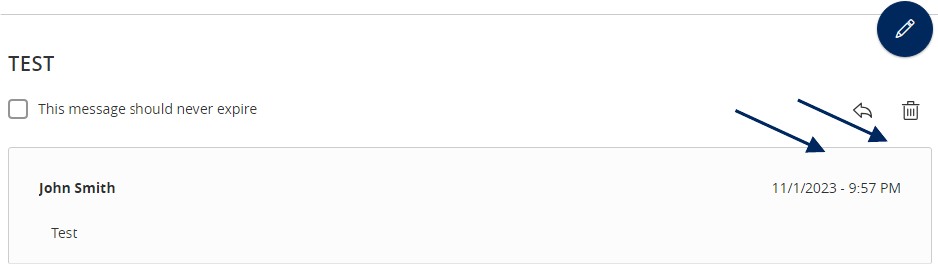
7. Select the arrow icon beneath the pencil to reply to a secure message or the trash bin to delete the message.
Tax Payments Guide
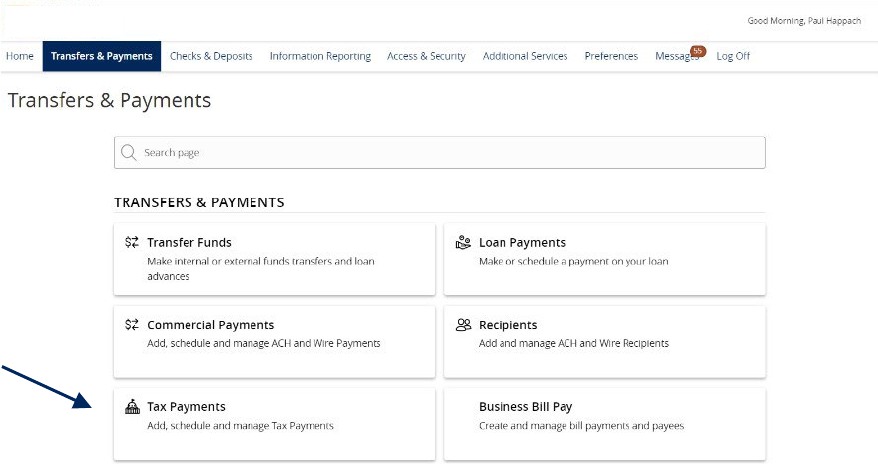
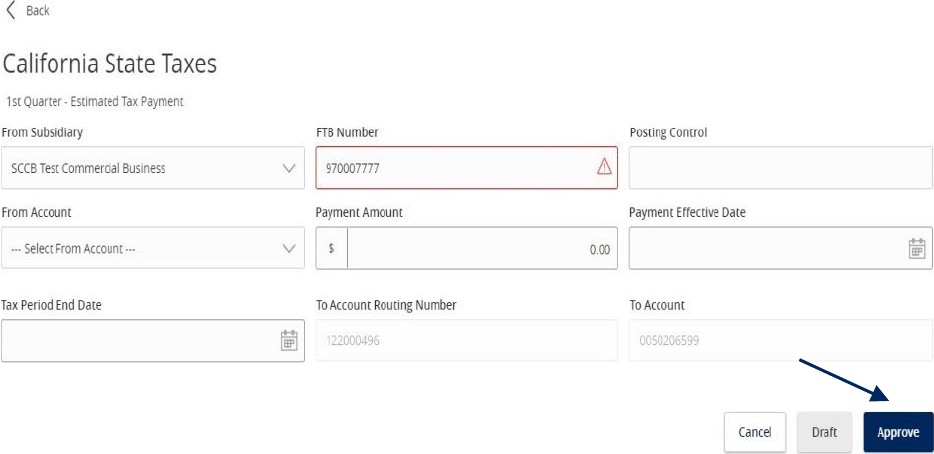
1. Select the 'Transfers & Payments' menu and then select 'Tax Payments'.
Federal Tax Payments
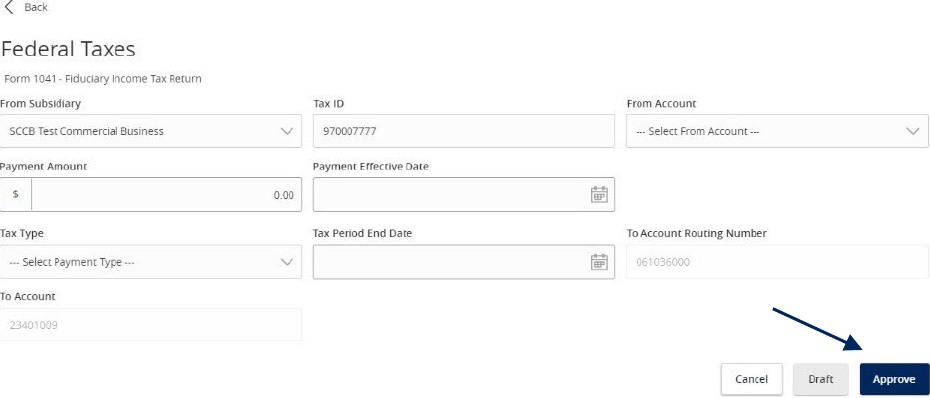
1. Select 'Federal' in the 'State or Federal Authority' drop down menu.
2. Select the desired tax form.

3. Complete all required fields in the form.
4. Review the information on the screen for accuracy and then select 'Approve' to authorize the payment or 'Draft' to initiate.
State Tax Payments
1. Select the corresponding state from the 'State or Federal Authority' drop down menu.
2. Select the desired tax form.

3. Complete all required fields in the form.
4. Review the information on the screen for accuracy and then select 'Approve' to authorize the payment or 'Draft' to initiate.
Mobile: Remote Deposit Capture Guide
1. To deposit a check through Mobile Deposit, log into the Santa Cruz County Bank app on your Apple or Android device. Be sure to write "For Mobile Deposit Only" on the back of the check before taking the picture.
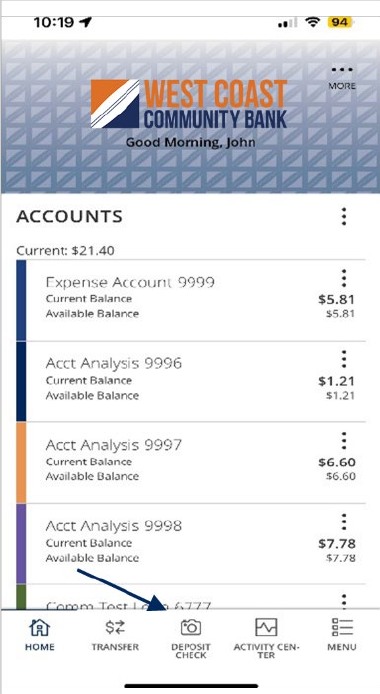
2. On the homepage select 'Deposit Check'. If this is your first time using the feature, scroll down and click 'I Accept' to accept the Mobile Remote Deposit Terms and Conditions.
3. Select the Deposit Account from the drop-down menu.
NOTE: Once you have completed the deposit process put the date of deposit on the back of the check. Do not destroy the original check for at least 30 days.
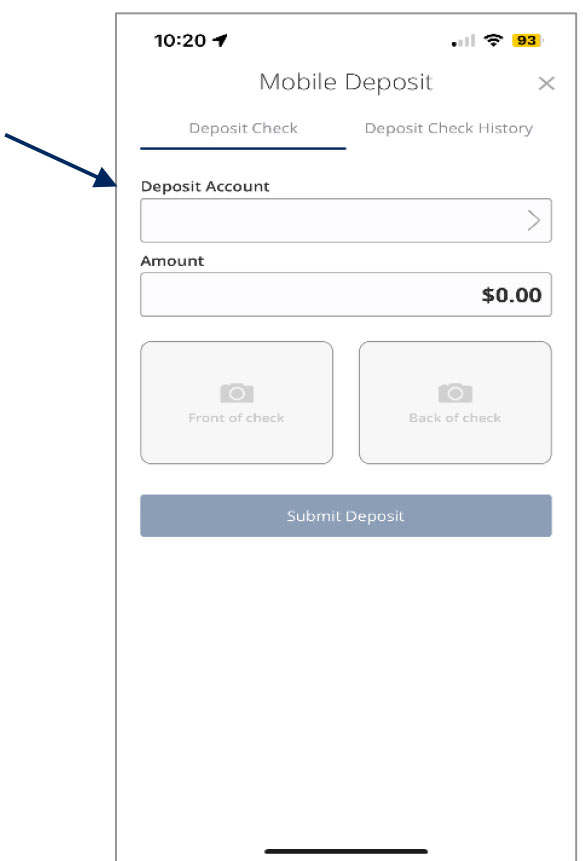
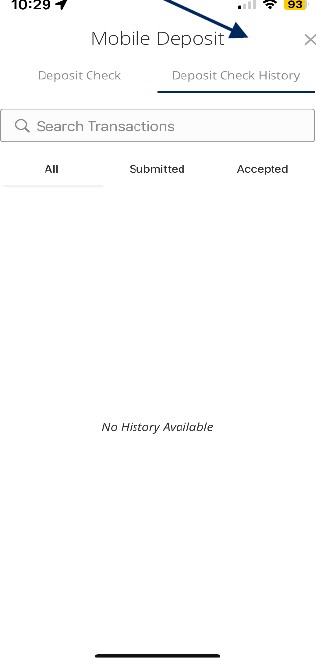
4. Select the 'Deposit Check History' tab to view a listing of previous checks deposited through Mobile Deposit.
Card Swap Guide
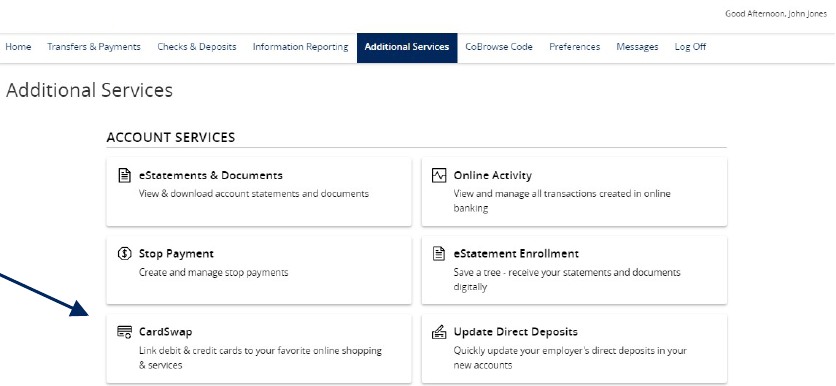
1. Select the 'Additional Services' menu then 'Card Swap'.
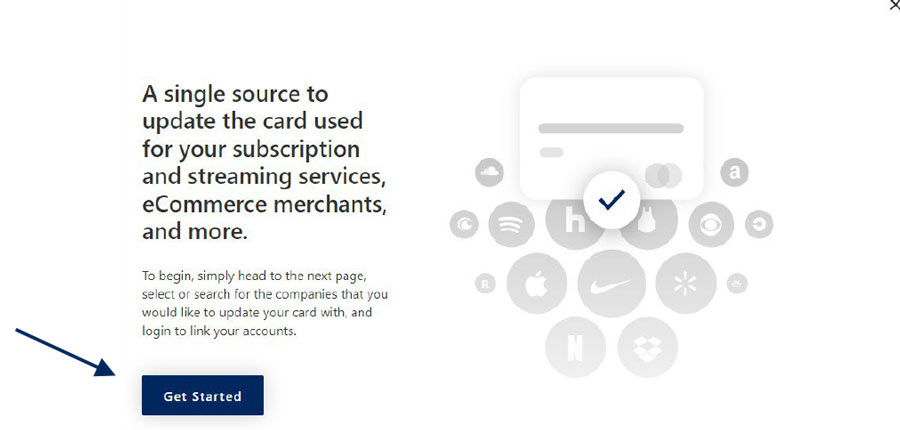
2. Click 'Get Started'.
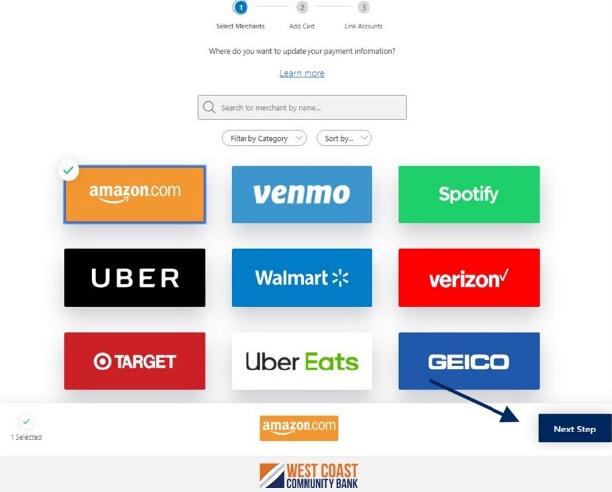
3. Click each of the brands that you pay from the listing on the screen.
4. Click 'Next Step' when done
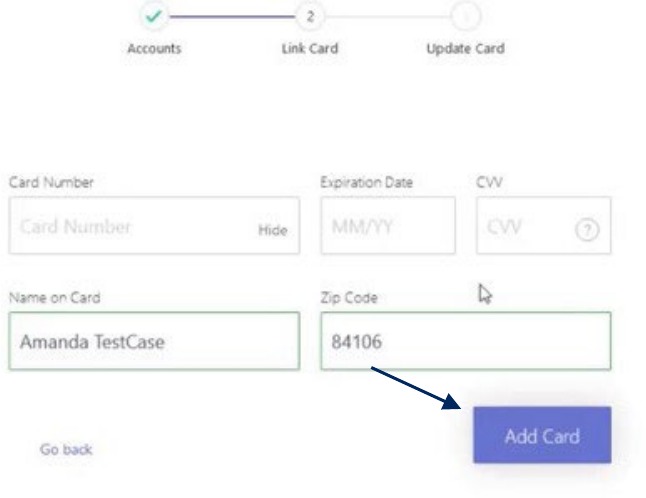
5. Enter your Santa Cruz County Bank card information and click 'Add Card' when done to begin the linking process.
NOTE: You will notice the card that was entered in the previous steps appears below each biller.
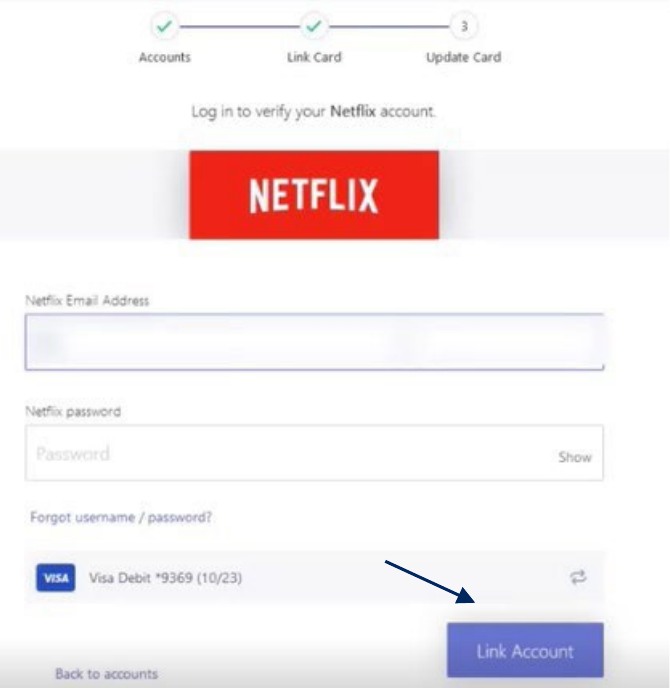
6. Enter the login credentials, then click 'Link Account' for each provider you would like to verify.
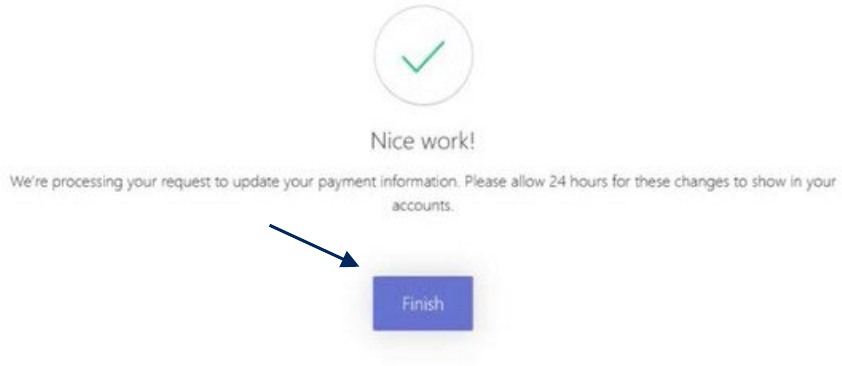
7. Once your account has been successfully linked, click 'Finish'.
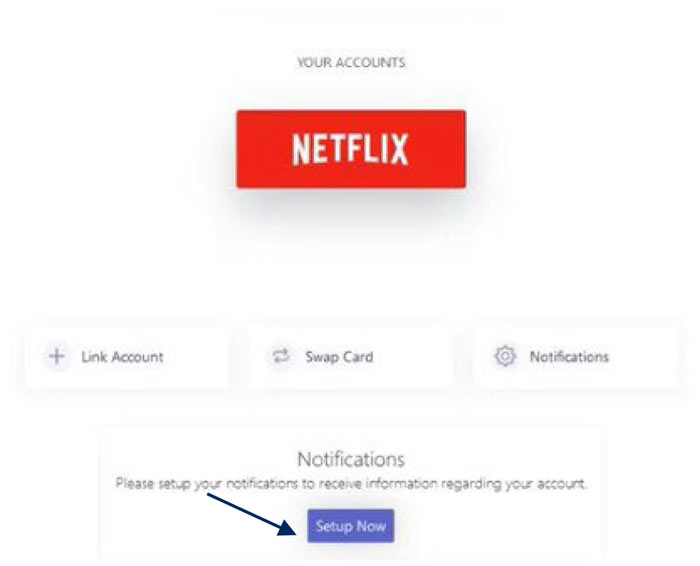
8. To add a new provider, click 'Link Account'.
9. To swap a card, click 'Swap Card'.
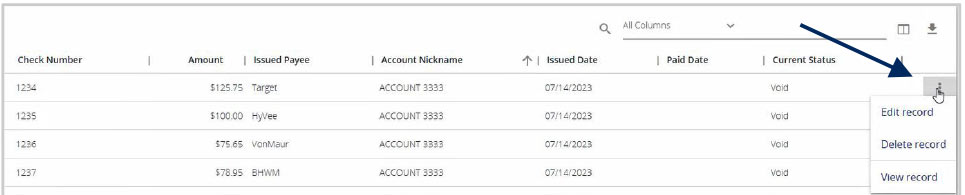
Check Search Guide
Use the Check Search page to search for specific transactions.
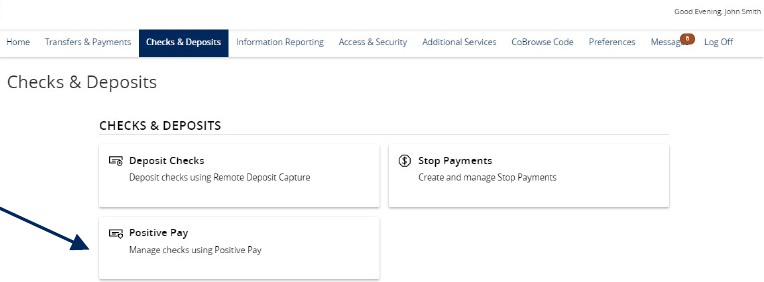
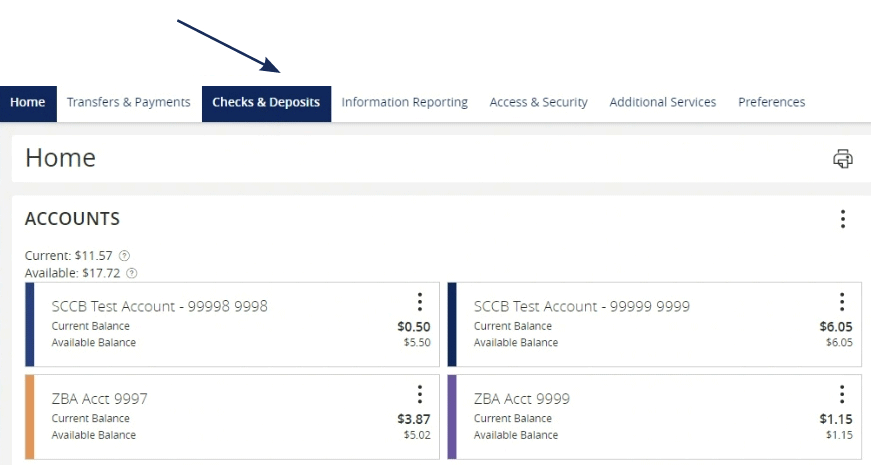
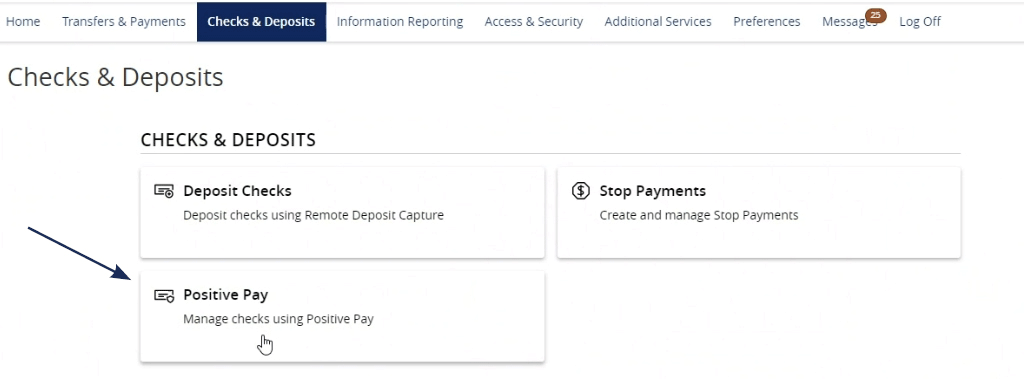
1. Select the 'Checks & Deposits' menu then 'Positive Pay'.
NOTE: Checks can be searched by specifying various criteria listed on the screen according to need.
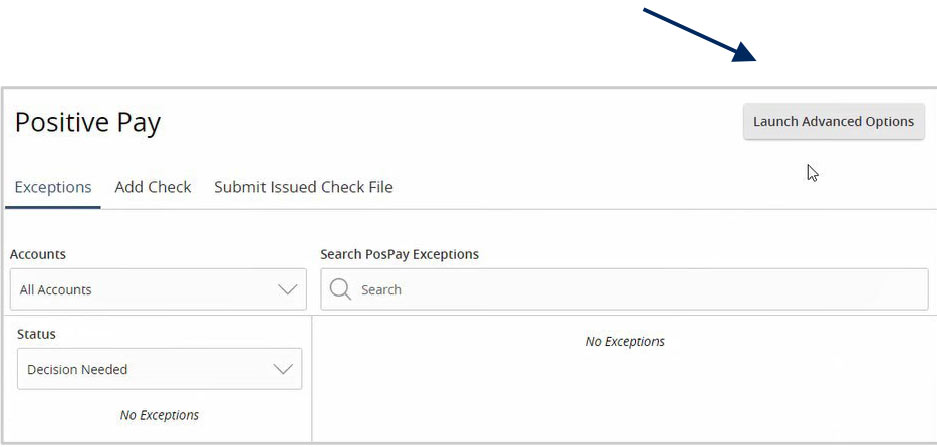
2. Click 'Launch Advanced Options' button to visit the full Positive Pay site.
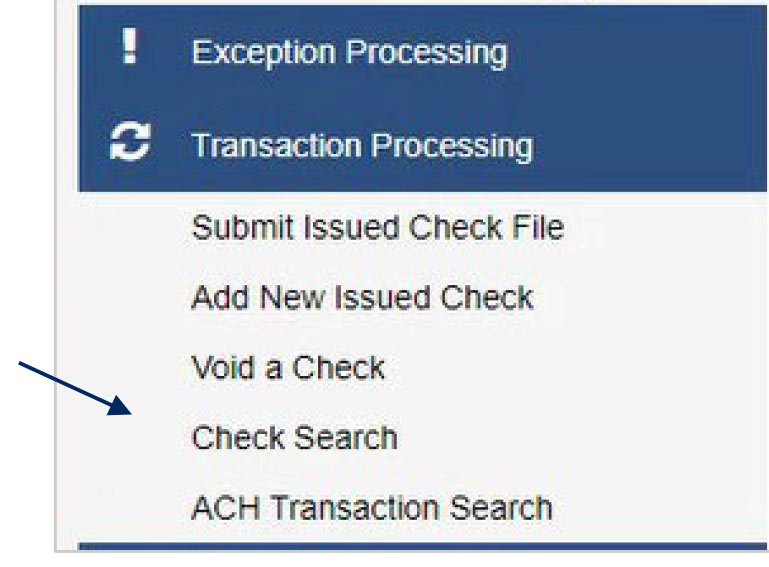
3. Select the 'Transactions Processing' menu, then select 'Check Search'.
4. Select the desired Account Nickname from the drop-down menu. This specifies which Account or Accounts should be included in the search.

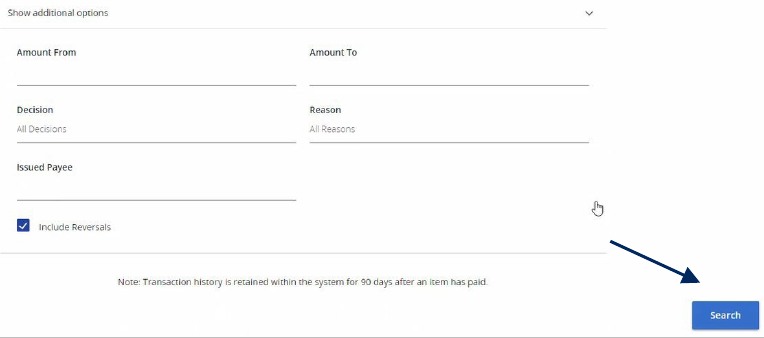
5. The following fields are optional and may be utilized to narrow down the corresponding search.
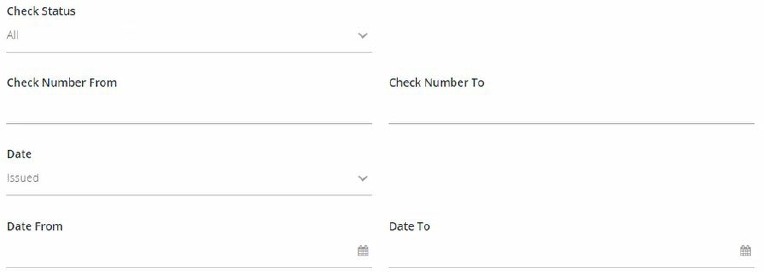
7. Select a decision from the list based on whether the check was paid or returned.
8. Select a reason from the list based on the reason that was selected.
9. Indicate whether reversals should be included in the search by clicking the check box.
10. Click 'Search' once all desired criteria have been specified.

11. The resulting checks will appear on the screen.
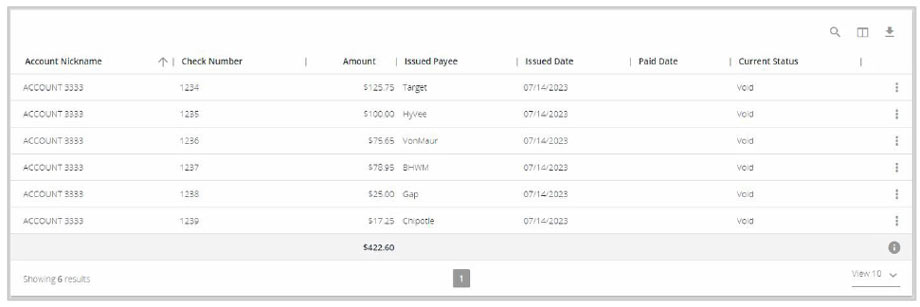
12. Drag a column header to reorder.
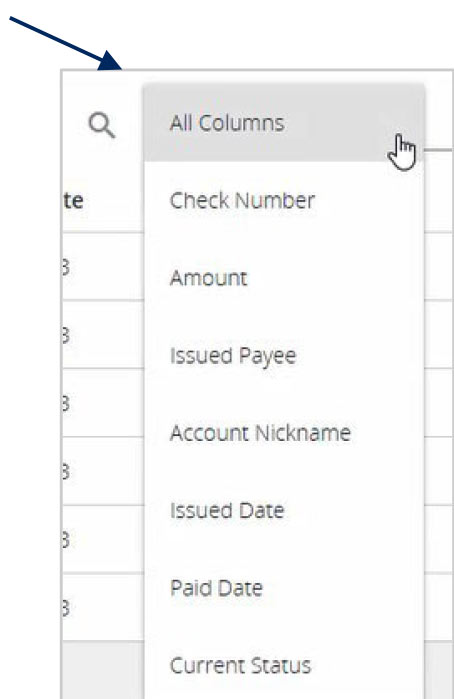
13. Select the search filter (or spyglass icon) to filter and search all results or select a specific column to search within.
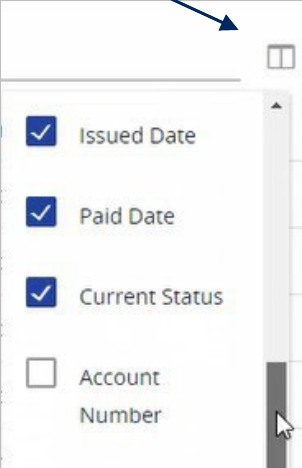
14. Select the columns icon to select or remove columns from the report.
15. Select the export icon to export the search results to a Microsoft Excel or PDF file.

16. Select the Kabob icon on an individual search result to perform various actions.
External Transfer Guide
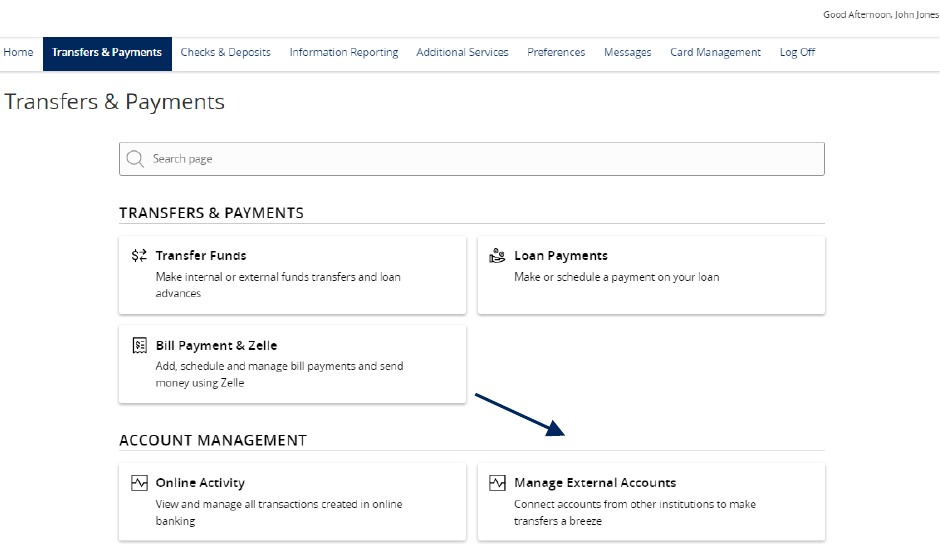
1. To add an External Account, select the 'Transfers and Payments' menu then 'Manage External Accounts'.
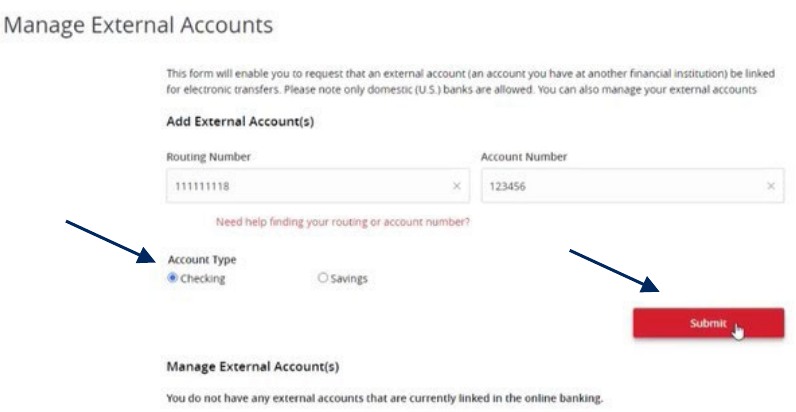
2. Enter the Account Number for the external account you wish to add.
3. Select the corresponding Account Type.
4. Enter the Routing Number for the external account.
5. Click 'Submit'.
NOTE: Once the external account request has been processed by Santa Cruz County Bank, you will receive two micro deposit amounts in the external account being added.
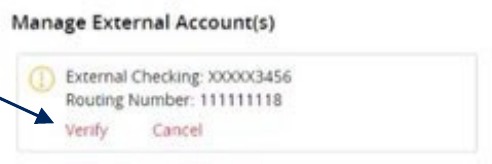
6. To verify the external account, select the 'Transfer' menu then 'Manage External Account'.
7. Scroll to the bottom of the page and select the 'Verify' link for the account to be verified.
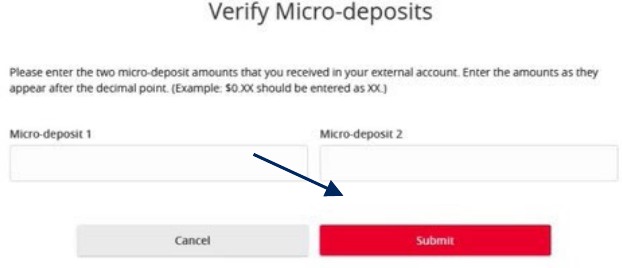
8. Enter the two deposit amounts received in the external account.
9. Click 'Submit'.
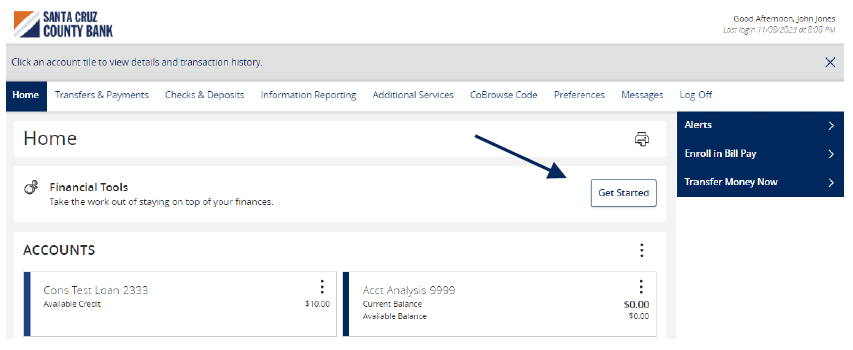
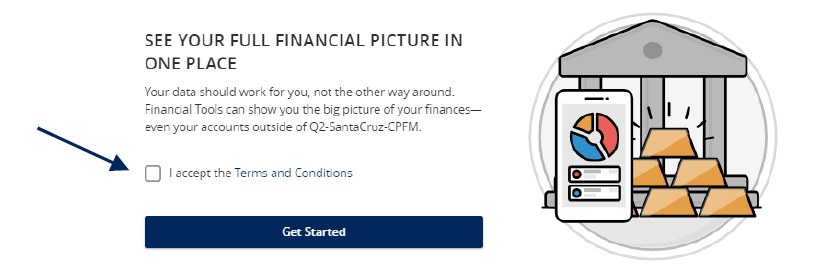
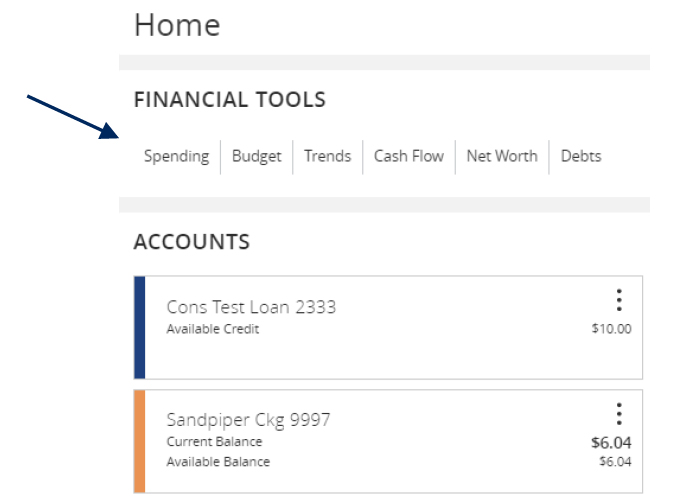
Initial Access to the System
ACH and Check Positive Pay Guide
ACH File Import Guide
NOTE: Supported file types include the following:
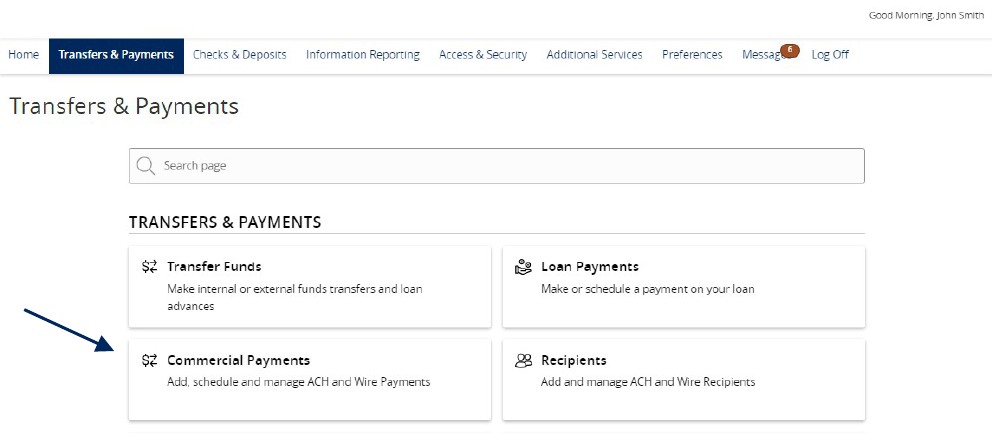
1. Select the 'Transfers & Payments' menu and then select 'Commercial Payments'.
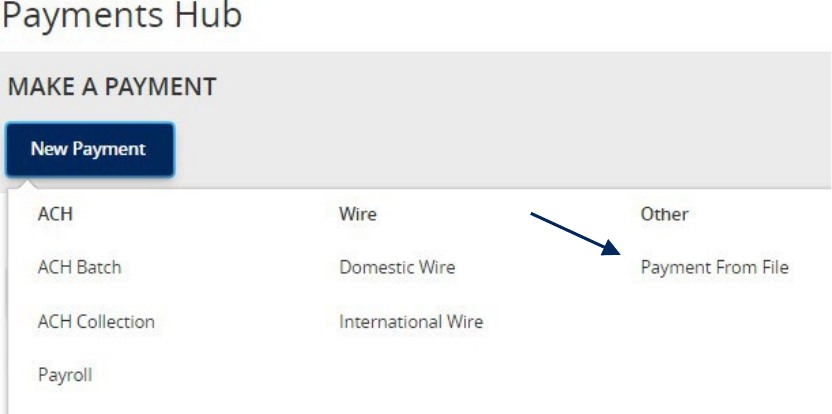
2. Select 'New Payment' and then 'Payment from File'.
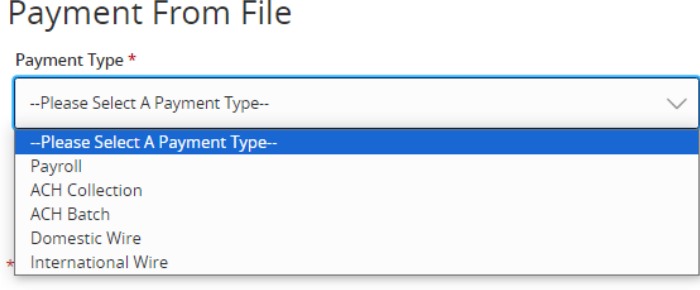
3. Select the desired 'Payment Type' from the drop-down menu.
4. Click in the 'Import File' box to select a file to upload. Browse your computer for the file you would like to upload.
5. Select 'Upload File' to upload the selected file into Online Banking for processing.
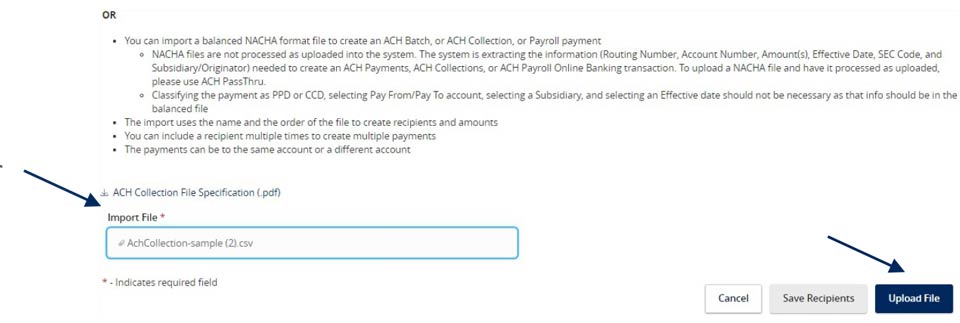
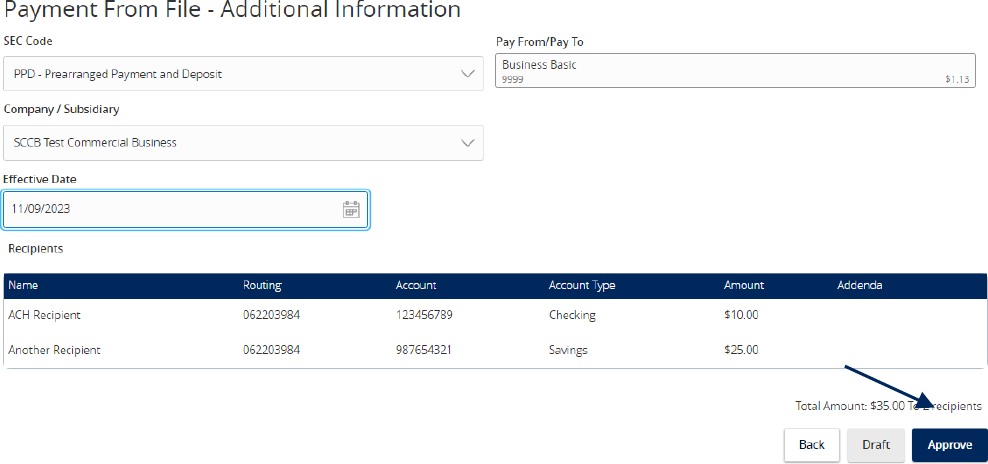
NOTE: If the imported file is a 5-Column CSV, a second screen will be presented as part of the process. This screen requests additional information so a complete ACH file can be generated for processing based on the information designated.
6. Select the required fields from the corresponding drop-down menu.
7. Review the information on the screen for accuracy and then select 'Approve' to authorize the wires or 'Draft' to only draft.
ACH or Wire Recipient Guide
NOTE: A 'Recipient' is an individual or company which is either debited or credited via ACH or wire.
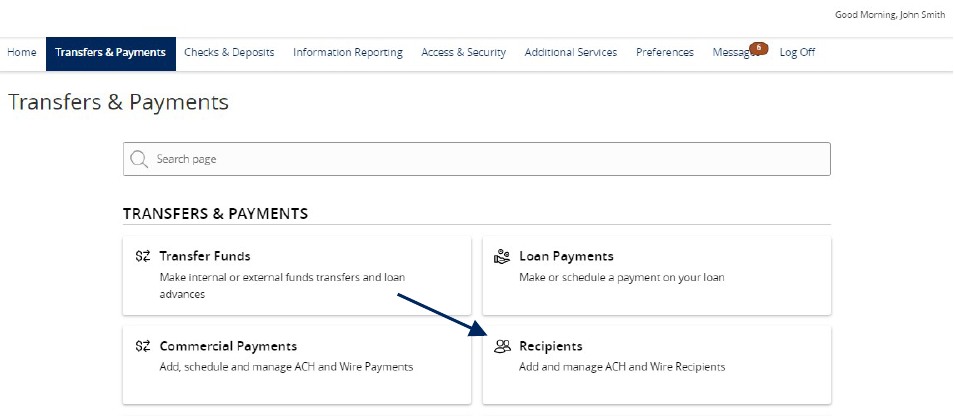
1. Select the 'Transfers & Payments' menu and then select 'Recipients'.
New Recipient
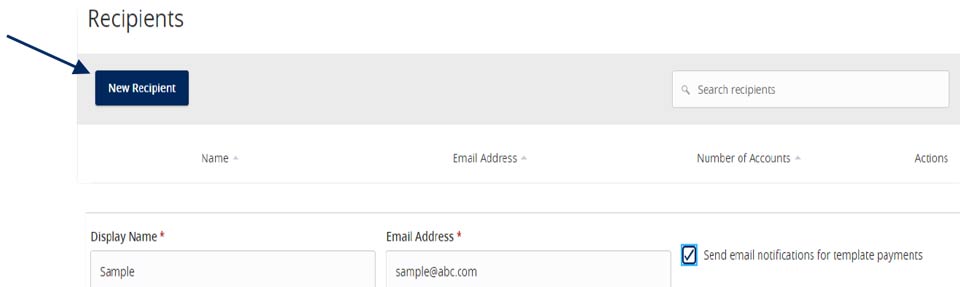
2. Click the 'New Recipient' button.
3. Enter 'Display Name and 'Email Address'.
NOTE: 'Send e-mail notifications' generates an e-mail to the recipient at the time the ACH or wire transaction is processed by Santa Cruz County Bank. The email message does not contain confidential information.
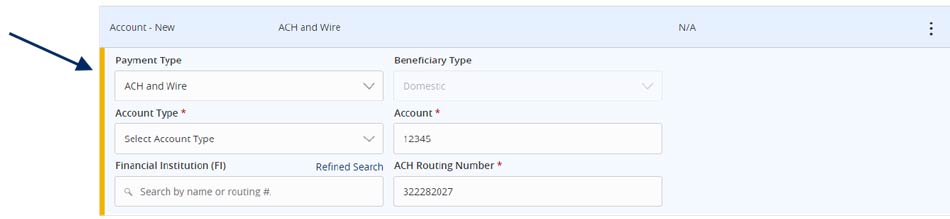
4. Select the 'Payment Type' which designates the transaction type(s) for which the account is eligible.
a. Payment Type 'ACH and Wire' displays fields corresponding with both ACH and wires. Complete all required fields designated with an asterisk.
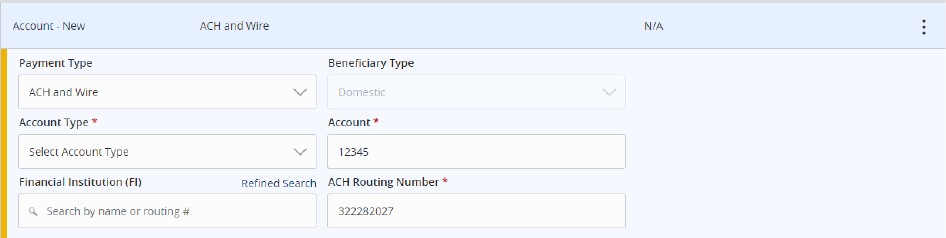
NOTE: The Financial Institution (FI) search function allows for the dynamic search of domestic banks and credit unions. Enter the FI name or ABA number in the field. When the desired FI has been selected, the corresponding ACH Routing Number and Wire Beneficiary FI information will automatically populate.
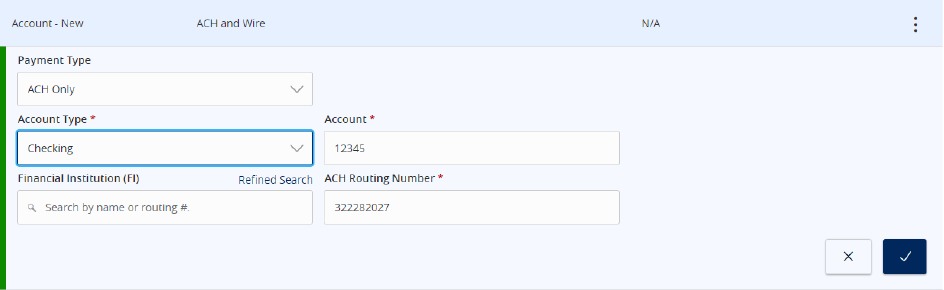
b. 'Payment Type 'ACH Only' displays fields corresponding with only ACH. Complete all required fields designated with an asterisk.
c. Payment Type 'Wire Only' displays fields corresponding with only wires. Complete all required fields
d. designated with an asterisk.

5. Click the check mark when the account setup is complete.
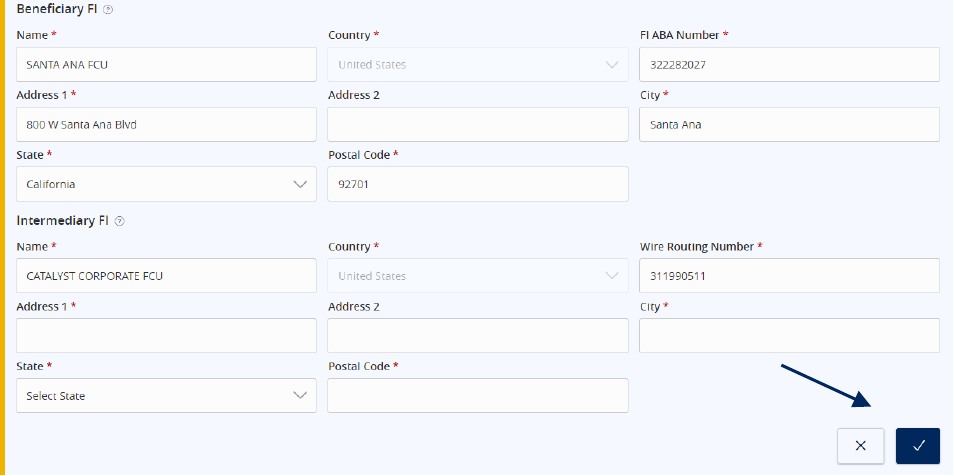
6. Select 'Add another account' to add an additional account or select 'Save Recipient' to complete the setup.

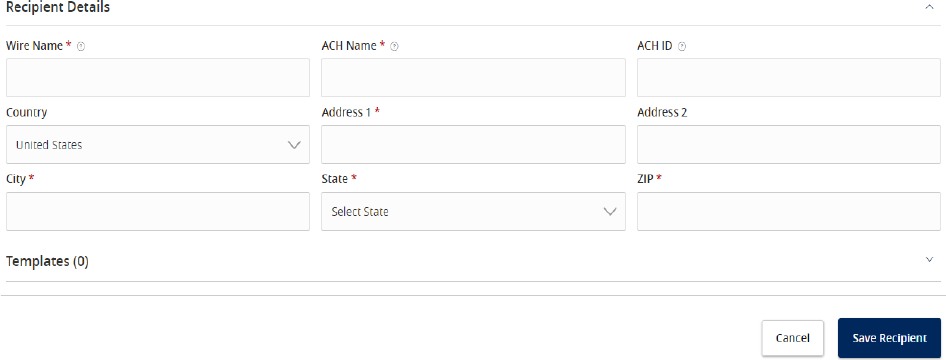
7. Complete all required fields in the 'Recipient Details' section.
NOTE: Address fields within 'Recipient Details' are for the recipient's address. This is required for Wire Transfers.
ACH Payroll Transactions Guide
1. Select the 'Transfers & Payments' menu and then select 'Commercial Payments'.
NOTE: The 'Split Payments' option is only available for Payroll transactions.
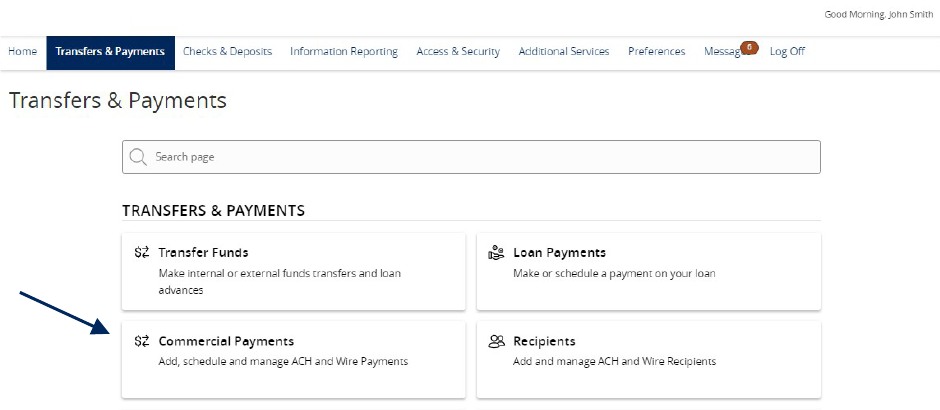
2. Three options are available.
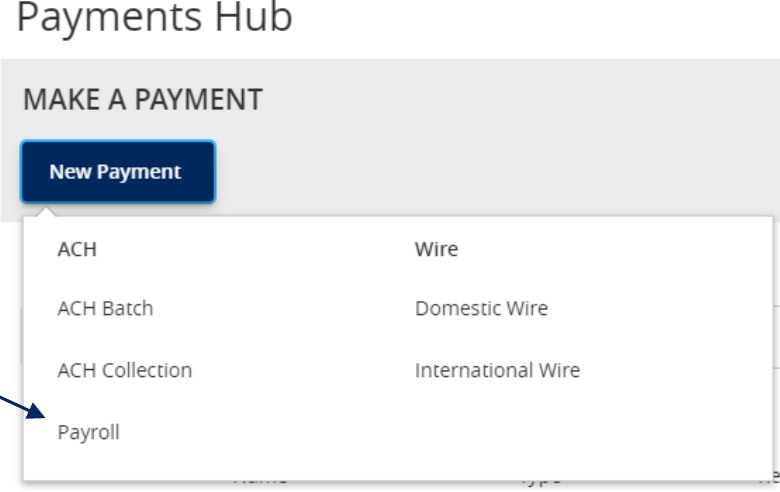
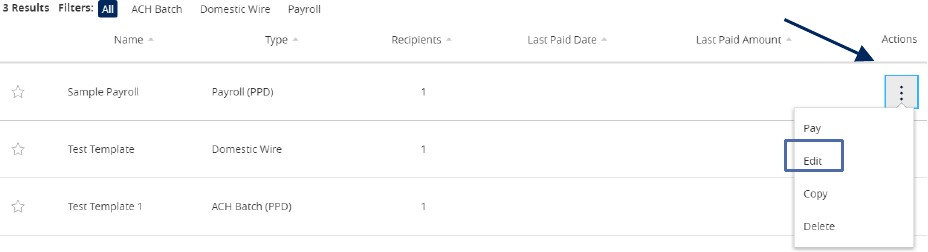
a. Click 'New Payment' and select 'the 'Payroll' option to create a new payroll transaction.
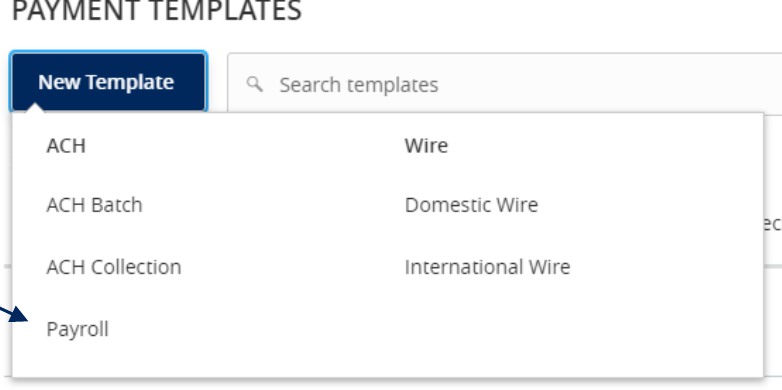
b. Click 'New Template' and select the 'Payroll' option to create a new payroll template.
c. Click the 'template actions' icon and select 'Edit' to work with an existing Payroll template
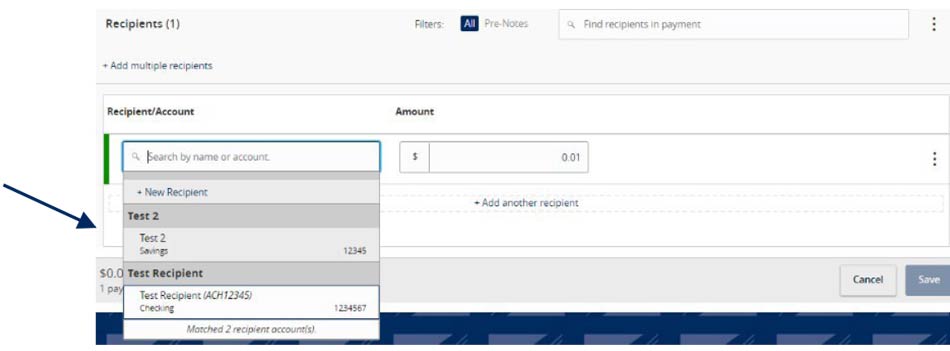
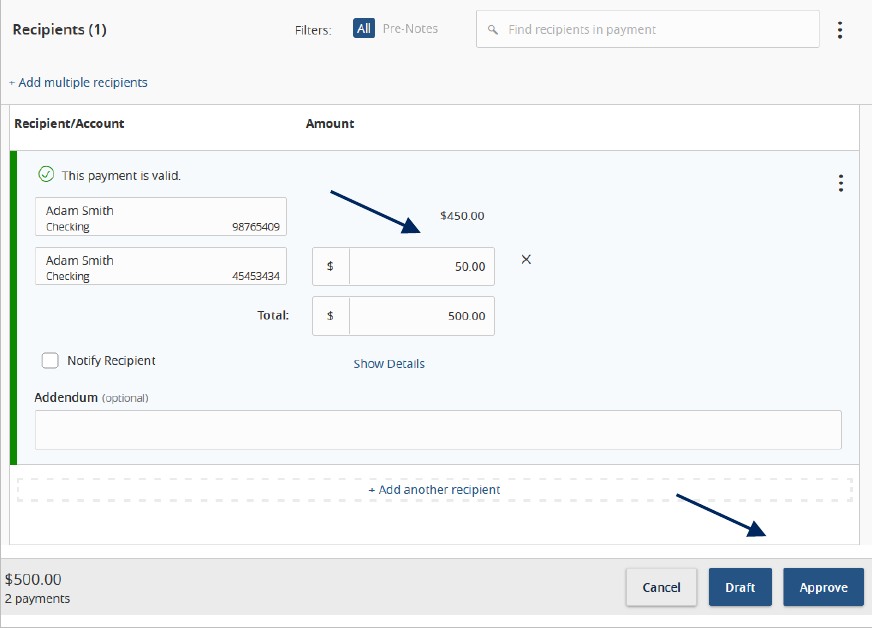
3. Select the desired recipient's primary account from the drop down list of existing recipients.
4. Enter total dollar amount of the payroll transaction.

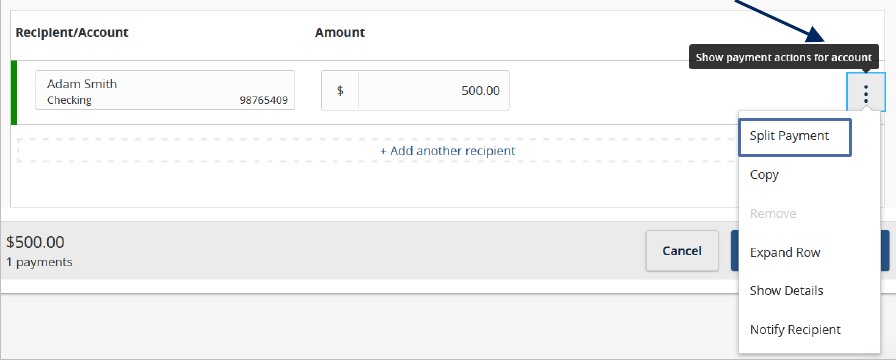
5. Click the 'Show payment actions' icon and select the 'Split Payment' option.
6. Select the recipient's secondary account from the drop-down list.
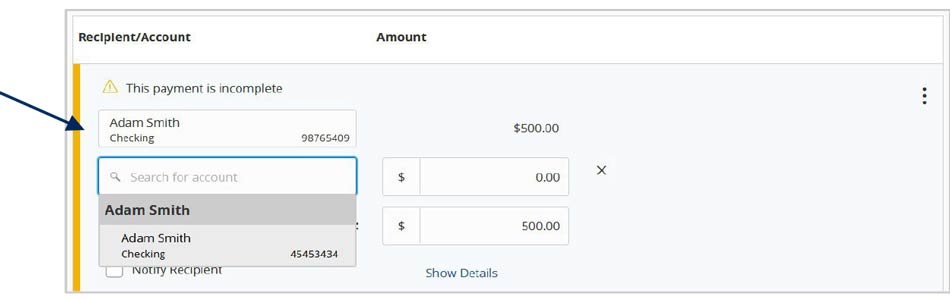
7. Enter the desired dollar amount to be allocated to the secondary account. Then select 'Draft or Approve', depending on user entitlement.
NOTE: The dollar amount allocated to the primary account will be automatically reduced in accordance with the total dollar amount of the payroll transaction.
ACH Template Creation Guide
NOTE: A Commercial Template allows you to save payment information that can be accessed in the future.
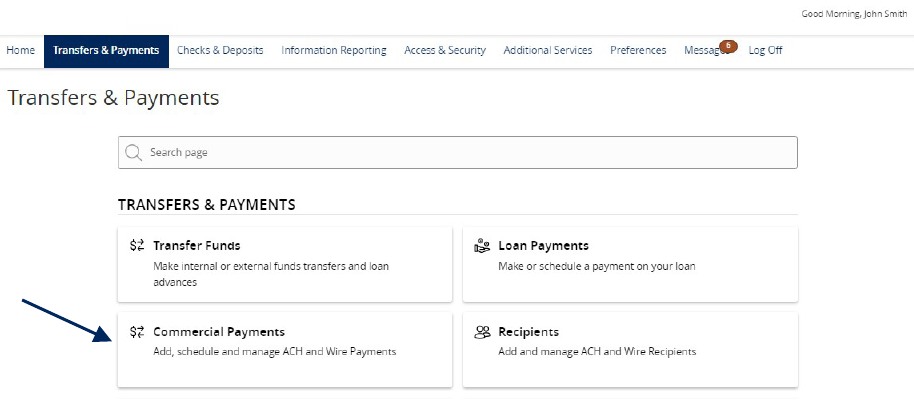
1. Select the 'Transfers & Payments' menu and then select 'Commercial Payments'.
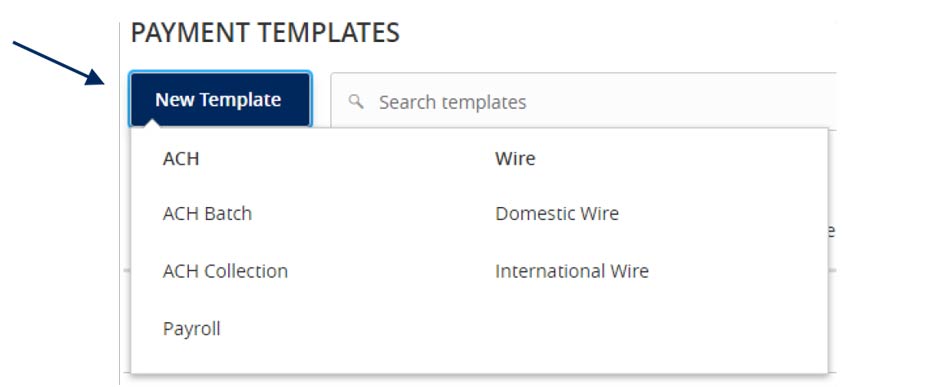
2. Select 'New Template' and the desired payment type.
3. Designate a 'Template Name'.
4. Select an 'SEC Code'.
5. Select a 'Subsidiary'.
6. Select an offset 'Account'.
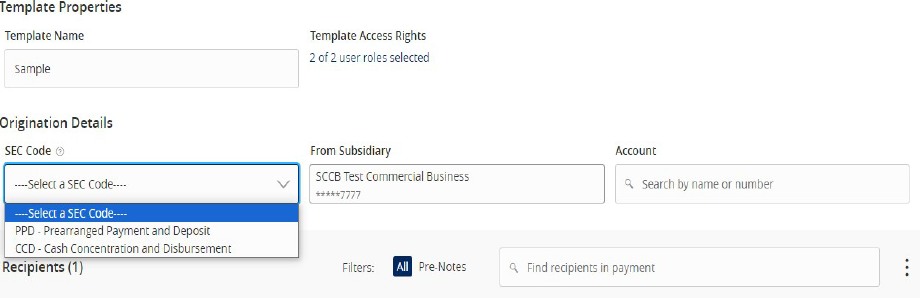
7. Click the link below 'Template Access Rights'.
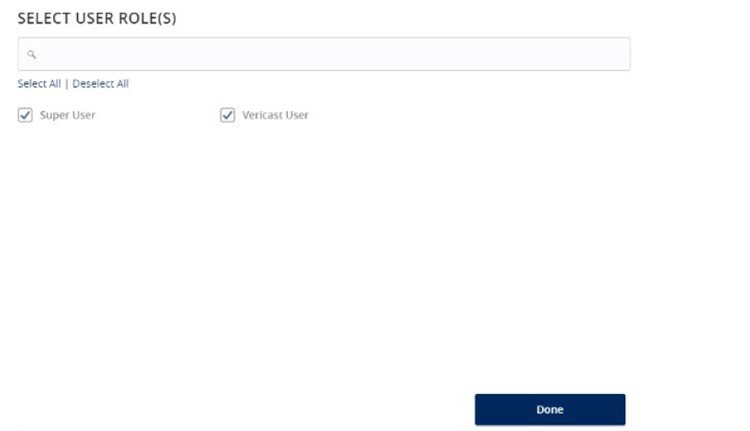
8. Select the 'User Role(s)' who should have access to the template.
NOTE: A User Role will appear as greyed out if the feature allowing access to all templates is enabled. This overrides the ability to remove template access from the corresponding User Role.
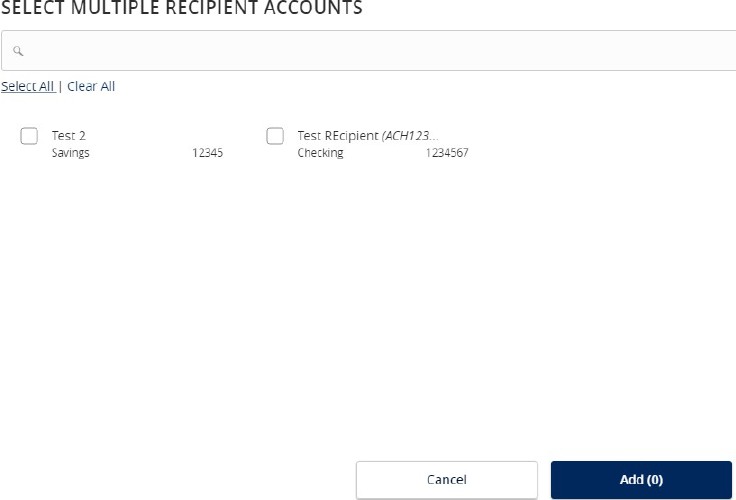
9. Click the '+Add multiple recipients' link to add multiple recipients to the template.

10. Select the desired recipients and click the 'Add' button when done.
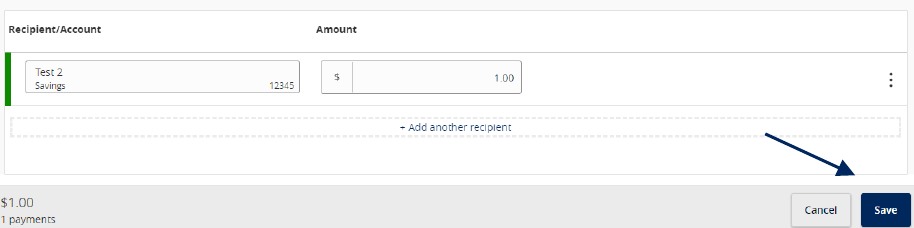
11. Enter a dollar amount for each linked recipient.
NOTE: The amount may be left as $0.00 if the amount will differ from file to file.
12. Review the information on the screen for accuracy and then select 'Save'.
Information Reporting Guide
Reports Setup Process
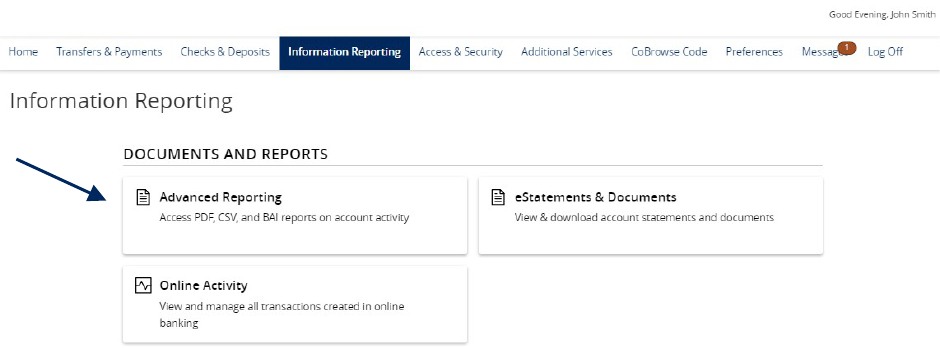
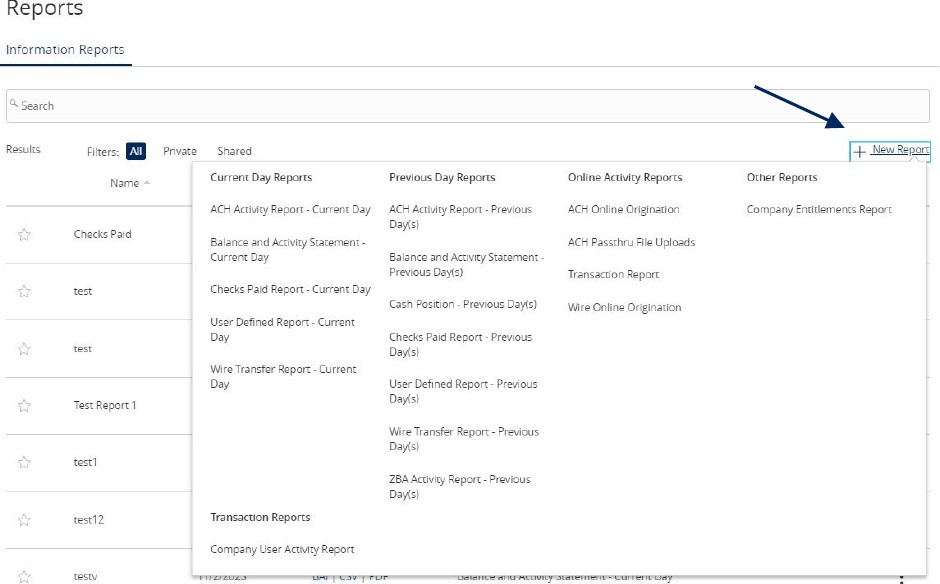
1. Select the 'Information Reporting' menu, then select 'Advanced Reporting'.
2. Click the 'New Report' link and select the desired report from the list.
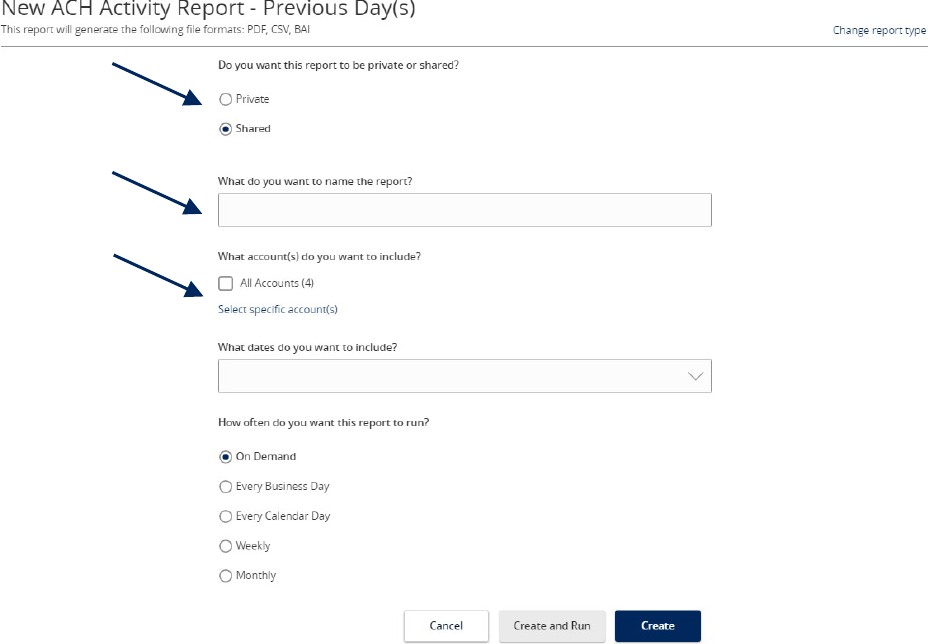
3. Indicate whether the report is Private or Shared.
4. Enter the desired name for the report.
5. Indicate which accounts need to be included in the report.
NOTE: This step only corresponds with reports associated with account information.
a. Click the 'All Accounts' box to include all available accounts in the report.
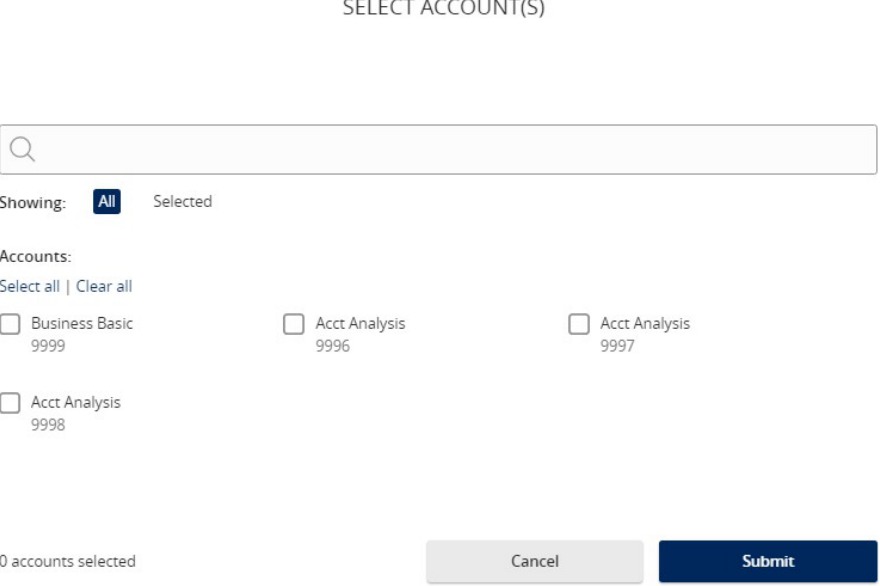
b. Click the 'Select specific account(s)' link to choose individual accounts to be included in the report.
Select the accounts to be included in the report. Either select by label or by individual account.
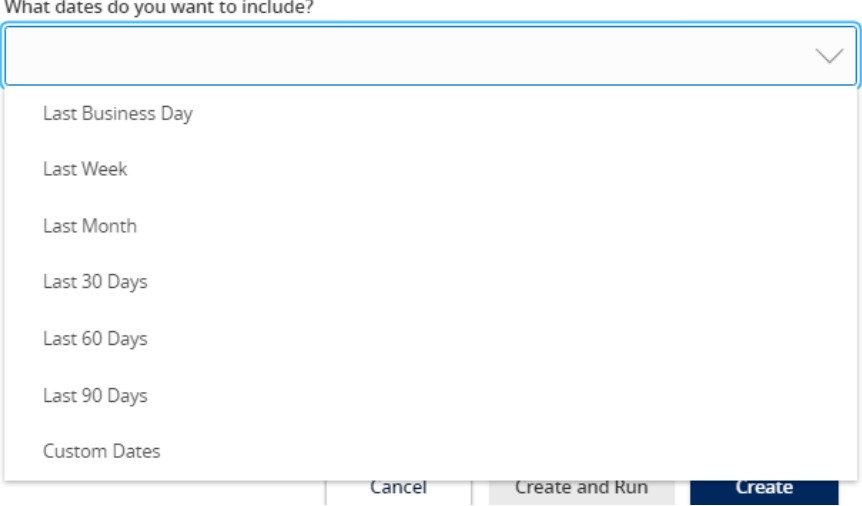
6. Select the date(s) to be included in the report.
a. Select one of the dynamic date range options. (A rolling date range that shifts in accordance with the current day)
NOTE: Information can be pulled as far back as the oldest transaction that exists within Online Banking for the respective account(s).
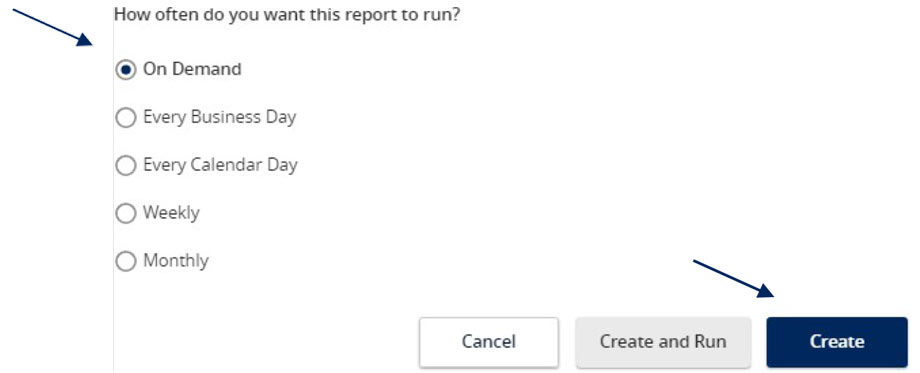
7. Select how often the report should run.
8. Select 'Create and Run' to run the report immediately and to save the recurrence. Or select 'Create' to schedule the report without immediately running it.
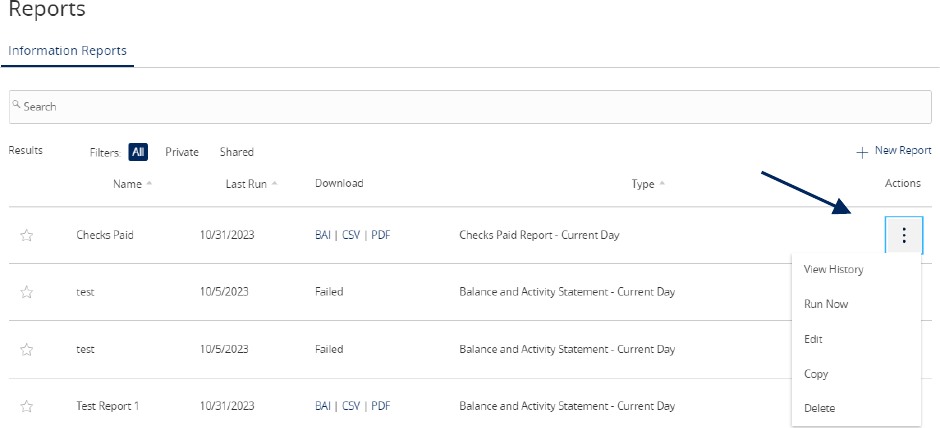
9. The report will display as either 'Queued' or 'In Progress' while it is being generated, depending on how many reports are currently being generated.
10. Click the 'Actions' option to View History, Run On-Demand, Edit, Copy, or Delete the specific report.
One Time Commercial Payments Guide
1. Select the 'Transfers & Payments' menu and then 'Commercial Payments'.
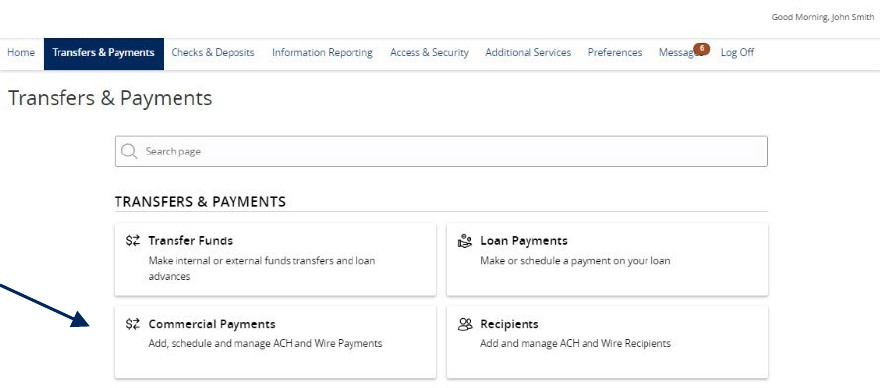
2. Select the desired transaction type within the 'New Payment' drop-down menu.
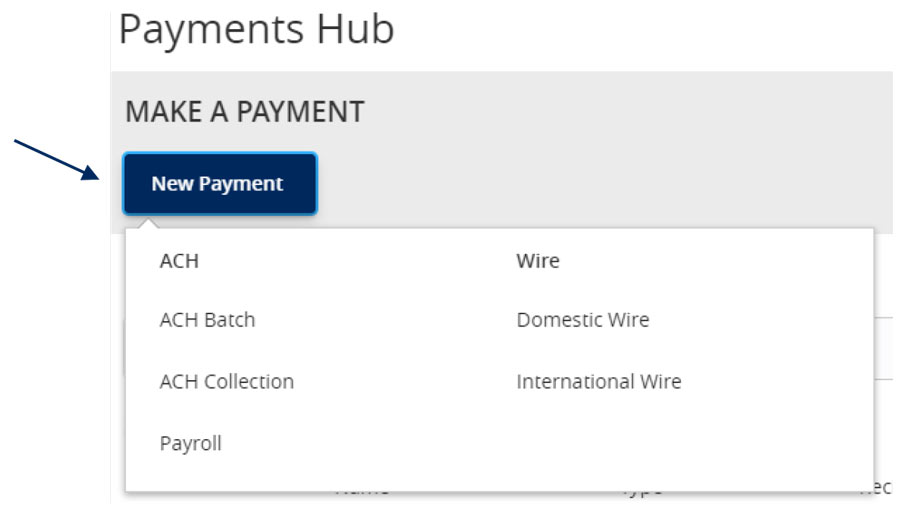
3. Select the desired ACH Class Code.
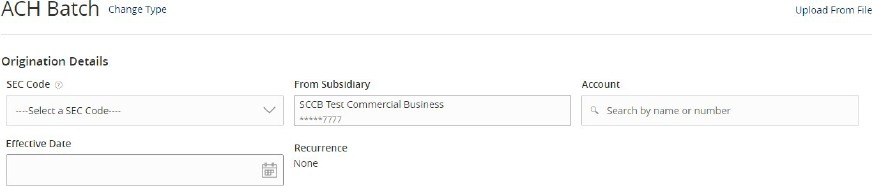
NOTE: Payroll transactions will automatically default to an ACH Class Code of PPD.
4. Select the 'From Subsidiary'.
5. Select the offset 'Account'.
6. Select the 'Effective Date'.
7. Optional: Click 'Set schedule' to set up the wires as recurring transactions.
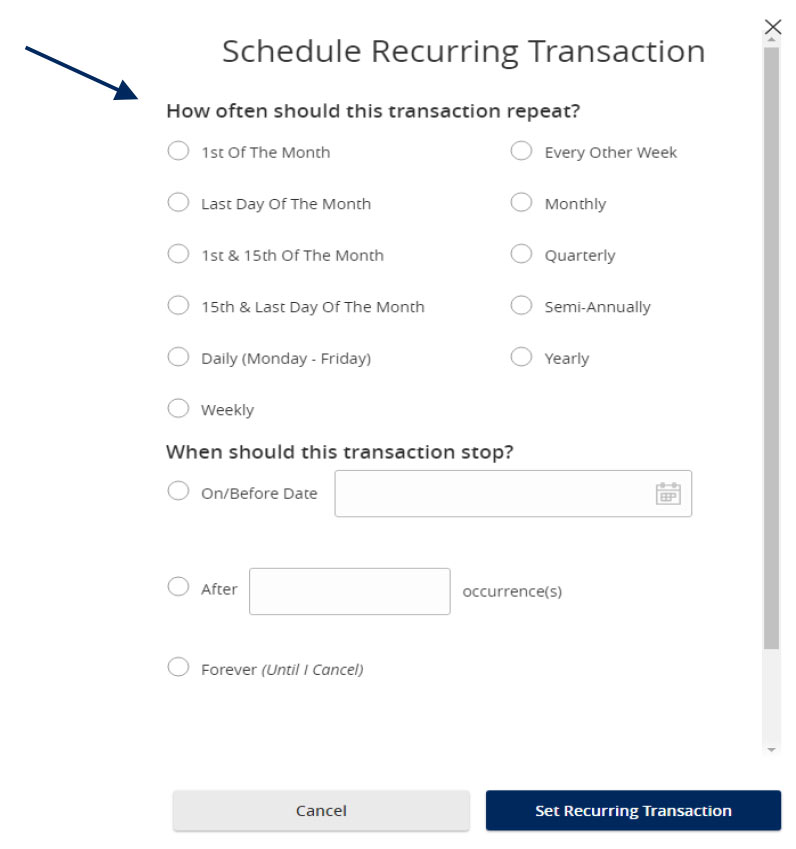
8. Select how often the transaction should repeat.
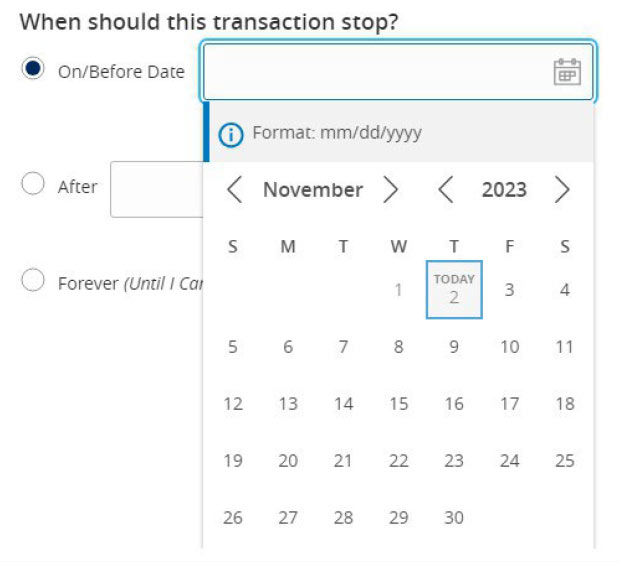
9. Designate when the transaction should stop.
10. Click 'Save' to save the recurrence setup.
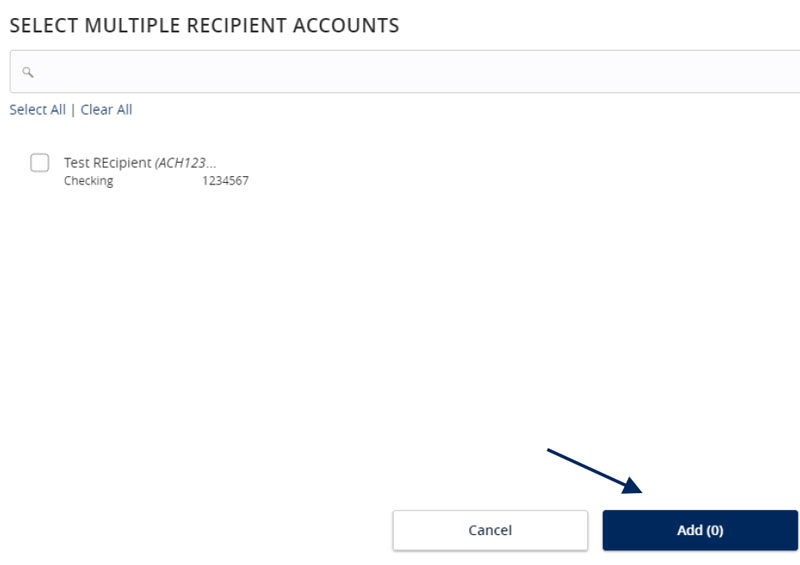
11. Click the '+Add multiple recipients' link to select multiple recipients at one time.

12. Select the desired recipients and click 'Add' when done.
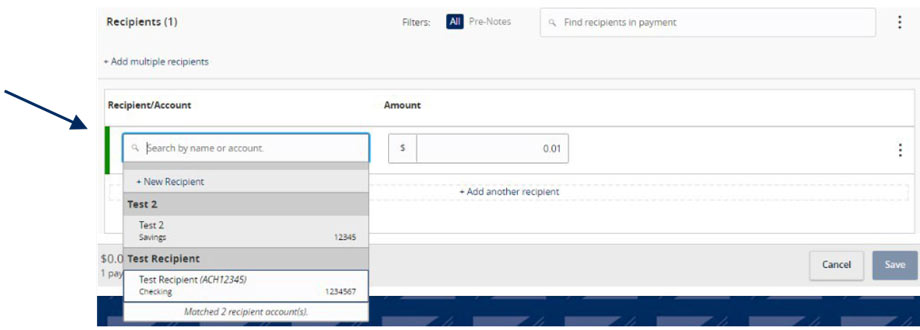
13. Click the '+Add another recipient' link to add an individual wire transfer.
14. Select an existing recipient from the drop-down menu or select '+New Recipient' to create a new recipient.
NOTE: Reference the Recipient Management setup document for information regarding the setup of a new recipient.
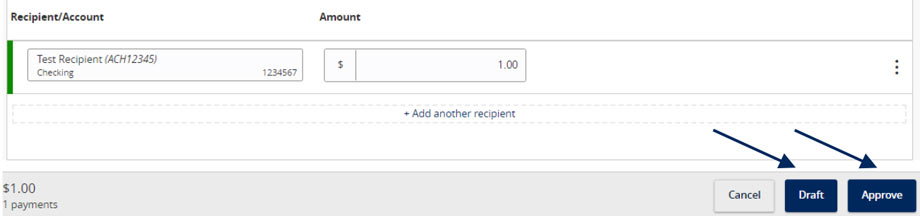
15. Review the information on the screen for accuracy and then select 'Approve' to authorize the wires or 'Draft' to only draft the transactions.
Recipient Upload from Batch Guide
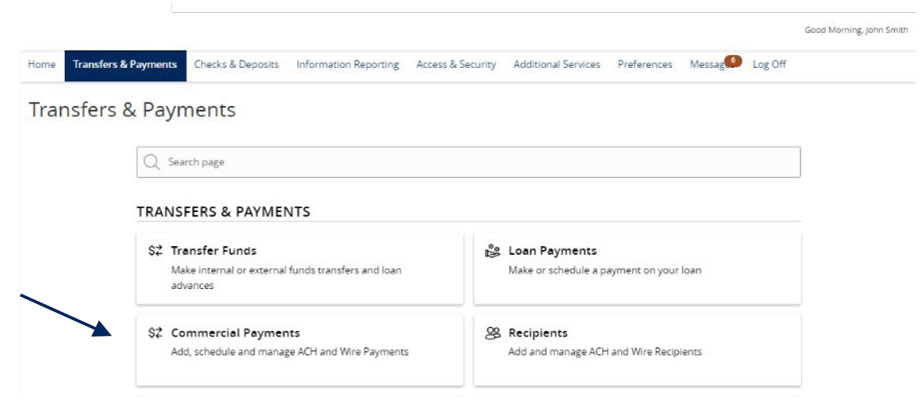
1. Select the 'Transfers & Payments' menu and then select 'Commercial Payments'.
2. Select 'New Payment' and then select the desired Payment Type.
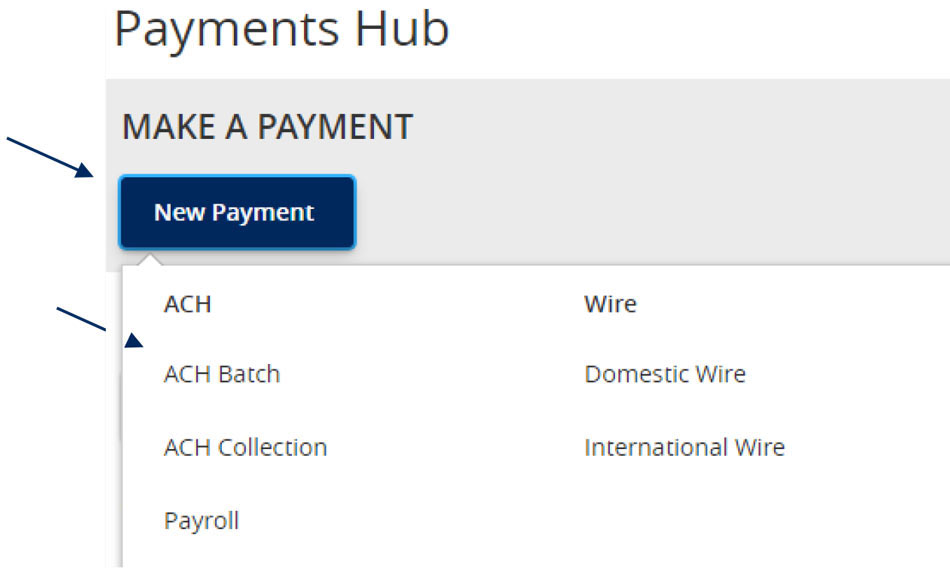
3. Select 'Upload from File'.
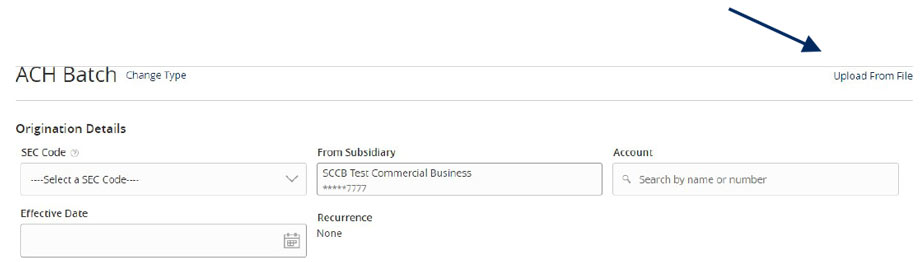
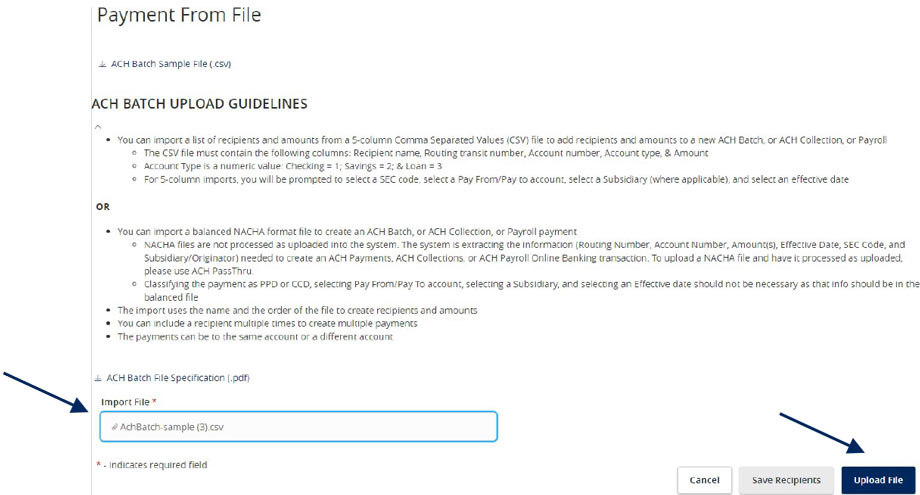
4. Select the 'Import File' box to browse and select the file to be uploaded on the computer.
5. Select 'Save Recipients' to automatically add the recipients into the master recipient list. A confirmation will pop up on the screen once the file has been uploaded successfully.
NOTE: Select 'Upload File' if the ACH or wire file will need to be processed.
NOTE: If there is a problem with the file being imported, an overlay message will appear on the screen with a notification.
Potential examples may include:
User Management Corporate Guide
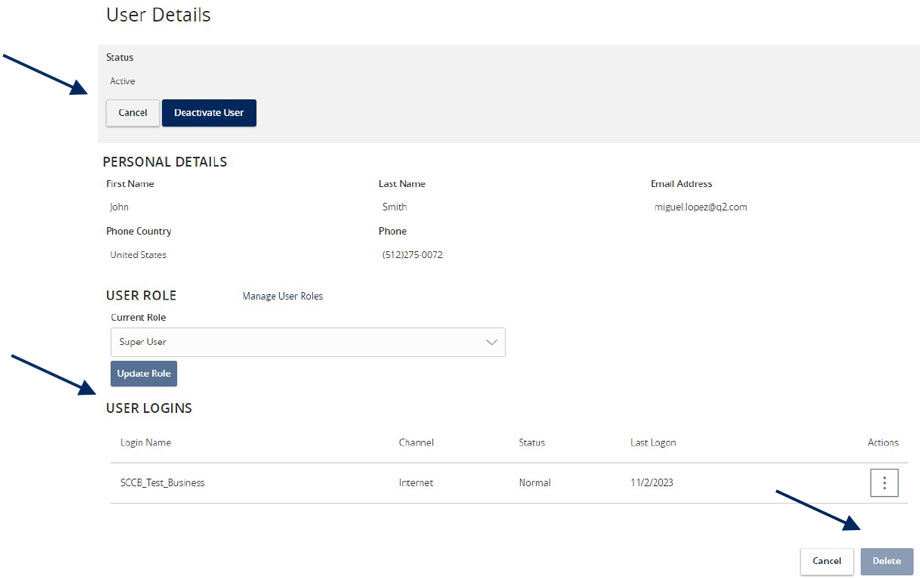
Managing Existing Online Users
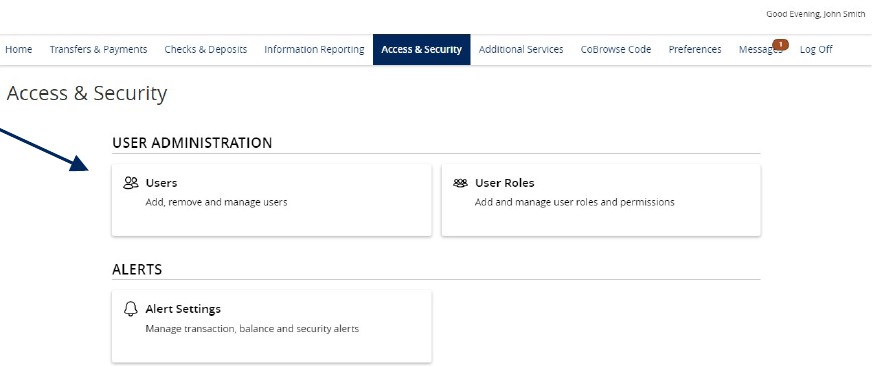
1. Select 'Access & Security' menu and then select 'Users'
2. Click on the pencil icon next to the user you wish to edit.
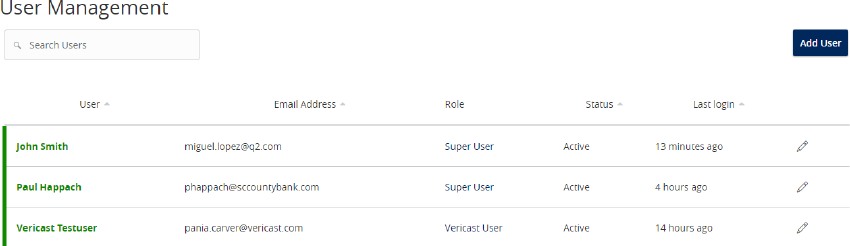
3. One of three update actions may be made to an existing user:
NOTE: The User Role update will go into effect upon the user's subsequent log on after the change has been made.
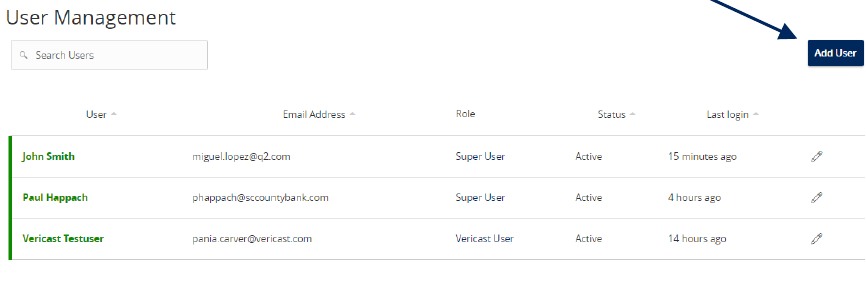
Creating New Online Users
1. Click the 'Add User' button.
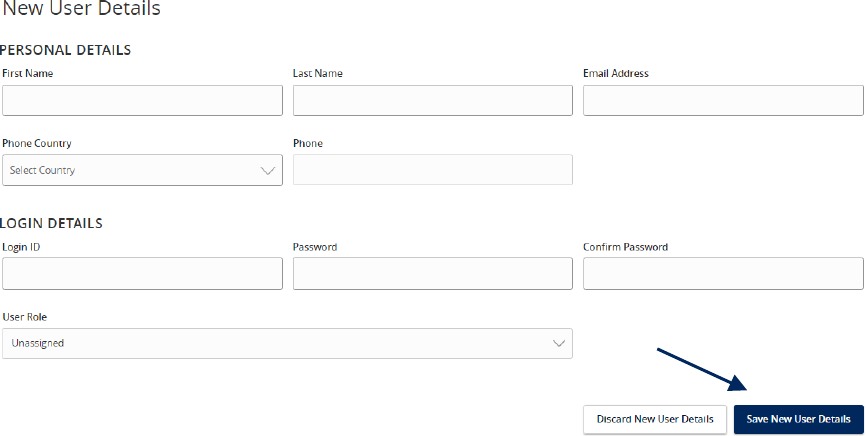
2. Complete all fields.
3. Click the 'Save New User Detail' button when done.
NOTE: Reference the User Roles setup guide for assistance with setting up a 'User Role'.
User Roles Guide
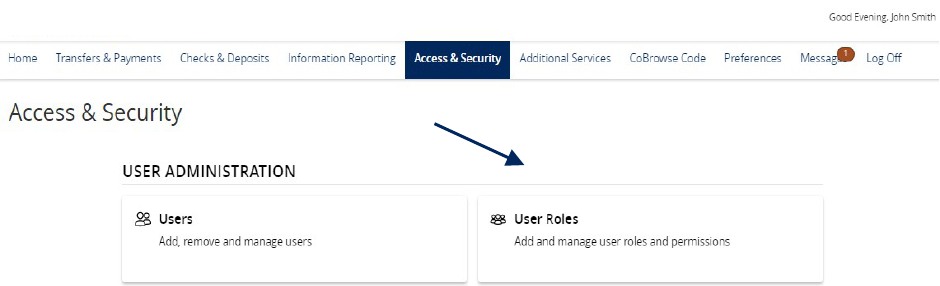
NOTE: User Roles are created to control feature entitlements and dollar limits for one or more company users.
1. Select the 'Access & Security' menu, then select 'Users Roles'.
2. Click on 'Create Role' to create a new user role.
NOTE: Three actions can be performed on an existing User Role.
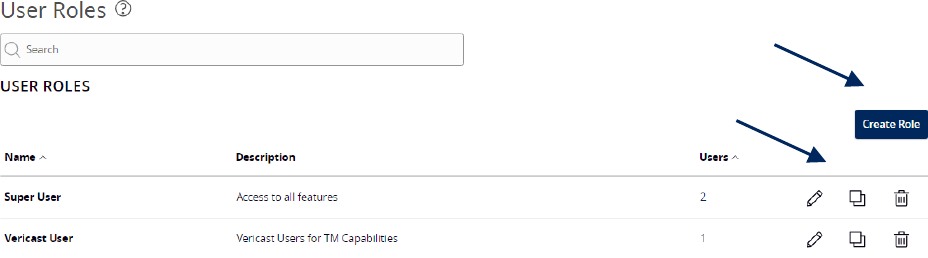
3. Select a transaction type that you would like to set parameters around by clicking on the transaction name.
4. Now select 'Allowed Actions'.
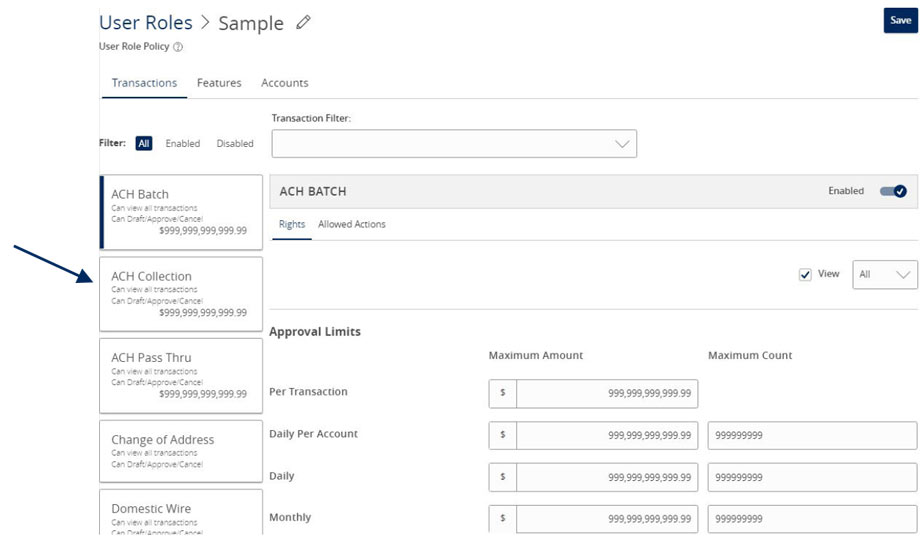
Allowed Actions
NOTE: One or multiple levels may be set up to establish general or specific user limitations.
5. To specify the allowed operation(s) for the selected transaction type, click the vertical dot icon and select 'Edit'.
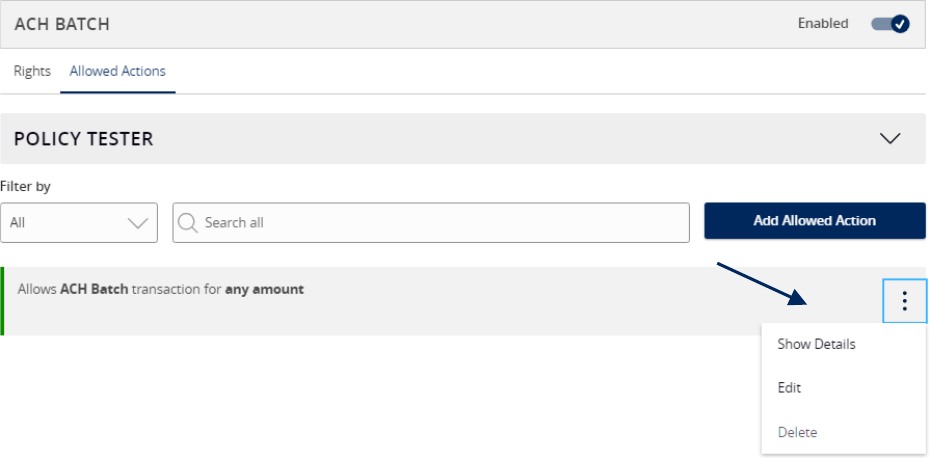
Operations

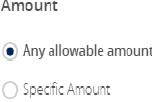
Amount
7. Select the 'Any allowable amount' option or 'Specific Amount' to enter the amount for the allowed action.
Subsidiaries
8. Select the 'Any allowed subsidiaries' option or choose 'Select specific subsidiaries' to view the subsidiary or subsidiaries allowed for this transaction type. This step applies only to organizations with more than one Tax ID number.

Accounts
9. Select the 'Any allowed accounts' option or choose 'Select specific accounts' to specify the account(s) allowed for this transaction type.

Draft Hours
10. The 'Draft Hours' option allows you to restrict hours and days of the week when transactions can be drafted.
11. Select 'Submit'.

Rights
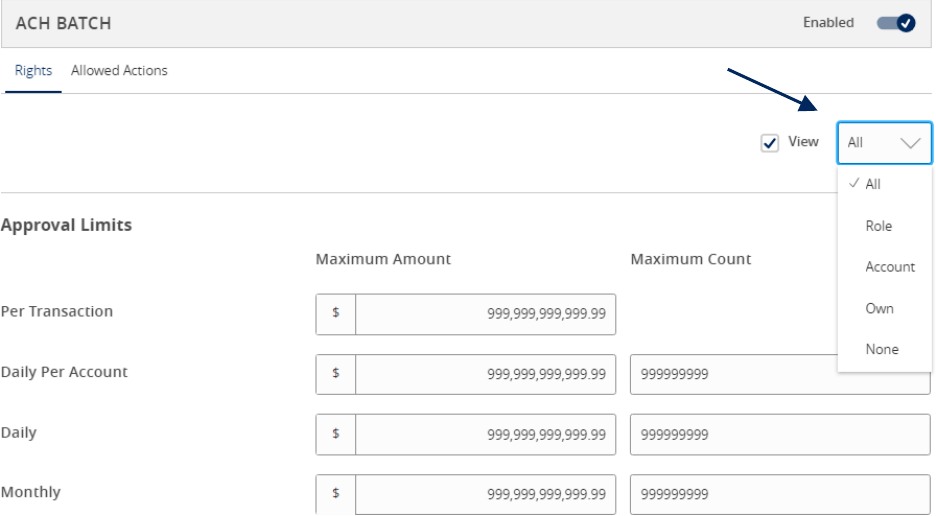
12. On the Rights tab, select the appropriate right for the user role's ability to view transactions in the 'Activity Center'.
All: View transactions initiated by any user within the company
Role: View transactions initiated by users with the same role
Account: View online activity of accounts the user has access to
Own: View only your own transactions
None: Cannot view transactions
Approval Limits
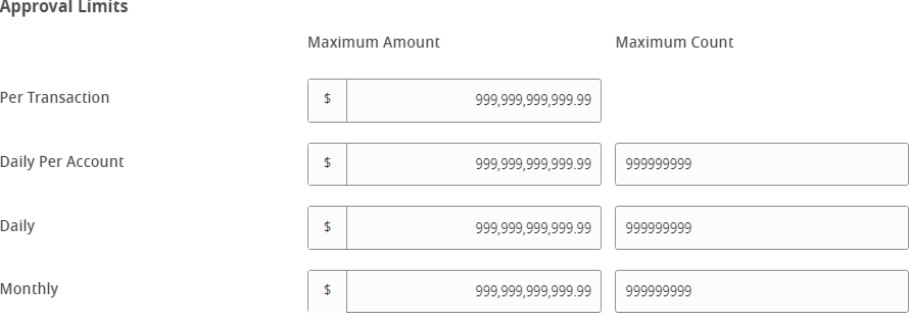
13. Select the 'Approval Limits' tab to view and modify the dollar and count limits assigned by Boston Private.
14. Repeat the previous steps for each transaction type.
Features
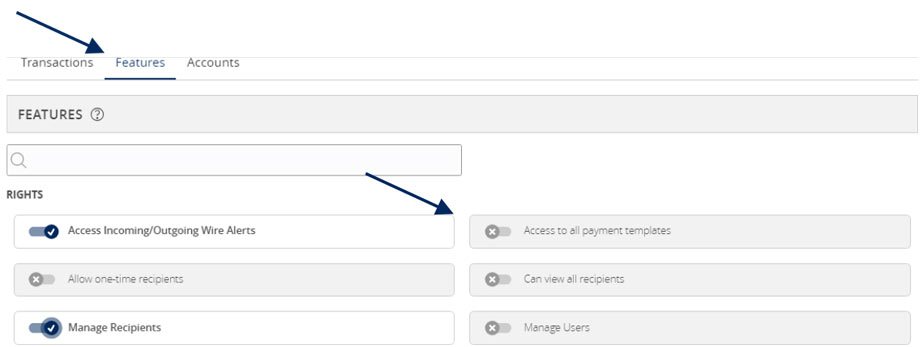
15. Select the 'Features' tab to view and modify the non-transactional features. Select features you wish to enable or disable.
Accounts
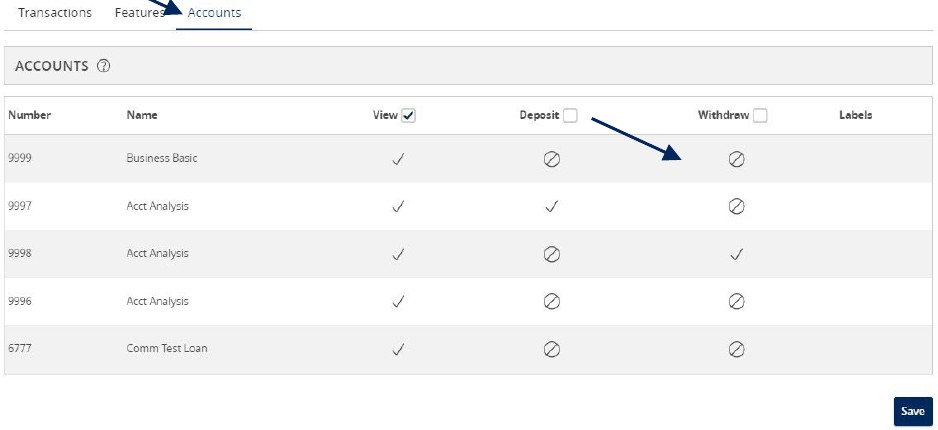
16. Select the 'Accounts' tab to view and modify the account entitlements by selecting the checkmark or circle with a slash under 'View', 'Deposit' or 'Withdraw'.
17. Save the User Role by selecting the 'Save' button.
Wire Origination Guide
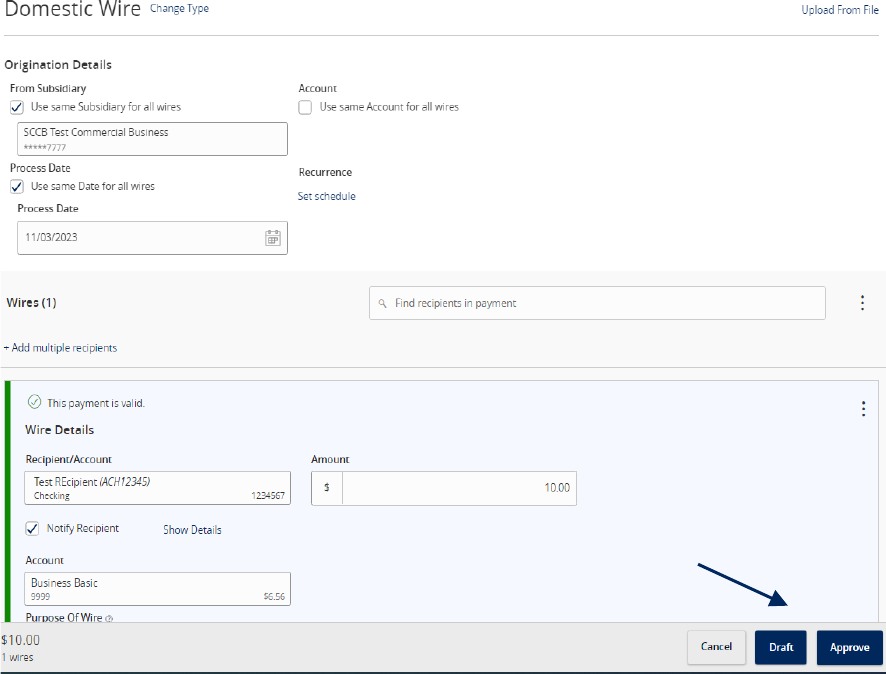
1. Select the 'Business Banking' menu, then select 'Commercial Payments'.
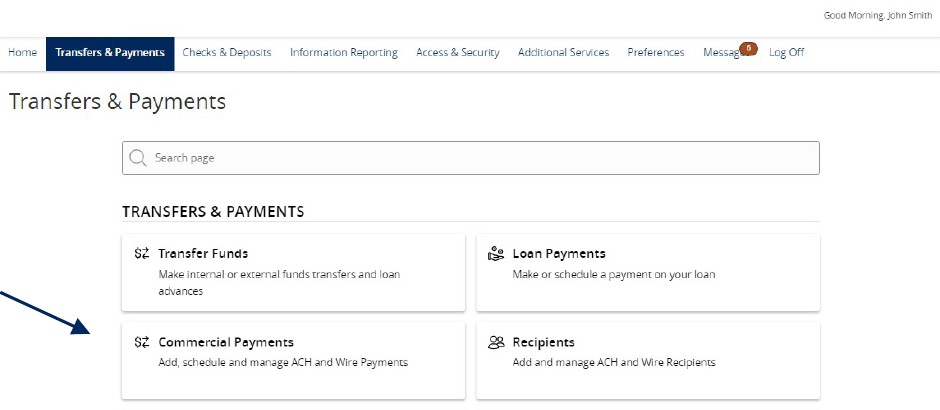
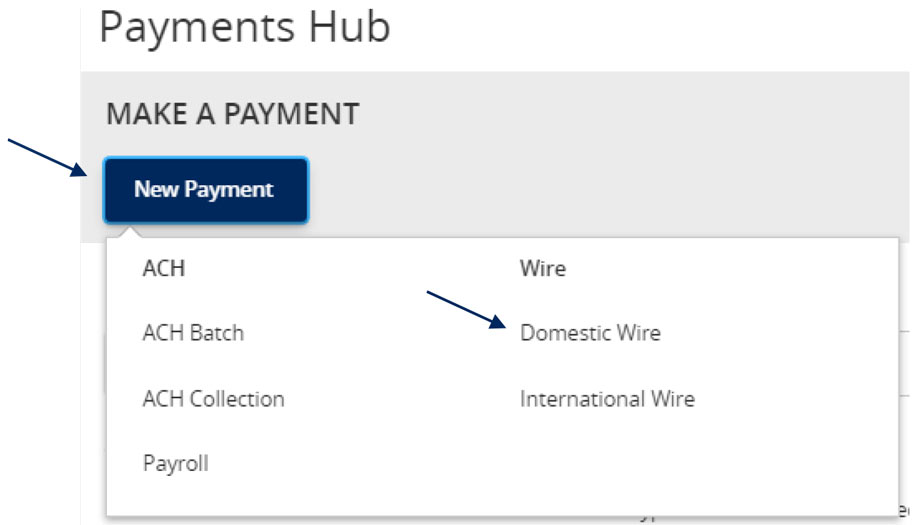
2. Select 'New Payment' and then 'Domestic Wire' from the dropdown menu.
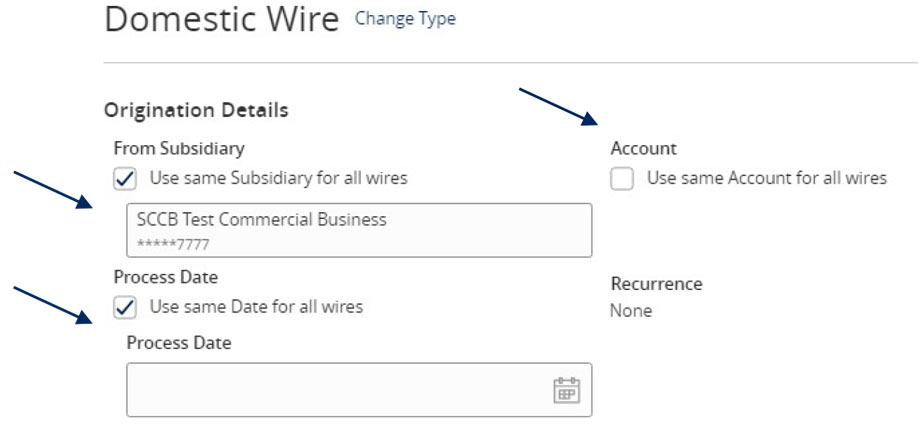
3. Select the checkbox next to 'Use same Subsidiary for all wires' if all wires should contain the same subsidiary. Or leave the checkbox empty to specify the subsidiary individually.
4. Select the checkbox next to 'Use same Account for all wires' if all wires should contain the same Account. Or leave the checkbox empty to specify the subsidiary individually.
5. Select the checkbox next to 'Use same Date for all wires' and enter a date if all wires will be processed on the same date. Or leave the checkbox empty to specify each date individually.
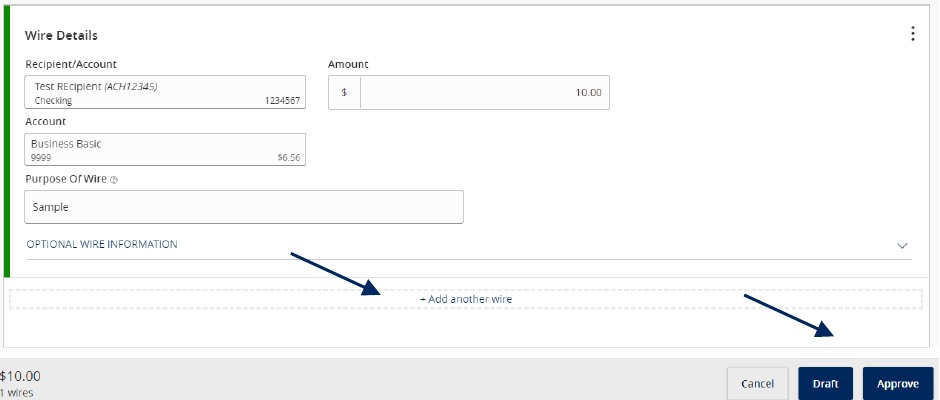
6. Select the 'Add multiple recipients' link to setup multiple wires to existing recipients.

7. Select the 'Add another wire' link to add just a single wire to the page.
8. Enter the 'Recipient/Account', 'Amount', 'From Subsidiary' and 'Account' fields.
9. Review all information for accuracy. Then select 'Draft' or 'Approve' to complete the process.
Wire Upload Guide
NOTE: Wire Upload allows you to upload a formatted CSV file with multiple wire transfers instead of inputting the wire information manually.
1. Select the 'Transfers & Payments' menu and then select 'Commercial Payments'.
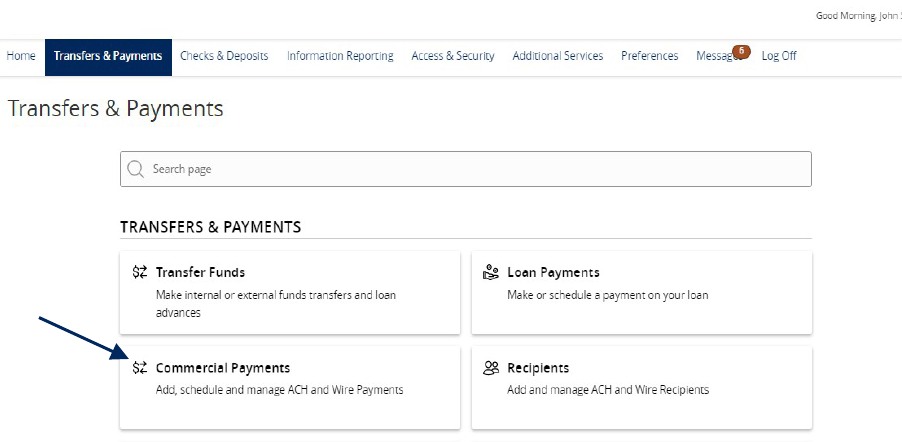
2. Select 'New Payment' and then 'Domestic Wire'.
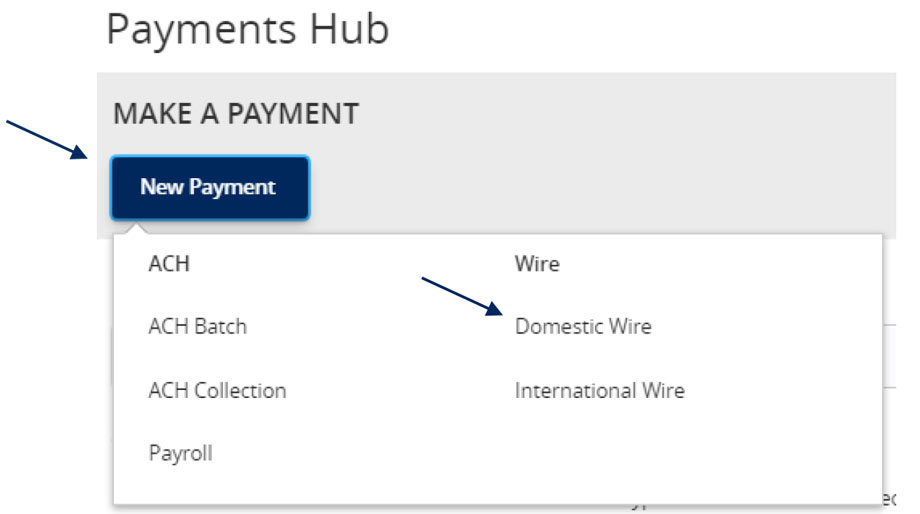
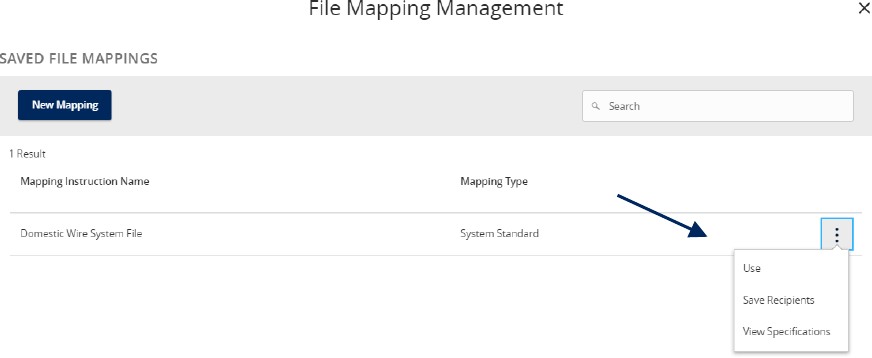
3. Select the 'Upload from File' link in the top right corner.

4. Select the 'Use' option to upload a CSV formatted file.
5. Click the 'Please select a file to import' box to browse for the file to be uploaded on the computer.
6. Select 'Upload File'.
7. Indicate the Process Date for the wires.
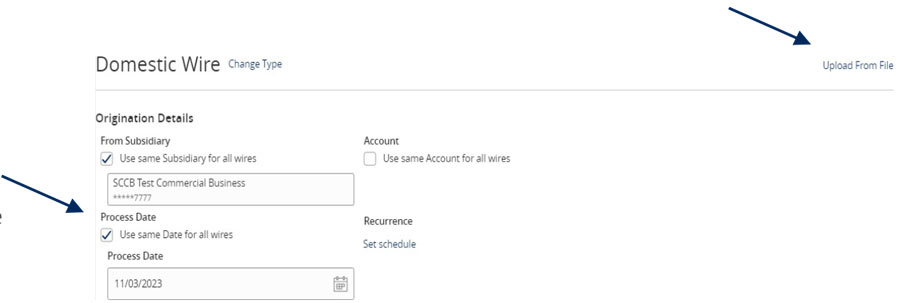
NOTE: The fields for each wire will be populated in accordance with the data included in the CSV file being imported.
Review all information on the screen for accuracy and select 'Approve' or 'Draft' in accordance with user entitlements.
Account Labeling Guide
NOTE: Account Labeling allows you to group accounts for easy identification. Only User Administrators will have access to this function.
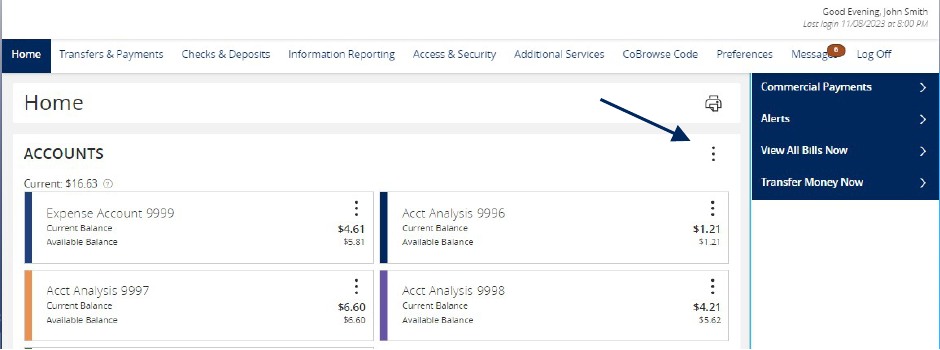
1. On the homepage, select the 'Options' icon, next to each group name you would like to edit.
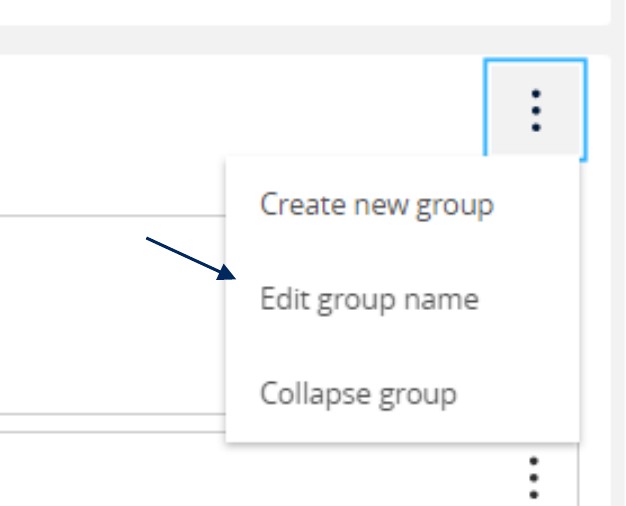
2. Select 'Edit Group Name' to start labeling your account groups.
3. Then select the 'Checkmark' to save your changes.

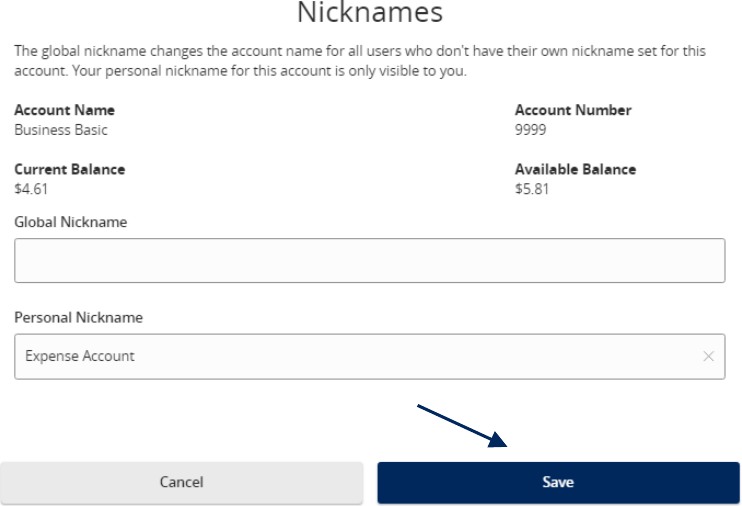
4. Select the 'Options' icon next to each account then select 'Nickname Account' to change its name.
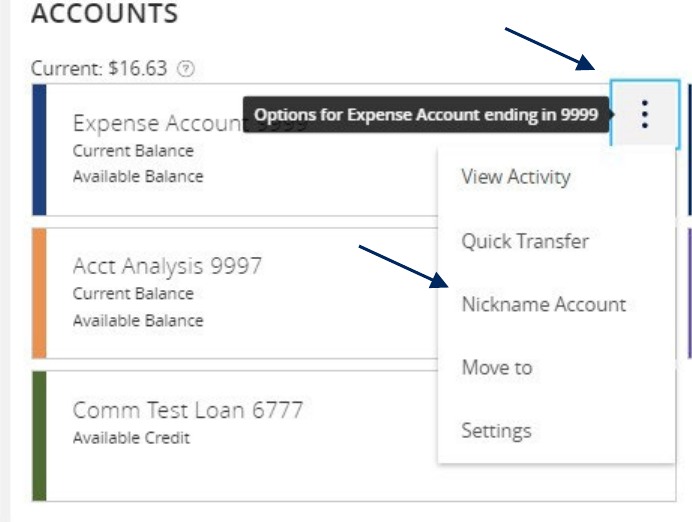
5. You can provide a 'Global Nickname' or change the current "Personal Nickname".
6. Click 'Save' when done.
NOTE: The global nickname changes the account name for all users who do not have their own nickname set for this account. Your personal nickname for this account is only visible to you.
Initial Access to the System
ACH and Check Positive Pay Guide
Initial Access to the System
NOTE:
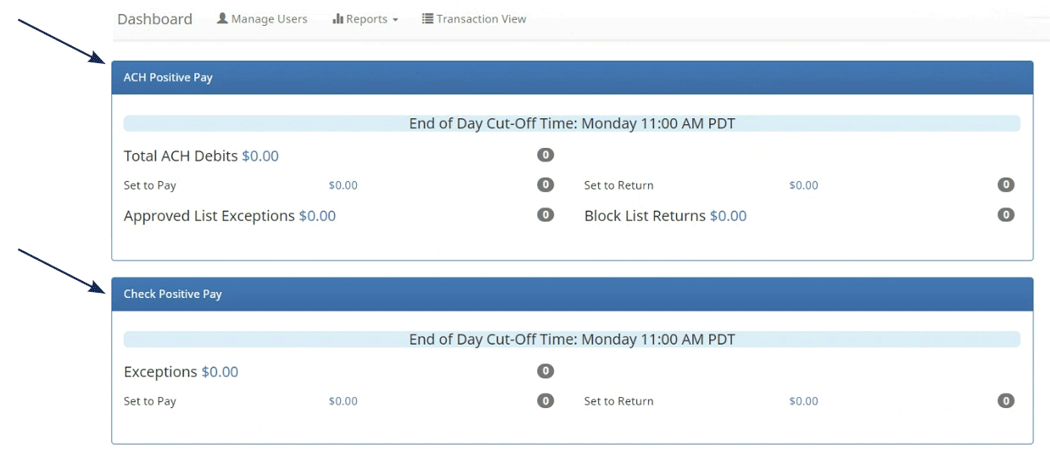
The daily cutoff time for processing exceptions is 11 am.
Processing Exceptions and Viewing Activity
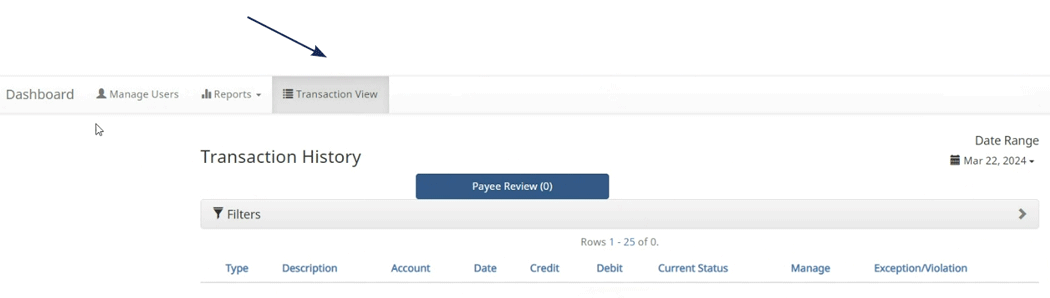
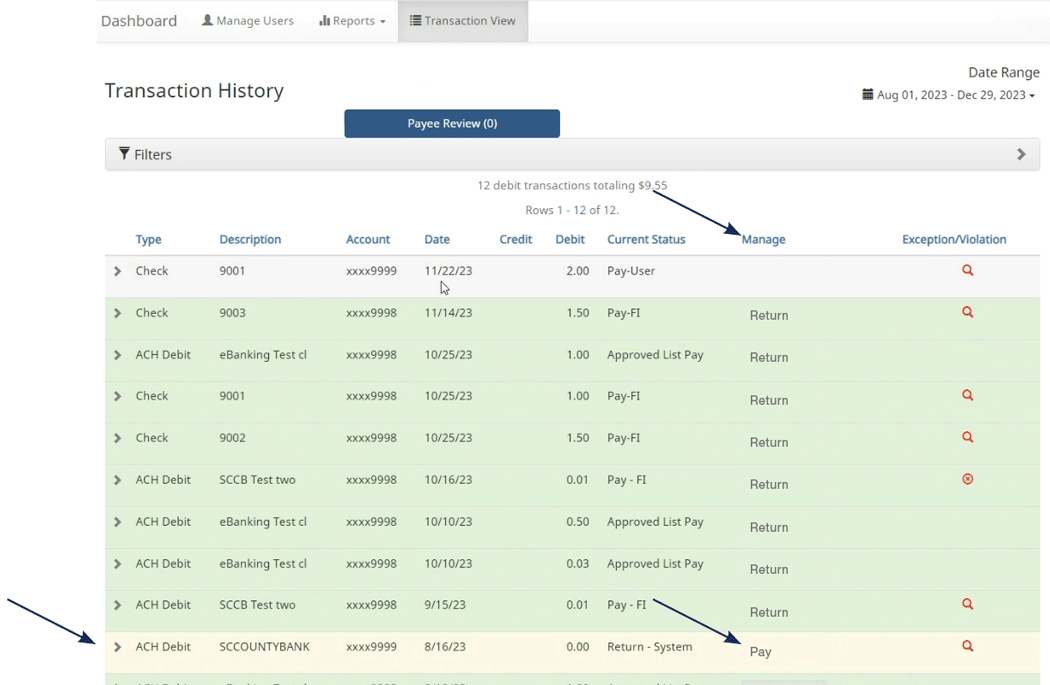


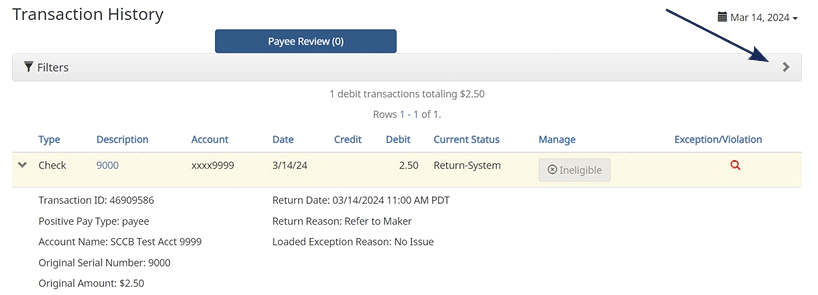
To change the return reason for a check, select the drop-down arrow on the left hand side, and then select the hyperlink under 'Return Reason'. Next, select the appropriate 'Return Reason'.
Common 'Check Exception' return reasons are:

ACH Exceptions
ACH Exceptions occur when an item does not meet the rules requirements.
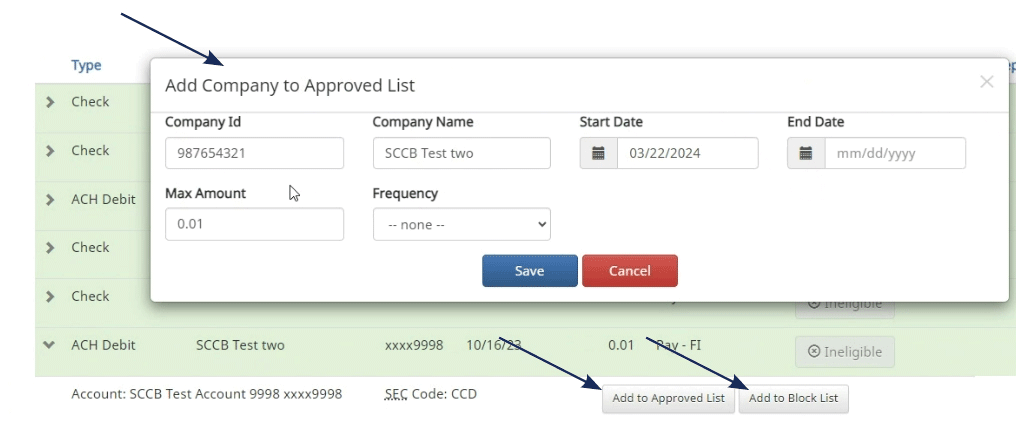
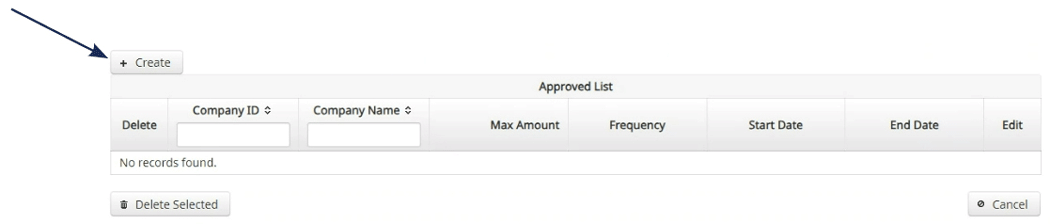
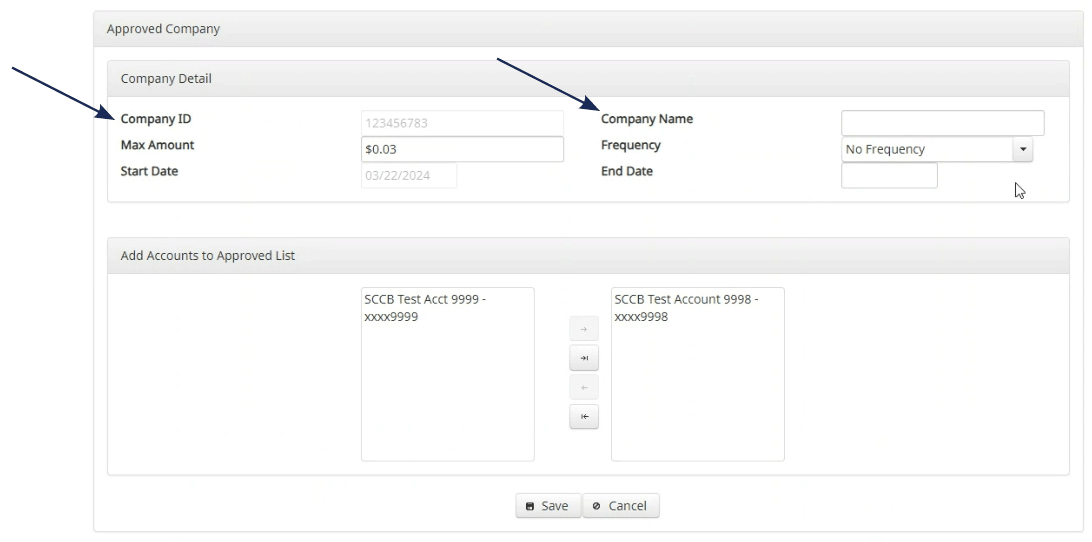
Steps for adding an approved list vendor are:
NOTE:
For instance, payroll would make one payment weekly,
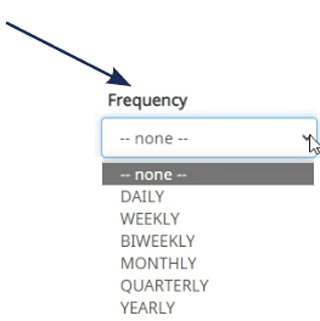
if set to weekly. Use this with caution.
Reports
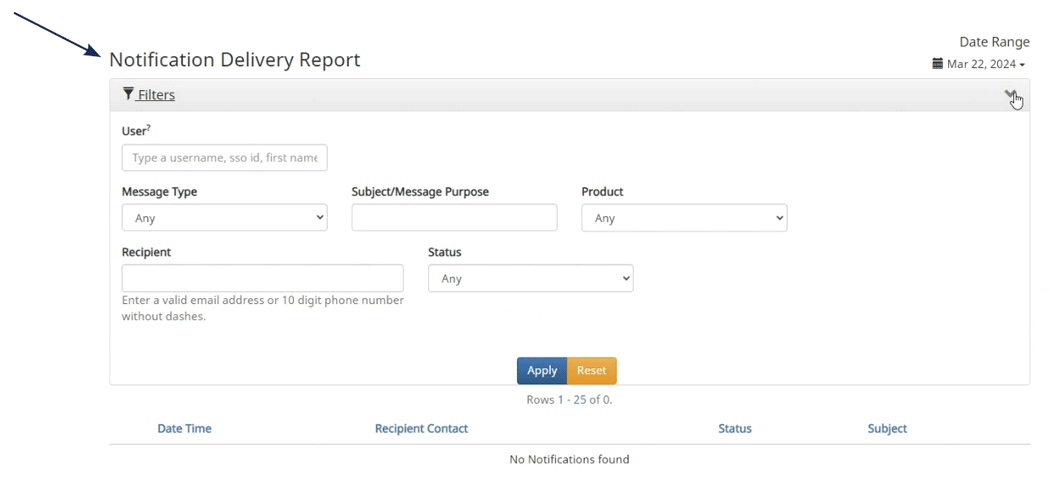
Manage Users
To use the 'Manage Users' feature please contact eBanking for assistance, [email protected], 831.600.4060.
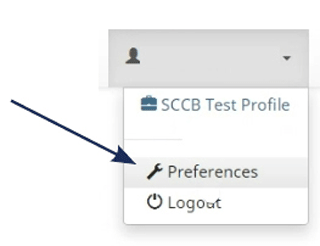
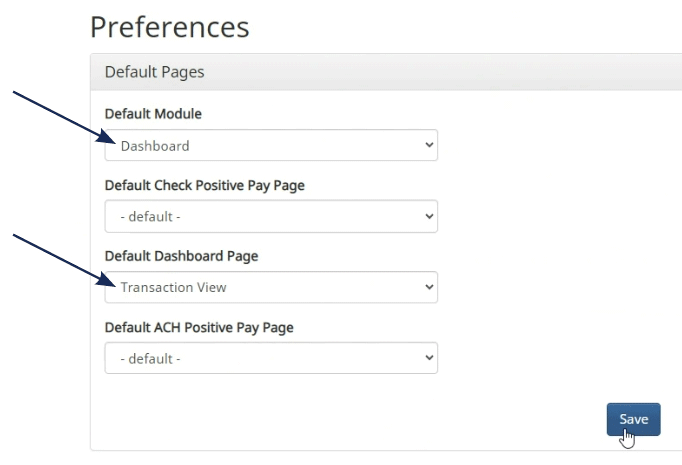
User Preferences
This section is used to customize a user's preferences in the system.
Hint:
To seamlessly navigate to the exception processing
screen when accessing the system do the following:
Modules
There is a specific module for 'ACH' and for 'Check Positive Pay'.
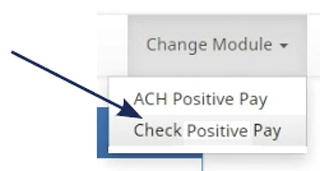
Change Module > ACH Positive Pay Manage > Notification Rules
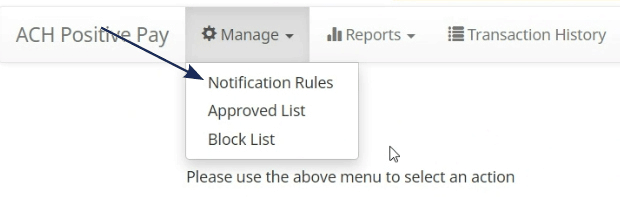
NOTE:
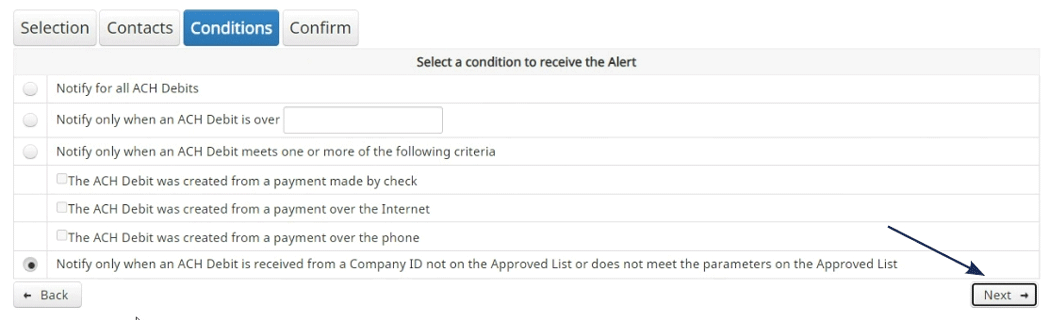
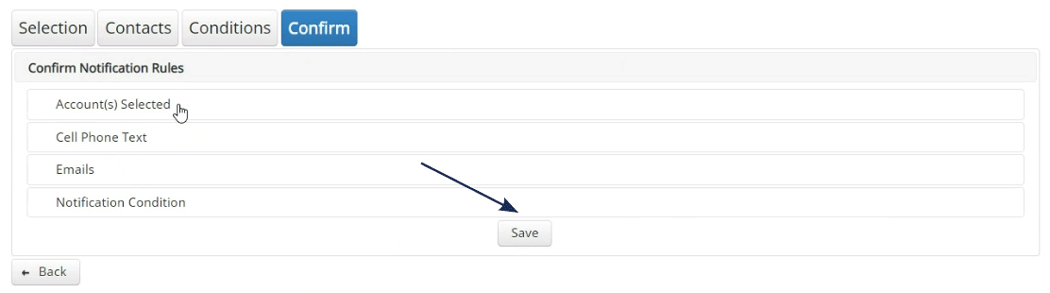
The tabs – Selection, Contacts, Conditions, Confirm
– are not clickable. Use the 'Next' button to navigate
through the screens.
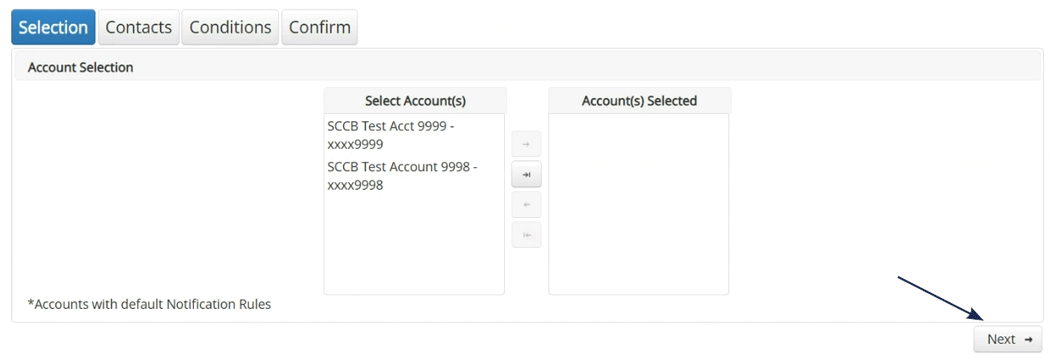
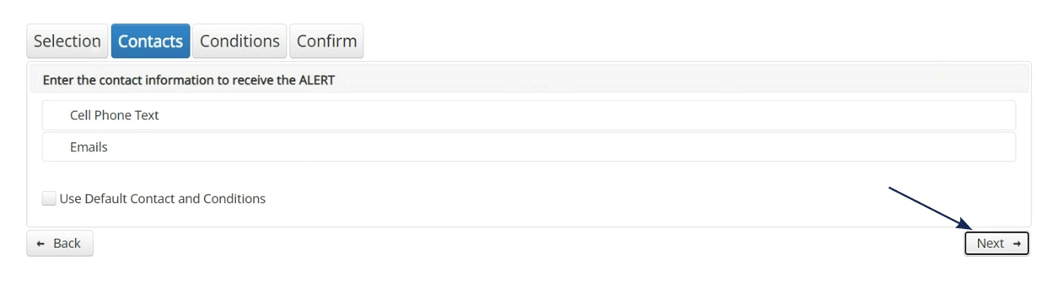
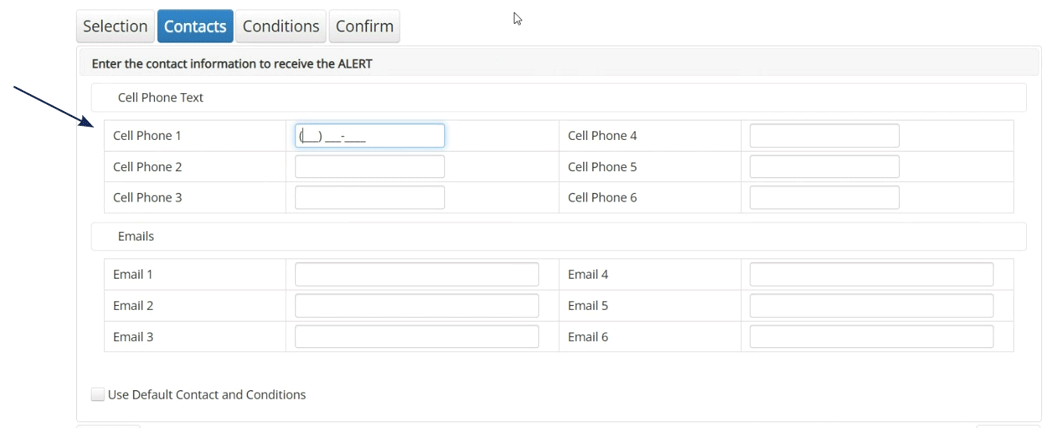
Notification Rules
This is used to setup users to be notified of exceptions.
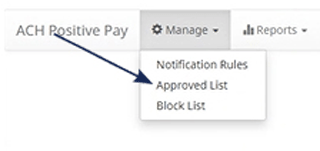
Manage > Approved List

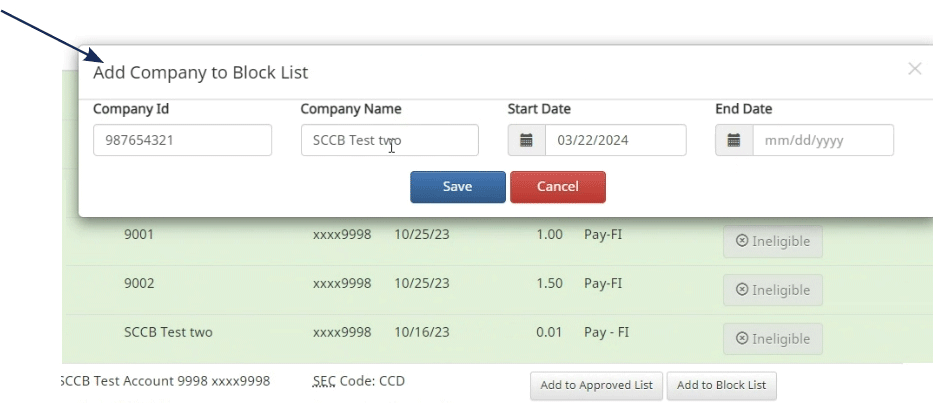
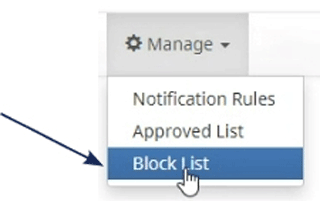
Manage > Block List

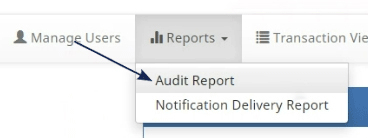
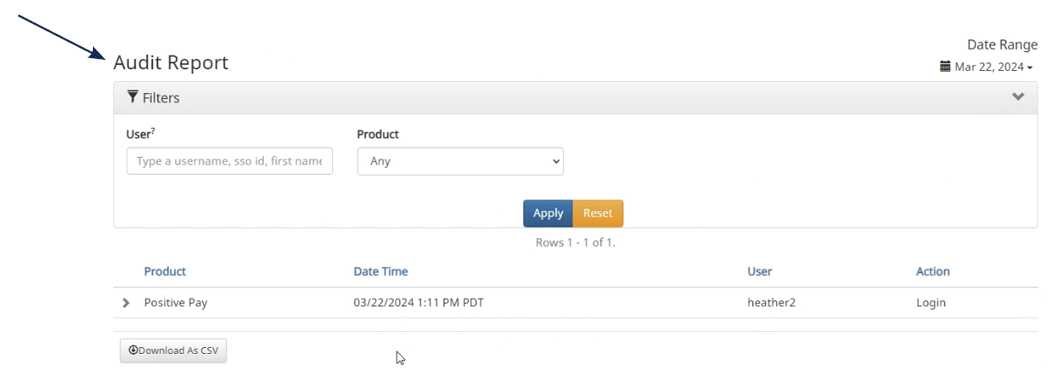
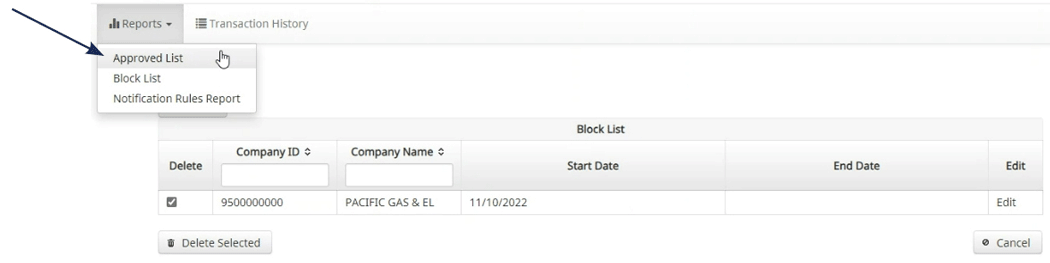
Reports
Reports available for the 'Approved List', 'Blocked List',
and notifications can be accessed through menu option
noted on the right.
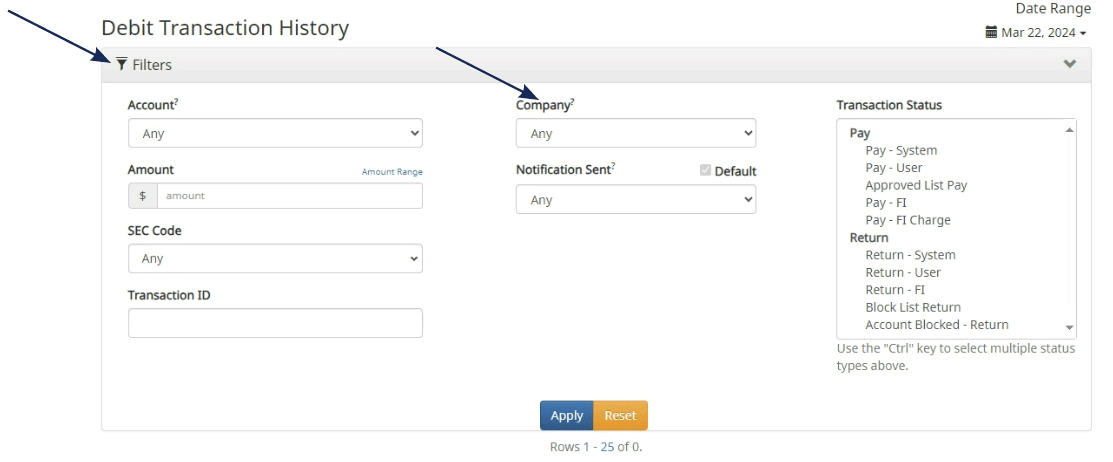
Transaction History
Use the available filters to view 'Debit Transaction' history.
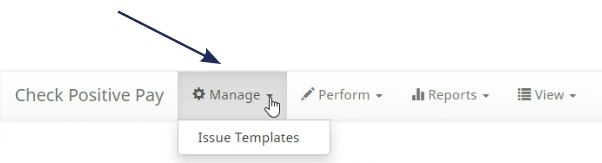
Change Module > Check Positive Pay Manage > Issue Templates
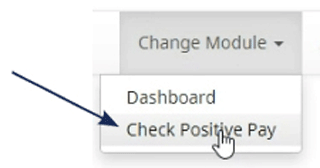
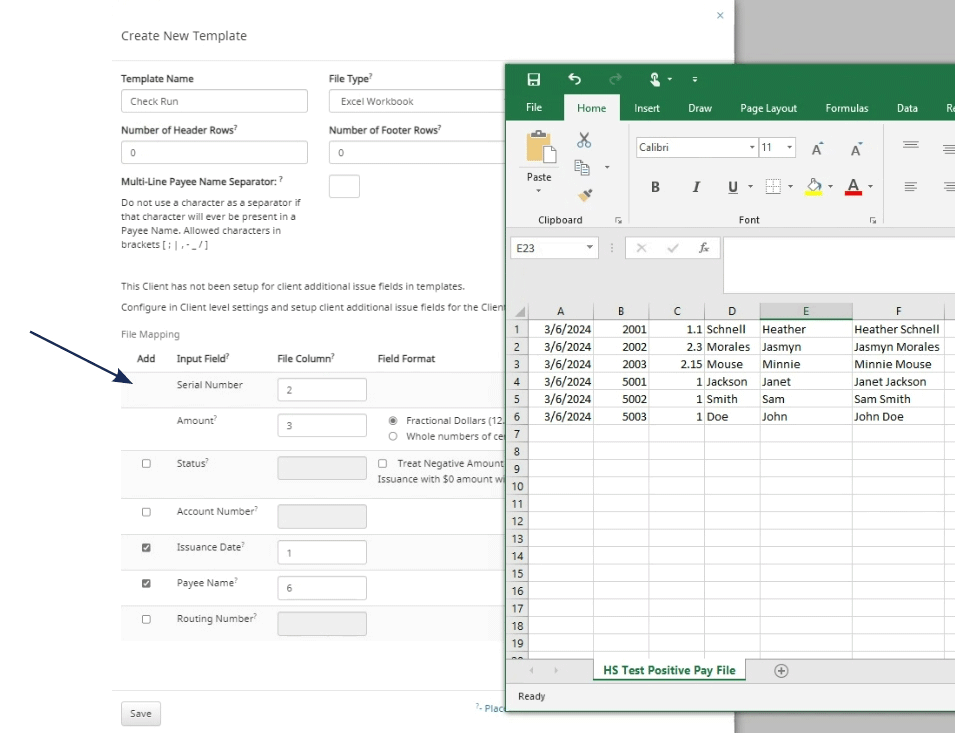
Issue Templates
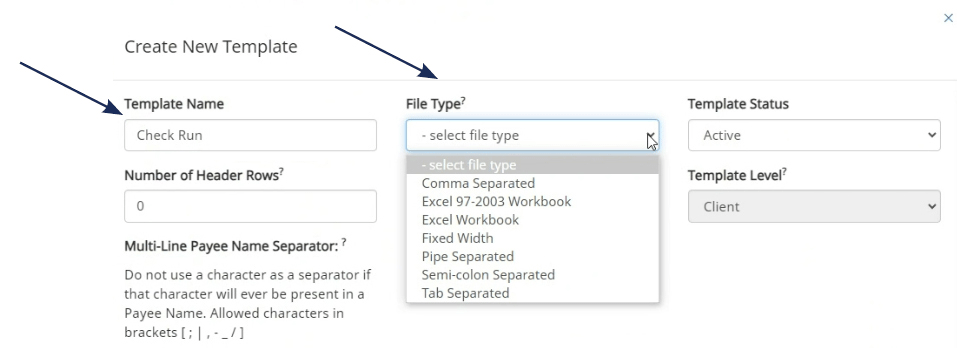
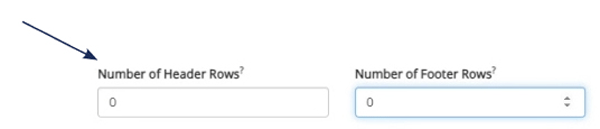
Use this page to create templates corresponding to the
format of your issue file.
NOTE:
Hover over question marks for additional information.

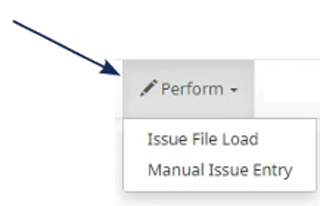
Perform
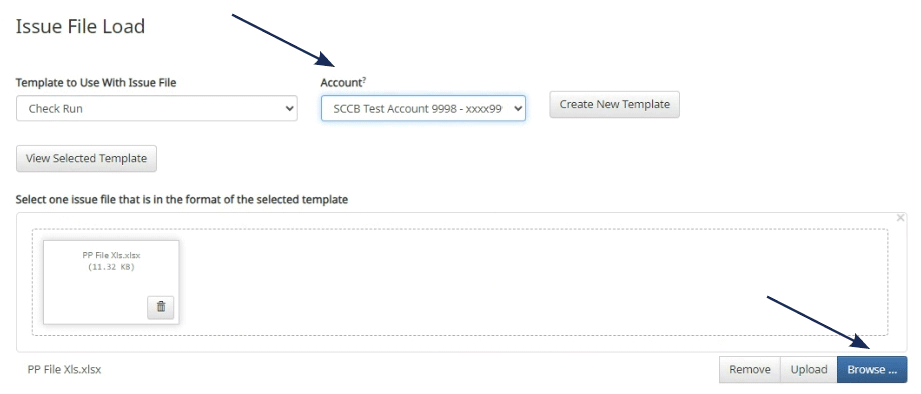
Issue File Load
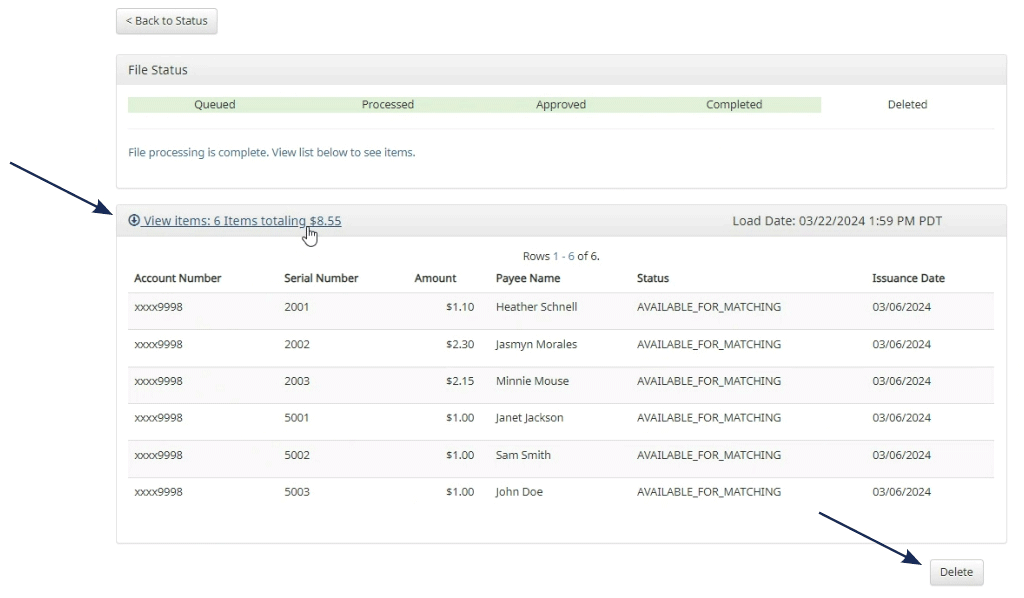
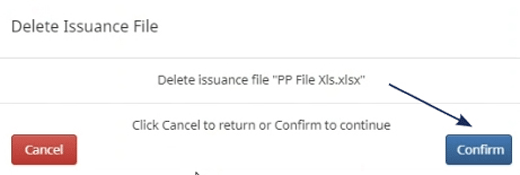
Use this feature to upload an issue file.
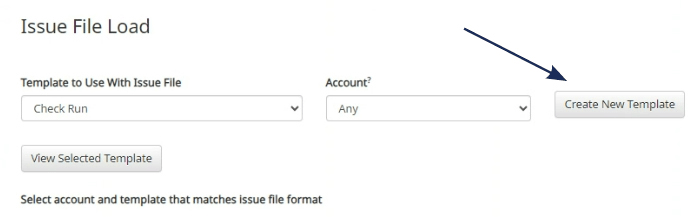
NOTE:
There is an option to click "Create new Template" to create a new template here.
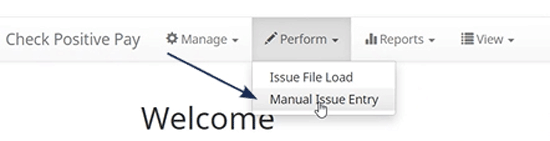
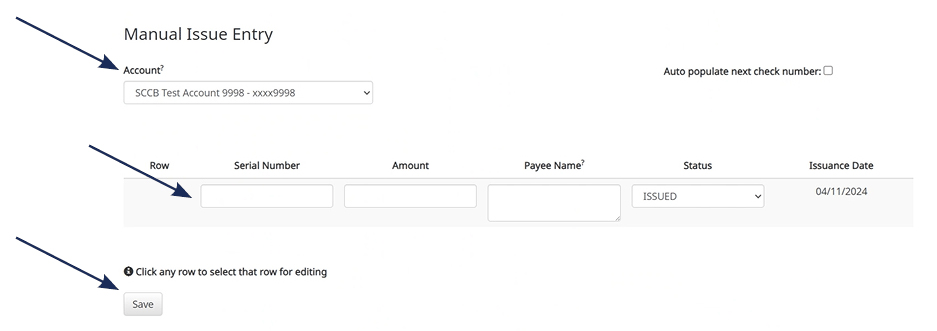
Manual Issue Entry
Reports
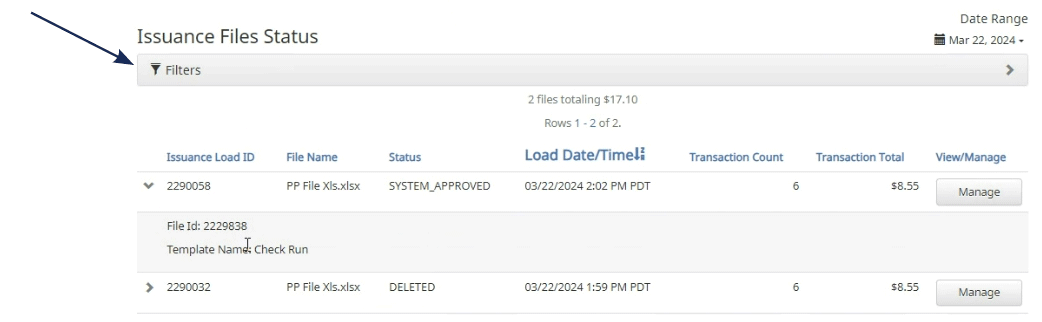
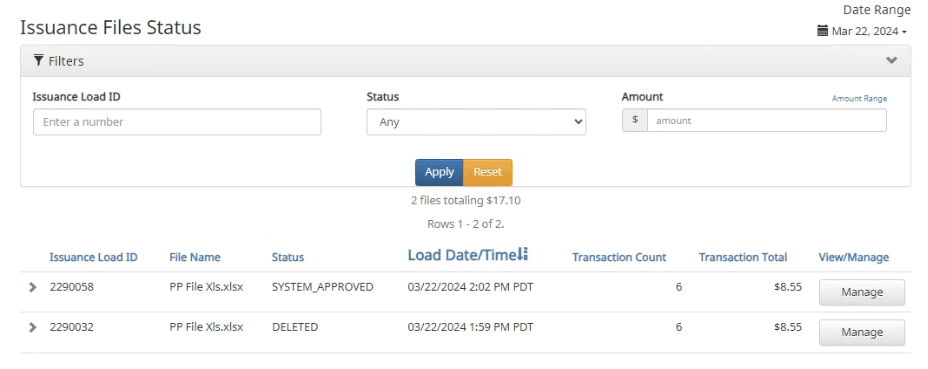
Issue Item Status
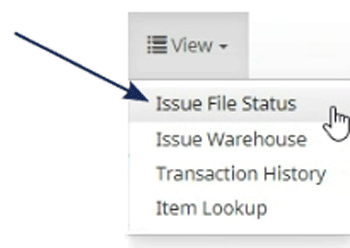
View
Issue Item Status
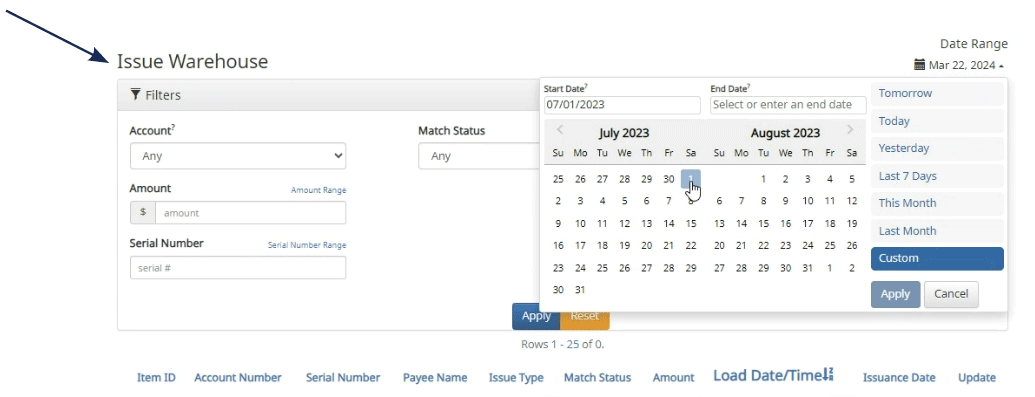
Issue Warehouse
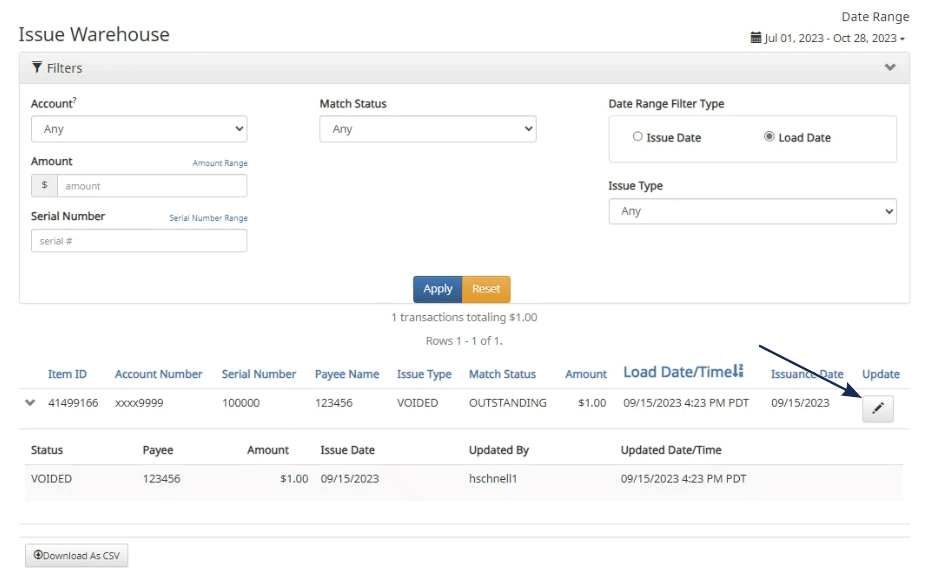
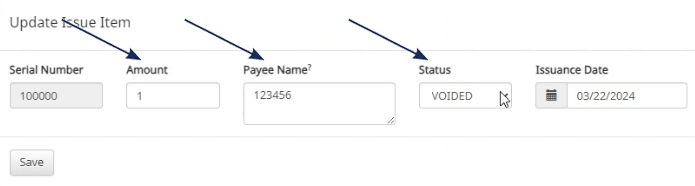
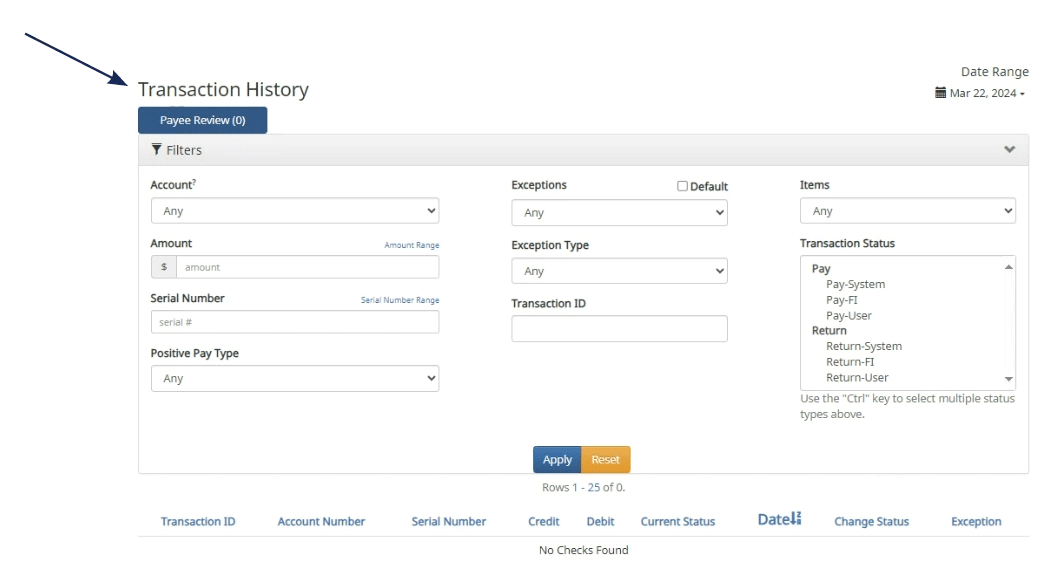
Transaction History
Item Lookup

User Setup and Template Guide
The User Setup page is used by the company administrator to manage users.
1. Select the 'Check & Deposits' menu and then 'Positive Pay'.
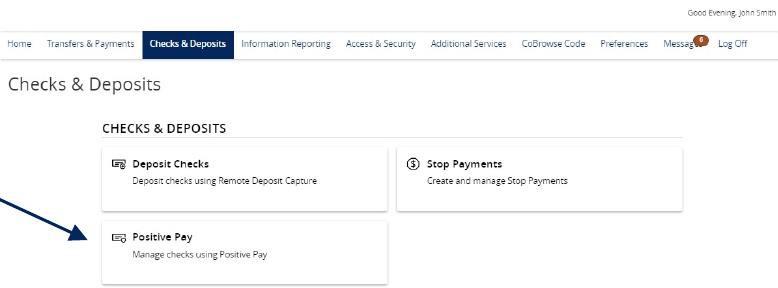
2. Under the New Client Setup menu, select 'User Setup (Client)'.
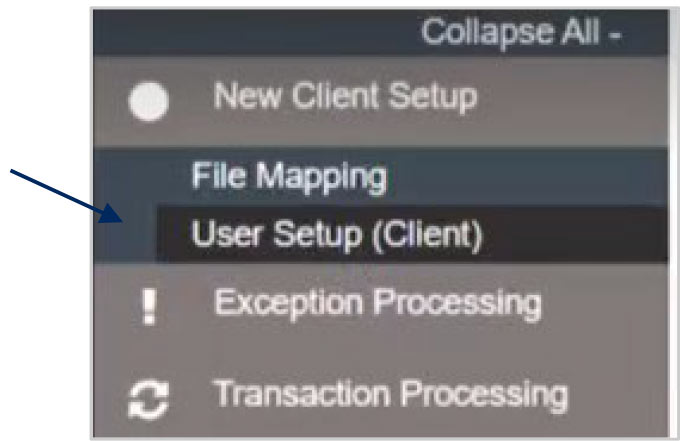
3. Click the 'Add New' button to set up a new user.
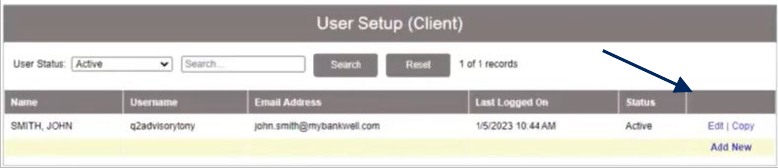
4. On the 'Contact Information' tab, complete all required fields on the screen which are designated with an asterisk.
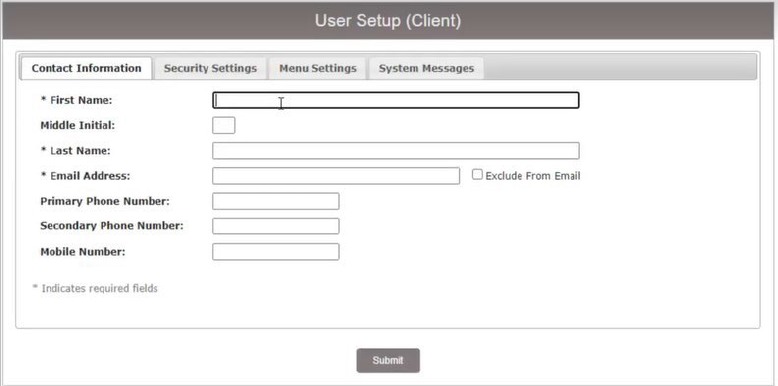
5. Click on the 'Security Settings' tab.
6. Enter the user's desired Username and default password.
7. Enter the password a second time for verification. The user will be requested to change their password upon initial login.
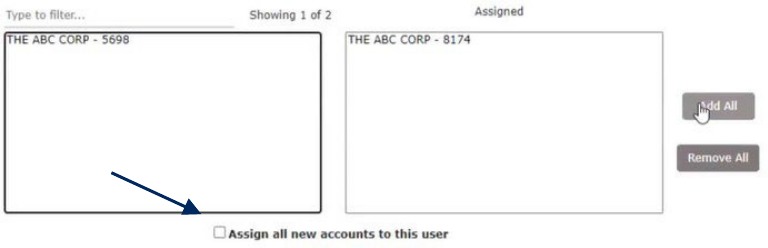
8. Select the accounts in the box on the left side of the screen the user should have access to. If the user should have access to all accounts, click the 'Add All' button.
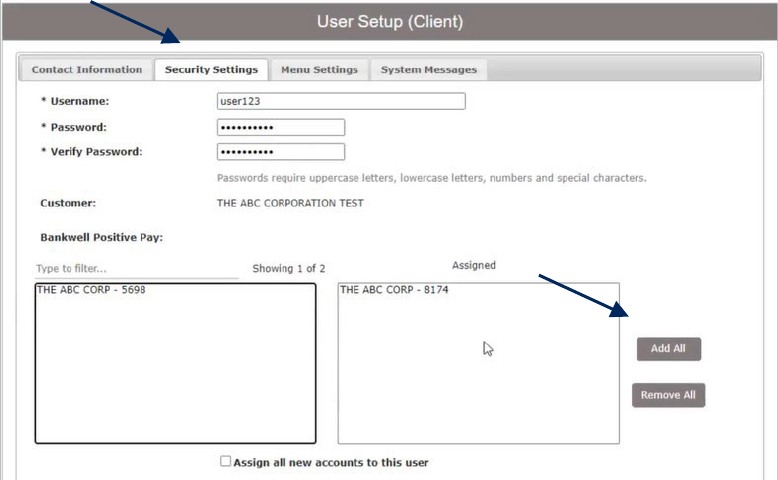
9. Click the 'Assign all new accounts to this user' option if the user should be automatically granted access to all new accounts opened by the company.
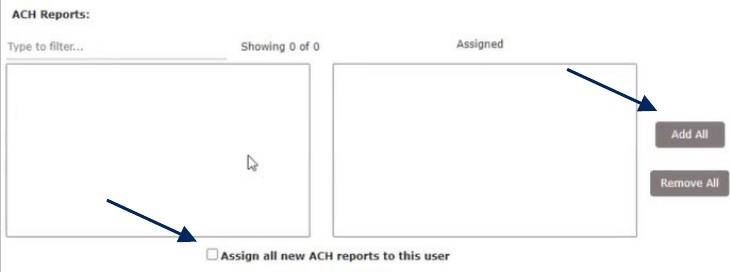
10. The ACH Reports section lists all available ACH Reporting Files.
11. Select the reports the user should have access to. Click the 'Add All' button, to add all reports.
12. Click the 'Assign all new ACH reports to this user' option if the user should be automatically granted access to all new ACH Reports created by the company.
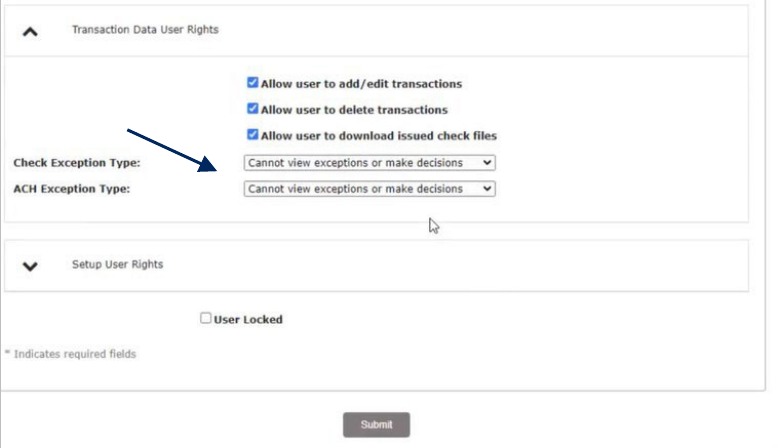
13. Click on 'Transaction Data User Rights' to expand the listing of rights available to assign to the user. Select all that apply.
14. 'Check Exception Type' specifies the user's permissions for check exceptions. Select the desired view option in the drop-down menu.
15. Repeat this action for the ACH Exception Type drop down.
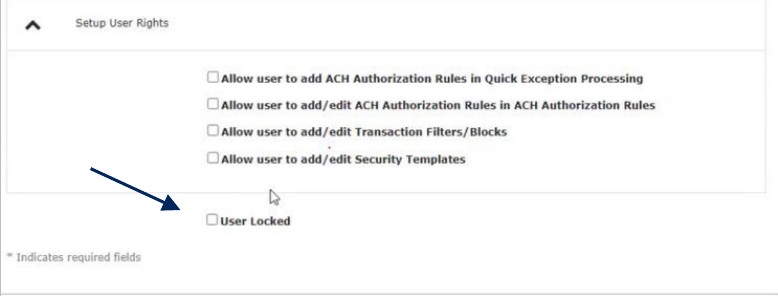
16. Click on 'Setup User Rights' to specify what rights should be available to the user.
17. Click 'User Locked' to lock the user record if the user should not be allowed to log into the system.
18. Click on the 'Menu Settings' menu.
19. Select the user security template the user should have access to.
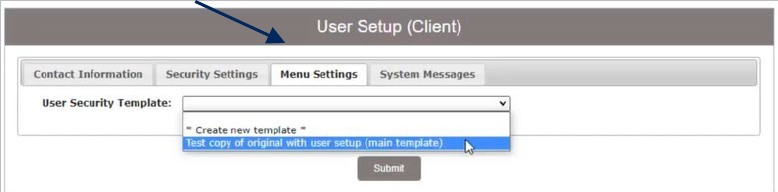
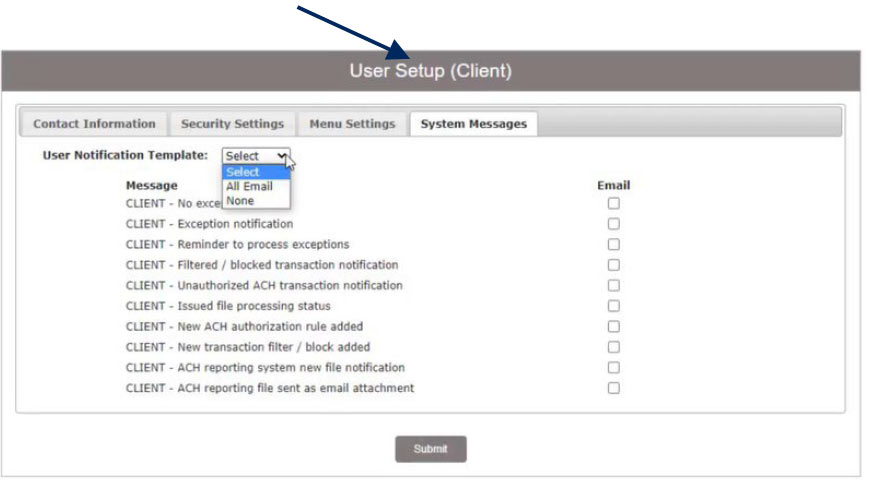
20. Click on the 'System Messages' menu to designate which notifications the user should receive.
21. Select an option from the drop-down menu beside 'User Notification Template' to quickly select all text or email notification options.
22. Click 'Submit' to complete the user setup process.
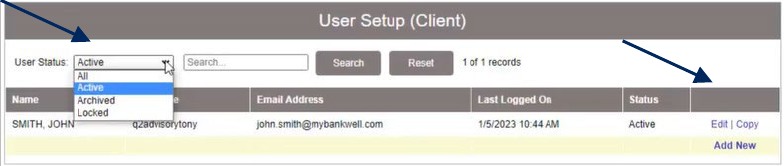
23. To search for an existing user, select the desired user status from the drop-down menu then click the Search button.
24. Click the 'Edit' button to edit an existing user, or 'Copy' to copy an existing user.
Here's what you can do now to facilitate an easier transition.
What's new and improved?
You can look forward to new and improved features and functionality, including:
What's staying the same?
You will experience no changes to the following:
Here's what you can do now to facilitate an easier transition.
What's new and improved?
You can look forward to new and improved features and functionality, including:
What's staying the same?
You will experience no changes to the following:

FOR OUR ONLINE AND MOBILE BANKING USERS, a new and improved digital banking experience is coming this fall ." Updating your contact information now will facilitate an easier transition.
Personal Banking
Update your contact information through online banking or by visiting your local branch.
Business Banking
Update your contact information by visiting your local branch or by contacting our eBanking team - 831.457.5000 I [email protected].
We will be communicating with you over the next few weeks to share important timeline details and FAQs to ensure a smooth online and mobile banking conversion for you and your business.
You've asked for upgrades and we're listening! Thanks to your feedback, we are delivering a new and improved digital banking experience this fall. Your new platform launches Tuesday, November 14, 2023.
To facilitate an easier transition, ensure your contact infonnation is up to date by reviewing and updating online or visiting your local branch.
What's new and improved?
You can look forward to new and improved features and functionality, including:
What's staying the same?
You will experience no changes; to the following:
We're here to help you every step of the way!
We will be communicating with you over the next several weeks to share
important timeline information and preparation tips to ensure a smooth online
and mobile banking transition.
Visit our FAQs and resources page to learn more about your new and improved digital banking experience and how you can prepare to use the new system. We look forward to delivering your new online and mobile banking experience on Tuesday, November 14, 2023.
You've asked for upgrades and were listening! Thanks to your feedback, we are delivering a new and improved digital banking experience this fall. Your new platform launches Tuesday, November 14, 2023.
To facilitate an easier transition, ensure your contact information is up to date by contacting our eBanking team - 831.457.5000, option 1, [email protected], or visiting your local branch.
What's new and improved?
You can look forward to new and improved features and functionality, including:
What's staying the same?
You will experience no changes to the following:
We're here to help you every step of the way!
We will be communicating with you over the next several weeks to share
important timeline information and preparation tips to ensure a smooth online
and mobile banking transition.
Visit our FAQs and resources page to learn more about your new and improved digital banking experience and how you can prepare to use the new system. We look forward to delivering your new online and mobile banking experience on Tuesday, November 14, 2023.
You've asked for upgrades and were listening! Thanks to your feedback, we are delivering a new and improved digital banking experience this fall. Your new platform launches Tuesday, November 14, 2023.
What's new and improved?
You can look forward to new and improved features and functionality, including:
What's staying the same?
You will experience no changes, to the following:
We're here to help you every step of the way!
We will be communicating with you over the next several weeks to share
important timeline information and preparation tips to ensure a smooth online
and mobile banking transition.
Visit our FAQs and resources page to learn more about your new and improved digital banking experience and how you can prepare to use the new system. We look forward to delivering your new online and mobile banking experience on Tuesday, November 14, 2023.
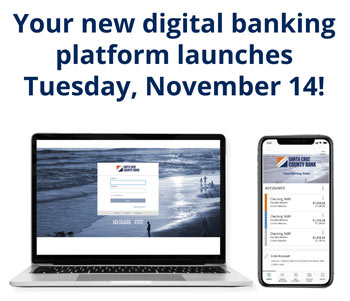
You asked for upgrades and we're listening!
IMPORTANT NOTICE: In order to bring the new digital banking platform online Tuesday, November 14, 2023, the current platform will go offline. Please prepare accordingly for downtimes prior to this important systems update by reading the information below and visiting our FAQs and resources page for periodic updates.
The following systems will be unavailable:
We're here to help you every step of the way!
We will be communicating with you over the next several weeks to share important timeline information and preparation tips to ensure a smooth online and mobile banking transition. We will have client support representatives available to assist you with all your account-related questions while our systems are temporarily offline, November 10-13, to prepare for the upgrade.
Should you have any questions before, during, and after the upgrade, please contact us.
831.457.5000, option 1, [email protected]
Take action now. Here are important steps to facilitate an easier transition
Ensure a smooth online and mobile banking transition on November 14, 2023, by following these simple steps:
What's new and improved?
You can look forward to new and improved features and functionality, including:
What’s staying the same?
You will experience no changes to the following:
Visit our FAQs and resources page to learn more about the new and improved digital banking experience and how you can prepare to use the new system. Your new online and mobile banking experience will be available Tuesday, November 14, 2023.
Please remember, West Coast Community Bank will never contact you to ask for your password or any other confidential information. If you receive an email, phone call, or text requesting personal information, contact us immediately at 831.457.5000.
You asked for upgrades and we're listening!
IMPORTANT NOTICE: In order to bring the new digital banking platform online Tuesday, November 14, 2023, the current platform will go offline. Please prepare accordingly for downtimes prior to this important systems update by reading the information below and visiting our FAQs and resources page for periodic updates.
The following systems will be unavailable:
We're here to help you every step of the way!
We will be communicating with you over the next several weeks to share important timeline information and preparation tips to ensure a smooth online and mobile banking transition. We will have client support representatives available to assist you with all your account-related questions while our systems are temporarily offline, November 10-13, to prepare for the upgrade.
Should you have any questions before, during, and after the upgrade, please contact us.
831.457.5000, option 1, [email protected]
Take action now. Here are important steps to facilitate an easier transition
Ensure a smooth online and mobile banking transition on November 14, 2023, by following these simple steps:
What's new and improved?
You can look forward to new and improved features and functionality, including:
What’s staying the same?
You will experience no changes to the following:
Visit our FAQs and resources page to learn more about the new and improved digital banking experience and how you can prepare to use the new system. Your new online and mobile banking experience will be available Tuesday, November 14, 2023.
Please remember, West Coast Community Bank will never contact you to ask for your password or any other confidential information. If you receive an email, phone call, or text requesting personal information, contact us immediately at 831.457.5000.
You asked for upgrades and we're listening!
IMPORTANT NOTICE: In order to bring the new digital banking platform online Tuesday, November 14, 2023, the current platform will go offline. Please prepare accordingly for downtimes prior to this important systems update by reading the information below and visiting our FAQs and resources page for periodic updates.
The following systems will be unavailable:
We're here to help you every step of the way!
We will be communicating with you over the next several weeks to share important timeline information and preparation tips to ensure a smooth online and mobile banking transition. We will have client support representatives available to assist you with all your account-related questions while our systems are temporarily offline, November 10-13, to prepare for the upgrade.
Should you have any questions before, during, and after the upgrade, please contact us.
831.457.5000, option 1, [email protected]
Take action now. Here are important steps to facilitate an easier transition
Ensure a smooth online and mobile banking transition on November 14, 2023, by following these simple steps:
What's new and improved?
You can look forward to new and improved features and functionality, including:
What’s staying the same?
You will experience no changes to the following:
Visit our FAQs and resources page to learn more about the new and improved digital banking experience and how you can prepare to use the new system. Your new online and mobile banking experience will be available Tuesday, November 14, 2023.
Please remember, West Coast Community Bank will never contact you to ask for your password or any other confidential information. If you receive an email, phone call, or text requesting personal information, contact us immediately at 831.457.5000.
We can't wait for you to see what we've been working on!
IMPORTANT NOTICE: In order to bring the new digital banking platform online Tuesday, November 14, 2023, the current platform will go offline. Please prepare accordingly for downtimes prior to this important systems update by reading the information below and visiting our FAQs and resources page for periodic updates.
Online and mobile banking will be offline Friday November 10 – Monday November 13.
Please note: We will provide "inquiry only" access for online and mobile banking starting Friday, November 10, while we migrate to the new system. Transactions such as bill payment, mobile deposit, funds transfers, and other transactions will temporarily be unavailable from Friday, November 10 – Monday, November 13.
We're here to help you every step of the way!
While we are enhancing our technology to improve your banking experience, we're here to provide the personalized support you expect from us.
Should you need us, we are only an email or phone call away. We will have client support representatives available to assist you with all your account-related questions during the system upgrade.
831.457.5000, option 1, [email protected]
Take action now. Here are important steps to facilitate an easier transition.
Ensure a smooth online and mobile banking transition on November 14, 2023, by following these simple steps:
Mobile App Operating Systems |
|
|---|---|
| Android 9.x and later | Supported |
| Android 8.x | Limited Support |
| iOS 15.x and later | Supported |
| iOS 14.x | Limited Support |
| WatchOS 8.x and later | Supported |
| WatchOS 7.x | Limited Support |
What's new and improved?
You can look forward to new and improved features and functionality, including:
What’s staying the same?
You will experience no changes to the following:
Visit our FAQs and resources page to learn more about the new and improved digital banking experience and how you can prepare to use the new system. Your new online and mobile banking experience will be available Tuesday, November 14, 2023.
Please remember, West Coast Community Bank will never contact you to ask for your password or any other confidential information. If you receive an email, phone call, or text requesting personal information, contact us immediately at 831.457.5000.
We can't wait for you to see what we've been working on!
IMPORTANT NOTICE: In order to bring the new digital banking platform online Tuesday, November 14, 2023, the current platform will go offline. Please prepare accordingly for downtimes prior to this important systems update by reading the information below and visiting our FAQs and resources page for periodic updates.
The following systems will be offline Friday, November 10 – Monday, November 13:
We're here to help you every step of the way!
While we are enhancing our technology to improve your banking experience, we're here to provide the personalized support you expect from us. Should you need us, we are only an email or phone call away. We will have client support representatives available to assist you with all your account-related questions during the system upgrade. 831.457.5000, option 1, [email protected]
Take action now. Here are important steps to facilitate an easier transition
Ensure a smooth online and mobile banking transition on November 14, 2023, by following these simple steps:
Mobile App Operating Systems |
|
|---|---|
| Android 9.x and later | Supported |
| Android 8.x | Limited Support |
| iOS 15.x and later | Supported |
| iOS 14.x | Limited Support |
| WatchOS 8.x and later | Supported |
| WatchOS 7.x | Limited Support |
What's new and improved?
You can look forward to new and improved features and functionality, including:
What’s staying the same?
You will experience no changes to the following:
Visit our FAQs and resources page to learn more about the new and improved digital banking experience and how you can prepare to use the new system. Your new online and mobile banking experience will be available Tuesday, November 14, 2023.
Please remember, West Coast Community Bank will never contact you to ask for your password or any other confidential information. If you receive an email, phone call, or text requesting personal information, contact us immediately at 831.457.5000.
We can't wait for you to see what we've been working on!
IMPORTANT NOTICE: In order to bring the new digital banking platform online Tuesday, November 14, 2023, the current platform will go offline. Please prepare accordingly for downtimes prior to this important systems update by reading the information below and visiting our FAQs and resources page for periodic updates.
The following systems will be offline Friday, November 10 – Monday, November 13:
We're here to help you every step of the way!
While we are enhancing our technology to improve your banking experience, we're here to provide the personalized support you expect from us. Should you need us, we are only an email or phone call away. We will have client support representatives available to assist you with all your account-related questions during the system upgrade. 831.457.5000, option 1, [email protected]
Take action now. Here are important steps to facilitate an easier transition.
Ensure a smooth online and mobile banking transition on November 14, 2023, by following these simple steps:
Mobile App Operating Systems |
|
|---|---|
| Android 9.x and later | Supported |
| Android 8.x | Limited Support |
| iOS 15.x and later | Supported |
| iOS 14.x | Limited Support |
| WatchOS 8.x and later | Supported |
| WatchOS 7.x | Limited Support |
What's new and improved?
You can look forward to new and improved features and functionality, including:
What’s staying the same?
You will experience no changes to the following:
Visit our FAQs and resources page to learn more about the new and improved digital banking experience and how you can prepare to use the new system. Your new online and mobile banking experience will be available Tuesday, November 14, 2023.
Please remember, West Coast Community Bank will never contact you to ask for your password or any other confidential information. If you receive an email, phone call, or text requesting personal information, contact us immediately at 831.457.5000.
New digital banking begins November 14.
REMINDER: In order to bring the new digital banking platform online Tuesday, November 14, 8am Pacific Standard Time (PST), online and mobile banking will be offline Friday, November 10 – Monday, November 13.
| The following systems will go offline Friday, Nov 10. 6am PST 3pm PST |
|
|---|---|
|
|
Please note: We will provide "inquiry only" access for online and mobile banking starting Friday, November 10, while we migrate to the new system. Transactions such as bill payment, mobile deposit, funds transfers, and other transactions will temporarily be unavailable from Friday, November 10 – Monday, November 13.
We're here to help you every step of the way!
We will have extended client support representatives available by phone before, during, and after the system upgrade.
Prior to Friday, November 10, take these important final steps to prepare for an easier transition.
1. Update your browser to the most recent version of Google Chrome, Mozilla Firefox, Apple Safari, or Microsoft Edge.
2. Locate your current login ID and password to enter manually during your initial login to the new online and mobile applications.
3. If you use Quicken or other third-party software, visit the Quick Reference Guides on our FAQs and resources page for instructions and important dates.
4. Find additional instructions, guides, and communications on our FAQs and resource page.
On November 14, refer to the First Day Online Banking Checklist on our FAQs and resource page while you're exploring the new and exciting features the system has to offer.

If you are a mobile banking user:
This instructional email is one in a series of communications we have sent to our valued online and mobile banking users. Please visit our FAQs and resource page for previous communications or check your email folders.
Please remember, West Coast Community Bank will never contact you to ask for your password or any other confidential information. If you receive an email, phone call, or text requesting personal information, contact us immediately at 831.457.5000.
New digital banking begins November 14.
REMINDER: In order to bring the new digital banking platform online Tuesday, November 14, 8am Pacific Standard Time (PST), online and mobile banking will be offline Friday, November 10 – Monday, November 13.
| The following systems will go offline Friday, Nov 10. 6am PST 3pm PST |
|
|---|---|
|
|
We're here to help you every step of the way!
We will have extended client support representatives available by phone before, during, and after the system upgrade.
Prior to Friday, November 10, take important final steps to prepare for an easier transition.
1. Update your browser to the most recent version of Google Chrome, Mozilla Firefox, Apple Safari, or Microsoft Edge.
2. Locate your current login ID and password to enter manually during your initial login to the new online and mobile applications.
3. If you use QuickBooks, Quicken, or other third-party software, visit the Quick Reference Guides on our FAQs and resources page for instructions and important dates.
4. Find additional instructions, guides, and communications on our FAQs and resource page.
On November 14, refer to the First Day Online Banking Checklist on our FAQs and resource page while you're exploring the new and exciting features the system has to offer.
If you are a mobile banking user:
This instructional email is one in a series of communications we have sent to our valued online and mobile banking users. Please visit our FAQs and resource page for previous communications or check your email folders.
Please remember, West Coast Community Bank will never contact you to ask for your password or any other confidential information. If you receive an email, phone call, or text requesting personal information, contact us immediately at 831.457.5000.
New digital banking begins November 14.
REMINDER: In order to bring the new digital banking platform online Tuesday, November 14, 8am Pacific Standard Time (PST), online and mobile banking will be offline Friday, November 10 – Monday, November 13.
Personal UsersThe following systems will go offline Friday, Nov 10. 6am PST 3pm PST |
|
|---|---|
|
|
Business UsersThe following systems will go offline Friday, Nov 10. 6am PST 3pm PST |
|
|---|---|
|
|
Please note:
Personal banking will have "inquiry only" access for online and mobile banking starting Friday, November 10.
Transactions such as bill payment, mobile deposit, funds transfers, and other transactions will temporarily be unavailable from Friday, November 10 – Monday, November 13.
Business banking will be completely offline during the times noted.
We're here to help you every step of the way!
We will have extended client support representatives available by phone before, during, and after the system upgrade.
Prior to Friday, November 10, take important final steps to prepare for an easier transition.
1. Update your browser to the most recent version of Google Chrome, Mozilla Firefox, Apple Safari, or Microsoft Edge.
2. Locate your current login ID and password to enter manually during your initial login to the new online and mobile applications.
3. If you use QuickBooks, Quicken, or other third-party software, visit the Quick Reference Guides on our FAQs and resources page for instructions and important dates.
4. Find additional instructions, guides, and communications on our FAQs and resource page.
On November 14, refer to the First Day Online Banking Checklist on our FAQs and resource page while you're exploring the new and exciting features the system has to offer.
If you are a personal and business mobile banking app user, please visit our FAQs and resource page for very important information on what to expect on November 14. Your experience will vary depending on your mobile device. Login ID and password are the same for online and mobile banking.
This instructional email is one in a series of communications we have sent to our valued online and mobile banking users. Please visit our FAQs and resource page for previous communications or check your email folders.
Please remember, West Coast Community Bank will never contact you to ask for your password or any other confidential information. If you receive an email, phone call, or text requesting personal information, contact us immediately at 831.457.5000.
Please pay close attention to this email if you use scheduled/recurring ACH or wire payments.
As you know, we're currently in the process of upgrading and delivering your new online & mobile banking experience, which launches on Tuesday, November 14. As a wire and/or ACH originator, we have one additional step we'd like to bring to your attention.
We are pleased to confirm that your wire and ACH templates and recipients will be available for you in the new system on Tuesday, November 14. Please note that if any of your templates and/or recipients were previously set for recurring, scheduled, or future dated payments, those schedules will not migrate over to the new system. Once you have logged in to the new system, you are welcome to reestablish your schedules or contact us and we will be happy to do this for you.
We're here to help!
If you need assistance setting up recurring payments in the new system (after
November 14), contact us at 831.457.5000, ext. 1889 or email
[email protected].
For general inquiries, online and mobile banking support, please contact 831.457.5000, option 1.
This instructional email is one in a series of communications we have sent to our valued online and mobile banking users. Please visit our Online & Mobile Banking FAQs and resource page for previous communications or check your email folders.
Please remember, West Coast Community Bank will never contact you to ask for your password or any other confidential information. If you receive an email, phone call, or text requesting personal information, contact us immediately at 831.457.5000.